Do Wifis Have Ip Addresses And How To Find Yours Fast
Yes, every wifi network has an ip address that helps devices connect to the internet. Your router assigns a local ip address to each device, while your internet service provider gives your network a public ip address. In this guide, we show you exactly how to find your wifi ip address in just a few steps.
Do wifis have ip addresses? The short answer is yes. Every single wifi network you connect to has at least one ip address. And guess what? Your devices get their own too. If you have ever wondered how your phone, laptop, or tablet finds the internet through your wireless router, the answer is simple. It all starts with an ip address.
Think of an ip address like a mailing address for your devices. Just like the post office needs your address to deliver a letter, the internet needs an ip address to send data to the right place. Without it, your wifi connection would not work. Period.
In this article, we will break down everything you need to know about wifi ip addresses. You will learn what they are, how they work, and most importantly, how to find yours fast. Whether you are a total beginner or someone who just wants a quick refresher, this guide has you covered. Let us dive in.
Key Takeaways
- Every wifi network has an ip address: Both your router and your devices get assigned unique ip addresses.
- Public vs private ip addresses work together: Your public ip address is what the internet sees, while private ip addresses stay local.
- Finding your ip address is easy: You can check it on Windows, Mac, phone, or router in under two minutes.
- Your ip address reveals limited info: It shows your general location and internet provider but not your exact address.
- You can change your ip address: Restarting your router or using a VPN are simple ways to switch it up.
- Protect your network: Use strong passwords and keep your router firmware updated to stay safe online.
📑 Table of Contents
- What Is an Ip Address and Why Does Your Wifi Need One?
- How to Find Your Wifi Ip Address on Windows
- How to Find Your Wifi Ip Address on Mac
- How to Find Your Wifi Ip Address on Your Phone
- How to Find Your Router Ip Address (Default Gateway)
- Can You Change Your Wifi Ip Address?
- Why Your Ip Address Matters for Security
- Common Mistakes People Make With Ip Addresses
- Do All Devices on Wifi Have Different Ip Addresses?
- What About Ip Addresses and Wifi Calling?
- How to Find Your Ip Address Using Online Tools
- What Is an Ip Address Lookup and Why Use One?
- Ip Address Versions: Ipv4 vs Ipv6
- Final Thoughts
What Is an Ip Address and Why Does Your Wifi Need One?
An ip address stands for Internet Protocol address. It is a unique string of numbers that identifies your device on a network. Every device that connects to the internet needs one. Think of it as your digital ID card.
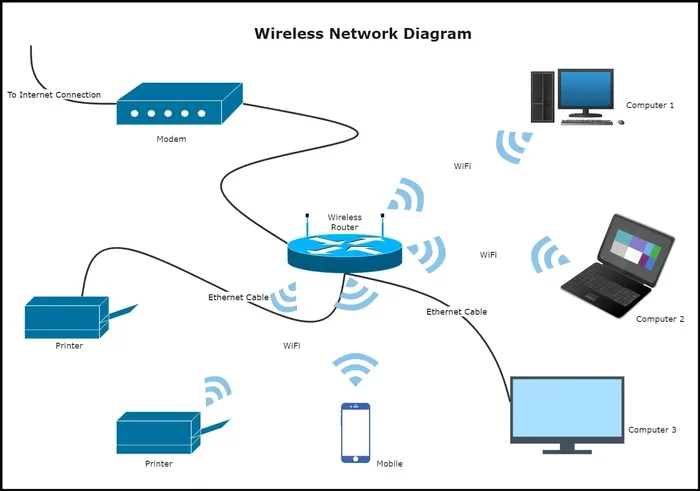
When you connect to a wifi network, your router gives your device a local ip address. This address lets your router know where to send the data you request. At the same time, your router has its own public ip address that the outside world sees.
How Ip Addresses Work on Wifi Networks
Here is how it works in plain language. You connect your laptop to your home wireless router. The router hands your laptop a local ip address, usually something like 192.168.1.5. When you visit a website, your laptop sends a request using that local address. Your router then forwards the request to the internet using its public ip address. The website sends data back to your router, and your router passes it to your laptop.
It is like a mailroom in an office building. Your laptop is a worker inside the building. The router is the mailroom. The public ip address is the building’s street address. The local ip address is the worker’s desk number. Everything works together to get the right mail to the right person.
Public vs Private Ip Addresses
There are two main types of ip addresses you need to know:
- Public ip address: This is the address your internet service provider (ISP) assigns to your router. It is what websites and online services see when you visit them.
- Private ip address: This is the address your router assigns to each device on your local network. It stays inside your home and is not visible to the outside world.
Both types are essential. Without a public ip address, your router cannot communicate with the internet. Without private ip addresses, your devices cannot talk to each other or to the router.
How to Find Your Wifi Ip Address on Windows
Finding your ip address on Windows is super quick. You do not need to be a tech expert. Here are two simple methods that work on Windows 10 and Windows 11.
Method 1: Use the Settings App
- Click the Start menu and open Settings.
- Go to Network and Internet.
- Click on Wi-Fi in the left menu.
- Click on your connected network.
- Look for the IPv4 Address line. That is your local ip address.
That is it. You just found your wifi ip address in about 30 seconds.
Method 2: Use the Command Prompt
Prefer a faster way? Use the Command Prompt.
- Press the Windows key and type “cmd”.
- Open Command Prompt.
- Type ipconfig and press Enter.
- Look for the line that says IPv4 Address. That is your ip configuration for the wifi network.
Quick Tip: If you see multiple network adapters, look for the one labeled “Wireless LAN Adapter” or “Wi-Fi.” That is the one connected to your wifi network.
How to Find Your Wifi Ip Address on Mac
Mac users, do not worry. Finding your ip address on Mac is just as easy. Here is how to do it.
Using System Preferences
- Click the Apple menu in the top-left corner.
- Select System Preferences (or System Settings on newer Macs).
- Click on Network.
- Select Wi-Fi from the left sidebar.
- Your ip address will show on the right side, next to “Status.”
Using Terminal
Want the quick route? Open Terminal and type ifconfig. Look for the en0 section. Your ip address will be listed there under inet.
Whether you use Windows or Mac, the process is straightforward. You should be able to find your device ip address in under a minute.
How to Find Your Wifi Ip Address on Your Phone
Your phone connects to wifi too, and it has its own ip address. Here is how to find it on both Android and iPhone.
On Android
- Go to Settings.
- Tap on Network and Internet (or Connections on some phones).
- Tap on Wi-Fi.
- Tap on the network you are connected to.
- Look for the IP Address field.
On iPhone
- Open Settings.
- Tap on Wi-Fi.
- Tap the (i) icon next to your connected network.
- Scroll down to find your IP Address.
Now you know how to check your wifi ip address on any device. Pretty handy, right?
How to Find Your Router Ip Address (Default Gateway)
Sometimes you need to find your router’s ip address, not your device’s. This is called the default gateway. It is the address you type into your browser to access your router settings.
On Windows
Open Command Prompt and type ipconfig. Look for the Default Gateway line. That number is your router’s ip address. Type it into your browser’s address bar to log in.
On Mac
Go to System Preferences, then Network, then Wi-Fi, then Advanced. Click the TCP/IP tab. The Router field shows your router ip address.
On Any Device
Most routers also have a sticker on the bottom or back. It usually lists the default gateway ip address, along with the default username and password.
Expert Insight: The most common router ip addresses are 192.168.1.1 and 192.168.0.1. If those do not work, check your router’s manual or the sticker on the device.
Can You Change Your Wifi Ip Address?
Yes, you can. There are a few reasons you might want to do this. Maybe you are troubleshooting a connection issue. Or maybe you want more privacy online. Either way, changing your ip address is possible.
Method 1: Restart Your Router
The simplest way to get a new ip address is to restart your router. Unplug it, wait 30 seconds, and plug it back in. Your internet service provider will often assign you a new public ip address when the router reconnects.
Method 2: Use a VPN
A VPN (Virtual Private Network) hides your real ip address and replaces it with one from a server in another location. This is great for privacy and for accessing content that might be restricted in your area.
Method 3: Release and Renew Your Ip Address
On Windows, you can release and renew your local ip address using Command Prompt:
- Type ipconfig /release and press Enter.
- Type ipconfig /renew and press Enter.
- Your device will get a new local ip address from the router.
Keep in mind that this only changes your private ip address. It does not change your public ip address. For that, you need to restart your router or use a VPN.
Why Your Ip Address Matters for Security
Your ip address might seem like just a bunch of numbers, but it carries more importance than you might think. It can reveal your general location and your internet service provider. While it does not show your exact home address, it is still good practice to protect it.
Simple Steps to Protect Your Ip Address
- Use a strong wifi password: Always use WPA3 or WPA2 encryption on your wireless router. Never leave your network open.
- Keep your router firmware updated: Manufacturers release updates that fix security holes. Check for updates regularly.
- Use a VPN: A VPN encrypts your internet traffic and masks your public ip address from prying eyes.
- Disable remote management: Turn off remote access to your router unless you need it.
- Change default login credentials: Most routers come with generic usernames and passwords. Change them to something unique.
Following these steps keeps your local network safe and your data secure. It takes just a few minutes and gives you peace of mind.
Common Mistakes People Make With Ip Addresses
There are a few mistakes that people make when dealing with ip addresses on their wifi networks. Here are some to watch out for.
Confusing Public and Private Ip Addresses
Many people think their device ip address is the same as their router ip address. It is not. Your device has a private address, and your router has a public address. They serve different purposes.
Sharing Your Ip Address Carelessly
Your private ip address is safe to share within your household. But you should never share your public ip address on social media or with strangers. It can be used to track your general location or target your network.
Ignoring Ip Address Conflicts
Sometimes two devices on the same network end up with the same ip address. This causes an ip conflict, and one or both devices lose internet access. Restarting your router usually fixes this.
Not Checking for Ip Leaks
If you use a VPN, always check for ip leaks. Visit a site like whatismyipaddress.com and see if the ip shown matches your real one. If it does, your VPN is not working properly.
Common Mistake: Some people think that connecting to a different wifi network changes their public ip address. It does not. Your public ip address is assigned by your ISP and stays the same until your router reconnects or you contact your ISP.
Do All Devices on Wifi Have Different Ip Addresses?
Yes, every device that connects to your wifi gets its own unique private ip address. Your phone, laptop, smart TV, tablet, and any other connected device all have different addresses. This is how your router knows where to send data.
For example, your phone might have 192.168.1.5, while your laptop has 192.168.1.10. Your router keeps track of all these addresses and directs traffic accordingly.
Even if you have a lot of devices, your router handles them all. Most home routers can support 20 to 30 devices at once. Some high-end models handle even more.
If you are curious about what other devices can do on a network, check out our article on what a Chromebook can do compared to a regular laptop. It covers how different devices connect and use networks differently.
What About Ip Addresses and Wifi Calling?
You might wonder if wifi calling uses ip addresses. The answer is yes. When you make a call over wifi, your phone sends voice data through your network using ip addresses. Just like any other internet activity, wifi calling relies on your ip configuration to work.
If you use Boost Mobile or another carrier that supports wifi calling, your calls travel through your local network and then out to the internet. Your ip address helps route that data to the right destination.
If you want to learn more about wifi calling and how it works with your mobile provider, check out our guide on wifi calling with Boost Mobile. It covers the basics of making calls over a wireless network.
How to Find Your Ip Address Using Online Tools
Not sure what your public ip address is? You do not need to dig through settings. There are free online tools that show it instantly.
Just search “what is my ip” in Google, and the answer appears right at the top of the results. You can also visit sites like whatismyipaddress.com or iplocation.net for more details. These tools show your public ip address, your approximate location, and your internet service provider.
These tools are great for a quick check. But remember, they only show your public ip address. To find your private ip address, you need to check your device settings.
If you are setting up a new wifi connection and need a USB adapter, you might want to check out our guide on getting a wifi stick for a PC without built-in wifi. It covers the basics of adding wireless connectivity to any desktop or laptop.
What Is an Ip Address Lookup and Why Use One?
An ip address lookup is a tool that tells you information about a specific ip address. You can find out who owns it, where it is located, and what type of network it belongs to. These lookups are useful for troubleshooting or for checking if a suspicious connection is coming from a known source.
You can also use an ip lookup tool to check your own address. This helps you verify that your VPN is working or that your router is assigning addresses correctly. It is a quick and easy way to stay informed about your network.
Ip Address Versions: Ipv4 vs Ipv6
You may have heard the terms IPv4 and IPv6. These are the two versions of the internet protocol. Here is the simple breakdown.
| Feature | IPv4 | IPv6 |
|---|---|---|
| Format | Four sets of numbers (e.g., 192.168.1.1) | Eight groups of hex digits (e.g., 2001:0db8:85a3::8a2e:0370:7334) |
| Number of Addresses | About 4.3 billion | Almost unlimited |
| Current Usage | Most common today | Growing as IPv4 addresses run out |
| Security | Basic (requires extra setup) | Built-in encryption support |
Most home wifi networks still use IPv4. But as more devices connect to the internet, IPv6 is becoming more important. Your router likely supports both versions, and it handles them automatically.
Final Thoughts
So, do wifis have ip addresses? Absolutely. Every wifi network has one, and every device on that network has one too. Your router assigns private ip addresses to your devices, and your internet service provider gives your network a public ip address. Together, these addresses make it possible for you to browse the web, stream videos, send emails, and do everything else you do online.
Now you know how to find your wifi ip address on any device. You also know how to protect your network and why your ip address matters. These are basic skills that everyone who uses the internet should have.
Take a few minutes today to check your ip configuration and make sure your network is secure. A little effort goes a long way toward keeping your data safe and your connection running smoothly. Stay curious, stay safe, and enjoy your wifi.
Frequently Asked Questions
What is a wifi ip address?
A wifi ip address is a unique number assigned to your device when it connects to a wireless network. It allows your router to send and receive data to the right device. Every device on your wifi network has its own ip address.
How do I find my wifi ip address?
On Windows, go to Settings, then Network and Internet, then Wi-Fi. On Mac, open System Preferences and click Network. On your phone, check your Wi-Fi settings. You can also use the Command Prompt or Terminal for a quick lookup.
Can two devices have the same ip address?
No, two devices on the same network should not have the same ip address. If they do, it causes an ip conflict, and one or both devices lose internet access. Restarting your router usually resolves this issue.
Is my ip address the same on every wifi network?
No, your private ip address changes depending on the network you connect to. Your public ip address also changes when you switch internet providers or restart your router. Each wifi network assigns its own set of addresses.
Can someone hack me using my ip address?
It is very unlikely for someone to hack you using just your ip address. However, your ip address can reveal your general location and internet provider. Using a VPN adds a layer of protection and keeps your ip address hidden from potential threats.
Do I need a VPN to protect my ip address?
A VPN is not required, but it is one of the best ways to hide your public ip address and encrypt your internet traffic. If you care about online privacy, using a VPN is a smart choice. It is especially helpful when you connect to public wifi networks.