Does Carplay Work With Bluetooth Everything You Need To Know
Does Carplay Work With Bluetooth? Yes, Apple CarPlay can work with Bluetooth, but it depends on your car and setup. Wireless CarPlay uses Bluetooth for the initial handshake and Wi-Fi for data transfer, while wired CarPlay relies on a USB cable. Understanding how Bluetooth CarPlay works helps you troubleshoot connection issues and get the best experience on the road.
You just got into your car, plugged in your iPhone, and waited for Apple CarPlay to appear on the screen. But nothing happened. Or maybe you’re wondering if you even need a cable at all. The question on everyone’s mind is simple: does Carplay work with Bluetooth?
The answer is yes, but there is more to it than a simple yes or no. CarPlay Bluetooth connections work differently depending on your car model, your iPhone version, and whether you are using a wireless or wired setup. In this guide, we will walk you through everything you need to know about Bluetooth CarPlay, from setup to troubleshooting, so you can get back to enjoying your music, maps, and messages without the headache.
Whether you drive a newer vehicle with built-in wireless CarPlay or an older model that needs a little help, this article covers it all. We will break down how Bluetooth connects with CarPlay, what you need to make it work, and why your connection might keep dropping. Let us get into it.
Key Takeaways
- CarPlay works with Bluetooth: Apple CarPlay uses Bluetooth for wireless connections, pairing your iPhone to your car’s infotainment system seamlessly.
- Two connection types exist: Wireless CarPlay uses Bluetooth and Wi-Fi, while wired CarPlay uses a USB cable for a more stable connection.
- Setup is simple: You just need a compatible car or adapter, an iPhone, and a few minutes to pair your devices.
- Common issues have fixes: Problems like CarPlay not connecting or Bluetooth dropping can often be solved with basic troubleshooting steps.
- Bluetooth version matters: Newer Bluetooth versions offer better range, faster transfers, and more stable CarPlay connections.
- Alternative options exist: If your car doesn’t support CarPlay, you can upgrade your stereo or use adapters to get the feature.
📑 Table of Contents
- What Is CarPlay and How Does Bluetooth Fit In?
- Does Carplay Work With Bluetooth on All Cars?
- How to Set Up CarPlay with Bluetooth
- Common Bluetooth CarPlay Problems and How to Fix Them
- Bluetooth vs. USB for CarPlay: Which Is Better?
- How Bluetooth Version Affects CarPlay Performance
- Can You Use CarPlay Bluetooth With Android Auto Too?
- Expert Tips for Getting the Most Out of CarPlay Bluetooth
- Final Thoughts
What Is CarPlay and How Does Bluetooth Fit In?
Apple CarPlay is a feature that mirrors your iPhone onto your car’s infotainment screen. It lets you access your apps, make calls, send messages, and use navigation safely while driving. But how does Bluetooth fit into all of this?
CarPlay can connect in two ways: wired and wireless. A wired CarPlay connection uses a USB cable to link your iPhone to the car. A wireless CarPlay connection uses Bluetooth and Wi-Fi to pair your devices without any cables. Both methods use Bluetooth at some level, but they serve different purposes in the connection process.
How Bluetooth Enables Wireless CarPlay
When you use wireless CarPlay, Bluetooth handles the initial pairing between your iPhone and your car. Think of Bluetooth as the handshake. It tells your phone and your car that they are allowed to talk to each other. Once that handshake happens, Wi-Fi takes over to handle the heavy data transfer like maps, music, and video streaming.
This is why a strong Bluetooth connection is so important. If Bluetooth drops, your CarPlay session can disconnect too. That is why many users experience issues when their Bluetooth range is weak or when other devices interfere with the signal.
Wired CarPlay and Bluetooth: Do They Work Together?
Yes, they can. In a wired CarPlay setup, your iPhone connects to the car through a USB cable. But your car’s system may still use Bluetooth for audio streaming and hands-free calls. This means you can have CarPlay navigation on the screen while using Bluetooth audio for your music and phone calls.
Some cars let you switch between CarPlay and standard Bluetooth streaming without disconnecting either one. This is a great feature if you want to use CarPlay for navigation but also listen to music from another source.
Does Carplay Work With Bluetooth on All Cars?
Not every car supports CarPlay with Bluetooth. Compatibility depends on your vehicle’s year, make, model, and infotainment system. Here is what you need to know about which cars work and which do not.
Cars That Support Wireless CarPlay
Most cars made after 2019 come with built-in wireless CarPlay support. These vehicles have both Bluetooth and Wi-Fi hardware ready to go. Some popular brands that support wireless CarPlay include:
- BMW (models from 2019 onward)
- Ford (many models from 2020 onward)
- Chevrolet (select models with Infotainment 3+)
- Honda (models with newer infotainment systems)
- Toyota (select models with Entune 3.0 or later)
- Volkswagen (models with MIB3 system)
If your car is on this list, you can simply go to your CarPlay settings, choose wireless, and pair your iPhone using Bluetooth. The process is quick and painless.
Cars That Need a Bluetooth Adapter for CarPlay
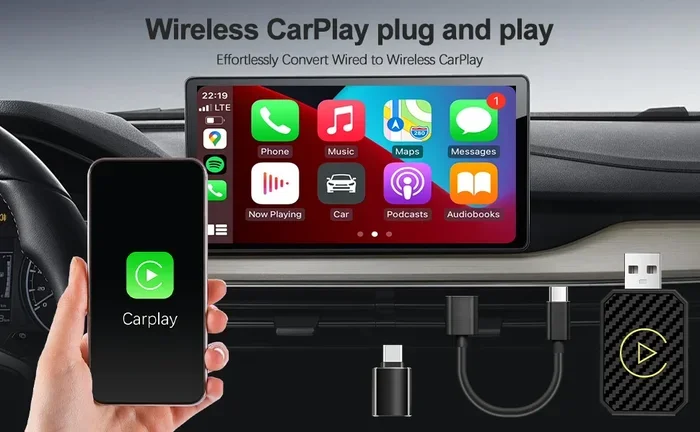
If your car does not have built-in wireless CarPlay, you are not out of luck. You can add support using a CarPlay Bluetooth adapter or by upgrading your stereo. These adapters plug into your car’s existing system and add wireless CarPlay capability.
Popular options include devices from brands like AAWX, Carlinkit, and Mozo. These adapters create a Bluetooth bridge between your iPhone and your car’s screen. They are especially useful for older cars that still have great sound systems but lack modern smart features.
Before buying an adapter, check if your car supports USB CarPlay at all. Some very old vehicles may not be compatible with CarPlay in any form. You can also consider upgrading your car stereo to Bluetooth as a broader solution that adds both Bluetooth and CarPlay support.
How to Set Up CarPlay with Bluetooth
Setting up CarPlay Bluetooth is straightforward, but the steps vary slightly depending on whether you are going wireless or wired. Here is a step-by-step guide for both methods.
Setting Up Wireless CarPlay via Bluetooth
Follow these steps to get wireless CarPlay running with Bluetooth:
- Make sure your iPhone is updated to the latest iOS version. CarPlay requires iOS 12 or later, but newer versions work better.
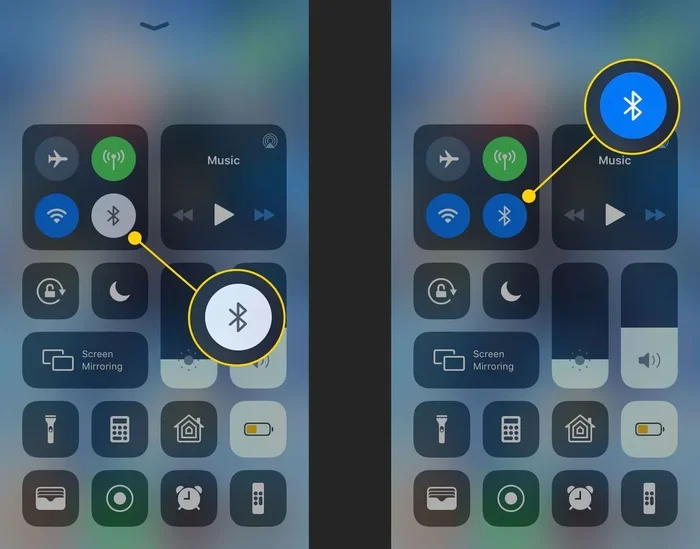
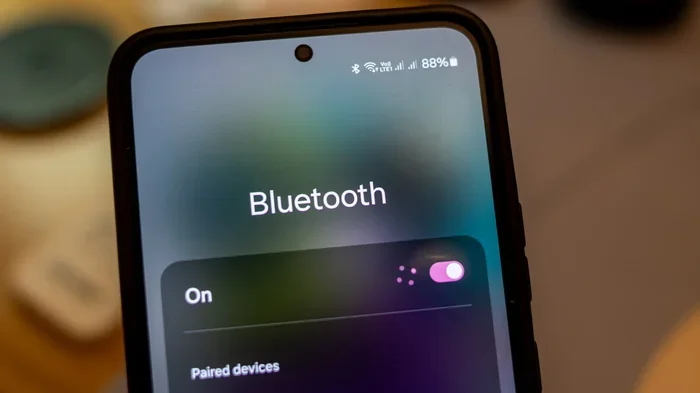
- Turn on Bluetooth on your iPhone by going to Settings > Bluetooth and toggling it on.
- Start your car and make sure the infotainment system is on.
- Select CarPlay on your car’s display. Look for a CarPlay icon or go to Settings > CarPlay.
- Choose your car from the list of available devices on your iPhone.
- Enter the pairing code if prompted. This confirms that both devices trust each other.
- Wait for the connection to establish. Your CarPlay home screen should appear on your car’s display within a few seconds.
Once paired, your iPhone should automatically connect to your car via Bluetooth every time you get in. This is one of the best things about wireless CarPlay — no cables, no hassle.
Setting Up Wired CarPlay with Bluetooth Audio
If you are using a wired CarPlay connection, the setup is slightly different:
- Plug your iPhone into the car’s USB port using a Lightning or USB-C cable.
- Unlock your iPhone and tap Trust if prompted.
- Select CarPlay on your car’s display.
- Enable Bluetooth on your iPhone for hands-free calling and audio streaming.
With this setup, you get the benefits of CarPlay on the screen through the USB cable while using Bluetooth for audio. This is a solid option if your car does not support wireless CarPlay.
Quick Tips for a Smooth Setup
- Restart your iPhone before pairing if you run into issues.
- Delete old CarPlay pairings from both your iPhone and your car’s system.
- Make sure your car is in park when you first connect.
- Keep your iPhone within Bluetooth range (about 30 feet) for wireless connections.
Common Bluetooth CarPlay Problems and How to Fix Them
Even with a great setup, Bluetooth CarPlay can run into issues. Here are the most common problems and how to solve them.
CarPlay Disconnects Frequently
If your CarPlay keeps disconnecting, the Bluetooth connection is likely unstable. This can happen when other Bluetooth devices nearby interfere with the signal. Try turning off Bluetooth on other devices in your car, like a headset or speaker.
Another common cause is a low iPhone battery. When your battery drops below 20 percent, iOS may reduce Bluetooth performance to save power. Keep your phone charged, or use a USB car charger while driving.
CarPlay Will Not Connect via Bluetooth
If CarPlay does not connect at all, start with the basics:
- Turn Bluetooth off and back on.
- Restart your iPhone.
- Restart your car’s infotainment system.
- Forget the Bluetooth pairing on both devices and try again.
If none of that works, check if your car’s infotainment software needs an update. Some manufacturers release updates that fix CarPlay Bluetooth compatibility issues. You can also try resetting your iPhone’s network settings, which clears all Bluetooth pairings and Wi-Fi connections and starts fresh.
Poor Audio Quality Over Bluetooth
Some users notice that CarPlay audio sounds muffled or low quality over Bluetooth. This usually happens because the car’s system compresses the audio signal to save bandwidth. To improve sound quality:
- Make sure you are using the latest Bluetooth version supported by your car.
- Move your iPhone closer to the car’s antenna (usually near the center console).
- Check if your car has an equalizer setting that boosts audio quality.
- Consider using a wired connection for better audio when Bluetooth quality is not enough.
Bluetooth and CarPlay Lag or Delay
A slight delay between tapping your screen and seeing a response is normal with wireless CarPlay. But if the lag is severe, your Bluetooth signal may be weak. Interference from other wireless devices, USB 3.0 ports on newer cars, or even your phone case can cause this issue.
Try removing your phone case and moving your iPhone to a different USB port if you are using a wired connection. For wireless setups, make sure nothing blocks the signal between your phone and the car’s antenna.
Bluetooth vs. USB for CarPlay: Which Is Better?
Both Bluetooth and USB have their strengths when it comes to CarPlay. Here is a quick comparison to help you decide which works best for you.
| Feature | Bluetooth (Wireless) | USB (Wired) |
|---|---|---|
| Connection Method | Bluetooth + Wi-Fi | USB Cable |
| Setup Speed | Fast, automatic pairing | Requires plugging in cable |
| Stability | Good, but can drop | Very stable |
| Audio Quality | Good, some compression | Excellent, no compression |
| Charging | No charging through CarPlay | Charges your iPhone |
| Compatibility | Requires wireless CarPlay support | Works with most CarPlay cars |
| Convenience | No cables needed | Cable management required |
Most users prefer wireless CarPlay for its convenience. But if you need rock-solid stability and better audio quality, a wired USB connection is hard to beat. Some drivers keep both options available, using Bluetooth for short trips and USB for longer drives.
If you are considering adding Bluetooth support to your car, you might also want to explore other Bluetooth options. For example, you can turn regular speakers into Bluetooth for better audio in your vehicle, or learn more about using Alexa as a Bluetooth speaker for hands-free smart features on the go.
How Bluetooth Version Affects CarPlay Performance
Not all Bluetooth connections are created equal. The version of Bluetooth your car and iPhone support plays a big role in how well CarPlay works.
Bluetooth 5.0 and newer offer the best CarPlay experience. They provide faster data transfer, longer range, and more stable connections. If your car only has Bluetooth 4.2 or older, you may notice more disconnections and slower response times with wireless CarPlay.
Here is a quick look at how different Bluetooth versions impact CarPlay:
- Bluetooth 4.0-4.2: Basic CarPlay support. Works but may have occasional drops and slower transfers.
- Bluetooth 5.0: Solid wireless CarPlay performance. Stable connection with good range.
- Bluetooth 5.2 and 5.3: Excellent CarPlay experience. Fast, stable, and supports the latest audio codecs.
You can check your iPhone’s Bluetooth version by going to Settings > General > About > Bluetooth. For your car, check the owner’s manual or the manufacturer’s website.
If your car has an older Bluetooth version and you want better CarPlay performance, you might want to consider adding a Bluetooth radio to your car or upgrading your infotainment system. These options can breathe new life into older vehicles and give you access to modern connectivity features.
Can You Use CarPlay Bluetooth With Android Auto Too?
While this article focuses on Apple CarPlay, it is worth noting that Android Auto also uses Bluetooth for wireless connections. Both systems work similarly in terms of pairing and data transfer. However, CarPlay and Android Auto are not cross-compatible. You cannot use CarPlay on an Android phone or Android Auto on an iPhone.
If you are shopping for a new car and want both options, look for vehicles that support both CarPlay and Android Auto with wireless Bluetooth connectivity. Many 2020 and newer models offer this dual support.
Expert Tips for Getting the Most Out of CarPlay Bluetooth
Here are some expert tips to help you get the best CarPlay Bluetooth experience every time you drive:
- Keep your iPhone close to the car’s antenna. The closer your phone is to the car’s Bluetooth receiver, the stronger the signal will be.
- Clear unused Bluetooth pairings. Old pairings can cause confusion and slow down the connection process.
- Use a dedicated USB cable for wired CarPlay. Cheap cables can cause connection issues and may not support data transfer properly.
- Enable Siri for hands-free control. You can use voice commands to make calls, send messages, and start navigation without touching your phone.
- Update your car’s software regularly. Manufacturers often release updates that improve CarPlay compatibility and fix bugs.
- Consider a CarPlay adapter for older cars. Devices like the Carlinkit adapter can add wireless CarPlay to cars that only support wired connections.
These tips may seem small, but they make a big difference in how smoothly CarPlay Bluetooth works day to day.
Final Thoughts
Does Carplay work with Bluetooth? Absolutely. Whether you use a wireless setup that relies on Bluetooth and Wi-Fi or a wired setup that uses USB for data and Bluetooth for audio, CarPlay and Bluetooth work hand in hand to give you a connected driving experience.
The key is understanding how the two technologies work together and making sure your car and iPhone are compatible. With the right setup, you can enjoy seamless CarPlay every time you get behind the wheel. No cables, no fuss, no frustration.
If your current car does not support wireless CarPlay, do not worry. You have options, from Bluetooth adapters to full stereo upgrades. The goal is to make your driving experience safer and more enjoyable, and CarPlay with Bluetooth gets you there.
Take some time to set up your connection properly, follow the troubleshooting tips if things go wrong, and enjoy the convenience of having your favorite apps right on your car’s screen. Happy driving!