Does Any Bluetooth Work With Iphone And Why It Matters
Yes, most Bluetooth devices work with iPhone, but not all are created equal. The right Bluetooth connection depends on your iPhone model, Bluetooth version, and the type of device you want to pair. Understanding these basics saves time, frustration, and money.
You just bought a shiny new Bluetooth gadget. You unbox it. You turn it on. And then… nothing happens when you try to connect it to your iPhone. Sound familiar? You are not alone. The question does any Bluetooth work with iPhone comes up more often than you might think.
The short answer is yes. Most Bluetooth devices can connect to an iPhone. But the long answer is a bit more nuanced. Some devices pair instantly. Others need extra steps. And a few simply refuse to play nice with iOS. In this guide, we will walk through everything you need to know about Bluetooth connectivity with your iPhone. We will cover what works, what does not, and how to get the best results every time.
Whether you are trying to pair wireless headphones, connect a Bluetooth speaker, or just figure out why your device keeps dropping the connection, this article has you covered. Let us dive in.
Key Takeaways
- iPhone supports Bluetooth 5.0 and newer: This means better range, faster transfers, and lower battery drain.
- Not all Bluetooth devices pair easily: Some need specific apps or settings adjustments.
- Audio devices are the most common: Headphones, speakers, and earbuds work seamlessly in most cases.
- Pairing issues are usually fixable: Simple resets and updates solve most problems.
- Check compatibility before buying: Not every Bluetooth gadget works perfectly with iOS.
- Bluetooth accessories expand iPhone use: From speakers to keyboards, the options are vast.
📑 Table of Contents
How Bluetooth Works With iPhone
Before we get into compatibility, it helps to understand the basics. Bluetooth is a short-range wireless technology. It lets devices talk to each other without cables. Your iPhone uses Bluetooth for audio, file sharing, and connecting accessories.
The Bluetooth Versions Matter
Apple has supported Bluetooth for many years now. Older iPhones use Bluetooth 4.0 or 4.2. Newer models use Bluetooth 5.0 or higher. Here is why that matters:
- Bluetooth 4.0-4.2: Works fine for most audio devices. Range is about 30 feet.
- Bluetooth 5.0: Offers double the speed and four times the range.
- Bluetooth 5.3 (latest): Better energy efficiency and more stable connections.
If you own an iPhone 8 or newer, you likely have Bluetooth 5.0 or later. This means your wireless connection will be faster and more reliable. Older iPhones still work with most Bluetooth devices. But you may notice shorter range or occasional drops.
How iPhone Finds Bluetooth Devices
When you open your Bluetooth settings on iPhone, it starts scanning. It looks for devices that are broadcasting a signal. Once it finds one, it shows up on your screen. You tap to pair. That is the basic process.
But here is the thing. Some devices use different Bluetooth protocols. These protocols are like languages. If your iPhone and the device speak different languages, they might not connect right away. Most modern devices use standard protocols. So this is rarely a problem. But it does happen sometimes.
What Bluetooth Devices Work With iPhone
The good news is that most Bluetooth devices work with iPhone. Apple keeps its ecosystem fairly open when it comes to audio and accessories. Let us look at the most common types.
Bluetooth Headphones and Earbuds
This is the most popular use case. AirPods are the obvious choice for iPhone users. But they are not the only option. Bluetooth headphones from Sony, Bose, Sennheiser, and many others work great with iPhone.
For example, Do Beats Work Well With iPhone? Absolutely. Beats by Dre uses the Apple W1 or H1 chip in newer models. This makes pairing effortless. You just open the case near your iPhone and it connects. Older Beats models without the chip still work. But you go through the standard pairing process.
Similarly, JBL headphones and earbuds pair easily with iPhone. JBL uses standard Bluetooth profiles. So there is no special app needed in most cases. Just turn on Bluetooth, put your JBL device in pairing mode, and connect.
Bluetooth Speakers
Bluetooth speakers are another big category. Whether you want a portable speaker for the beach or a home speaker for music, iPhone works with most of them. JBL, Bose, Ultimate Ears, and Sony all make great options.
One fun trick is that you can actually turn your phone into a Bluetooth speaker using certain apps and accessories. This is handy when you do not have a dedicated speaker nearby. It is not the best sound quality, but it works in a pinch.
You can also use Alexa as a Bluetooth speaker by pairing your iPhone with an Echo device. This opens up a lot of possibilities for smart home audio.
Other Bluetooth Accessories
iPhone supports more than just audio devices. Here are other Bluetooth accessories that work well:
- Keyboards: Bluetooth keyboards work with iPhone for typing emails and documents.
- Mice: Some Bluetooth mice pair with iPhone for easier navigation.
- Fitness trackers: Devices like Fitbit and Garmin connect via Bluetooth.
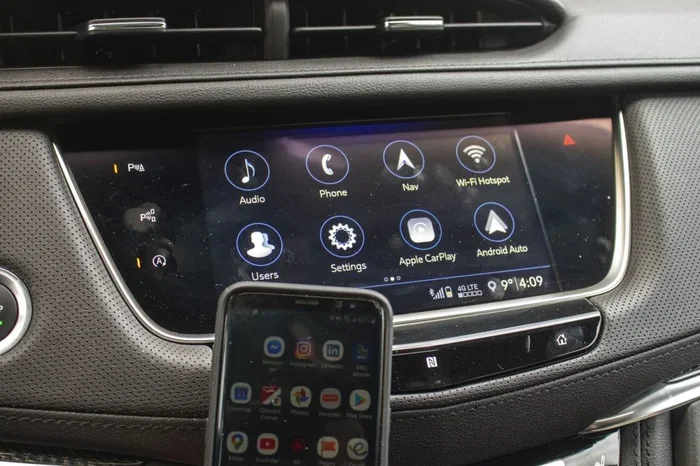
- Car audio systems: Many cars support Bluetooth for hands-free calls and music.
- Game controllers: Some Bluetooth controllers work with iPhone for gaming.
Why Some Bluetooth Devices Do Not Work With iPhone
So if most Bluetooth devices work, why do some fail? There are a few common reasons. Let us break them down.
Proprietary Protocols and Apps
Some manufacturers lock their devices to specific apps or ecosystems. For example, certain smart home devices only work with their own app. They might not show up in your iPhone’s Bluetooth settings at all. This does not mean they are broken. It just means they use a different connection method.
Another example is Bluetooth codecs. These are compression formats for audio. iPhone supports a limited set of codecs. If your Bluetooth headphones use a codec iPhone does not support, you might get no sound or reduced quality. This is more common with high-end audiophile headphones.
Firmware and Software Issues
Sometimes the problem is not the device. It is the software. If your iPhone is running an older iOS version, it might not support newer Bluetooth features. On the flip side, if your Bluetooth device has outdated firmware, it might not communicate properly with your iPhone.
Keeping both your iPhone and your Bluetooth devices updated is one of the best ways to avoid problems. Apple releases iOS updates regularly. Many Bluetooth device makers also push firmware updates through their apps.
Bluetooth Range and Interference
Bluetooth has a limited range. In open spaces, you can expect about 30 feet for most devices. Walls, furniture, and other electronics can reduce that. If your iPhone and Bluetooth device are too far apart, the connection drops.
Interference from Wi-Fi routers, microwaves, and other Bluetooth devices can also cause problems. This is especially common in crowded areas like offices or apartments. If you experience dropouts, try moving closer to your device or away from other electronics.
How to Pair Any Bluetooth Device With iPhone
The pairing process is pretty much the same for all Bluetooth devices. But there are a few tips that make it smoother. Here is a step-by-step guide.
Step-by-Step Pairing Process
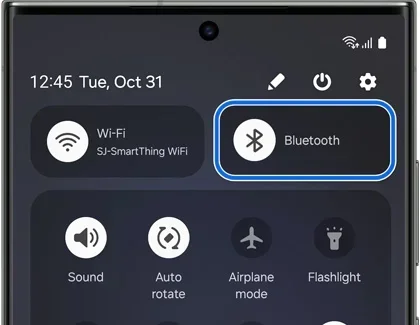
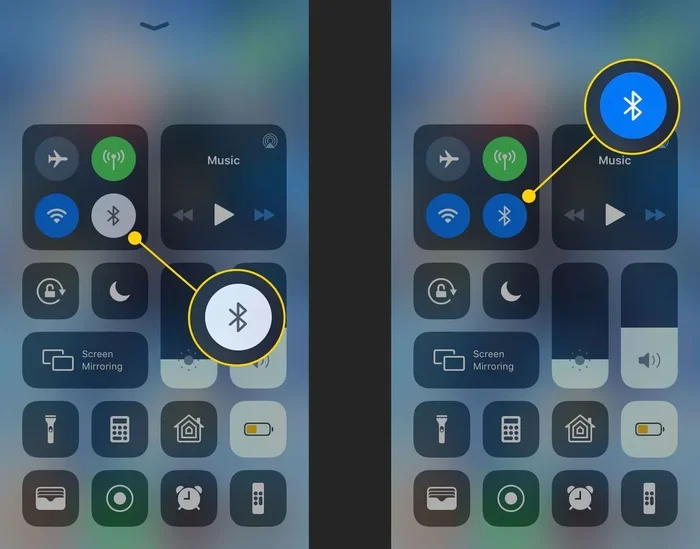
- Turn on Bluetooth on your iPhone. Go to Settings and tap Bluetooth. Or swipe down from the top right and tap the Bluetooth icon.
- Put your Bluetooth device in pairing mode. Most devices have a button or switch for this. Check the manual if you are not sure.
- Wait for the device to appear on your iPhone screen. It should show up under Other Devices.
- Tap the device name to connect.
- Confirm the pairing if prompted. Some devices require a PIN. The default is usually 0000 or 1234.
That is it. Your device should now be connected. You will see a green checkmark next to the device name in your Bluetooth settings.
Quick Tips for Better Pairing
- Restart both devices before pairing. This clears any temporary glitches.
- Forget old connections. If your iPhone remembers a previous device with the same name, it might get confused. Go to Settings > Bluetooth, tap the “i” icon, and select Forget This Device.
- Keep devices close during the first pairing. You can move them apart once connected.
- Check battery levels. Low battery on either device can cause pairing failures.
- Turn off other Bluetooth devices temporarily. This reduces interference during pairing.
Troubleshooting Common Bluetooth Issues With iPhone
Even with the best setup, Bluetooth problems happen. Here are the most common issues and how to fix them.
Device Not Showing Up in Bluetooth Settings
If your Bluetooth device does not appear on your iPhone, try these steps:
- Make sure the device is in pairing mode.
- Turn Bluetooth off and back on.
- Restart your iPhone.
- Check if the device is connected to another phone. Some devices can only pair with one device at a time.
- Reset network settings on your iPhone. Go to Settings > General > Transfer or Reset iPhone > Reset > Reset Network Settings.
Connection Keeps Dropping
A stable wireless connection should not drop randomly. If it does, here are some fixes:
- Move closer to the Bluetooth device.
- Check for Wi-Fi interference. Wi-Fi and Bluetooth share the 2.4GHz band.
- Update your iPhone to the latest iOS version.
- Update your Bluetooth device firmware through its app.
- Remove other Bluetooth devices temporarily to test.
Audio Quality Is Poor
If your sound is crackly or distorted, try these:
- Check the distance between devices.
- Make sure nothing is blocking the signal.
- Lower the volume on both devices. High volume can cause distortion.
- If you are using a Bluetooth codec that iPhone does not fully support, consider switching to a different pair of headphones.
Does Every Bluetooth Device Work With iPhone?
Here is the honest truth. Not every Bluetooth device works perfectly with iPhone. Most do. But some have limitations. Smart home devices, for instance, often work better with Android or their own apps. Some fitness trackers sync better through their own app rather than direct Bluetooth.
The key is to check compatibility before you buy. Look for products that mention iOS or iPhone support. Read reviews from other iPhone users. This small step saves a lot of headaches.
Also, keep in mind that iPhone Bluetooth works best with Apple-certified devices. The MFi program (Made for iPhone/iPad/iPod) ensures that accessories meet Apple’s standards. Look for the MFi badge on packaging. It is a good sign of quality and compatibility.
Final Thoughts
So, does any Bluetooth work with iPhone? The answer is mostly yes. The vast majority of Bluetooth devices pair with iPhone without any fuss. From wireless earbuds to portable speakers, iPhone supports a wide range of accessories.
That said, not all devices are created equal. Some offer a smoother experience than others. Some need extra steps. And a few simply do not work well with iOS. The best approach is to do a little research before you buy. Check compatibility. Read reviews. And keep your devices updated.
Bluetooth technology has come a long way. It makes our lives more convenient every day. Your iPhone is a powerful hub for wireless accessories. With the right setup, you can enjoy seamless audio, smart home control, and so much more. Just remember the tips in this guide, and you will be pairing like a pro in no time.
Frequently Asked Questions
Can I connect any Bluetooth speaker to my iPhone?
Most Bluetooth speakers work with iPhone. They use standard Bluetooth profiles that iOS supports. Just turn on Bluetooth, put the speaker in pairing mode, and connect. Some speakers may need a companion app for full features, but basic audio playback works without one.
Why does my Bluetooth device keep disconnecting from iPhone?
Disconnections usually happen due to range, interference, or outdated software. Move closer to your device and away from Wi-Fi routers. Make sure both your iPhone and the Bluetooth device are running the latest software. Restarting both devices often fixes temporary glitches too.
Do AirPods work better with iPhone than other Bluetooth headphones?
AirPods are designed specifically for Apple devices. They offer seamless pairing, automatic switching, and battery monitoring right from your iPhone. Other Bluetooth headphones work great too, but they may lack these deep integrations. Still, brands like Beats, Sony, and Bose offer excellent iPhone compatibility.
Can I use Bluetooth headphones for gaming on iPhone?
Yes, you can use Bluetooth headphones for gaming on iPhone. However, Bluetooth adds a small amount of latency. For casual gaming, this is barely noticeable. For competitive or fast-paced games, you might notice a slight delay. Wired headphones or Lightning-connected options offer the lowest latency.
What should I do if my iPhone does not find a Bluetooth device?
First, make sure the device is in pairing mode and has enough battery. Toggle Bluetooth off and on. Restart your iPhone. If the device still does not appear, try resetting network settings. You can also check if the device is already connected to another phone, as some devices only pair with one device at a time.
Is there a limit to how many Bluetooth devices iPhone can connect to?
iPhone can connect to multiple Bluetooth devices at once. However, it can only actively use a few at a time. For example, you can connect two pairs of Bluetooth headphones, but only one plays audio at a time unless you use specific apps. Most users find that connecting 3 to 5 devices works fine for everyday use.
=== CONCLUSION ===
The world of Bluetooth technology is vast and convenient. Your iPhone can connect to a wide range of wireless devices, from audio gear to smart accessories. Understanding how Bluetooth connectivity works with iPhone helps you make smarter buying decisions and avoid frustrating setup issues.
Remember to check compatibility before you buy. Keep your devices updated. And do not be afraid to troubleshoot when things go wrong. With the right knowledge, you can enjoy a seamless wireless experience every single day.