Cadillac Bluetooth Instructions Made Simple and Easy
Cadillac Bluetooth instructions are easier than you think. This guide walks you through pairing your phone, using hands-free calling, streaming audio, and fixing common problems. Whether you own a Cadillac XT5, XT4, or Escalade, you will find clear, simple steps that work. You will learn how to sync your device in minutes and enjoy a seamless wireless connection every time you drive.
Connecting your phone to your Cadillac should feel easy. Yet many drivers find themselves stuck at the Bluetooth setup screen, unsure of what to do next. The good news is that Cadillac Bluetooth instructions are straightforward once you know the steps. Whether you are pairing a new phone or fixing a stubborn connection issue, this guide has you covered. You will learn everything from the first pairing to advanced features like audio streaming and hands-free calling.
Modern Cadillac vehicles come equipped with powerful infotainment systems. These systems support Bluetooth connectivity for calls, music, and even contact syncing. But the experience depends on how well you set things up. A proper connection means clearer calls, better sound quality, and fewer distractions on the road. Let us walk through the entire process together.
Key Takeaways
- Easy Pairing Process: Follow our step-by-step Cadillac Bluetooth instructions to connect your phone quickly and without hassle.
- Hands-Free Calling Works Great: Make and receive calls safely while keeping your eyes on the road.
- Audio Streaming is Simple: Stream music, podcasts, and audiobooks wirelessly through your Cadillac’s sound system.
- Troubleshooting is Covered: Find solutions for the most common Bluetooth problems, from connection drops to no sound.
- Model-Specific Tips Included: Get advice tailored to different Cadillac models and infotainment systems.
- Maintenance Keeps It Running: Regular updates and good habits ensure your Bluetooth stays reliable over time.
📑 Table of Contents
How to Pair Your Phone with Cadillac Bluetooth
Getting Ready to Pair
Before you start, make sure your phone’s Bluetooth is turned on. You should also have your Cadillac ignition in the “On” or “Accessory” position. This powers up the infotainment system without starting the engine. Most Cadillac models released after 2015 use a similar pairing process, so these steps will apply to a wide range of vehicles.
Here is what you need to do first:
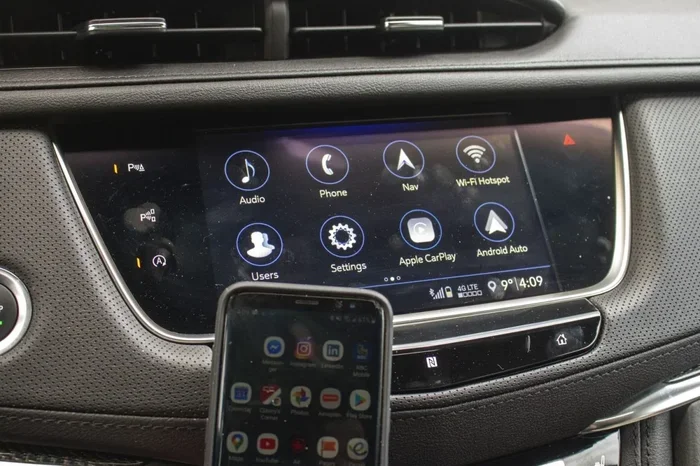
- Turn on your Cadillac and press the “Phone” button on the infotainment screen.
- On your phone, go to Settings and enable Bluetooth.
- Make sure your phone is visible to other devices.
- Set both devices within a few feet of each other.
These small prep steps save a lot of frustration later. They ensure both your Cadillac and your phone are ready to find each other. Skipping them is one of the most common reasons pairing fails.
Step-by-Step Pairing Process
Now let us get into the actual pairing. Follow these steps carefully for the best results. The process is the same whether you are using an iPhone or an Android device.
- On your Cadillac’s touchscreen, navigate to Settings and select Bluetooth.
- Tap on Add Device or Pair New Device.
- Your Cadillac will start searching for nearby Bluetooth devices.
- On your phone, look for your Cadillac’s name in the list of available devices. It usually appears as “Cadillac CUE” or your specific model name.
- Tap on your Cadillac’s name to initiate the connection.
- You may see a pairing request on both screens. Confirm the passkey or PIN if prompted.
- Wait a few seconds for the connection to complete.
Once paired, your phone will automatically connect whenever you start your Cadillac. This is one of the best features of Bluetooth connectivity. You do not need to repeat the process every time you get in the car.
Connecting Multiple Devices
Many Cadillac models allow you to pair more than one phone. This is great for families or couples who share a vehicle. Each phone will appear in your Bluetooth device list. You can set one phone as the “favorite” device, which connects automatically when you start the car.
To manage multiple connections, go to Settings > Bluetooth on your infotainment screen. From there, you can see all paired devices. You can delete old connections or change the priority of each device. Keeping your device list clean helps prevent connection conflicts.
Cadillac Bluetooth Settings and Features
Hands-Free Calling Setup
One of the biggest reasons people use Bluetooth in their Cadillac is for hands-free calling. This feature lets you make and receive calls without touching your phone. It is safer and more convenient, especially during long drives. Setting it up is simple once your phone is paired.
Here is how hands-free calling works on most Cadillac models:
- When a call comes in, your Cadillac’s audio system will ring through the car speakers.
- Press the phone button on the steering wheel or touchscreen to answer.
- Use the microphone built into the steering wheel or headliner to speak.
- To end the call, press the end-call button or tap “End Call” on the screen.
You can also dial out using the infotainment system. Use the on-screen keypad or voice commands to place a call. This means you never have to pick up your phone while driving. It is a huge safety benefit that many drivers appreciate.
Audio Streaming and Music Playback
Bluetooth audio streaming lets you play music from your phone through your Cadillac’s speakers. Whether you use Spotify, Apple Music, or a podcast app, the sound comes through your car’s sound system. The quality is surprisingly good, especially in newer Cadillac models with premium audio systems.
To start streaming music:
- Make sure your phone is connected to your Cadillac via Bluetooth.
- Open your music app on your phone and start playing a song.
- On your Cadillac’s infotainment screen, select the Audio or Media source.
- Choose Bluetooth Audio as the input source.
You can control playback from the infotainment screen or the steering wheel controls. You can pause, skip tracks, and adjust the volume without reaching for your phone. Some Cadillac models also support voice commands for music control through the CUE system.
Contact Syncing and Phone Book Access
Another useful feature is syncing your phone contacts with the Cadillac infotainment system. This lets you see your contacts on the screen and call them directly. It is especially helpful when you want to call someone without typing their number.
To enable contact syncing, go to Settings > Phone or Device Settings during the pairing process. Make sure the “Sync Contacts” option is turned on. The first sync may take a few moments depending on how many contacts you have. After that, new contacts will sync automatically when you connect.
Bluetooth Volume Controls
Managing volume levels through Bluetooth can be a little tricky at first. Your Cadillac has separate volume controls for calls, music, and notifications. Understanding how these work improves your overall experience.
Here is a quick breakdown:
- Call Volume: Controls the loudness of incoming and outgoing calls.
- Media Volume: Controls the volume of music and audio streaming.
- Notification Volume: Controls alerts and voice prompts from the system.
You can adjust each of these using the volume knob on the steering wheel or the on-screen controls. If you find that calls are too quiet, check the call volume setting first. Many people accidentally adjust the media volume when they meant to adjust the call volume.
Troubleshooting Common Bluetooth Issues
Cadillac Bluetooth Not Connecting
There is nothing more frustrating than a Bluetooth connection that refuses to work. Before you panic, try these simple fixes. Most Bluetooth problems have straightforward solutions.
If your Cadillac Bluetooth is not connecting, start here:
- Turn Bluetooth off on both your phone and your Cadillac, then turn it back on.
- Remove the existing pairing and create a fresh connection.
- Make sure your phone is within range of the vehicle.
- Check that your phone is not connected to another Bluetooth device nearby.
- Restart your Cadillac’s infotainment system by holding the power button for 10 seconds.
These steps resolve the majority of connection issues. If the problem persists, there may be a software issue that needs updating.
No Sound or Poor Audio Quality
Sometimes your Bluetooth connects but you hear no sound or the quality is poor. This is a common issue that usually has an easy fix. First, check that the correct audio source is selected on your infotainment screen. It should say “Bluetooth Audio” or similar.
Next, check the volume on both your phone and your Cadillac. It is surprisingly easy to have one device at full volume and the other turned all the way down. Also, make sure your phone is not muted. If you are still experiencing poor audio quality, try unpairing and re-pairing your device. This often resets the audio connection and clears up static or choppy sound.
Bluetooth Keeps Disconnecting
A Bluetooth connection that drops frequently can be annoying. This usually happens when your phone moves too far from the vehicle or when there is interference from other devices. However, if the disconnections happen while you are sitting in the car, something else may be going on.
Try these solutions for frequent disconnections:
- Clear all Bluetooth pairings on both devices and start fresh.
- Update your phone’s operating system to the latest version.
- Check for infotainment system updates in your Cadillac’s settings.
- Turn off other Bluetooth devices in the car that might be causing interference.
- Reset the infotainment system to factory settings as a last resort.
Remember that older phones sometimes struggle with newer Bluetooth protocols. If you are using an older device, it might be time to consider an upgrade for better compatibility with your Cadillac’s system.
Phone Not Showing Up in Bluetooth List
If your phone does not appear in your Cadillac’s Bluetooth search list, do not worry. This is usually a visibility issue. Make sure your phone is set to “Visible” or “Discoverable” in its Bluetooth settings. Some phones only stay visible for a short time after you turn on Bluetooth.
Also try toggling Bluetooth off and on again on your phone. Sometimes a simple refresh is all it takes. If your phone still does not show up, restart your phone and try again. This clears up most minor software glitches that prevent discovery.
Bluetooth Audio Streaming and Hands-Free Calling
Understanding Bluetooth Profiles
Your Cadillac uses different Bluetooth profiles to handle various tasks. You do not need to be a tech expert to understand them, but knowing the basics helps. The two most important profiles are HFP and A2DP.
HFP (Hands-Free Profile) handles phone calls. It manages the microphone and speaker for voice communication. A2DP (Advanced Audio Distribution Profile) handles music and media streaming. It sends high-quality audio from your phone to your car’s speakers. Both profiles work together to give you a complete Bluetooth experience in your Cadillac.
When you pair your phone, both profiles are typically enabled by default. If you are only getting call audio but no music, check that A2DP is active. If you can stream music but cannot make calls, check that HFP is enabled. These settings are usually found in your phone’s Bluetooth device settings.
Voice Commands and Siri/Google Assistant Integration
Many Cadillac models support voice commands through the infotainment system. You can use voice commands to make calls, play music, and send messages without touching your phone. This adds another layer of safety and convenience to your Bluetooth setup.
To use voice commands, press and hold the voice control button on the steering wheel. Speak clearly and naturally. You can say things like “Call Mom” or “Play jazz music.” The system will process your request and take action. This feature works best when your phone is connected and the Bluetooth connection is stable.
Safety Benefits of Hands-Free Calling
Using Bluetooth for hands-free calling is not just about convenience. It is about safety. Studies show that taking your hands off the wheel and your eyes off the road significantly increases the risk of accidents. Bluetooth calling keeps your hands on the wheel and your eyes on the road.
Most states now have laws against using handheld phones while driving. Bluetooth calling helps you stay legal and safe. It also reduces the cognitive distraction of holding a phone. Even with a hands-free setup, keep conversations brief and focus on driving. Safety should always come first.
Updating and Maintaining Your Bluetooth Connection
Keeping Your Software Up to Date
Software updates play a big role in keeping your Bluetooth connection smooth. Cadillac regularly releases updates for its infotainment system. These updates often include improvements to Bluetooth performance and bug fixes. Check for updates through your dealership or the myCadillac app if your vehicle supports over-the-air updates.
On the phone side, make sure your operating system is current. Both iOS and Android regularly release updates that improve Bluetooth connectivity. An outdated phone operating system can cause pairing problems even if your Cadillac is fully updated.
Best Practices for Daily Use
Small habits can make a big difference in your Bluetooth experience. Here are some best practices to follow:
- Always pair your phone in a quiet environment with minimal Bluetooth interference.
- Keep your phone charged. A low battery can affect Bluetooth performance.
- Restart your infotainment system occasionally to clear temporary glitches.
- Remove old or unused paired devices from both your phone and your Cadillac.
- Keep your phone and key fob in the same general area of the car.
These habits take just a few seconds but they prevent a lot of headaches. Think of them as routine maintenance for your wireless connection, just like you would check your tire pressure regularly.
When to Reset Your Bluetooth System
Sometimes the best fix is a clean slate. If you have tried everything and your Bluetooth still does not work, a reset might be the answer. To reset your Cadillac’s Bluetooth system, go to Settings > Bluetooth and select “Delete All Devices.” Then restart your infotainment system and pair your phone again from scratch.
On the phone side, go to your Bluetooth settings and “Forget” your Cadillac connection. Then start the pairing process fresh. This two-sided reset solves most stubborn Bluetooth problems. It clears out any corrupted pairing data that might be causing issues.
Cadillac Bluetooth Tips for Different Models
Cadillac CUE System Overview
The Cadillac CUE (User Experience) system is the infotainment platform found in most newer Cadillac models. It features a touchscreen interface, voice recognition, and smartphone integration. Understanding how CUE handles Bluetooth helps you get the most out of your system. The CUE system supports both Bluetooth calling and audio streaming simultaneously. This means you can listen to music and take calls without switching inputs.
The CUE system also supports Bluetooth Smart Access. This feature allows your phone to connect automatically when you approach the vehicle. It uses your phone’s Bluetooth signal to detect your presence and prepare the system for a connection. It is a small convenience that adds up to a big daily improvement.
Model-Specific Bluetooth Tips
Different Cadillac models have slightly different Bluetooth setups. Here are some quick tips for popular models:
- Cadillac XT5: Use the touchscreen to access Phone settings. The XT5 supports up to 10 paired devices.
- Cadillac XT4: The XT4 uses a slightly smaller screen but the pairing process is identical. Make sure your phone is in the center console area for the strongest signal.
- Cadillac Escalade: The Escalade has a larger infotainment screen and premium Bose audio. Bluetooth audio quality is excellent on this model. Use the volume knob on the console for the best control.
- Cadillac CT5: The CT5 offers both wireless and wired Apple CarPlay. Bluetooth is used for calls and audio when CarPlay is not active.
No matter which Cadillac you drive, the core Bluetooth instructions remain the same. The small differences between models are mostly about screen layout and available features. Once you master the basics, adapting to any Cadillac model is easy.
Legacy Cadillac Models
If you own an older Cadillac, your Bluetooth experience might be slightly different. Pre-2015 models may not support all the features of newer systems. Some older Cadillacs only support Bluetooth calling but not audio streaming. Check your owner’s manual for the specific capabilities of your model.
For older models, you might need to use a Bluetooth adapter or FM transmitter to get audio streaming. These aftermarket devices plug into your car’s audio input and create a wireless bridge between your phone and your speakers. They are affordable and easy to install. They are a great option if your Cadillac does not natively support Bluetooth audio.
Key Takeaways
- Easy Pairing Process: Follow our step-by-step Cadillac Bluetooth instructions to connect your phone quickly and without hassle.
- Hands-Free Calling Works Great: Make and receive calls safely while keeping your eyes on the road.
- Audio Streaming is Simple: Stream music, podcasts, and audiobooks wirelessly through your Cadillac’s sound system.
- Troubleshooting is Covered: Find solutions for the most common Bluetooth problems, from connection drops to no sound.
- Model-Specific Tips Included: Get advice tailored to different Cadillac models and infotainment systems.
- Maintenance Keeps It Running: Regular updates and good habits ensure your Bluetooth stays reliable over time.
Conclusion
Cadillac Bluetooth instructions do not have to be complicated. With the right steps, you can pair your phone, stream music, make hands-free calls, and troubleshoot issues in just minutes. The key is to follow the process carefully and not skip the preparation steps. A proper setup leads to a reliable connection every time you get behind the wheel.
Take a few minutes today to review your Bluetooth settings and make sure everything is working as it should. Update your software, clean up old pairings, and test your connection. These small actions pay off in a smoother, safer driving experience. Your Cadillac’s Bluetooth system is designed to make your life easier. Now you know exactly how to use it to its full potential.
Remember that technology improves over time. New Cadillac models will continue to add features and refine the Bluetooth experience. Staying curious and keeping your system updated ensures you always get the best performance. Drive safe, stay connected, and enjoy the journey.
Frequently Asked Questions
How do I pair my phone with my Cadillac for the first time?
Turn on your Cadillac and go to Settings > Bluetooth on the infotainment screen. Make sure Bluetooth is enabled on your phone and set to visible. Select “Add Device” on your Cadillac, then choose your car from the list on your phone. Confirm the pairing code on both screens and you are connected.
Why is my Cadillac Bluetooth not connecting to my phone?
This is usually caused by a minor software glitch or an outdated pairing. Try turning Bluetooth off and on for both devices. If that does not work, delete the existing pairing and create a fresh connection. Restarting both your phone and your Cadillac’s infotainment system often resolves the issue.
Can I connect multiple phones to my Cadillac’s Bluetooth?
Yes, most Cadillac models support multiple paired devices. You can connect up to 10 phones depending on your model. Set one phone as the favorite device for automatic connection. Other phones will connect manually when you select them from the Bluetooth menu.
Why is there no sound when my Bluetooth is connected?
Check that the correct audio source is selected on your infotainment screen. It should be set to “Bluetooth Audio.” Also verify that the volume is turned up on both your phone and your Cadillac. Make sure your phone is not muted and that the media volume is not set to zero.
How do I update the Bluetooth software on my Cadillac?
Check for infotainment updates through your Cadillac dealership or the myCadillac app if your vehicle supports it. On the phone side, update your operating system to the latest version. Keeping both devices updated ensures the best Bluetooth compatibility and performance.
Can I stream music through Bluetooth while making a phone call?
Yes, most Cadillac models support simultaneous Bluetooth calling and audio streaming. When a call comes in, your music will pause automatically and resume once the call ends. This feature works seamlessly with the CUE infotainment system and most newer Cadillac models.