Can You Have Too Many Google Wifi in Your Home Setup
Can you have too many Google Wifi points? The short answer is yes. While adding more mesh nodes sounds like a great idea, overloading your home network can cause slowdowns, interference, and frustration. This guide breaks down the limits, signs of over-provisioning, and smart ways to optimize your wireless coverage without wasting money.
Setting up a Google Wifi system feels like a win. Your home gets better wireless coverage, fewer dead zones, and faster internet speed in every room. But then a thought creeps in. What if you added one more node? Or two more? Would your home network be even better?
Here is the thing most people do not realize. You absolutely can have too many Google Wifi points in your setup. It sounds counterintuitive. More nodes should mean more coverage, right? But the reality is more complicated. Too many mesh nodes can create network congestion, slow down your signal strength, and even make your Wi-Fi setup worse than it was before.
In this article, we will walk through exactly what happens when you add too many Google Wifi points. We will cover the limits, the warning signs, and how to get the best performance from your mesh network. Whether you are building a new smart home or troubleshooting a slow connection, this guide has you covered.
Key Takeaways
- More is not always better: Adding too many Google Wifi points can actually hurt your network performance and slow down your internet speed.
- Stick to Google’s official limit: Google recommends a maximum of 32 points, but most homes only need 2 to 5 nodes for full coverage.
- Watch for warning signs: Slow speeds, connection drops, and network congestion are clear signals you may have too many nodes.
- Placement matters more than quantity: Proper node placement gives you better results than simply adding more devices to your mesh network.
- Consider your connected devices: The number of smart home devices and bandwidth-heavy gadgets should guide how many nodes you actually need.
- Optimize before you expand: Try repositioning existing nodes and running an internet speed test before buying additional Google Wifi points.
📑 Table of Contents
- How Google Wifi Mesh Networks Work
- How Many Google Wifi Points Can You Actually Use
- Signs You Have Too Many Google Wifi Points
- The Impact of Too Many Nodes on Network Performance
- How to Optimize Your Google Wifi Setup
- Common Mistakes When Expanding Your Google Wifi Network
- Expert Recommendations for the Perfect Home Network
- Quick Tips for the Best Google Wifi Performance
- Conclusion
How Google Wifi Mesh Networks Work
Before we talk about limits, it helps to understand how Google Wifi actually works. Google Wifi uses a mesh network design. That means multiple devices, called nodes or points, talk to each other to spread Wi-Fi coverage across your home. Instead of one router blasting a signal from a single spot, the nodes work together like a team.
How Mesh Technology Differs from Traditional Routers
A traditional router sends a signal from one point. Walls, floors, and furniture block that signal. Dead zones form. A mesh router system solves this by placing nodes around your home. Each node passes the signal along. The result is smoother wireless coverage in every corner.
But here is the catch. Every node in the chain uses a portion of your bandwidth. The signal has to hop from node to node. Each hop takes a tiny bit of speed. Add too many hops and your internet speed test numbers start to drop.
Why People Love Google Wifi
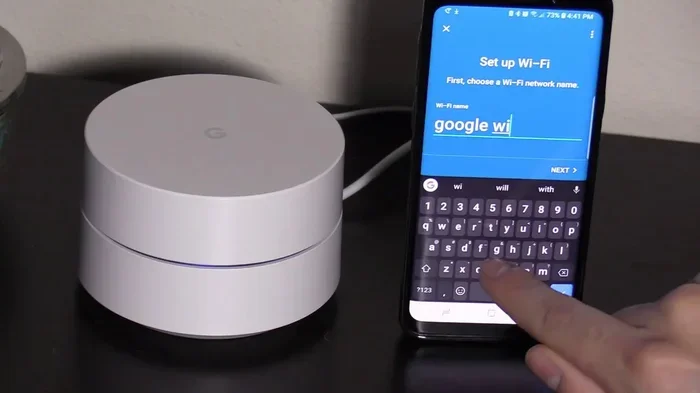
Google Wifi became popular fast. It is easy to set up. The Google Nest Wifi design is clean and simple. The Google Home app makes managing your home network effortless. Most people can go from unboxing to full Wi-Fi setup in under 30 minutes.
People also love that Google Wifi doubles as a smart speaker. The Nest points play music, answer questions, and control smart home devices. That two-in-one appeal makes it a favorite for families and home automation enthusiasts.
How Many Google Wifi Points Can You Actually Use
So how many Google Wifi points can you really add? The answer depends on a few factors. Let us break it down.
Google’s Official Recommendation
Google says you can connect up to 32 points in a single mesh network. That sounds like a lot. But very few homes need anywhere close to that number. Google designed the system for typical homes, not massive commercial buildings.
For most houses, 2 to 5 nodes are plenty. A small apartment might only need one point. A large home with multiple floors could benefit from 4 or 5. Beyond that, you start seeing diminishing returns.
Real-World Limits and What Happens Beyond Them
When you push past the sweet spot, problems start to appear. The mesh network has to manage more connections. Each node shares bandwidth with the others. The network performance can actually decline instead of improve.
Think of it like a highway. Adding more lanes helps up to a point. But if you keep adding lanes without increasing the cars, you just create more congestion. The same logic applies to your mesh nodes.
Signs You Have Too Many Google Wifi Points
How do you know if you have crossed the line? There are clear warning signs. Watch for these red flags in your home network.
Network Congestion and Slow Speeds
The most obvious sign is slow internet speed. If your Wi-Fi was fast before you added more nodes and now it feels sluggish, that is a clue. Run an internet speed test before and after adding a new point. If the numbers drop, something is wrong.
Network congestion happens when too many nodes compete for the same channel. Your connected devices have to wait longer to send and receive data. The result is buffering videos, slow downloads, and laggy video calls.
Diminishing Returns on Coverage
Another sign is that adding a new node does not improve coverage the way you expected. You place a third point in your home and expect better wireless coverage. But the signal stays the same or even gets worse in some spots.
This happens because the new node creates an extra hop in the chain. The signal travels further but weaker. Instead of boosting your signal strength, the extra node dilutes it.
Connection Drops and Instability
If your devices keep dropping off the Wi-Fi network, too many nodes could be the cause. Each node adds a potential point of failure. The more nodes in the system, the more opportunities for network troubleshooting headaches.
You might notice your phone switches between nodes constantly. This is called roaming, and too many nodes can make it chaotic. Your device struggles to decide which node to stay connected to.
The Impact of Too Many Nodes on Network Performance
Let us get technical for a moment. Understanding what happens under the hood helps you make smarter decisions about your Google Wifi setup.
Speed Test Results with Multiple Nodes
In real-world tests, adding a second Google Wifi point usually improves speeds in far areas of the home. The signal reaches further and stays strong. But adding a third and fourth point tells a different story.
Each additional node in the chain reduces the available bandwidth. A signal that hops through three nodes loses more speed than one that hops through two. By the time you reach five or six nodes, the internet speed can drop significantly compared to a direct connection to the main router.
Latency and Connection Stability Issues
Latency is the delay between sending a request and getting a response. Gamers and video callers feel this the most. More nodes mean more hops. More hops mean higher latency.
Your home network can also become less stable with too many nodes. Interference between nodes increases. The mesh network has to constantly adjust channels and frequencies. This background activity eats up resources and slows everything down.
How to Optimize Your Google Wifi Setup
The good news is that you do not need to buy more nodes to fix a weak Wi-Fi signal. Sometimes the best move is to optimize what you already have.
Ideal Placement Tips for Each Node
Placement is everything when it comes to Google Wifi performance. Follow these tips to get the most out of every node.
- Keep nodes within range of each other. Place them no more than two rooms apart. Too much distance weakens the node-to-node connection.
- Elevate your nodes. Place them on shelves or tables rather than on the floor. Signals travel better upward and outward.
- Avoid walls and metal objects. Thick concrete walls and metal appliances block wireless coverage. Keep nodes in open spaces when possible.
- Stay away from microwaves and cordless phones. These devices operate on similar frequencies and can cause interference with your Wi-Fi setup.
- Center nodes in the rooms that need coverage. Do not hide them in closets or behind TVs. Open placement gives the best signal strength.
When to Add a Node vs When to Stop
So how do you know when to add another Google Wifi point and when to stop? Use this simple rule of thumb. Add a node only when you have a specific area with weak or no coverage. Do not add nodes just because you can.
Before buying a new point, try moving your existing nodes around first. A small repositioning can sometimes solve coverage problems without adding any new hardware. Run an internet speed test in the problem area after each move. This tells you exactly where you need better coverage.
If repositioning does not work and you still have dead zones, then adding one more node makes sense. But add one at a time. Test the performance after each addition. Stop when you see no further improvement.
Common Mistakes When Expanding Your Google Wifi Network
Many people make avoidable mistakes when expanding their mesh network. Learning from these errors saves time, money, and frustration.
Overlapping Channels and Interference
One of the biggest mistakes is placing nodes too close together. When Google Wifi points sit within a few feet of each other, they can overlap channels. This creates interference that weakens the entire home network.
Think of it like people trying to talk in a crowded room. If everyone speaks at the same volume, nobody hears anything clearly. But if people space out their conversations, communication improves. The same principle applies to your mesh nodes.
Ignoring Your Actual Bandwidth Needs
Another common mistake is ignoring how much bandwidth your household actually uses. A family of four streaming 4K videos, playing online games, and working from home needs a very different setup than a single person browsing the web.
Before adding more nodes, check how many connected devices you have. Smart TVs, phones, tablets, laptops, smart speakers, and smart home devices all share your network performance. If your current setup handles them fine, you probably do not need more points.
Skipping Firmware Updates
Google regularly releases updates that improve network performance and fix bugs. Skipping these updates can cause your Google Wifi system to underperform. Always keep your nodes updated through the Google Home app.
Expert Recommendations for the Perfect Home Network
So what do networking experts actually recommend for the ideal Google Wifi setup? Here is what the pros say.
Smart Home Device Considerations
If you are building a smart home with dozens of devices, your network needs careful planning. Smart lights, cameras, doorbells, and thermostats all connect to your Wi-Fi. Each one uses a small slice of your bandwidth.
Experts recommend grouping your smart home devices on a separate network band if your Google Wifi supports it. The 2.4 GHz band handles smart devices well because it travels further through walls. Reserve the 5 GHz band for speed-heavy tasks like streaming and gaming.
Future-Proofing Your Wireless Coverage
When setting up your mesh network, think about the future. How many devices will you own in two years? Will you add home security cameras or a home automation system? Planning ahead helps you choose the right number of nodes from the start.
Most experts suggest starting with 2 to 3 Google Wifi points for a typical home. This gives you room to grow without overloading the system. If you find you need more later, you can always add one or two additional points. But starting small and scaling up is the smartest approach.
Quick Tips for the Best Google Wifi Performance
- Run an internet speed test in every room before and after adding nodes.
- Keep your Google Wifi firmware updated through the Google Home app.
- Place your main router near the center of your home for the best signal strength.
- Use the Google Home app to run network troubleshooting if speeds drop.
- Limit the total number of nodes to 5 or 6 for most residential setups.
- Restart your mesh network once a month to clear cached data and refresh connections.
- Use Ethernet backhaul if your router supports it. Wired connections between nodes boost network performance significantly.
Conclusion
The answer to can you have too many Google Wifi points is a clear yes. While the system supports up to 32 nodes, most homes perform best with 2 to 5 points. Adding more than you need creates network congestion, reduces internet speed, and introduces instability.
The key is balance. Focus on smart placement, monitor your network performance, and add nodes only when you have a specific coverage gap. Your home network will be faster, more stable, and more reliable as a result.
Take the time to test your setup. Run speed tests, check for dead zones, and reposition nodes before buying more hardware. A well-planned Google Wifi system gives you excellent wireless coverage without the headaches of over-provisioning. Your smart home deserves a network that works as hard as you do.
Frequently Asked Questions
Can too many Google Wifi points slow down my internet?
Yes, absolutely. Each node in a mesh network uses a portion of your available bandwidth. When you add too many points, the signal has to hop through more nodes, which reduces speed. Most users notice a significant drop in internet speed when they exceed 5 to 6 nodes in a single Google Wifi system.
What is the maximum number of Google Wifi points I can connect?
Google officially supports up to 32 points in a single mesh network. However, this limit is designed for large commercial spaces. For most homes, 2 to 5 points are more than enough. Going beyond that rarely improves performance and often makes it worse.
How do I know if I need another Google Wifi point?
Run an internet speed test in areas where you have weak coverage. If the speed is acceptable but the signal is weak, adding one point may help. But if your speeds are already good throughout the home, another node will not make a meaningful difference. Look for Wi-Fi dead zones before adding hardware.
Does adding more Google Wifi points improve smart home performance?
Not necessarily. Most smart home devices use very little bandwidth. They work fine on a single mesh node. If your smart home devices are lagging, the problem is usually network congestion or interference, not a lack of nodes. Try repositioning your existing points first.
Should I use Ethernet backhaul with my Google Wifi system?
Yes, if your setup supports it. Ethernet backhaul connects nodes with physical cables instead of wireless signals. This dramatically improves network performance and signal strength throughout your home. It is one of the best ways to get the most out of your Google Wifi system without adding extra points.
Can I mix Google Wifi points with other mesh systems?
No, Google Wifi points are designed to work only with other Google Wifi or Google Nest Wifi units. Mixing brands or different mesh systems will not create a unified home network. Stick to one ecosystem for the best wireless coverage and network troubleshooting results.
=== CONCLUSION ===
Can you have too many Google Wifi points? Yes, and now you know exactly why. Your mesh network has a sweet spot. For most homes, that sweet spot is 2 to 5 nodes. Going beyond that brings network congestion, slower internet speed, and frustrating connection issues.
The best approach is to start small, test thoroughly, and add nodes only when you have a clear coverage need. Use the tips in this guide to position your Google Wifi points wisely, run regular internet speed tests, and keep your home network running at its best. A well-designed mesh network gives you fast, reliable wireless coverage without the wasted cost and complexity of over-provisioning.