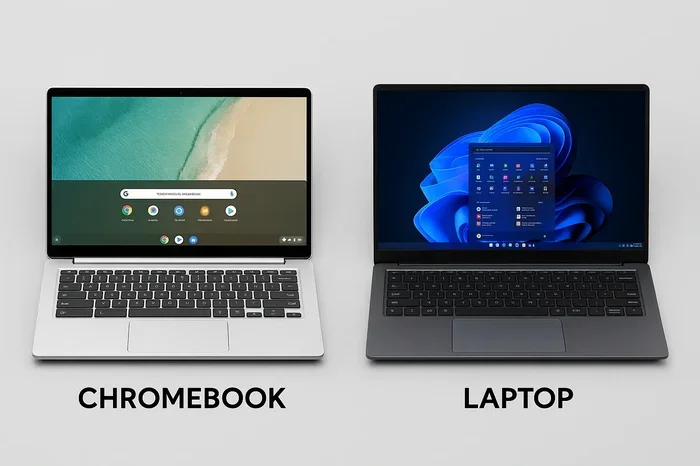
Can A Chromebook Do Everything A Regular Laptop Can Do
Can a Chromebook do everything a regular laptop can do? The short answer is close, but not quite. Chromebooks run on Chrome OS and rely heavily on cloud computing, while traditional laptops offer full desktop software and offline power. If your workflow centers on web browsing, streaming, and light productivity, a Chromebook might surprise you with what it can handle.
Can a Chromebook do everything a regular laptop can do? This question pops up all the time in tech circles, classrooms, and living rooms. People want to know if they can swap their trusty laptop for a Chromebook without losing anything important. The answer is more nuanced than you might think.
A Chromebook runs on Chrome OS, a lightweight operating system built by Google. It boots up in seconds, stays fast over time, and handles everyday tasks beautifully. But when it comes to heavy-duty software, offline power, and specialized workflows, the picture changes. Let us break this down honestly and thoroughly.
In this guide, we will explore what a Chromebook can and cannot do compared to a traditional laptop. We will look at performance, software compatibility, storage, and real-world use cases. By the end, you will know exactly whether a Chromebook fits your digital life.
Key Takeaways
- Chromebooks excel at web-based tasks: They handle browsing, email, streaming, and cloud-based productivity with ease and speed.
- They struggle with specialized software: Heavy photo editing, video production, and advanced gaming are not their strong suits.
- Offline capabilities have improved: Chrome OS now supports offline modes for many apps and Google services.
- Battery life is a major advantage: Most Chromebooks last 8-12 hours on a single charge, far exceeding many regular laptops.
- Budget-friendly options dominate: You can find solid Chromebooks starting under $300, making them accessible for students and families.
- Android and Linux apps expand functionality: These additions bring more versatility to the Chrome OS experience.
- A Chromebook is not a replacement for a power laptop: If you need professional-grade software, a traditional laptop remains the better choice.
📑 Table of Contents
- What Is a Chromebook and How Does It Work?
- What Can a Chromebook Do Well?
- Where Does a Chromebook Fall Short?
- Chromebook vs Regular Laptop: A Detailed Comparison
- Who Should Buy a Chromebook?
- Can You Run Windows or Linux on a Chromebook?
- Common Mistakes People Make When Choosing a Chromebook
- Expert Insights on Chromebook vs Laptop
- Quick Tips for Getting the Most From Your Chromebook
- Final Verdict: Can a Chromebook Do Everything a Regular Laptop Can Do?
What Is a Chromebook and How Does It Work?
A Chromebook is a laptop that runs Google’s Chrome OS instead of Windows or macOS. The operating system is designed around the web browser. Most tasks happen inside the Chrome browser or through web apps. This makes the device simple, fast, and secure.
When you turn on a Chromebook, it connects to the internet and syncs with your Google account. Your bookmarks, passwords, and settings load instantly. The Chrome OS updates automatically in the background. You never have to worry about manual updates or slowing down over time.
The Chrome OS Ecosystem
Google built Chrome OS around its ecosystem. This means Gmail, Google Drive, Google Docs, and Google Sheets all work seamlessly. The Google ecosystem extends to YouTube, Google Photos, and Google Calendar. Everything stays synced across your phone, tablet, and laptop.
This integration is a huge selling point. If you already use Android phones or Google services daily, a Chromebook feels like a natural extension of your workflow. The cloud computing approach means your files live online, not just on the device.
Hardware Inside a Chromebook
Chromebooks come in many shapes and sizes. Some are traditional clamshell designs. Others are convertible laptops with touchscreens and 360-degree hinges. You can find models with Intel Celeron, MediaTek, or even Intel Core processors.
Most Chromebooks have 4GB to 8GB of RAM and 32GB to 128GB of internal storage. The storage numbers look small compared to a standard laptop. But remember, most files live in the cloud. The local storage is mainly for the operating system and offline apps.
What Can a Chromebook Do Well?
A Chromebook shines in many everyday scenarios. Let us look at where it truly competes with a regular laptop and sometimes even wins.
Web Browsing and Streaming
Browsing the web is the core strength of any Chromebook. Chrome OS is built for this. Pages load fast, multiple tabs stay open without lag, and streaming video runs smoothly. Netflix, YouTube, Hulu, and Disney+ all work perfectly on a Chromebook.
The web browser experience on Chrome OS feels fast and clean. Google Chrome handles modern websites with ease. Extensions add extra functionality, from ad blockers to password managers. For casual browsing and media consumption, a Chromebook delivers a great experience.
Productivity and Office Work
Need to write documents, create spreadsheets, or put together presentations? A Chromebook handles all of this. Google Docs, Sheets, and Slides cover most basic productivity needs. They work in the browser and save automatically to Google Drive.
Microsoft offers web versions of Word, Excel, and PowerPoint through Office 365. These run well on a Chromebook and cover most everyday tasks. You can also use the Android versions of Microsoft Office apps if your Chromebook supports them.
Email management is another strength. Gmail works flawlessly, and you can add other email accounts easily. Calendar apps, note-taking tools like Google Keep, and communication apps like Google Meet and Zoom all run smoothly.
Education and Student Use
Chromebooks have become hugely popular in schools. They are affordable, easy to manage, and perfect for research, writing essays, and collaborating on projects. Students benefit from the long battery life and lightweight design.
A budget laptop for students often means a Chromebook. The low price point makes them accessible for families. Schools can deploy hundreds of units easily because of the simple management tools built into Chrome OS.
Video Conferencing and Communication
Remote work and work from home setups rely heavily on video calls. A Chromebook handles Zoom, Google Meet, Microsoft Teams, and Webex without issues. The built-in camera and microphone on most models work well for everyday calls.
The lightweight operating system uses fewer resources, which means more power goes to your video call. You experience smoother performance and less chance of lag or freezing during important meetings.
Where Does a Chromebook Fall Short?
Let us be honest about the limitations. A Chromebook is not a one-size-fits-all solution. There are specific tasks where a regular laptop clearly outperforms it.
Professional Software and Specialized Apps
If you need Adobe Photoshop, Premiere Pro, or AutoCAD, a Chromebook will not cut it. These applications require full desktop operating systems like Windows or macOS. Professional software often needs significant processing power and dedicated hardware.
Some alternatives exist. You can use web-based photo editors like Pixlr or Canva. For video editing, tools like Clipchamp or WeVideo offer browser-based options. But they do not match the depth and power of desktop applications. If your work depends on specialized software compatibility, a traditional laptop is the better choice.
Offline Functionality Limitations
Chrome OS is designed for always-on internet use. While offline modes have improved significantly, they still lag behind a full laptop. Google Docs offers offline editing, but you must set this up in advance. Some web apps simply do not work without an internet connection.
If you frequently work on airplanes, in remote areas, or in locations with poor connectivity, this matters. A regular laptop stores everything locally and works fully offline. A Chromebook requires planning and preparation for offline use.
Gaming Capabilities
Gaming on a Chromebook is limited compared to a standard laptop. You can play Android games from the Google Play Store. Cloud gaming services like GeForce Now and Xbox Cloud Gaming work well with a stable internet connection.
But you cannot install AAA PC games or run demanding titles. There is no Steam client for Chrome OS in its full form. If gaming is a priority, a Chromebook will disappoint. A regular laptop with a dedicated graphics card handles gaming far better.
Storage and File Management
The limited local storage on most Chromebooks can be frustrating. With only 32GB to 128GB available, you rely heavily on cloud storage. Google Drive, external hard drives, and SD cards help, but the experience is not as seamless as a laptop with a large hard drive.
File management on Chrome OS has improved, but it still feels basic compared to Windows or macOS. You cannot download and run any file type freely. The storage capacity limitation is a real consideration for media creators and professionals.
Chromebook vs Regular Laptop: A Detailed Comparison
Let us put the comparison side by side. This table covers the key areas where people make their decision.
| Feature | Chromebook | Regular Laptop |
|---|---|---|
| Operating System | Chrome OS | Windows, macOS, Linux |
| Price Range | $200 – $600 | $400 – $2000+ |
| Battery Life | 8 – 12 hours | 4 – 10 hours |
| Boot Time | 5 – 10 seconds | 30 – 60 seconds |
| Software Compatibility | Web apps, Android apps | Full desktop applications |
| Offline Use | Limited but improving | Full functionality |
| Storage | 32GB – 128GB (cloud-based) | 256GB – 1TB+ (local) |
| Security | Excellent (verified boot) | Good (requires antivirus) |
| Gaming | Casual and cloud-based | Full range including AAA |
| Maintenance | Automatic updates | Manual updates needed |
This comparison makes the strengths and weaknesses clear. A Chromebook wins on price, battery life, boot speed, and security. A regular laptop wins on software compatibility, offline use, storage, and gaming.
Who Should Buy a Chromebook?
Not everyone needs a full-powered laptop. A Chromebook is perfect for specific user groups and use cases. Let us look at who benefits most.
Students and Educators
Students benefit enormously from the affordability and simplicity of a Chromebook. Writing papers, researching online, and collaborating on group projects all work well. The long battery life means it lasts through a full school day without needing a charge.
Teachers also appreciate the easy device management. Schools can deploy and monitor Chromebooks at scale. The low cost means more students can access technology without breaking the budget.
Casual Users and Families
If your computing needs revolve around email, social media, streaming, and light browsing, a Chromebook is ideal. Families can share devices easily because each user logs into their own Google account. The simple setup means even non-tech-savvy users can get started quickly.
Parents appreciate the built-in parental controls. Google Family Link lets you manage screen time and content access. This makes a Chromebook a safe and affordable first computer for children.
Remote Workers with Light Computing Needs
Many remote workers do not need powerful desktop software. If your job involves email, video calls, web research, and cloud-based documents, a Chromebook handles this easily. The fast boot time means you open your laptop and start working immediately.
Freelancers who work with writing, social media management, or basic design can thrive on a Chromebook. The cloud-based tools cover most needs. The lightweight design also makes it easy to work from cafes or co-working spaces.
Can You Run Windows or Linux on a Chromebook?
This is a common question, and the answer is yes, to some extent. Chrome OS supports Linux apps through a built-in container. You can install Linux development tools, coding environments, and some Linux applications directly.
Some Chromebooks also support Android apps from the Google Play Store. This dramatically expands what you can do. You get access to mobile versions of popular apps, games, and productivity tools.
However, running Windows natively on a Chromebook is not officially supported. Some tech enthusiasts have found workarounds, but these are not reliable or user-friendly. If you need Windows software, a traditional laptop is the right choice.
The Rise of Chrome OS Flex
Google recently launched Chrome OS Flex, which lets you install Chrome OS on older Windows laptops. This gives traditional computers the speed and simplicity of a Chromebook experience. It is a great option for extending the life of older hardware.
Chrome OS Flex does not support Android apps. It focuses on web-based productivity and cloud computing. But for users who want a clean, fast, and secure system, it is worth considering.
Common Mistakes People Make When Choosing a Chromebook
Before you buy a Chromebook, avoid these common pitfalls that lead to buyer’s remorse.
- Assuming it works like a Windows laptop: Chrome OS has a different workflow. Do not expect the same file management or software experience.
- Ignoring offline needs: If you travel frequently without internet access, plan for offline capabilities carefully.
- Buying the cheapest model: Ultra-budget Chromebooks often have slow processors and limited RAM. A slightly higher-end model makes a big difference.
- Overlooking storage needs: If you store lots of photos or videos locally, a Chromebook may not be enough without external storage.
- Not checking Android app support: Not all Chromebooks support Android apps. Verify this before purchasing if you need mobile apps.
- Expecting gaming performance: A Chromebook is not a gaming device. Do not buy one expecting to play demanding games.
Expert Insights on Chromebook vs Laptop
“The Chromebook has evolved from a niche product to a legitimate computing option,” says tech analyst Sarah Mitchell. “For users whose lives happen in the browser, it offers a faster, more secure, and more affordable experience than a traditional laptop.”
“The key is understanding your needs,” adds hardware reviewer David Chen. “If you need professional-grade software or heavy offline work, a standard laptop remains essential. But for the average user, a Chromebook covers 90% of daily tasks beautifully.”
The Chromebook market has matured significantly. Manufacturers like Lenovo, HP, Acer, Samsung, and Asus now offer premium models that rival traditional laptops in build quality. The days of cheap, plasticky Chromebooks are fading fast.
Quick Tips for Getting the Most From Your Chromebook
- Use keyboard shortcuts: Chrome OS has excellent shortcuts that speed up your workflow dramatically. Learn Ctrl+Shift+Q for sign out and Ctrl+Shift= for zooming in.
- Set up offline access: Enable offline mode for Google Docs and other apps before you need them without internet.
- Use a microSD card: Expand storage affordably with a cheap memory card. This solves the limited internal storage problem.
- Pin your favorite apps: Keep your most-used apps on the shelf for quick access and a streamlined experience.
- Enable Linux (Beta): If your Chromebook supports it, the Linux development environment opens up many more possibilities.
- Keep Chrome extensions minimal: Too many extensions slow down your browser. Only install what you truly need.
Final Verdict: Can a Chromebook Do Everything a Regular Laptop Can Do?
The honest answer is no, not everything. But for most people, a Chromebook comes remarkably close. It handles the tasks that the average user performs daily with speed, simplicity, and reliability. Web browsing, email, document creation, streaming, and video calls all work beautifully.
Where it falls short is in specialized software, offline-heavy workflows, professional creative work, and gaming. If those areas matter to you, a regular laptop remains the better investment. But if your computing life revolves around the web, a Chromebook is an excellent choice.
The budget-friendly price, outstanding battery life, and effortless maintenance make Chromebooks hard to ignore. They represent a different philosophy in computing one built around simplicity, speed, and the cloud. For the right user, this is not a compromise. It is an upgrade.
So before you decide, ask yourself what you actually need your computer to do. If the answer is web-based work, communication, and light productivity, a Chromebook will serve you well. If you need powerful desktop software and offline capability, stick with a traditional laptop. Both have their place, and both deserve a spot in the modern computing landscape.
Frequently Asked Questions
Is a Chromebook good for work?
Yes, a Chromebook works great for many types of remote work. It handles email, video calls, document editing, and web research with ease. However, if your job requires specialized desktop software like Adobe tools or complex data analysis, a regular laptop is a better fit.
Can you use Microsoft Office on a Chromebook?
Absolutely. You can use Microsoft Office through the web browser with an Office 365 subscription. You can also install the Android versions of Word, Excel, and PowerPoint on Chromebooks that support Android apps. The experience is slightly different from the desktop versions but covers most everyday needs.
Do Chromebooks have a long lifespan?
Most Chromebooks receive updates for 8-10 years from their release date. This is longer than many budget Windows laptops. The lightweight operating system also means older Chromebooks stay fast and usable for years, unlike traditional laptops that tend to slow down.
Can you install games on a Chromebook?
You can install Android games from the Google Play Store. Cloud gaming services like GeForce Now and Xbox Cloud Gaming also work on Chromebooks with a good internet connection. However, you cannot install traditional PC games or run demanding AAA titles natively.
Are Chromebooks safe from viruses?
Chromebooks are among the most secure laptops available. The Chrome OS uses verified boot, sandboxing, and automatic updates to protect against threats. The architecture is designed to prevent malware from taking hold. You rarely need antivirus software on a Chromebook.
What is the difference between a Chromebook and a laptop?
The main difference is the operating system and how the device is designed to work. A Chromebook runs Chrome OS and relies heavily on cloud computing and web apps. A regular laptop typically runs Windows or macOS and supports full desktop applications. Chromebooks are generally lighter, faster to boot, and more affordable.
=== CONCLUSION ===
Can a Chromebook do everything a regular laptop can do? The truth is that each device has its strengths. A Chromebook excels at web-based tasks, offers incredible battery life, and costs significantly less than most laptops. A regular laptop provides broader software compatibility and offline power.
For the average user who spends most of their time in a browser, a Chromebook is not just a viable option. It is often the better one. The speed, simplicity, and security of Chrome OS make daily computing feel effortless. If this sounds like what you need, a Chromebook could be your perfect match.