Can I Transfer Files From My Iphone To My Computer Easily
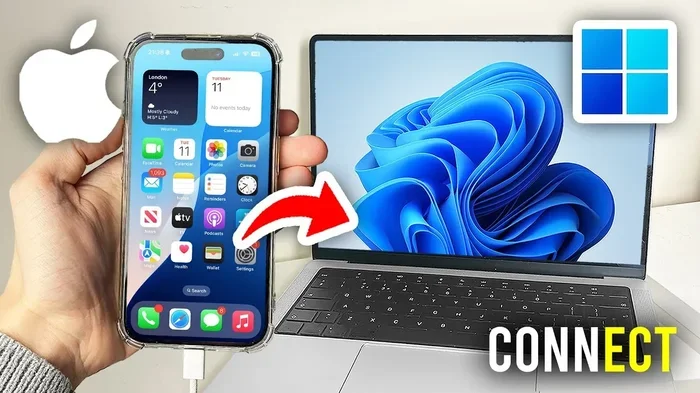
Yes, you can transfer files from your iPhone to your computer easily using multiple methods that suit every need. Whether you prefer a wired USB connection, wireless AirDrop, or cloud-based solutions like iCloud Drive, each option makes iPhone to PC or iPhone to Mac file sharing simple and fast. This guide walks you through every method with clear, step-by-step instructions so you can sync files in minutes.
Have you ever stared at your iPhone, trying to figure out how to get a file onto your computer? It happens all the time. You take a photo, save a document, or download something, and then you think, “I need this on my computer.” The good news is that transferring files from your iPhone to your computer is way easier than most people think.
Whether you use a Windows PC or a Mac, there are several straightforward methods you can try today. You do not need to be a tech expert. In this guide, we will walk you through every option step by step. By the end, you will know exactly which method works best for you and your file management needs.
Let us dive right in and explore all the ways you can move files between your iPhone and your computer with confidence.
Key Takeaways
- Multiple transfer methods exist: USB cable, AirDrop, iCloud Drive, email, and third-party apps all work reliably.
- Wired transfers are fastest: A USB cable offers the quickest way to move large files between your iPhone and computer.
- Wireless options offer convenience: AirDrop and cloud services let you transfer files without any cables.
- Free and paid tools are available: You can use built-in Apple tools or explore third-party apps for extra features.
- File management matters: Organizing your files before transfer saves time and prevents data loss.
- Security is important: Always use trusted methods and keep your devices updated for safe data migration.
- Any computer works: Whether you use Windows or Mac, there is a file sharing method that fits your setup.
📑 Table of Contents
- Why Transfer Files From Your iPhone to Your Computer?
- Method 1: Use a USB Cable for a Wired Transfer
- Method 2: Use AirDrop for Wireless Transfers (Mac Only)
- Method 3: Use iCloud Drive for Cloud-Based Transfers
- Method 4: Send Files via Email or Messaging Apps
- Method 5: Use Third-Party Apps for Extra Features
- Comparison: Which Transfer Method Is Best for You?
- Common Mistakes to Avoid When Transferring Files
- Expert Insights on iPhone File Transfers
- How to Troubleshoot Common Transfer Issues
- Conclusion
Why Transfer Files From Your iPhone to Your Computer?
You might wonder why you even need to move files off your phone. The truth is, there are many good reasons. Your iPhone has limited storage compared to a computer. When your phone starts running out of space, transferring files to a computer frees up room.
Here are some common reasons people move files from their iPhone to their computer:
- Free up storage space: Photos and videos take up a lot of room. Moving them to your computer clears space on your phone.
- Create backups: Keeping copies of important files on your computer protects you if something happens to your phone.
- Edit and work with files: Some files are easier to edit on a larger screen with better software.
- Share with others: Your computer may offer easier ways to send files to friends or colleagues.
- Organize your digital life: A computer offers better file management tools for sorting and naming your documents.
No matter your reason, the process is simpler than you might expect. Let us look at the best methods available.
Method 1: Use a USB Cable for a Wired Transfer
The most reliable way to transfer files from iPhone to computer is by using a USB cable. This method works with both Mac and Windows computers. It is fast, stable, and does not require an internet connection.
How to Transfer Files Using a USB Cable on Windows
First, plug one end of your USB cable into your iPhone and the other end into your computer. Your iPhone screen will show a “Trust This Computer” prompt. Tap Trust and enter your passcode if needed.
On your Windows PC, open File Explorer. You should see your iPhone listed under “This PC” or “Devices.” Click on it to access your files.
From there, you can browse through your photos, videos, and documents. Simply drag and drop the files you want to your computer. This method works great for photo transfer and moving large video files.
How to Transfer Files Using a USB Cable on Mac
Mac users need to install Apple Devices or iTunes first. Once installed, connect your iPhone with a USB cable. Your Mac will recognize the device automatically.
Open the Photos app on your Mac to import pictures and videos. For other file types, you can use Finder to browse your iPhone’s storage. This wired connection gives you full access to your files for smooth data migration.
Quick Tips for USB Transfers
- Always use the original Apple cable or a certified MFi cable for the best results.
- Unlock your iPhone before connecting it to your computer.
- If your computer does not recognize your iPhone, try a different USB port.
- Keep your iPhone updated to the latest iOS version for compatibility.
Method 2: Use AirDrop for Wireless Transfers (Mac Only)
If you have a Mac, AirDrop is one of the best ways to wireless transfer files between your iPhone and computer. It uses Bluetooth and Wi-Fi to send files instantly. No cables, no internet, no fuss.
How to Use AirDrop
First, make sure AirDrop is turned on. On your iPhone, open Control Center and tap the AirDrop icon. Choose “Everyone” or “Contacts Only.” On your Mac, open Finder and click AirDrop in the sidebar.
Make sure both devices are close to each other. On your iPhone, find the file you want to share. Tap the Share button and select AirDrop. Choose your Mac from the list of available devices.
The file will appear on your Mac within seconds. AirDrop works perfectly for photos, videos, documents, and more. It is one of the fastest file sharing methods available.
Limitations of AirDrop
AirDrop only works between Apple devices. You cannot use it to send files from your iPhone to a Windows PC. Also, both devices need to be within about 30 feet of each other for the best results.
Method 3: Use iCloud Drive for Cloud-Based Transfers
iCloud Drive is Apple’s cloud storage service. It lets you save files on your iPhone and access them from any computer with an internet connection. This method is perfect if you want to sync files across multiple devices without using a cable.
How to Use iCloud Drive
On your iPhone, go to Settings and tap your name. Then tap iCloud and select iCloud Drive. Make sure it is turned on. Now, any file you save to iCloud Drive will be available on your computer too.
On your computer, open a web browser and go to icloud.com. Sign in with your Apple ID. Click on iCloud Drive to see all your files. You can download any file directly to your computer.
If you use a Mac, iCloud Drive is already built into Finder. Your files will appear just like any other folder. This makes file management across devices incredibly easy.
Things to Keep in Mind
iCloud Drive gives you 5 GB of free storage. If you have a lot of files, you might need to upgrade to a paid plan. Also, you need a stable internet connection to upload and download files. Large files may take longer to transfer this way.
Method 4: Send Files via Email or Messaging Apps
For smaller files, email and messaging apps are simple and effective. You do not need any extra software or setup. This method works for sending documents, photos, or short videos from your iPhone to PC or Mac.
Using Email
Open the file on your iPhone and tap the Share button. Choose Mail and send it to yourself. Open your email on your computer and download the attachment. This works well for files under 25 MB.
Using Messaging Apps
Apps like WhatsApp, Telegram, or Signal let you send files to yourself. Open the chat with yourself, attach the file, and send it. Then open the same chat on your computer and download the file.
These methods are not ideal for large files or bulk transfers, but they work great for quick, one-off document transfer tasks.
Method 5: Use Third-Party Apps for Extra Features
If you need more control or advanced features, third-party apps are a great option. Many apps are designed specifically for iPhone to computer file transfers and offer features that built-in tools do not.
Popular Third-Party Transfer Apps
Here are some well-known apps that make file transfers simple:
- Google Drive: Free cloud storage that works on any device. Upload files from your iPhone and download them on your computer.
- Dropbox: Another reliable cloud service with easy file syncing across devices.
- Snapdrop: A free web-based tool that lets you transfer files wirelessly between your iPhone and computer through your browser.
- AnyTrans: A dedicated tool for managing and transferring files between iPhone and computer with a simple interface.
- Send Anywhere: Lets you send large files quickly using a shared link or direct connection.
Choosing the Right App
When picking a third-party app, look for one that is easy to use, has good reviews, and keeps your files secure. Free apps often have storage limits, while paid versions offer more space and features. Always download apps from official sources to keep your data safe.
Comparison: Which Transfer Method Is Best for You?
Every method has its strengths. Here is a quick comparison to help you choose the right one for your needs:
| Method | Speed | Cable Needed? | Works with Windows? | Works with Mac? | Best For |
|---|---|---|---|---|---|
| USB Cable | Very Fast | Yes | Yes | Yes | Large files and bulk transfers |
| AirDrop | Very Fast | No | No | Yes | Quick wireless transfers between Apple devices |
| iCloud Drive | Medium | No | Yes | Yes | Syncing files across all devices |
| Slow | No | Yes | Yes | Small files and quick sharing | |
| Third-Party Apps | Varies | Sometimes | Yes | Yes | Advanced features and large files |
As you can see, each method has its place. For the fastest data migration, a USB cable is hard to beat. For convenience and flexibility, cloud services like iCloud Drive win. Choose the method that fits your situation best.
Common Mistakes to Avoid When Transferring Files
Even though transferring files is simple, people still make mistakes. Here are some common errors to watch out for:
- Forgetting to trust the computer: When you connect your iPhone to a new computer, always tap Trust on your iPhone screen. Without this, your computer cannot access your files.
- Using low-quality cables: Cheap or damaged cables can cause transfer failures. Always use a good-quality cable.
- Not checking storage space: Make sure your computer has enough free space before transferring large files.
- Ignoring file formats: Some files may not open properly on your computer if the format is not compatible. Check before you transfer.
- Skipping backups: Always keep a backup copy of important files. Do not delete the original from your iPhone until you confirm the transfer was successful.
Avoiding these simple mistakes will save you time, frustration, and potentially lost files.
Expert Insights on iPhone File Transfers
Experts in file management and mobile technology recommend a few best practices. First, always keep your iPhone and computer software updated. Updates fix bugs and improve compatibility for smooth file sharing.
Second, organize your files before transferring. Create folders on your computer for photos, documents, and videos. This makes it much easier to find files later and keeps your file management system clean.
Third, consider using a combination of methods. Use AirDrop or iCloud for quick daily transfers and USB cable for large backup sessions. This hybrid approach gives you the best of both worlds.
Finally, never rely on just one method for important files. Keep copies in at least two places. This ensures your data stays safe even if something goes wrong during the transfer process.
How to Troubleshoot Common Transfer Issues
Sometimes things do not go as planned. Here are quick fixes for common problems:
- Computer does not recognize iPhone: Try a different USB port or cable. Restart both devices and try again. Make sure iTunes or Apple Devices is up to date on Windows.
- AirDrop is not working: Check that Wi-Fi and Bluetooth are turned on for both devices. Make sure AirDrop is set to Everyone or Contacts Only on both devices.
- iCloud files not showing on computer: Sign out and sign back into iCloud. Check that you have enough storage space. Make sure iCloud Drive is enabled on both devices.
- Slow transfer speeds: Close other apps on both devices. Use a different USB port. For wireless transfers, move closer to your router.
These simple fixes solve most transfer problems. If the issue continues, restarting both devices often does the trick.
Conclusion
Transferring files from your iPhone to your computer is easy and does not have to be complicated. You have many options to choose from, whether you prefer a wired USB connection, wireless AirDrop, cloud-based iCloud Drive, or a quick email send. Each method has its own advantages, and the best one depends on your specific needs.
Start by trying the method that fits your situation best. If you need speed, use a USB cable. If you want convenience, try AirDrop or iCloud Drive. For advanced features, explore third-party apps. The key is to find a routine that works for you and stick with it.
With the tips and methods in this guide, you now have everything you need to transfer files from your iPhone to your computer with confidence. Try them out today and enjoy a smoother, more organized digital life.
Frequently Asked Questions
Can I transfer files from my iPhone to a Windows computer without iTunes?
Yes, you can. You can use iCloud Drive through a web browser, use the built-in Photos app on Windows, or try third-party apps like Snapdrop or Google Drive. All of these work without needing iTunes installed on your Windows PC.
What is the fastest way to transfer large files from iPhone to computer?
The fastest way is using a USB cable. A wired connection transfers large files like videos and photo libraries much quicker than wireless methods. Simply connect your iPhone, trust the computer, and drag and drop the files you need.
Is it safe to use third-party apps for file transfers?
Most third-party apps are safe, but you should download them from official sources like the App Store or the developer’s website. Always check reviews and permissions before installing any app. Stick with well-known apps for the best security.
Can I transfer files wirelessly from iPhone to computer without Wi-Fi?
Yes. AirDrop uses Bluetooth and a direct Wi-Fi connection between devices, so it does not need an internet connection. Snapdrop also works through your local network without requiring Wi-Fi access to the internet.
How do I transfer files from iPhone to computer if I do not have a USB cable?
You have several cable-free options. Use AirDrop if you have a Mac, upload files to iCloud Drive or Google Drive, or send files to yourself through email or messaging apps. Each method is simple and works without any cables.
Can I transfer all types of files from my iPhone to my computer?
Yes, you can transfer photos, videos, documents, audio files, and more. Some methods work better for certain file types. For example, USB cables handle all file types well, while email is best for smaller files under 25 MB.