Do All Computers Have A Wifi Card Built Right Inside
Do all computers have a wifi card built right inside? The short answer is no. While most modern laptops come with a wifi card pre-installed, many desktop computers and older machines may not have one. Understanding your wireless connectivity options helps you stay connected without hassle. This guide breaks down everything you need to know about wifi cards, built-in wireless adapters, and how to add internet access to any device.
Do all computers have a wifi card built right inside? It is a question many people ask, especially when they set up a new machine and wonder why the internet does not just work. The truth is, the answer is more complicated than a simple yes or no. Some computers come with wireless capability right out of the box, while others need a little extra help.
Whether you are using a sleek laptop or a bulky desktop tower, understanding how wifi works inside your device matters. A wifi card is the small piece of hardware that lets your computer talk to a wireless router. Without it, you are stuck with cables or no internet at all. Let us break down exactly what a wifi card does, which computers have one, and what you can do if yours does not.
In this guide, we will walk you through everything from built-in wireless adapters to USB wifi dongles. You will learn about different types of network cards, how to check if your machine has one, and how to upgrade your wireless connectivity in minutes. By the end, you will know exactly what your computer needs to connect to the internet.
Key Takeaways
- Not all computers include a wifi card: Many desktops and older machines lack built-in wireless capability.
- Laptops usually have wifi built in: Most modern laptops come with a wifi card already installed on the motherboard.
- USB wifi adapters are an easy fix: You can add wireless connectivity to any computer with a simple USB device.
- PCIe wifi cards offer better performance: Desktop users can install internal wifi cards for faster speeds and stronger signals.
- Ethernet is a reliable alternative: A wired connection still works well when wifi isn’t available.
- Wifi standards matter: Knowing WiFi 5 vs WiFi 6 helps you choose the right hardware.
- Bluetooth is not a wifi card: Many people confuse the two, but they serve different purposes.
📑 Table of Contents
- What Is A Wifi Card And How Does It Work
- Do All Computers Come With A Wifi Card
- How To Check If Your Computer Has A Wifi Card
- How To Add Wifi To A Computer Without A Wifi Card
- Types Of Wifi Cards And What You Should Know
- Common Problems With Wifi Cards And How To Fix Them
- Expert Tips For Better Wireless Connectivity
- Frequently Asked Questions
- Final Thoughts
What Is A Wifi Card And How Does It Work
A wifi card is a small hardware component inside your computer that sends and receives wireless signals. Think of it as a translator between your device and your wireless router. When you browse the web or stream a video, the wifi card takes digital data and turns it into radio waves. Those radio waves travel through the air and reach your router, which sends the information back and forth.
Most wifi cards connect to the motherboard through a PCIe slot or a soldered connection. Laptops often have the wifi card built into the motherboard itself, which saves space inside the slim chassis. The card also includes a small antenna that picks up signals from your wireless router.
How Wireless Signals Travel
Your wireless router broadcasts a signal through the air using radio frequencies. The wifi card in your computer picks up that signal and converts it back into data your device can understand. This happens millions of times per second, which is why you can stream videos and video call friends without noticeable delays.
The speed and range of your connection depend on the type of wifi card you have. Newer cards support WiFi 6 and WiFi 6E standards, which offer faster speeds and better performance in crowded areas. Older cards may only support WiFi 4 or WiFi 5, which still work fine for basic browsing but may struggle with heavy use.
Wifi Card vs Wireless Adapter
People often use the terms “wifi card” and “wireless adapter” interchangeably, but they are slightly different. A wifi card usually refers to an internal card that plugs into the motherboard. A wireless adapter can be internal or external, like a USB device that plugs into a port. Both do the same job, but they install differently.
Do All Computers Come With A Wifi Card
The short answer is no. Not every computer comes with a wifi card already inside. Whether your machine has wireless capability depends on the type of computer, its age, and its price point. Let us look at the different categories to understand where your device falls.
Laptops And Wifi Cards
Most modern laptops come with a wifi card built right into the motherboard. Because laptops are designed to be portable and wireless by nature, manufacturers almost always include wireless connectivity as a standard feature. Whether you buy a budget Chromebook or a high-end gaming laptop, it likely has a wifi card inside.
However, some older or very cheap laptops may skip the wifi card to cut costs. If you own a laptop from the early 2000s, there is a good chance it does not have wireless capability. In those cases, you can still add a USB wifi adapter to get online.
Desktop Computers And Wifi
Desktop computers are a different story. Many desktop towers do not come with a wifi card pre-installed. Manufacturers often assume desktop users will connect to the internet through an ethernet cable. If you buy a budget desktop or a basic office PC, there is a good chance it has no wireless hardware at all.
That said, some mid-range and premium desktop computers do include a built-in wifi card. Gaming PCs and all-in-one desktops are especially likely to have wireless connectivity out of the box. Always check the specifications before you buy if wifi is important to you.
Mini PCs And Mini Towers
Mini PCs are a popular choice for home entertainment and office work. Many of these small machines do include a wifi card because they are designed for wireless use. However, some models still rely on ethernet or require you to add a wireless adapter yourself. Always double-check the product listing for details about network connectivity.
Older Computers And Legacy Hardware
If you are using an older computer, there is a real chance it does not have a wifi card. Computers made before 2010 often relied entirely on wired connections. Even some machines from the early 2010s may only have WiFi 4 support, which is slow by today’s standards. Upgrading the wifi card in an older machine can breathe new life into it.
How To Check If Your Computer Has A Wifi Card
Not sure if your computer has a wifi card? You are not alone. Many people use their machines for years without ever checking. The good news is that checking is quick and easy, no matter what operating system you use.
Check On Windows
On Windows, open the Device Manager by right-clicking the Start button and selecting Device Manager. Look for a section called “Network adapters.” Expand it and look for any entry that mentions “wireless,” “wifi,” or “WLAN.” If you see one, your computer has a wifi card. If you only see “Ethernet” or “Realtek PCIe GBE,” then you do not have wireless hardware built in.
Check On Mac
Mac computers almost always have a wifi card built in. You can confirm by clicking the Apple menu, choosing System Preferences, and then clicking Network. If you see “Wi-Fi” listed as a connection option, your Mac has wireless capability. Every Mac since the original MacBook Air in 2008 includes a wifi card.
Check On Linux
On Linux, open a terminal and type “iwconfig” or “lspci | grep -i network.” These commands will show you if a wireless adapter is detected. Most modern Linux distributions support a wide range of wifi cards, but older or niche hardware might need extra drivers.
Look At The Physical Hardware
If you feel comfortable opening your computer, you can physically check for a wifi card. On desktops, look for a small card plugged into a PCIe slot with a thin wire antenna attached. On laptops, the wifi card is usually hidden under a metal shield near the edge of the motherboard. If you see an antenna wire or a small card with wireless branding, you are good to go.
How To Add Wifi To A Computer Without A Wifi Card
If your computer does not have a wifi card, do not worry. There are several easy ways to add wireless connectivity. You do not need to be a tech expert to get your machine online. Here are the most common methods people use to add a wifi card to a computer that does not have one.
USB Wifi Adapter
A USB wifi adapter is the easiest and most affordable option. You simply plug the small device into a USB port, and your computer recognizes it as a wireless adapter. Most USB wifi adapters cost between 10 and 30 dollars, and they work with virtually any computer that has a USB port.
USB adapters come in different shapes and sizes. Some are tiny and barely stick out from the port, while others have a short cable that positions the antenna away from the computer for better signal strength. Look for an adapter that supports at least WiFi 5 for good speeds.
PCIe Wifi Card
For desktop users, a PCIe wifi card offers better performance than a USB adapter. You open the computer case, slide the card into an available PCIe slot on the motherboard, and connect the antenna wires. PCIe cards connect directly to the motherboard, which means faster data transfer and more stable connections.
Popular PCIe wifi cards support WiFi 6 and come with high-gain antennas for stronger signal coverage. They cost between 30 and 80 dollars depending on the brand and features. If you game online or work from home, a PCIe card is a great investment.
Ethernet As An Alternative
Not everyone needs wifi. If your computer sits close to your wireless router, a simple ethernet cable can give you a fast, stable connection. Ethernet cables support gigabit speeds, which is faster than most wifi connections. A wired connection also has lower latency, making it ideal for gaming and video calls.
The downside is obvious, of course. You are tied to one spot in the room. If you like to move around while working, a wifi card or USB adapter gives you the freedom you need.
Powerline Wifi Adapters
Powerline adapters are a clever option for homes with thick walls or long distances from the router. You plug one adapter into an outlet near your router and connect it with an ethernet cable. Then you plug the second adapter into an outlet near your computer. The signal travels through your home’s electrical wiring, giving you internet without running cables through walls.
Some powerline kits also include a built-in wifi access point, which turns the second adapter into a mini wireless router. This is a great solution for homes where wifi signals struggle to reach certain rooms.
Types Of Wifi Cards And What You Should Know
Not all wifi cards are the same. Different cards support different wireless standards, speeds, and frequencies. Understanding the basics helps you choose the right card for your needs.
Wifi Standards Explained
Wifi technology has evolved a lot over the years. Each new standard brings faster speeds, better range, and improved performance. Here is a quick look at the main standards you will encounter:
- WiFi 4 (802.11n): The oldest common standard still in use. Speeds up to 600 Mbps. Works fine for basic browsing.
- WiFi 5 (802.11ac): A big step up. Speeds up to 3.5 Gbps. Most modern routers and computers support this standard.
- WiFi 6 (802.11ax): The current standard. Speeds up to 9.6 Gbps. Better performance in crowded areas with many devices.
- WiFi 6E: An extension of WiFi 6 that uses the 6 GHz band. Less congestion and faster speeds for supported devices.
- WiFi 7 (802.11be): The newest standard just arriving. Speeds up to 46 Gbps. Not yet widely available but coming soon.
2.4 GHz vs 5 GHz vs 6 GHz
Wifi cards operate on different frequency bands. The 2.4 GHz band has a longer range but slower speeds. The 5 GHz band offers faster speeds but shorter range. The 6 GHz band, available on WiFi 6E and WiFi 7 cards, provides the fastest speeds with the least interference from other devices.
When choosing a wifi card, look for one that supports both 2.4 GHz and 5 GHz for the best flexibility. If you want the fastest possible speeds, go for a card that supports the 6 GHz band as well.
Internal vs External Wifi Cards
Internal wifi cards are installed inside the computer case or built into the motherboard. They are more stable and offer better performance than external options. External wifi cards, like USB adapters, are portable and easy to set up but may have slightly lower performance.
For most users, a USB wifi adapter is the simplest solution. For gamers, remote workers, and heavy streamers, an internal PCIe wifi card delivers the best results.
Integrated Wifi On Motherboards
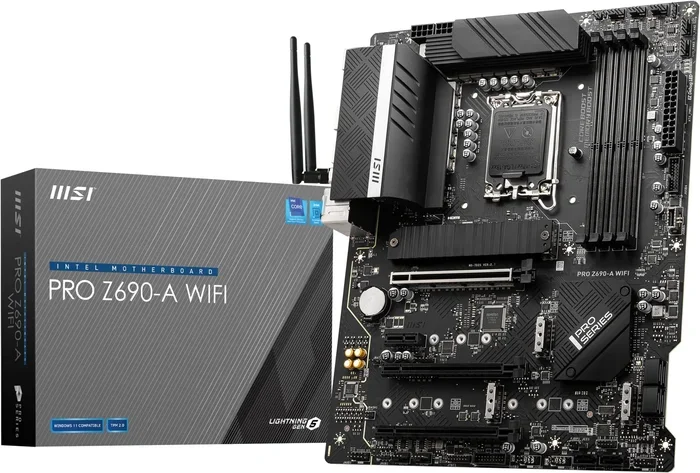
Many modern motherboards now include built-in wifi directly on the board. This means you do not need to buy or install a separate wifi card at all. Motherboards with integrated wifi are common in mid-range and high-end desktop builds. They often come with Bluetooth support as well, so you can connect wireless mice, keyboards, and headphones without any extra hardware.
If you are building or buying a new desktop PC, check whether the motherboard has wireless connectivity before you purchase a separate card. It can save you money and simplify your setup.
Common Problems With Wifi Cards And How To Fix Them
Even when your computer has a wifi card, you might run into connection issues. Slow speeds, dropped signals, and inability to connect are common complaints. Most of these problems have simple fixes.
Slow Wifi Speeds
If your internet feels slow, the wifi card might be the culprit. Older cards that only support WiFi 4 or early WiFi 5 cannot take advantage of fast internet plans. Upgrading to a WiFi 6 or WiFi 6E card can dramatically improve your speeds. Also, make sure your router supports the same standard as your card.
Dropped Connections
Frequent disconnections are frustrating. This often happens when the wifi card’s antenna is weak or poorly positioned. In laptops, the antenna is usually built into the screen bezel. If your laptop has been repaired or opened, the antenna cable might have been disconnected. Check that all antenna wires are securely connected.
Driver Issues
Outdated or missing drivers are a common cause of wifi problems. On Windows, go to Device Manager, find your wifi card under Network adapters, right-click it, and select “Update driver.” You can also visit the manufacturer’s website and download the latest driver directly. On Linux, make sure your kernel is up to date, as newer kernels include support for more wifi hardware.
Wifi Card Not Detected
If your computer does not recognize the wifi card at all, it might be disabled in the BIOS or physically loose. On desktops, check that the card is firmly seated in its PCIe slot. On laptops, the wifi card might need to be reseated. You can also check the BIOS settings to make sure the wireless function is enabled.
Expert Tips For Better Wireless Connectivity
Getting the most out of your wifi card is about more than just the hardware. A few simple habits and tweaks can significantly improve your wireless experience.
- Update your wifi card drivers regularly. New drivers often include performance improvements and bug fixes that keep your connection stable.
- Position your router wisely. Place your router in a central, elevated location away from walls and metal objects for the best signal coverage.
- Reduce interference. Microwaves, cordless phones, and baby monitors can interfere with wifi signals, especially on the 2.4 GHz band.
- Use a wifi analyzer app. These apps show you which channels are least crowded, helping you pick the best channel for your router.
- Restart your router and modem regularly. A simple restart can clear up many connection issues and improve speed.
- Consider a mesh wifi system. If your home is large or has thick walls, a mesh system extends your coverage and eliminates dead zones.
Frequently Asked Questions
Can I add wifi to a computer that does not have a wifi card?
Yes, absolutely. The easiest way is to use a USB wifi adapter. Simply plug it into a USB port, install the drivers if needed, and you are connected. Desktop users can also install a PCIe wifi card for better performance. Both options are affordable and take just minutes to set up.
Is a wifi card the same as a network card?
Not exactly. A network card is a broad term that covers any hardware that connects your computer to a network. A wifi card is a specific type of network card that connects wirelessly. A traditional ethernet network card connects via a cable. Both are network cards, but they work differently.
Do I need a wifi card if I have Bluetooth?
Yes. Bluetooth and wifi are completely different technologies. Bluetooth is used for short-range connections between devices, like wireless headphones or a mouse. A wifi card connects your computer to the internet through a wireless router. Having Bluetooth does not mean your computer has wifi capability.
How much does a wifi card cost?
USB wifi adapters start around 10 to 15 dollars and work well for basic use. PCIe wifi cards range from 30 to 100 dollars depending on the standard and features. Motherboards with built-in wifi cost a bit more than non-wifi boards, usually 20 to 50 dollars extra. Overall, wifi hardware is quite affordable.
Can an old computer get a wifi card?
Yes, even very old computers can get wireless capability. A USB wifi adapter works with most computers, including older models. Just make sure your computer has a USB port and supports the operating system required by the adapter. PCIe cards are also an option for older desktops, as long as you have an available PCIe slot.
What is the best wifi card for gaming?
For gaming, look for a PCIe wifi card that supports WiFi 6 or WiFi 6E. These cards offer the lowest latency and fastest speeds, which matters for online gaming. Popular choices include cards from brands like Intel, TP-Link, and ASUS. Pair your wifi card with a good gaming router for the best experience.
Final Thoughts
So, do all computers have a wifi card built right inside? The answer is clearly no. While most modern laptops come with wireless capability standard, many desktop computers and older machines do not. The good news is that adding wifi to any computer is easy, affordable, and takes just a few minutes.
Whether you choose a USB wifi adapter, a PCIe card, or stick with a wired ethernet connection, you have options that fit your needs and budget. Understanding your wireless connectivity choices empowers you to make the best decision for your setup.
Take a moment to check your computer today. Find out if you have a wifi card inside, and if you do not, pick up a simple adapter. Staying connected should never be a hassle. With the right hardware, your computer can join the wireless world in no time.