Can I Do Wi Fi Calling With Boost Mobile Right Now
Yes, you can do WiFi calling with Boost Mobile. This feature lets you make and receive calls over a wireless internet connection instead of relying solely on the cellular network. Boost Mobile supports WiFi calling on most compatible devices, and it works great for improving call quality in areas with weak signal or for making international calls without extra charges.
Have you ever been in a basement, a rural area, or a crowded stadium and your phone signal just disappears? It is frustrating, right? You need to make a call, but your cellular service just will not cooperate. This is exactly where WiFi calling comes in, and if you are a Boost Mobile user, you might be wondering if this feature is available to you.
The short answer is yes. You can do WiFi calling with Boost Mobile right now, provided you have a compatible device and an eligible plan. In this guide, we will walk you through everything you need to know. From setup steps to troubleshooting tips, we have got you covered. Let us dive in and make sure you never miss a call again.
Key Takeaways
- Boost Mobile supports WiFi calling: You can use this feature on eligible plans and devices to make calls over a Wi-Fi connection.
- Setup is simple: Enabling WiFi calling takes just a few steps through your phone settings or the Boost Mobile app.
- Better call quality: WiFi calling helps reduce dropped calls and static, especially in buildings with poor cellular coverage.
- International calling made easy: You can reach friends and family abroad without paying high roaming fees.
- Common issues are fixable: Most problems with WiFi calling can be solved with basic troubleshooting steps.
- Check device compatibility: Not all phones support WiFi calling with Boost Mobile, so verify yours before setting it up.
📑 Table of Contents
- What Is WiFi Calling and Why Does It Matter?
- Does Boost Mobile Support WiFi Calling?
- How to Set Up WiFi Calling on Boost Mobile
- Benefits of Using WiFi Calling with Boost Mobile
- Common Issues with WiFi Calling and How to Fix Them
- Tips for Getting the Best WiFi Calling Experience with Boost Mobile
- Frequently Asked Questions
- Conclusion
What Is WiFi Calling and Why Does It Matter?
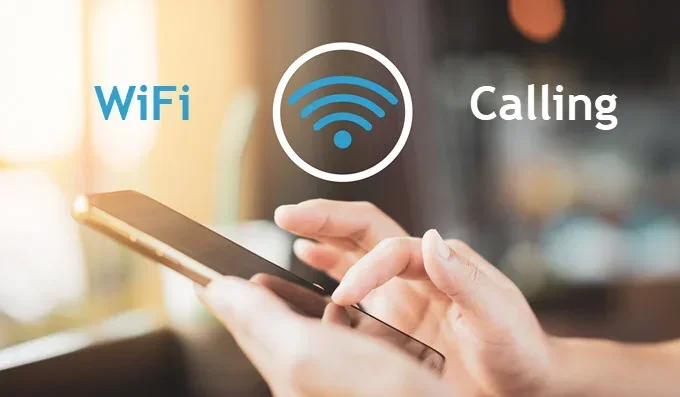
WiFi calling is a feature that lets you place and receive phone calls using a Wi-Fi connection instead of the traditional cellular network. When your phone signal is weak or unavailable, your device routes the call through the internet. This means you can still talk to people even when your phone shows no bars at all.
The technology behind this is called VoWiFi, which stands for Voice over WiFi. It works similarly to apps like WhatsApp or FaceTime, but the difference is that the call still goes through your regular phone number. Your contact does not need to download anything special. They just see your normal caller ID.
How Does WiFi Calling Work?
When you enable WiFi calling, your phone connects to your wireless internet router. The voice data gets compressed and sent as packets over the internet. On the other end, the data is converted back into voice. The whole process happens in seconds, and most people cannot tell the difference between a regular call and a WiFi call.
Here is what makes it so useful:
- Indoor coverage: Many buildings block cellular signals. WiFi bypasses this problem entirely.
- Rural areas: If the nearest cell tower is far away, WiFi calling fills the gap.
- Crowded places: Stadiums and malls often overload cellular networks. WiFi keeps your calls clear.
- International use: You can call abroad without worrying about roaming charges on your mobile plan.
Does Boost Mobile Support WiFi Calling?
Boost Mobile does support WiFi calling on most of its plans and devices. However, there are a few things you need to know before you get started. Not every phone works with this feature, and not every plan includes it by default.
Compatible Devices
To use WiFi calling with Boost Mobile, your phone must support the feature. Most modern smartphones do, but older models might not. Here is a quick look at what works:
- Samsung Galaxy phones: Most models from the S8 and newer support WiFi calling.
- iPhone: iPhone 6 and later models generally work with Boost Mobile WiFi calling.
- Motorola devices: Many Moto phones are compatible, especially newer ones.
- Google Pixel: These phones have excellent WiFi calling support built in.
If you are unsure whether your phone supports WiFi calling, go to your phone settings and look for a “WiFi Calling” option. If you see it, you are good to go.
Plan Requirements
Boost Mobile includes WiFi calling on most of its current plans. You do not usually need to add a special add-on. However, it is always a good idea to check your specific plan details. Some older or prepaid plans might have different features. You can log into your Boost Mobile account online or call customer support to confirm.
Here is a quick comparison of what to look for:
| Plan Type | WiFi Calling Supported? | Notes |
|---|---|---|
| Monthly Plans | Yes | Included on most current monthly plans |
| Prepaid Plans | Yes | Check device compatibility |
| Older Plans | Maybe | Contact Boost Mobile support to confirm |
Keep in mind that your cellular coverage still matters even with WiFi calling. If you are connected to a weak WiFi network, your call quality might suffer. A strong and stable internet connection makes all the difference.
How to Set Up WiFi Calling on Boost Mobile
Setting up WiFi calling on Boost Mobile is straightforward. The exact steps depend on whether you are using an Android phone or an iPhone. Let us go through both.
Setting Up on Android
Most Android phones make it easy to turn on WiFi calling. Follow these steps:
- Open the Settings app on your phone.
- Look for “Network & Internet” or “Connections.” The exact name varies by brand.
- Tap on “Mobile Network” or “SIM Card Settings.”
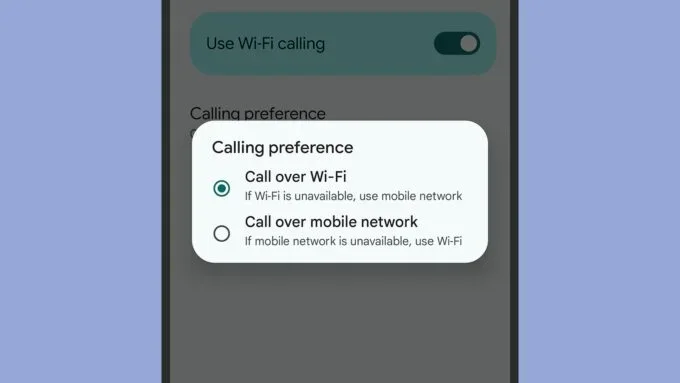
- Find “WiFi Calling” and toggle it on.
- You may need to enter your home address for emergency services. This helps 911 locate you when you call over WiFi.
Once enabled, your phone will automatically switch to WiFi when the cellular signal is weak. You might see a “WiFi Calling” label at the top of your screen when the feature is active.
Setting Up on iPhone
iPhone users can follow these steps:
- Open the Settings app.
- Tap “Phone.”
- Select “WiFi Calling.”
- Toggle “WiFi Calling on This iPhone” to on.
- Enter your address for emergency location services.
iPhone makes it especially simple. The settings menu is clean and easy to navigate. Once you turn it on, your phone handles the rest automatically.
Using the Boost Mobile App
You can also manage some settings through the Boost Mobile app. While the app does not have a dedicated WiFi calling toggle, it does let you check your plan details, network status, and device compatibility. It is a handy tool to have on your phone.
Quick Tip: After enabling WiFi calling, restart your phone. This ensures all settings refresh properly and the feature activates without issues.
Benefits of Using WiFi Calling with Boost Mobile
There are many reasons to use WiFi calling with Boost Mobile. It is not just about fixing a weak signal. The feature offers real everyday benefits that improve your phone experience.
Better Call Quality
One of the biggest advantages is improved call quality. When you are on a strong WiFi network, your voice comes through clearly. There is less static, fewer dropped calls, and no annoying echoes. If you have ever struggled to hear someone on a regular call, you know how valuable this can be.
HD voice technology works hand in hand with WiFi calling. It delivers wider audio frequency, making your voice sound more natural. You sound clearer to the person on the other end, and you hear them more clearly too.
No More Dead Zones
Dead zones are the worst. You know the spots: the back bedroom, the parking garage, the far corner of your office. With WiFi calling, these dead zones become a thing of the past. As long as you have a working WiFi connection, you can make calls from anywhere in your home or office.
Save Money on International Calls
If you call people in other countries, WiFi calling can save you a lot of money. Boost Mobile offers competitive international rates, and when you use WiFi calling, you bypass the expensive roaming charges that traditional cellular calls incur. This is especially helpful for people with family or friends living abroad.
Battery Life Improvements
Here is something not everyone knows: WiFi calling can actually help your phone battery. When your phone struggles to find a weak cellular signal, it works harder and drains more power. WiFi calling offloads that work to your wireless router, which uses less energy. Your phone can last longer on a single charge.
Common Issues with WiFi Calling and How to Fix Them
While WiFi calling is generally reliable, you might run into some issues. Most of these are easy to fix with basic troubleshooting. Let us look at the most common problems and their solutions.
WiFi Calling Keeps Turning Off
If your WiFi calling keeps disabling itself, it is often because your phone switches between WiFi and mobile data. This can happen when you move around your home. The fix is simple: go to your WiFi settings and turn off “Auto Switch” or “WiFi Assist.” This keeps your phone on a stable WiFi connection.
Poor Call Quality or Echo
Bad call quality usually points to a weak or congested WiFi network. Try these steps:
- Move closer to your router.
- Reduce the number of devices using the same network.
- Restart your router.
- Switch to a less crowded WiFi channel in your router settings.
A strong signal strength on your WiFi makes a huge difference. If your router is far away, consider using a WiFi extender to boost the connection in the rooms where you make the most calls.
WiFi Calling Not Showing Up in Settings
If you cannot find the WiFi calling option, your phone might not be compatible with Boost Mobile. Check the device compatibility list on the Boost Mobile website. You can also contact their support team for confirmation. Sometimes, a software update is all you need to unlock the feature.
Emergency Calls Not Working
WiFi calling requires you to register your home address for emergency services. If you recently moved or have not set this up yet, your 911 calls may not route correctly. Go into your phone settings and update your emergency address. This is a critical step that many people skip.
Quick Tip: If you are still having trouble, try turning WiFi calling off and back on. Then restart your phone. This simple reset fixes most minor glitches.
Tips for Getting the Best WiFi Calling Experience with Boost Mobile
Want to get the most out of WiFi calling on Boost Mobile? A few smart habits can make a big difference in your daily experience.
Use a Modern Router
Your wireless internet router plays a big role in call quality. Older routers may not handle voice data efficiently. If your router is more than five years old, consider upgrading to a newer model that supports 5G network bands or dual-band WiFi. These routers provide a more stable connection for voice calls.
Keep Your Phone Updated
Software updates often include fixes for connectivity issues. Make sure your phone is running the latest version of its operating system. On Android, go to Settings, then Software Update. On iPhone, go to Settings, then General, then Software Update.
Test Your Connection
Before an important call, test your WiFi speed. You can use any free speed test app. A good connection should have at least 1 Mbps upload and download speed for clear voice calls. If your speed is lower, you might experience choppy audio.
Turn Off WiFi Calling When on Strong Cellular Signal
When you have a strong cellular coverage signal, there is no need to use WiFi calling. In fact, the regular network might give you better quality in some cases. Let your phone decide which network to use, or manually switch between them based on your situation.
Enable WiFi Calling Before Traveling
If you are traveling internationally, turn on WiFi calling before you leave your home country. This ensures your phone is ready to route calls through WiFi when you are abroad. It saves you from unexpected charges and keeps you connected to loved ones back home.
Expert Insight: Many Boost Mobile users report that WiFi calling transformed their phone experience in rural areas. One user shared that they went from dropping five calls a day to zero after enabling this feature. The difference can be truly life-changing for people in areas with limited cellular service.
Frequently Asked Questions
Is WiFi Calling Free with Boost Mobile?
Yes, WiFi calling with Boost Mobile is free. You do not pay extra to enable or use the feature. However, the calls themselves still count toward your plan minutes if your plan has a limit. If you have an unlimited plan, WiFi calls use your data allowance instead of minutes. Check your specific plan details to understand how usage is counted.
Can I Use WiFi Calling Internationally?
Yes, you can use WiFi calling internationally with Boost Mobile. This is one of the best features of the service. You can call any number in the US and Canada while abroad. For international numbers, the rates depend on your plan. Always check Boost Mobile’s international calling rates before making calls overseas to avoid surprises on your bill.
What Happens to WiFi Calling When I Leave My WiFi Range?
Your phone automatically switches back to the cellular network when you leave your WiFi range. This handoff is seamless on most devices. You will not drop the call in most cases. However, if the cellular signal is also weak at that moment, there is a chance the call might disconnect. This is why having a strong signal strength on both networks is important.
Do I Need a Special Plan for WiFi Calling?
No, you do not need a special plan. WiFi calling is supported on most Boost Mobile plans. However, your device must be compatible. If you are on an older plan, you might want to contact Boost Mobile support to confirm that WiFi calling is included with your current service.
Why Does My Phone Show “WiFi Calling” but Calls Still Drop?
This usually happens when your WiFi connection is unstable. A weak router signal, network congestion, or interference from other devices can cause drops. Try moving closer to your router, restarting it, or reducing the number of connected devices. Also make sure your phone software is up to date, as older software versions sometimes have bugs that affect call stability.
Can I Send Texts Over WiFi Calling?
WiFi calling primarily handles voice calls. However, Boost Mobile also supports RCS (Rich Communication Services) and standard SMS over WiFi on compatible devices. This means your text messages can also send through your wireless internet connection when cellular service is unavailable. Check your messaging app settings to enable this feature if it is not already on.
Conclusion
WiFi calling with Boost Mobile is a powerful feature that can transform how you stay connected. Whether you are dealing with weak cellular signals, dead zones in your home, or the need for affordable international calls, this tool has you covered. The setup is simple, the feature is free, and the results speak for themselves.
To recap, Boost Mobile supports WiFi calling on most current plans and devices. You just need to check compatibility, follow the setup steps for your phone, and enjoy clearer calls. If you run into issues, the troubleshooting tips in this guide should help you get back on track quickly.
Do not let poor signal ruin your conversations anymore. Take a few minutes today to enable WiFi calling on your Boost Mobile device. You will wonder how you ever managed without it. Stay connected, stay clear, and never miss an important call again.