Does A Vizio Smart TV Use WiFi Or Ethernet Connection
A Vizio Smart TV supports both WiFi and Ethernet connections, giving you flexibility to choose the best option for your home setup. WiFi offers convenience and easy placement, while Ethernet delivers a more stable and faster wired connection. Understanding the differences helps you get the best streaming experience on your Vizio TV.
When you set up a new Vizio Smart TV, one of the first questions you will face is how to connect it to the internet. The good news is that Vizio TVs give you options. You can use a WiFi connection or plug in an Ethernet cable for a wired setup. Both methods work well, but each has its own strengths.
Choosing the right connection type matters more than most people realize. Your internet setup affects streaming quality, buffering, and even how well your smart TV features perform. Whether you are binge-watching your favorite shows or gaming, the connection type plays a big role.
In this guide, we will walk through everything you need to know about Vizio WiFi vs Ethernet. We will cover setup steps, speed differences, troubleshooting tips, and more. By the end, you will know exactly which connection method is best for your home.
Key Takeaways
- Dual Connectivity: Vizio Smart TVs support both WiFi and Ethernet, so you can choose the connection that works best for your home.
- Ethernet Is More Stable: A wired Ethernet connection provides faster speeds and fewer interruptions during streaming.
- WiFi Offers Convenience: Wireless connectivity lets you place your TV anywhere without worrying about cable runs.
- Setup Is Simple: Both connection methods are easy to configure through the Vizio SmartCast home screen.
- Streaming Quality Depends on Connection: Your choice between WiFi and Ethernet directly impacts picture quality and buffering.
- You Can Switch Anytime: Vizio TVs let you switch between WiFi and Ethernet easily through network settings.
📑 Table of Contents
- Does a Vizio Smart TV Support WiFi?
- Can You Use Ethernet on a Vizio TV?
- WiFi vs Ethernet on Vizio: Speed and Performance
- Which Connection Should You Choose for Your Vizio TV?
- Troubleshooting Connection Issues on Your Vizio TV
- Expert Tips for Getting the Best Connection on Your Vizio TV
- Frequently Asked Questions
- Conclusion
Does a Vizio Smart TV Support WiFi?
Yes, every Vizio Smart TV comes with built-in WiFi. You do not need any extra hardware to connect wirelessly. The TV uses a wireless adapter built right into the device. This lets you connect to your home wireless network right out of the box.
Most newer Vizio models support dual-band WiFi. This means they can connect to both 2.4 GHz and 5 GHz frequencies. The 5 GHz band offers faster speeds and less interference. The 2.4 GHz band reaches farther but may be slower in crowded areas.
How to Connect Your Vizio TV to WiFi
Setting up WiFi on your Vizio TV is straightforward. Follow these steps to get connected:
- Press the Home button on your Vizio remote.
- Navigate to the Network Settings menu.
- Select your wireless network from the list.
- Enter your Wi-Fi password using the on-screen keyboard.
- Wait for the TV to connect and test the signal.
Once connected, your TV will remember the network. You will not need to re-enter the password every time you turn it on. This makes daily use quick and easy.
WiFi Range and Signal Strength
WiFi signal strength depends on how far your TV is from the router. Walls, floors, and other obstacles can weaken the signal. If your TV is in a different room from your router, you might notice slower speeds.
One option to improve range is to place your router closer to the TV. Another option is to use a WiFi extender. Some users also ask, can I extend WiFi with an Ethernet cable? The answer is yes, and it is a great way to boost coverage in larger homes.
Can You Use Ethernet on a Vizio TV?
Yes, most Vizio Smart TVs include an Ethernet port. This lets you plug in a cable directly from your router to the TV. A wired connection offers several advantages over wireless setups.
The Ethernet port is usually located on the back of the TV. You will need a standard Ethernet cable, which looks like a wider phone cable. These cables are easy to find and affordable.
How to Set Up Ethernet on Your Vizio TV
Setting up a wired connection is even simpler than WiFi. Here is what to do:
- Plug one end of the Ethernet cable into your router.
- Connect the other end to the Ethernet port on your Vizio TV.
- Go to Network Settings on the TV home screen.
- The TV should detect the wired connection automatically.
- Test your connection to make sure everything works.
That is it. No passwords, no searching for networks. The TV connects instantly when the cable is plugged in. This is one reason many people prefer a wired setup.
When Ethernet Makes the Most Sense
An Ethernet connection shines in certain situations. If you live in a home with thick walls or multiple floors, a wired connection cuts through interference better. If you stream in 4K or play games on your TV, the stability of a cable makes a real difference.
People who ask, can I connect my PC to WiFi without Ethernet often end up wishing they had a wired option for their TV too. Ethernet removes the guesswork from your internet setup.
WiFi vs Ethernet on Vizio: Speed and Performance
This is where things get interesting. The connection type you choose directly affects your streaming experience. Let us break down the differences.
Speed Comparison
WiFi speeds vary based on your router, distance, and interference. A good 5 GHz WiFi connection can deliver speeds of 100 Mbps or more. However, real-world speeds often drop due to walls, other devices, and signal congestion.
Ethernet connections are more consistent. A standard Gigabit Ethernet connection can handle speeds up to 1000 Mbps. Even older Ethernet cables (Cat5e) handle 100 Mbps easily. For most streaming needs, either connection works fine. But for heavy use, Ethernet has the edge.
Stability and Latency
WiFi connections can fluctuate throughout the day. Other devices in your home share the same wireless signal. This can cause dips in performance. Ethernet provides a dedicated, direct connection with no interference.
For live sports or competitive gaming, stability matters a lot. Even a small delay can ruin the experience. Ethernet keeps your internet connection steady and reliable.
Streaming Quality
Here is a quick comparison of what you can expect from each connection type:
- HD Streaming (1080p): Both WiFi and Ethernet handle this easily.
- 4K Streaming: Ethernet is more reliable for 4K content. WiFi can work but may buffer during peak hours.
- Multiple Devices: WiFi may slow down when many devices are connected. Ethernet keeps your TV unaffected.
- Video Calls on TV: Ethernet provides smoother video calls with less lag.
Which Connection Should You Choose for Your Vizio TV?
The right choice depends on your setup and needs. There is no single best answer for everyone. Let us look at the factors that matter most.
Choose WiFi If…
- Your router is close to the TV.
- You want a clean setup with no cables.
- Your home has strong wireless coverage.
- You plan to move the TV around often.
- You only stream HD content most of the time.
Choose Ethernet If…
- You stream in 4K regularly.
- Your router is far from the TV.
- You experience buffering or lag on WiFi.
- You play games on your Vizio TV.
- Your home has thick walls or signal interference.
Some users run both connections at the same time. Vizio TVs let you switch between WiFi and Ethernet easily. You can use WiFi for casual viewing and plug in the cable when you need the best performance. This gives you the flexibility of both worlds.
Can You Use Both WiFi and Ethernet at the Same Time?
Vizio TVs do not support simultaneous WiFi and Ethernet connections. The TV will use whichever connection is active. If you plug in an Ethernet cable, the TV will switch to the wired connection automatically. When you unplug the cable, it goes back to WiFi.
This auto-switching feature is convenient. You do not need to go into settings every time you change connections. Just plug in or unplug the cable and the TV handles the rest.
Troubleshooting Connection Issues on Your Vizio TV
Even with the best setup, you might run into connection problems now and then. Here are common issues and how to fix them.
WiFi Keeps Disconnecting
If your Vizio TV loses WiFi connection often, try these fixes:
- Move your router closer to the TV.
- Switch to the 5 GHz band for a stronger signal.
- Restart your router and TV.
- Update your TV firmware through the settings menu.
- Reduce the number of devices on your network.
Ethernet Connection Not Working
If your wired connection fails, check the following:
- Make sure the Ethernet cable is securely plugged in on both ends.
- Try a different Ethernet cable to rule out a bad cable.
- Restart your router and TV.
- Check the network settings to see if the TV detects the connection.
- Test the cable with another device to confirm it works.
Slow Internet Speed on Vizio TV
Slow speeds can ruin your streaming experience. Here is how to improve them:
- Run a speed test on your TV through the network settings.
- Switch from WiFi to Ethernet for a faster, more stable connection.
- If you must use WiFi, move closer to the router.
- Check if other devices are using heavy bandwidth in your home.
- Consider upgrading your internet plan if speeds are consistently low.
Some people also explore whether they can get just WiFi at home without a full wired setup. The answer depends on your internet provider and the type of service you have. Many providers offer both options, so you can choose what works best.
Expert Tips for Getting the Best Connection on Your Vizio TV
Want to squeeze the most out of your Vizio TV connection? Here are some expert-backed tips that make a real difference.
Update Your Router Firmware
Older router firmware can cause compatibility and speed issues. Check your router manufacturer’s website for updates. A simple firmware update can improve wireless performance significantly.
Use a Quality Ethernet Cable
Not all Ethernet cables are the same. A Cat5e or Cat6 cable handles gigabit speeds easily. Cheap or damaged cables can limit your connection. Invest in a good-quality cable for the best results.
Position Your Router Strategically
Place your router in a central location in your home. Avoid hiding it behind furniture or inside closets. The more open space the signal has, the better your WiFi performance will be.
Consider a Mesh WiFi System
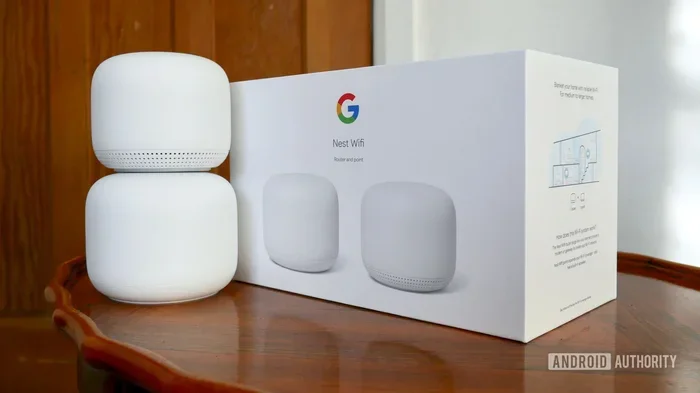
If you have a large home or dead zones, a mesh WiFi system can help. These systems use multiple units to spread coverage throughout your house. They are especially helpful for connecting a TV in a far-away room.
Limit Bandwidth-Hungry Apps
Other devices and apps on your network can eat up bandwidth. Close apps you are not using. Pause downloads on other devices while you are streaming. This keeps your Vizio TV connection fast and smooth.
Frequently Asked Questions
Do all Vizio Smart TVs have an Ethernet port?
Most Vizio Smart TVs include an Ethernet port on the back panel. However, some very compact or older models may not have one. Check the specs of your specific model to confirm. You can find this information in the user manual or on the Vizio website.
Is WiFi good enough for 4K streaming on Vizio TVs?
WiFi can handle 4K streaming, but it depends on signal strength and speed. A strong 5 GHz WiFi connection works well for 4K content. If you notice buffering, switching to Ethernet will give you a much more reliable experience. Ethernet is always the safer choice for high-quality streaming.
Can I use my Vizio TV without any internet connection?
Yes, you can use a Vizio TV without the internet for basic TV watching. You can connect an antenna, cable box, or streaming device that does not require WiFi. However, you will lose access to smart features like apps, streaming services, and firmware updates. The TV will still work as a regular display.
How do I switch from WiFi to Ethernet on my Vizio TV?
Switching is simple. Just plug the Ethernet cable into the TV and router. Go to Network Settings on your Vizio TV. The TV will automatically detect the wired connection and switch to it. You can also manually select the connection type in the settings menu if needed.
Does Ethernet affect Vizio TV warranty?
No, using an Ethernet connection does not affect your Vizio TV warranty at all. Wired connections are a standard and supported feature on Vizio Smart TVs. You can use any connection method without worrying about voiding your warranty. Always refer to the official Vizio support pages for the latest information.
What internet speed do I need for streaming on a Vizio Smart TV?
For HD streaming, you need at least 5 Mbps. For 4K streaming, aim for 25 Mbps or higher. These speeds work well with both WiFi and Ethernet connections. Keep in mind that multiple devices sharing the same network will reduce the speed available to your TV.
Conclusion
A Vizio Smart TV gives you the freedom to choose between WiFi and Ethernet. Both options work well, but they serve different needs. WiFi offers convenience and easy setup. Ethernet delivers speed, stability, and the best streaming quality.
For most users, WiFi is perfectly fine for everyday viewing. If you are a heavy streamer or gamer, Ethernet is the way to go. The good news is that you are not locked into one choice. You can switch between them anytime based on your needs.
Take a few minutes to test both connections in your home. Run a speed test on each and watch how your TV performs. You will quickly figure out which setup works best for you. With the right connection, your Vizio TV will deliver a smooth, enjoyable viewing experience every time.
Now that you know the differences, you are ready to get the most out of your Vizio Smart TV. Pick your connection type, set it up, and enjoy your favorite content without interruptions.