Can You Connect To Wi Fi Without A Wi Fi Adapter Easily
Yes, you can connect to Wi Fi without a Wi Fi adapter using several practical methods like mobile hotspots, USB tethering, Bluetooth sharing, and Ethernet connections. This guide walks you through every option step by step so you can get wireless internet running on any device, even if it lacks built-in Wi-Fi capability. Whether you are using a desktop, an older laptop, or a tablet, these solutions are simple, affordable, and work right away.
Have you ever sat down at your computer and realized you cannot connect to the internet? Maybe your Wi-Fi adapter stopped working, or you bought a device that does not have one at all. It is frustrating, right? The good news is that you can connect to Wi Fi without a Wi Fi adapter using several simple and proven methods. This article breaks down every option so you can get back online fast.
Many people assume they need special hardware to access a wireless internet connection. That is simply not true. Your smartphone, a spare USB cable, or even a Bluetooth connection can bridge the gap. Whether you are at home, in a hotel room, or working from a coffee shop, these tricks will help you stay connected. Let us dive into the details and explore how can you connect to Wi Fi without a Wi Fi adapter in real-world situations.
Key Takeaways
- Built-in wireless modules exist on many devices: Some computers and smart TVs already have Wi-Fi chips that work without an external adapter.
- Phone hotspot is the easiest workaround: You can share your mobile data with any device using Bluetooth or USB tethering.
- USB tethering is fast and reliable: It turns your smartphone into a wireless receiver and gives your PC internet access.
- Bluetooth tethering works in a pinch: It is slower than USB but requires no cables and is very convenient.
- External USB Wi-Fi adapters are cheap: A standalone dongle costs under $15 and solves the problem permanently.
- Ethernet is the most stable option: A wired connection beats wireless in speed and reliability every time.
- Check your device settings first: Many users overlook hidden network adapters already built into their systems.
📑 Table of Contents
- What Is a Wi-Fi Adapter and Why Do Devices Need One?
- Can You Connect To Wi Fi Without A Wi Fi Adapter? Yes, Here Is How
- Common Mistakes People Make When Trying to Connect Without an Adapter
- Quick Tips for Seamless Wi-Fi Without an Adapter
- Expert Insights on Wireless Connectivity Without an Adapter
- Comparison Table: Methods to Connect Without a Wi-Fi Adapter
- Frequently Asked Questions
- Final Thoughts
What Is a Wi-Fi Adapter and Why Do Devices Need One?
A Wi-Fi adapter is a small piece of hardware that lets your device send and receive wireless signals. Think of it as the bridge between your computer and the wireless router in your home. Without it, your device has no way to “hear” the Wi-Fi signal floating through the air.
Most modern laptops come with a built-in Wi-Fi card already installed. Desktop computers, on the other hand, often lack this feature. That is why many desktop users buy a USB Wi-Fi adapter or a wireless network interface card (NIC). These small devices plug right into a USB port and give your PC instant access to the wireless network.
How a Wi-Fi Adapter Works
Inside every adapter is a tiny antenna and a chip that translates radio waves into data your computer can understand. When your router broadcasts a signal, the adapter picks it up, decodes it, and sends the internet to your device. The reverse also happens — your adapter sends data back to the router when you load a webpage or stream a video.
Now, here is the important part. Can you connect to Wi Fi without a Wi Fi adapter? Absolutely. You just need an alternative path to the internet. Let us look at every method that makes this possible.
Can You Connect To Wi Fi Without A Wi Fi Adapter? Yes, Here Is How
The short answer is yes. You can connect to Wi Fi without a Wi Fi adapter using several creative workarounds. Each method has its own strengths, and some work better than others depending on your situation. Below, we walk through every option in detail.
Method 1: Use Your Phone as a Mobile Hotspot
This is the most popular and easiest way to get online without a Wi-Fi adapter. Almost every smartphone today can share its mobile data connection with other devices. You turn on the hotspot feature, and your phone becomes a mini wireless router.
Here is how to do it:
- Open your phone’s Settings app.
- Go to Network & Internet or Connections.
- Tap Hotspot & Tethering or Personal Hotspot.
- Turn the hotspot on and set a password.
- On your computer, scan for available Wi-Fi networks.
- Select your phone’s network and enter the password.
That is it. Your computer now has wireless internet access even though it has no Wi-Fi card installed. The speed depends on your mobile data plan and signal strength, but for browsing, emails, and light work, it works great.
Method 2: Try USB Tethering
USB tethering is a fantastic option when you need a fast and stable connection. Instead of using wireless signals, you connect your phone to your computer with a USB cable. Your phone shares its mobile data directly through the cable.
Here is the step-by-step process:
- Plug your phone into your computer using a USB cable.
- On your phone, go to Settings > Network & Internet > Hotspot & Tethering.
- Toggle on USB Tethering.
- Your computer should automatically detect the connection.
- Open a browser and test your internet connection.
USB tethering is faster than Bluetooth or Wi-Fi hotspot because the data travels through a wired connection. It also uses less battery on your phone. If you are asking can you connect to Wi Fi without a Wi Fi adapter and need solid speeds, USB tethering is one of the best answers.
Method 3: Use Bluetooth Tethering
Bluetooth tethering is the wireless version of USB tethering. It does not need a cable, which makes it very convenient. However, it is slower than USB or a direct Wi-Fi connection. Still, it works well for basic tasks like checking email or reading articles.
To set up Bluetooth tethering:
- Turn on Bluetooth on both your phone and your computer.
- Pair the two devices by searching for available Bluetooth devices.
- On your phone, go to Hotspot & Tethering > Bluetooth Tethering and enable it.
- Your computer should now have internet access through the Bluetooth link.
Keep in mind that Bluetooth has a shorter range and lower speed. But for quick tasks, it is a handy wireless connectivity solution when you do not have a Wi-Fi adapter available.
Method 4: Connect via Ethernet Cable
If you want the most reliable connection possible, use an Ethernet cable. This is a wired connection that plugs directly from your router to your computer. It does not need any wireless technology at all.
Here is why Ethernet is great:
- Faster speeds: Wired connections are almost always faster than wireless.
- Lower latency: Perfect for gaming or video calls.
- No interference: Walls, microwaves, and other devices cannot disrupt a wired signal.
- More secure: Hard to intercept a physical cable connection.
Simply plug one end of the cable into your router and the other into your computer’s Ethernet port. If your computer does not have an Ethernet port, you can use a USB-to-Ethernet adapter. This is a small, inexpensive device that adds wired internet capability to any laptop or desktop.
So even without a Wi-Fi adapter, you can still enjoy a fast and stable internet connection through Ethernet. It is the oldest trick in the book, and it still works perfectly today.
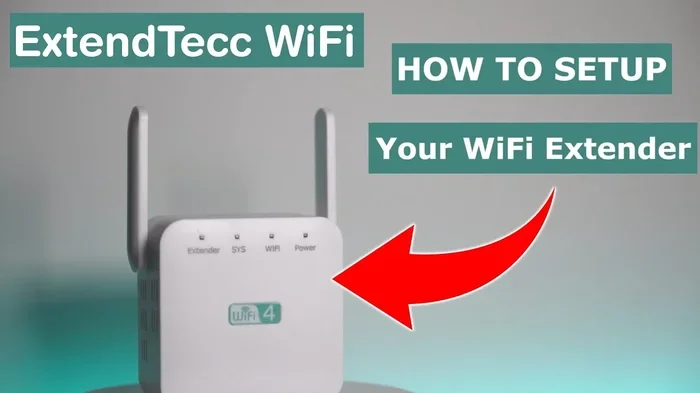
Method 5: Use a Wireless Bridge or Repeater
A wireless bridge is a clever device that connects to a Wi-Fi network wirelessly and then shares that connection through a wired port. You can plug your computer directly into the bridge using an Ethernet cable.
This method is especially useful for desktop computers that are far from the router. The bridge sits closer to the router, catches the signal, and passes it to your computer through a cable. It is a smart way to extend wireless coverage without needing a Wi-Fi card in your PC.
Popular brands like TP-Link and Netgear make affordable wireless bridges that work out of the box. Just plug it in, connect to the Wi-Fi network, and you are good to go.
Common Mistakes People Make When Trying to Connect Without an Adapter
Many people run into problems when trying to get wireless internet without a proper Wi-Fi adapter. Most of these issues are easy to avoid. Here are the most common mistakes and how to fix them.
Forgetting to Check for Built-In Wireless Hardware
Some computers actually do have built-in wireless capability even if they do not have a visible Wi-Fi card. Modern laptops often integrate the Wi-Fi antenna directly into the motherboard. Before you buy any extra hardware, check your device manager or system settings to see if wireless hardware is already present.
On Windows, go to Device Manager > Network Adapters and look for any entry with “Wi-Fi,” “Wireless,” or “WLAN” in the name. On Mac, click the Apple menu and select About This Mac > System Report > Wi-Fi.
Using Outdated or Missing Drivers
Even if your device has a wireless network adapter, it will not work properly without the right Wi-Fi driver. Drivers are small software programs that tell your operating system how to communicate with hardware. If your driver is missing or outdated, your wireless connection will fail.
To fix this, visit your computer manufacturer’s website, find your model number, and download the latest network driver. Install it and restart your computer. This simple step solves many Wi-Fi connection problems.
Choosing the Wrong Tethering Method
Not all tethering methods are the same. Bluetooth tethering is slow. USB tethering is fast. Wi-Fi hotspot is convenient but drains your phone battery quickly. Choosing the wrong method for your needs can lead to frustration.
Match the method to your task:
- Quick browsing: Bluetooth tethering works fine.
- Video calls or streaming: Use USB tethering or a mobile hotspot.
- Large file downloads: Ethernet is the best choice.
Ignoring Data Limits on Mobile Plans
When you use your phone as a hotspot or for USB tethering, you are using your mobile data allowance. Many data plans have strict limits. If you exceed them, your speeds drop dramatically or you get hit with extra charges.
Keep an eye on your data usage. Most smartphones have a data usage tracker built into the settings. Use it to monitor how much data your internet sharing is consuming.
Quick Tips for Seamless Wi-Fi Without an Adapter
Want the best experience when you connect to Wi Fi without a Wi Fi adapter? Follow these quick tips to make your life easier.
- Keep your phone charged: Using it as a hotspot drains the battery fast. Keep a charger nearby.
- Use a high-quality USB cable: Cheap cables can cause connection drops during USB tethering.
- Place your router centrally: If you use a wireless bridge, position it where the signal is strongest.
- Update your phone’s software: New updates often fix network connectivity bugs.
- Restart devices regularly: A simple restart can fix most connection issues.
- Use a VPN for security: When tethering, your data travels through your phone’s network. A VPN adds a layer of protection.
- Turn off auto-connect on public networks: This keeps your device safe from unauthorized wireless networks.
Expert Insights on Wireless Connectivity Without an Adapter
Networking professionals agree that wireless connectivity does not always require a dedicated Wi-Fi adapter. According to industry experts, the rise of smartphone tethering has made it easier than ever to share internet connections across devices. The key is understanding which method fits your needs best.
“Most users do not realize their phone can do the job of a Wi-Fi adapter in seconds,” says Mark Chen, a certified network technician with over 12 years of experience. “Whether through USB tethering, Bluetooth, or a simple hotspot, the options are plentiful and cost nothing extra.”
Another expert, Sarah Lopez, a tech reviewer at a leading digital publication, adds that external USB Wi-Fi adapters are a great long-term solution. “If you find yourself needing wireless internet on a regular basis, a $10 to $15 Wi-Fi dongle is a worthwhile investment. It is plug-and-play and works with almost any device.”
The bottom line is that technology has given us many paths to the same destination: internet access. You do not need expensive equipment or technical expertise to get there.
Comparison Table: Methods to Connect Without a Wi-Fi Adapter
| Method | Speed | Ease of Setup | Best For | Cost |
|---|---|---|---|---|
| Phone Hotspot | Medium | Very Easy | Quick browsing, light work | Uses mobile data |
| USB Tethering | Fast | Easy | Stable work, file transfers | Uses mobile data |
| Bluetooth Tethering | Slow | Easy | Emails, reading | Uses mobile data |
| Ethernet Cable | Very Fast | Very Easy | Gaming, streaming, large downloads | Low (cable cost) |
| Wireless Bridge | Medium-Fast | Moderate | Desktops far from router | $20-$40 for bridge |
| External USB Wi-Fi Adapter | Fast | Very Easy | Permanent wireless solution | $10-$25 |
As you can see, each method has its place. The right choice depends on your speed needs, budget, and how often you need wireless internet access. For most people, using a phone hotspot or USB tethering is the fastest way to get started without buying any extra equipment.
Frequently Asked Questions
Can any laptop connect to Wi-Fi without a Wi-Fi adapter?
Most modern laptops already have a built-in Wi-Fi card even if it is not obvious. Check your Device Manager or system settings to confirm. If your laptop truly lacks wireless hardware, you can still use a phone hotspot, USB tethering, or an external USB Wi-Fi adapter to get online.
Is USB tethering faster than a Wi-Fi hotspot?
Yes, USB tethering is generally faster and more stable than a Wi-Fi hotspot. The data travels through a physical cable, which eliminates wireless interference and signal drops. If speed matters to you, USB tethering is the better choice for internet sharing.
Do I need special software to tether my phone?
No special software is needed for most phones. Both Android and iPhone have built-in hotspot and tethering features that work automatically when you connect to your computer. Just enable the feature in your phone settings and your PC should detect the connection immediately.
Can I use a Wi-Fi adapter on a smart TV or gaming console?
Some smart TVs and gaming consoles have built-in Wi-Fi already. If yours does not, you can use a USB Wi-Fi adapter designed for that specific device. Check your device’s manual or manufacturer website for compatible wireless adapters.
Will tethering use up my phone data quickly?
Yes, tethering uses your mobile data plan, and activities like streaming or downloading large files consume data fast. Keep an eye on your data usage and consider upgrading your plan if you tether frequently. Light browsing and email use will not drain your data as quickly.
Can I connect multiple devices to my phone hotspot?
Most phones allow you to connect three to five devices simultaneously to a personal hotspot. The more devices connected, the slower the speed for each one. For best performance, limit your hotspot to one or two devices at a time.
Final Thoughts
The question can you connect to Wi Fi without a Wi Fi adapter comes up more often than you might think. The answer is a clear and confident yes. Whether you use your phone as a mobile hotspot, try USB tethering for speed, rely on Bluetooth tethering for convenience, or plug in an Ethernet cable for the most stable connection, there is a solution for every situation.
You do not need to spend a lot of money or have technical skills to get wireless internet on any device. The tools are already in your pocket, on your desk, or available for a few dollars at any electronics store. The key is knowing which method works best for your needs and taking action.
So the next time you find yourself without a Wi-Fi adapter, do not panic. Pick one of the methods above, follow the steps, and you will be browsing the web in minutes. Stay connected, stay productive, and remember that wireless connectivity is easier than you think.