Do Laptops Have Built In Wi Fi Everything You Need To Know
Do Laptops Have Built In Wi Fi? The short answer is yes, almost all modern laptops come with wireless internet built right in. You will find a Wi-Fi card or wireless adapter inside every laptop that lets you connect to a router without any extra cables. In this guide, we walk you through everything from Wi-Fi standards to troubleshooting tips so you can get the best wireless connection possible.
Do Laptops Have Built In Wi Fi? If you have ever bought a new laptop or tried to connect an older one to the internet, this question probably crossed your mind. The good news is that the answer is almost always yes. Today, wireless internet is a standard feature on virtually every laptop you can buy. Whether you are shopping for a budget model or a high-end gaming machine, you can count on built-in wireless connectivity.
But here is the thing that many people overlook. Not all built-in Wi-Fi is created equal. The wireless technology inside your laptop affects your internet speed, range, and reliability. Understanding what kind of wireless adapter your laptop has can save you from slow connections and frustrating buffering. Let us dive into everything you need to know about laptop Wi-Fi in a way that is simple and practical.
Key Takeaways
- Yes, modern laptops have built-in Wi-Fi: Nearly every laptop made in the last decade includes a wireless network adapter right out of the box.
- Wi-Fi standards matter for speed: Wi-Fi 5 and Wi-Fi 6 offer the fastest wireless internet speeds available on most laptops today.
- You can check your laptop’s Wi-Fi specs easily: Look in Device Manager or your laptop’s product page to find your wireless adapter details.
- Older laptops may need an upgrade: If your laptop lacks modern Wi-Fi support, a USB wireless adapter can fix the problem quickly.
- Dual-band routers boost performance: Using a 5GHz band reduces interference and gives you a stronger wireless signal.
- Bluetooth is different from Wi-Fi: Many laptops have both built-in, but they serve different connectivity purposes.
📑 Table of Contents
- What Does It Mean When a Laptop Has Built In Wi Fi?
- Understanding Wi-Fi Standards on Laptops
- How to Check If Your Laptop Has Built In Wi Fi
- Common Wi-Fi Problems on Laptops and How to Fix Them
- Do All Laptops Have Wi-Fi? What About Chromebooks and Gaming Laptops?
- Wi-Fi vs. Bluetooth: What Is the Difference?
- When Do You Need an External Wi-Fi Adapter?
- Expert Insights on Laptop Wi-Fi Technology
- Key Takeaways
- Conclusion
What Does It Mean When a Laptop Has Built In Wi Fi?
When we say a laptop has built-in Wi-Fi, we mean the device has a wireless network adapter installed inside it. This small chip or card allows your laptop to send and receive wireless signals from a router or access point. You do not need to plug in any external device or dongle to get online. It all works right out of the box.
The wireless network adapter connects to your router using radio waves. These radio waves travel through the air and carry data back and forth between your laptop and the internet. Think of your router as a lighthouse and your laptop as a ship. The lighthouse sends out a signal, and the ship picks it up to navigate safely. That is essentially how your wireless connection works.
How the Wireless Adapter Works Inside Your Laptop
Inside your laptop, the wireless adapter is a small circuit board. It contains an antenna and a chip that handles internet connectivity. Most modern laptops use what is called a M.2 Wi-Fi card. This card slots directly onto the motherboard. It is tiny, efficient, and does not take up much space.
Older laptops used a different type called a mini PCI-E card. These were bigger and less efficient. But even those older cards still provided wireless internet access. The key difference is the Wi-Fi standard they support, which brings us to our next section.
Understanding Wi-Fi Standards on Laptops
Wi-Fi standards are like the rules that govern how your laptop talks to a router. Over the years, these standards have evolved to offer faster speeds and better range. If you want to know how fast your wireless internet can be, the standard your laptop supports is the first thing to check.
Wi-Fi 4 (802.11n)
This is the oldest standard still commonly found in older laptops. Wi-Fi 4 was introduced around 2009. It offers speeds up to 600 Mbps. While this is enough for basic browsing and email, it struggles with streaming high-definition video or online gaming. If your laptop only supports Wi-Fi 4, you might notice slow speeds when multiple devices share the same network.
Wi-Fi 5 (802.11ac)
Wi-Fi 5 came out in 2013 and is still very common today. It supports speeds up to 3.5 Gbps. Most laptops made between 2015 and 2020 use this standard. It works well for streaming, video calls, and general use. Wi-Fi 5 also introduced support for the 5GHz band, which reduces interference from other devices.
Wi-Fi 6 (802.11ax)
Wi-Fi 6 is the latest widely adopted standard. It offers speeds up to 9.6 Gbps and handles multiple devices much better than older standards. If your laptop was made after 2020, there is a good chance it supports Wi-Fi 6. This standard is a game-changer for households with many connected devices. It also uses less power, which can improve your laptop’s battery life.
Wi-Fi 7 (802.11be) — The Future
Wi-Fi 7 is the newest standard just starting to appear in premium laptops. It promises even faster speeds and lower latency. While it is not yet widespread, it is worth keeping an eye on if you are buying a new laptop today.
How to Check If Your Laptop Has Built In Wi Fi
Not sure whether your laptop has wireless internet capability? Checking is easier than you might think. There are a few simple ways to confirm this, and none of them require any technical expertise.
Method 1: Check the Network Icon in Your Taskbar
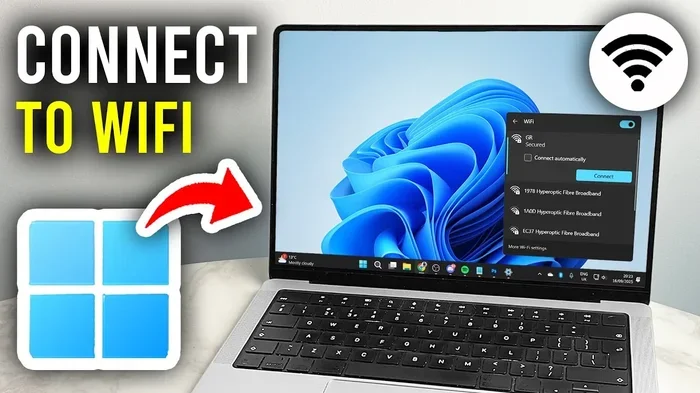
Look at the bottom-right corner of your screen, near the clock. If you see a small wireless signal icon, your laptop has built-in Wi-Fi. This icon looks like a small fan or curved lines. If you do not see it, your laptop might rely on a wired connection only, which is rare for modern laptops.
Method 2: Use Device Manager on Windows
On Windows, right-click the Start button and select Device Manager. Look for a section called Network Adapters. Expand it and look for words like “Wireless,” “Wi-Fi,” or “WLAN.” If you see one of these, your laptop has a wireless adapter installed.
Method 3: Check Your Laptop’s Product Specs
You can also look up your laptop model online. Visit the manufacturer’s website and find the specifications page. Look for terms like “wireless LAN,” “Wi-Fi,” or “802.11ac” or “802.11ax.” These confirm that your laptop includes built-in wireless technology.
Method 4: Check System Information on Mac
On a Mac, click the Apple menu and choose About This Mac. Click System Report and then look under the Network section. You will see details about your wireless card, including the Wi-Fi standard it supports.
Common Wi-Fi Problems on Laptops and How to Fix Them
Even with built-in Wi-Fi, you might run into issues from time to time. Slow speeds, dropped connections, and inability to find networks are common complaints. The good news is that most of these problems have simple solutions.
Slow Internet Speeds
Slow speeds can be frustrating. Several factors cause this problem. Your wireless signal might be weak if you are far from the router. Walls, furniture, and even microwaves can interfere with the signal. Try moving closer to your router and see if your speed improves.
Another common cause is an outdated wireless adapter. If your laptop only supports Wi-Fi 4, it simply cannot take advantage of faster internet plans. In this case, a USB wireless adapter can breathe new life into an older laptop.
Dropped Connections
If your connection keeps dropping, your laptop might be switching between the 2.4GHz and 5GHz bands automatically. This switching can cause brief disconnections. You can fix this by going into your router settings and locking your laptop to one band. The 5GHz band is generally more stable for close-range connections.
Cannot Find Any Wi-Fi Networks
This issue usually means the wireless adapter is turned off or has a driver problem. On many laptops, there is a physical switch or a function key that toggles Wi-Fi on and off. Look for a key with a wireless icon on your keyboard. Pressing it along with the Fn key often turns the adapter back on.
Driver Issues
Sometimes the software that controls your wireless adapter needs updating. Go to your laptop manufacturer’s website and download the latest Wi-Fi driver. Installing it is usually as simple as double-clicking the file and following the prompts. This simple step fixes many connectivity issues.
Quick Tips for Better Wi-Fi on Your Laptop
- Restart your router regularly. This clears temporary glitches and refreshes the connection.
- Keep your laptop close to the router. Distance weakens the wireless signal significantly.
- Update your wireless adapter drivers. Updated drivers often include performance improvements.
- Use the 5GHz band when possible. It is faster and less crowded than the 2.4GHz band.
- Avoid placing your router near thick walls or metal objects. These block wireless signals.
- Turn off Bluetooth if you are not using it. It can sometimes interfere with your Wi-Fi signal on the same frequency range.
Do All Laptops Have Wi-Fi? What About Chromebooks and Gaming Laptops?
The short answer is almost all laptops come with Wi-Fi these days. But there are a few exceptions worth knowing about. Let us break it down by laptop type so you know exactly what to expect.
Do Gaming Laptops Have Built In Wi Fi?
Yes, gaming laptops absolutely have built-in Wi-Fi. In fact, they often come with the latest Wi-Fi 6 or even Wi-Fi 7 standards. Gamers need fast and stable connections, so manufacturers equip these laptops with high-performance wireless adapters. You can expect excellent internet connectivity on any modern gaming laptop.
Do Chromebooks Have Built In Wi Fi?
Chromebooks also come with built-in Wi-Fi. Since Chromebooks rely heavily on cloud services and internet access, wireless connectivity is essential. Most Chromebooks support Wi-Fi 5 or Wi-Fi 6, which is more than enough for their typical use cases like browsing, streaming, and light productivity.
Do Budget Laptops Have Built In Wi Fi?
Even budget laptops today include Wi-Fi. Manufacturers understand that wireless internet is no longer a luxury. It is a basic expectation. However, budget models might support older Wi-Fi standards like Wi-Fi 5 instead of Wi-Fi 6. This difference rarely affects everyday use but can matter if you have a very fast internet plan.
Do Business Laptops Have Built In Wi Fi?
Business laptops always include Wi-Fi. In fact, many enterprise laptops come with advanced wireless features like dual-band support and enterprise-grade security protocols. These laptops are designed for professionals who need reliable wireless internet wherever they go.
Wi-Fi vs. Bluetooth: What Is the Difference?
People often confuse Wi-Fi and Bluetooth because both use wireless technology. However, they serve very different purposes. Understanding the difference helps you troubleshoot issues and make the most of your laptop’s connectivity options.
Wi-Fi connects your laptop to the internet. It provides high-speed data transfer over longer distances. When you browse the web, stream videos, or download files, you are using Wi-Fi. It requires a router and an internet service provider.
Bluetooth connects your laptop to nearby devices like headphones, keyboards, and speakers. It uses much less power than Wi-Fi but transfers data at slower speeds. Bluetooth has a shorter range, typically around 30 feet. Most modern laptops have both Wi-Fi and Bluetooth built in, but they are separate wireless technologies handled by different chips.
When Do You Need an External Wi-Fi Adapter?
There are times when your laptop’s built-in Wi-Fi is not enough. Maybe you have a very old laptop that only supports outdated standards. Or perhaps you need a stronger signal for a specific task like streaming 4K video or participating in competitive online gaming.
An external USB wireless adapter can solve these problems. These small devices plug into a USB port and provide modern Wi-Fi connectivity. They are affordable, easy to set up, and work with almost any laptop that has a USB port.
When choosing an external adapter, look for one that supports Wi-Fi 6 or at least Wi-Fi 5. Check the wireless standard listed on the packaging. Also, consider whether the adapter supports dual-band connectivity, which gives you access to both the 2.4GHz and 5GHz frequency bands.
Top Reasons to Use an External Adapter
- Upgrading an older laptop: Give your old laptop modern Wi-Fi speeds without replacing it.
- Better range: External adapters often have stronger antennas than built-in cards.
- Portability: You can plug the adapter into any laptop you use, making it a versatile solution.
- Troubleshooting: If your built-in adapter is faulty, an external adapter is a quick workaround.
Expert Insights on Laptop Wi-Fi Technology
Industry experts agree that wireless technology in laptops has come a long way. The shift from Wi-Fi 4 to Wi-Fi 6 brought noticeable improvements in both speed and reliability. According to networking professionals, the next few years will see even more advancement as Wi-Fi 7 becomes mainstream.
One expert tip that many people overlook is the importance of router placement. Even the best wireless adapter in your laptop cannot compensate for a poorly placed router. Keep your router in a central location, elevated off the floor, and away from other electronics. This simple change can dramatically improve your wireless signal strength and overall internet experience.
Another insight from professionals is to regularly restart your router. Internet service providers often update router firmware automatically, and a restart ensures these updates take effect. It also clears the router’s memory, which can improve performance over time.
For those who work from home, investing in a quality router is just as important as having a good laptop. A modern router with dual-band support and multiple antennas can handle many devices simultaneously without slowing down. This is especially important in households where several people are streaming, gaming, and working online at the same time.
Key Takeaways
- Every modern laptop has built-in Wi-Fi: Wireless internet is now a standard feature, not a bonus. You can expect this on any laptop you purchase today.
- Wi-Fi standards determine your speed: Wi-Fi 5 and Wi-Fi 6 offer the best performance. Older standards like Wi-Fi 4 are still functional but much slower.
- Checking your wireless adapter is simple: Use Device Manager on Windows or System Information on Mac to find your adapter details in seconds.
- Most problems have easy fixes: Driver updates, router restarts, and band selection solve the majority of Wi-Fi issues on laptops.
- External adapters are affordable upgrades: A USB wireless adapter can modernize an older laptop and improve your wireless connection quality.
- Wi-Fi and Bluetooth are different: Both are built into most laptops, but they serve separate connectivity purposes.
- Router placement matters: Even the best laptop Wi-Fi card performs better with a well-positioned router.
Conclusion
So, do laptops have built in Wi Fi? Without a doubt, yes. Every modern laptop comes equipped with a wireless network adapter that lets you connect to the internet without cables. Whether you are using a budget laptop, a gaming machine, or a business notebook, built-in Wi-Fi is a standard feature you can count on.
Understanding your laptop’s wireless technology helps you get the most out of your internet connection. Check which Wi-Fi standard your laptop supports, keep your drivers updated, and place your router strategically for the best results. If your laptop is older and lacks modern wireless capabilities, a simple USB adapter can bridge the gap.
Wireless internet has transformed the way we work, learn, and play. Your laptop is the gateway to that world, and knowing how its Wi-Fi connectivity works puts you in control. Take a few minutes to understand your laptop’s wireless setup, and you will enjoy faster, more reliable internet every single day.
Frequently Asked Questions
Do all new laptops come with Wi-Fi built in?
Yes, virtually every new laptop sold today includes built-in Wi-Fi. Manufacturers consider wireless internet a standard feature. Even the most affordable budget laptops come with a wireless network adapter pre-installed. You would have to specifically seek out a laptop without Wi-Fi, and those are extremely rare.
Can I add Wi-Fi to a laptop that does not have it?
Yes, you can add Wi-Fi to a laptop that lacks it. The easiest way is to use a USB wireless adapter. These small devices plug into any available USB port and provide instant wireless connectivity. They are affordable, typically costing between $15 and $50, and they work with most laptops regardless of age.
What is the difference between Wi-Fi 5 and Wi-Fi 6 on laptops?
Wi-Fi 5 (802.11ac) offers speeds up to 3.5 Gbps and works well for most everyday tasks. Wi-Fi 6 (802.11ax) is faster, reaching speeds up to 9.6 Gbps, and handles multiple devices much better. Wi-Fi 6 also uses less power, which can extend your laptop’s battery life during wireless use.
Does having built-in Wi-Fi mean I do not need a router?
No, built-in Wi-Fi in your laptop still requires a router to connect to the internet. The Wi-Fi adapter in your laptop communicates wirelessly with the router, and the router connects to your internet service provider. Think of the router as the bridge between your laptop and the wider internet.
Why is my laptop Wi-Fi slower than my phone’s Wi-Fi?
This usually happens because your laptop supports an older Wi-Fi standard than your phone. Newer phones often support Wi-Fi 6, while older laptops may only support Wi-Fi 5 or Wi-Fi 4. Updating your laptop’s wireless adapter or using a USB Wi-Fi adapter can close this speed gap significantly.
Can Wi-Fi interfere with Bluetooth on my laptop?
Yes, Wi-Fi and Bluetooth can sometimes interfere with each other because they both operate on the 2.4GHz frequency band. However, modern laptops handle this interference well through a technique called frequency hopping. If you experience issues, switching your Wi-Fi to the 5GHz band usually resolves the problem completely.