Can I Get A Wi Fi Stick For My Pc Without Built In Wi Fi
Yes, you can absolutely get a Wi-Fi stick for a PC that doesn’t have Wi-Fi in the motherboard. A Wi-Fi stick (also called a USB wireless adapter or Wi-Fi dongle) plugs right into your USB port and gives your desktop or laptop wireless internet access in seconds. This guide covers everything you need to know, from choosing the right adapter to setting it up and troubleshooting common issues.
Did you just buy a desktop PC or a laptop and realized it has no Wi-Fi capability? You’re not alone. Many computers, especially budget desktops and older machines, come without wireless internet built into the motherboard. But here’s the good news — you don’t need to buy a whole new computer or mess with complicated cables. A simple Wi-Fi stick can fix this problem in minutes.
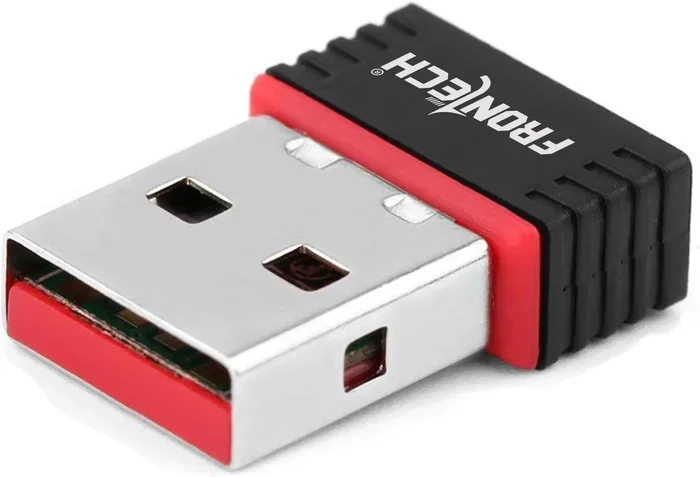
A Wi-Fi stick is a small USB device that connects your PC to wireless networks. It’s affordable, easy to use, and works with almost any computer that has a USB port. Whether you’re browsing the web, streaming movies, or working from home, a USB wireless adapter gives you the freedom to go wireless without wires.
In this guide, we’ll walk you through everything you need to know about getting a Wi-Fi stick for your PC. We’ll cover what they are, the different types available, how to pick the right one, how to set it up, and how to troubleshoot if something goes wrong. By the end, you’ll feel confident choosing and using a wireless network adapter that fits your needs perfectly.
Key Takeaways
- Wi-Fi sticks work on any PC: Any desktop or laptop without built-in wireless can connect to Wi-Fi using a USB adapter.
- They are plug-and-play: Most modern Wi-Fi sticks install automatically and need no technical skills.
- Choose based on your needs: Consider speed, range, Wi-Fi standard (like Wi-Fi 5 or Wi-Fi 6), and USB port type.
- USB 3.0 ports give better performance: Plugging into a USB 3.0 port ensures faster speeds and more stable connections.
- Driver updates matter: Keeping your adapter drivers up to date prevents connection drops and slow speeds.
- External vs. internal adapters: External Wi-Fi sticks are portable and easy; internal PCIe cards offer better performance.
- Dual-band adapters are worth it: They connect to both 2.4GHz and 5GHz networks for flexibility and speed.
📑 Table of Contents
- What Is a Wi-Fi Stick and How Does It Work?
- Why You Need a Wi-Fi Stick for Your PC
- Types of Wi-Fi Sticks Available
- How to Choose the Right Wi-Fi Stick for Your PC
- Step-by-Step Setup Guide for Your Wi-Fi Stick
- Common Problems and How to Fix Them
- Expert Insights on Choosing the Best Wi-Fi Stick
- Wi-Fi Stick vs. Other Wireless Options Compared
- Quick Tips for Getting the Most Out of Your Wi-Fi Stick
- Common Mistakes to Avoid
- Conclusion
What Is a Wi-Fi Stick and How Does It Work?
A Wi-Fi stick is a small USB device that acts as a wireless network adapter for your computer. Think of it as a tiny radio that sends and receives Wi-Fi signals. When you plug it into a USB port, your PC can connect to your wireless router and access the internet without any cables.
Inside the stick, you’ll find a wireless antenna and a small chip that handles the wireless communication. The chip translates radio waves from your router into data your computer can understand. It also does the reverse — sending data from your PC back out over the air to the router.
Most Wi-Fi sticks are very small, about the size of a flash drive. You can leave them plugged into your PC all the time if you want. Some people even buy a Wi-Fi dongle with a longer cable so they can place it on their desk or near a window for a better signal.
How Is a Wi-Fi Stick Different from a Wi-Fi Card?
A Wi-Fi card is an internal adapter that you install inside your PC’s motherboard slot. It usually offers better performance and faster speeds. A Wi-Fi stick, on the other hand, is external and plugs into a USB port. Sticks are easier to install and more portable, but cards often deliver stronger wireless signals and higher speeds.
For most people, a USB Wi-Fi stick is more than enough. It’s the go-to choice for anyone who wants a quick and simple wireless connection without opening up their computer case.
Why You Need a Wi-Fi Stick for Your PC
If your PC doesn’t have Wi-Fi built in, you might be relying on an Ethernet cable to get online. While that works fine, it limits where you can place your computer. You need to stay close to the router, and running a long cable across your room isn’t always practical.
A USB wireless adapter solves this problem completely. Here are some of the main reasons people choose a Wi-Fi stick:
- Freedom from cables: Move your PC anywhere in your home and still stay connected to the internet.
- Quick setup: Most adapters plug in and connect within minutes. No tools or technical knowledge needed.
- Affordable solution: Wi-Fi sticks cost much less than buying a new motherboard or a new PC.
- Portable: You can unplug the stick and take it with you to use on another computer.
- Works on any PC: Desktops, laptops, and even mini PCs can use a USB Wi-Fi adapter.
- No opening the case: Unlike internal cards, external sticks don’t require you to open your computer or install hardware inside.
Even if you have a laptop with broken Wi-Fi, a wireless USB adapter can bring your internet connection back to life without spending a fortune on repairs.
Types of Wi-Fi Sticks Available
Not all Wi-Fi sticks are the same. There are several types to choose from, and each one serves a different purpose. Understanding the differences will help you make the right choice.
Basic Wi-Fi Sticks
Basic Wi-Fi sticks are the most affordable option. They usually support the Wi-Fi 5 standard (also called 802.11ac) and offer speeds up to 300 Mbps. These are perfect for light internet use like browsing, checking email, and watching standard-definition videos. They work well for everyday tasks but may struggle with heavy gaming or 4K streaming.
High-Speed Wi-Fi Sticks
If you need faster speeds, look for a high-speed Wi-Fi adapter that supports Wi-Fi 6 (802.11ax). These sticks can deliver speeds of 1,200 Mbps or more. They’re ideal for online gaming, video conferencing, and streaming high-definition content. Many high-speed adapters also use dual-band technology, which means they can connect to both 2.4GHz and 5GHz frequency bands.
Wi-Fi Dongles with Ethernet Ports
Some Wi-Fi dongles come with a built-in Ethernet port. This is great if you want the flexibility to switch between wireless and wired connections. You can plug in an Ethernet cable when you need maximum speed and stability, and switch to Wi-Fi when you want freedom. These combo devices are popular among people who work from home.
Internal PCIe Wi-Fi Cards
For the best possible wireless performance, consider an internal PCIe Wi-Fi card. These cards install directly into your motherboard and offer the strongest signal and fastest speeds. They are more expensive and require opening your PC case, but they deliver the best results for serious gamers and professionals who need reliable, high-speed wireless connections.
How to Choose the Right Wi-Fi Stick for Your PC
With so many options on the market, picking the right Wi-Fi stick can feel overwhelming. Here are the key factors to consider before you buy.
Check Your Wi-Fi Standard
The Wi-Fi standard determines how fast your connection can be and how far the signal reaches. Here’s a quick look at the main standards:
- Wi-Fi 4 (802.11n): Older but still works. Speeds up to 600 Mbps. Good for basic use.
- Wi-Fi 5 (802.11ac): Faster and more reliable. Speeds up to 1,300 Mbps. Great for most users.
- Wi-Fi 6 (802.11ax): The latest standard. Speeds up to 2,400 Mbps or more. Best for heavy use and future-proofing.
If your router supports Wi-Fi 6, make sure your adapter does too. Otherwise, you’ll be limited to the older standard’s speeds.
Dual-Band vs. Single-Band
A dual-band Wi-Fi adapter can connect to both 2.4GHz and 5GHz networks. The 2.4GHz band has a longer range but slower speeds. The 5GHz band offers faster speeds but a shorter range. A single-band adapter only connects to 2.4GHz, which is fine for basic browsing but can get crowded in busy areas.
For the best experience, always choose a dual-band wireless adapter. It gives you the flexibility to switch between bands depending on your needs.
USB Port Type
Most Wi-Fi sticks use a standard USB-A port. But if your PC has USB-C ports, you’ll want a USB-C Wi-Fi adapter for a better connection. Some adapters come with USB-A to USB-C cables so they work with both types of ports.
Antenna Quality and Size
The antenna on your Wi-Fi stick plays a big role in signal strength. Sticks with external antennas usually perform better than those with internal antennas. If you have a large home or need to connect from far away, look for an adapter with a high-gain antenna or an antenna cable that lets you position the antenna closer to your router.
Brand and Driver Support
Stick with well-known brands like TP-Link, ASUS, Netgear, and Intel. These companies provide regular driver updates and good customer support. Always check that the adapter is compatible with your operating system before you buy. Most adapters work with Windows 10 and Windows 11, but Mac and Linux support varies.
Step-by-Step Setup Guide for Your Wi-Fi Stick
Setting up a Wi-Fi stick is one of the easiest tech tasks you’ll ever do. Most adapters work right out of the box with no extra software needed. Here’s how to get started.
Step 1: Plug In the Adapter
Insert your Wi-Fi stick into an available USB port on your PC. If you have a USB 3.0 port, use that for the best performance. You’ll usually hear a sound or see a notification that the device has been recognized.
Step 2: Wait for the Driver to Install
Most modern adapters install their drivers automatically through Windows Update. Wait a minute or two after plugging it in. If Windows finds the driver, you’ll see the adapter listed in your Device Manager under “Network Adapters.”
Step 3: Connect to Your Wi-Fi Network
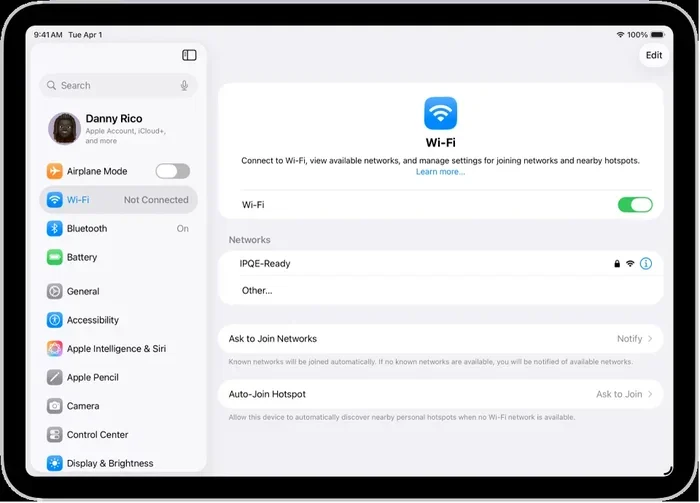
Click on the Wi-Fi icon in your taskbar (bottom-right corner on Windows). You should see your wireless network listed. Click on your network name, enter your password, and click Connect. That’s it — you’re online!
Step 4: Install the Manufacturer’s Software (Optional)
Some adapters come with a setup CD or a downloadable app from the manufacturer’s website. This software can help you manage your connection, update drivers, and optimize your signal. It’s not required, but it can be helpful if you want more control over your wireless settings.
Step 5: Update the Drivers
Even if the adapter works right away, check for driver updates. Go to the manufacturer’s website and download the latest driver for your specific model. Updated drivers often improve speed, stability, and compatibility with new operating systems.
Common Problems and How to Fix Them
Wi-Fi sticks are reliable, but sometimes you might run into issues. Here are the most common problems and simple fixes.
Wi-Fi Stick Not Detected
If your PC doesn’t recognize the adapter, try plugging it into a different USB port. A dead or faulty port can prevent detection. You can also check Device Manager to see if the adapter appears there. If it shows up with a yellow warning icon, you may need to reinstall the driver.
Slow Internet Speeds
Slow speeds are often caused by a weak signal or using a 2.4GHz band in a crowded area. Try moving closer to your router or switching to the 5GHz band if your adapter supports it. Also, make sure you’re using a USB 3.0 port, as USB 2.0 ports can limit your speed.
Connection Keeps Dropping
If your connection drops frequently, the adapter drivers might be outdated. Visit the manufacturer’s website and install the latest drivers. You should also check if your router’s firmware is up to date. Sometimes interference from other USB devices can cause drops too, so try moving your Wi-Fi stick to a different port.
Driver Installation Errors
If Windows can’t install the driver automatically, download it manually from the manufacturer’s support page. Make sure you select the correct model number and operating system. Running the installer as an administrator can also help resolve installation issues.
Poor Signal Strength
If your Wi-Fi signal is weak, try repositioning your adapter. Some sticks have magnetic bases that let you stick them near a window. External antennas can also be adjusted for better reception. A Wi-Fi signal booster or repeater can help extend your network’s range if the problem is with your router’s location.
Expert Insights on Choosing the Best Wi-Fi Stick
Networking experts agree that the best Wi-Fi stick depends on your specific needs. For most home users, a dual-band Wi-Fi 5 or Wi-Fi 6 adapter is the sweet spot between performance and price. These adapters handle streaming, browsing, and light gaming without any issues.
For power users and gamers, an internal PCIe wireless card is the top choice. It delivers the strongest signal and the lowest latency. Brands like Intel and TP-Link are highly recommended by professionals for their reliability and consistent performance.
One thing experts stress is the importance of keeping drivers updated. Even the best wireless USB adapter will underperform if it’s running outdated software. Set a reminder to check for driver updates every few months.
Another tip from the pros is to avoid cheap, no-name adapters from unknown brands. They may seem like a bargain, but they often have poor build quality, weak signals, and no driver support. Spending a little more on a reputable brand saves you headaches in the long run.
Wi-Fi Stick vs. Other Wireless Options Compared
| Feature | Wi-Fi Stick | Internal PCIe Card | Ethernet Cable |
|---|---|---|---|
| Ease of Setup | Very Easy | Moderate | Easy |
| Portability | High | None (Internal) | None |
| Speed | Good to Excellent | Excellent | Excellent |
| Signal Strength | Good | Very Good | N/A (Wired) |
| Cost | Low to Moderate | Moderate to High | Low |
| No Case Opening | Yes | No | Yes |
| Best For | Quick Setup | High Performance | Maximum Stability |
As you can see, a Wi-Fi stick offers the best balance of convenience, performance, and cost for most users. It’s the go-to choice for anyone who wants wireless internet without the hassle of opening their PC or running cables.
Quick Tips for Getting the Most Out of Your Wi-Fi Stick
- Always use a USB 3.0 port for the fastest speeds.
- Place your adapter near a window for the strongest signal.
- Keep your drivers updated through the manufacturer’s website.
- Use the 5GHz band for streaming and gaming, and 2.4GHz for basic browsing.
- Avoid plugging your adapter into USB hubs — connect it directly to the PC.
- If you’re using a long USB cable, make sure it’s a high-quality cable to avoid signal loss.
- Restart your router and adapter regularly to keep the connection stable.
Common Mistakes to Avoid
Even though setting up a Wi-Fi stick is simple, people still make mistakes that hurt their experience. Here’s what to watch out for.
- Buying the wrong standard: If your router is Wi-Fi 6, don’t buy a Wi-Fi 4 adapter. You’ll waste the router’s potential.
- Ignoring driver updates: Outdated drivers cause slow speeds and connection drops. Always keep them current.
- Using a USB 2.0 port: USB 2.0 limits your adapter’s speed. Always use USB 3.0 when possible.
- Placing the adapter in a closed space: Tucking it behind your monitor or inside a desk drawer weakens the signal.
- Choosing a single-band adapter: Single-band adapters only use 2.4GHz, which is often crowded and slower than 5GHz.
- Skipping the manufacturer’s software: While not required, the official software can help you manage and optimize your connection.
Avoiding these simple mistakes will keep your wireless internet connection fast, stable, and reliable.
Conclusion
Getting a Wi-Fi stick for your PC is one of the easiest and most affordable ways to add wireless internet to a computer without built-in Wi-Fi. Whether you’re a casual user who just wants to browse the web or a power gamer who needs fast, stable connections, there’s a USB wireless adapter out there that fits your needs.
Remember to choose a dual-band adapter that supports the latest Wi-Fi standard your router uses. Plug it into a USB 3.0 port, install the drivers, and you’ll be online in no time. Keep your drivers updated, position your adapter well, and you’ll enjoy a strong, reliable wireless connection for years to come.
A Wi-Fi stick transforms any wired PC into a wireless powerhouse. It’s a small investment that pays off big in convenience and freedom. So go ahead, pick one up, and cut the cord for good.
Frequently Asked Questions
Can any PC use a Wi-Fi stick?
Yes, any PC with a USB port can use a Wi-Fi stick. It doesn’t matter if your computer is a desktop, laptop, or mini PC. As long as you have a free USB port, you can add wireless internet capability instantly.
Do Wi-Fi sticks work with Windows 11?
Most modern Wi-Fi sticks work perfectly with Windows 11. Major brands like TP-Link, ASUS, and Intel design their adapters to be compatible with the latest Windows versions. Always check the product specifications before buying to be sure.
Is a Wi-Fi stick as fast as a built-in Wi-Fi connection?
A good Wi-Fi stick can match or come very close to the speeds of built-in Wi-Fi. High-end USB adapters with Wi-Fi 6 support can deliver speeds over 1,000 Mbps, which is more than enough for most users. Internal PCIe cards still hold a slight edge in raw performance, but the difference is barely noticeable for everyday use.
Do I need to install drivers for a Wi-Fi stick?
Many Wi-Fi sticks install their drivers automatically through Windows. However, for the best performance and stability, it’s a good idea to visit the manufacturer’s website and download the latest drivers. Updated drivers fix bugs, improve speeds, and add new features.
Can I use a Wi-Fi stick on a Mac computer?
Some Wi-Fi sticks work with Mac computers, but compatibility varies by model. Always check the manufacturer’s website to confirm Mac support before purchasing. Apple’s built-in Wi-Fi is generally superior, so a stick is mainly useful for Macs that are older or have damaged wireless hardware.
How far can a Wi-Fi stick reach from the router?
The range depends on the adapter’s antenna quality and the Wi-Fi standard it supports. Most standard sticks work well within 50 to 100 feet indoors. High-end adapters with external antennas can reach further, especially if there are few walls and obstacles between the adapter and the router.