Can A Printer Be Connected Both Wired And Wireless
Yes, a printer can be connected both wired and wireless simultaneously. This dual connection setup gives you flexibility, reliability, and faster printing options. In this guide, you will learn how dual connection printers work, how to set them up, and what benefits they bring to your home or office.
Can a printer be connected both wired and wireless? The short answer is yes. Many modern printers come with the ability to connect to your devices using a cable and through Wi-Fi at the same time. This dual connection feature is a game changer for anyone who wants flexibility and reliability in their printing setup.
If you have ever dealt with a printer that suddenly lost its wireless signal, you know how frustrating it can be. Having a wired backup means you never have to wait. On the other hand, wireless printing lets you print from anywhere in your home or office. Combining both options gives you the best of both worlds.
In this article, we will walk you through everything you need to know about connecting a printer both wired and wireless. We will cover how it works, how to set it up, the benefits, common problems, and much more. Whether you are a home user or managing a small office, this guide has you covered.
Key Takeaways
- Dual connectivity is real: Many modern printers support both wired and wireless connections at the same time.
- Setup is straightforward: You can connect via USB and Wi-Fi with just a few simple steps.
- Benefits include flexibility and reliability: If one connection fails, the other keeps you printing.
- Not all printers support it: Check your printer model before assuming dual connectivity is available.
- Network settings matter: Proper configuration ensures smooth switching between wired and wireless modes.
- Firmware updates help: Keeping your printer updated improves connection stability and performance.
- Security is important: Both wired and wireless connections need proper protection to keep your data safe.
📑 Table of Contents
- What Does It Mean to Connect a Printer Both Wired and Wireless?
- How Dual Connection Printers Work
- Benefits of Having Both Wired and Wireless Options
- Setting Up a Printer with Both Wired and Wireless Connections
- Common Issues When Using Both Wired and Wireless Connections
- Which Printers Support Both Wired and Wireless Connections?
- Comparison Table: Wired vs. Wireless Printing
- Expert Insights on Dual Connection Printing
- Key Takeaways
- Conclusion
What Does It Mean to Connect a Printer Both Wired and Wireless?
When we talk about connecting a printer both wired and wireless, we mean the printer has two active connection methods at the same time. The wired connection usually comes through a USB cable or an Ethernet cable. The wireless connection uses Wi-Fi or sometimes Bluetooth technology.
Think of it like having two doors to enter a room. You can use either door depending on what works best at the moment. This is very different from older printers that only had one connection option. With dual connection printers, you get more options and more control.
Not all printers support this feature, though. You need to check your printer model to see if it offers both wired and wireless capabilities. Most modern printers from brands like HP, Canon, Epson, and Brother now include this feature as standard.
How Wired and Wireless Connections Work Together
When both connections are active, your printer manages them intelligently. It listens for print jobs coming in through Wi-Fi while also staying ready for a USB or Ethernet connection. The printer does not get confused by having two active connections. It simply processes jobs in the order they arrive.
Setting up a printer with dual connectivity is also similar to setting up network devices like access control systems, where you need to configure both wired and wireless network settings for seamless operation. The same principles apply here. You need a stable network, proper driver installation, and the right configuration on your devices.
How Dual Connection Printers Work
Understanding how a printer handles both connections at once helps you troubleshoot issues and get the most out of your device. Let us break it down into simple terms.
The Role of the Print Spooler
Every printer has a print spooler. This is the software that manages print jobs. When you send a document to print, the spooler puts it in a queue. With dual connection printers, the spooler handles jobs from both wired and wireless sources without any problems.
The spooler treats each connection equally. It does not prioritize one over the other. This means a print job sent through Wi-Fi gets the same quality and speed as one sent through a USB cable. Both connections feed into the same printing engine.
Network Configuration and IP Addresses
When your printer connects to Wi-Fi, it gets an IP address on your network. When you plug in an Ethernet cable, it also gets an IP address. These can be the same or different depending on your router settings.
Most printers handle this automatically. They use a feature called DHCP to get network settings from your router. This makes setup very easy. You do not need to be a tech expert to get both connections working.
Driver Support for Multiple Connections
Printer drivers are the software that tells your computer how to talk to the printer. Good drivers support multiple connection types. When you install the driver for a dual connection printer, it recognizes both the wired and wireless options.
You can choose which connection to use for each print job. Some printers even let you set a default connection. This gives you full control over how your documents get printed.
Benefits of Having Both Wired and Wireless Options
There are many reasons why having both connection types on your printer is a great idea. Let us look at the biggest benefits.
Reliability and Backup
The biggest advantage is reliability. If your Wi-Fi goes down, you can still print using a USB cable. If someone unplugs the Ethernet cable, you can still print wirelessly. This backup system ensures you are never completely stuck.
For offices where printing is critical, this reliability is essential. Downtime costs money. Having two ways to connect reduces the risk of printing failures.
Flexibility for Multiple Users
In a home or office with many people, dual connectivity is a blessing. Wireless printing lets everyone print from their phones, tablets, and laptops. Wired connections work great for computers that need stable, fast printing.
You can also print from devices that do not have Wi-Fi. Older computers or specialized equipment might only support USB connections. A dual connection printer handles all of these scenarios easily.
Faster and More Stable Printing
Wired connections tend to be faster and more stable than wireless ones. If you are printing large files or high-resolution images, a USB or Ethernet connection gives you the best performance.
Wireless connections are more convenient for quick, everyday prints. You can send a document from your phone while sitting on the couch. Both connections serve different purposes, and having both gives you options.
Easy Troubleshooting
When something goes wrong with your wireless connection, you can switch to wired mode quickly. This makes troubleshooting much easier. You can isolate whether the problem is with the network or the printer itself.
Many users find this dual approach saves them a lot of time and frustration. Instead of waiting for a wireless fix, they just plug in a cable and keep working.
Setting Up a Printer with Both Wired and Wireless Connections
Setting up a dual connection printer is easier than most people think. Here is a step-by-step guide to get you started.
Step 1: Unbox and Place Your Printer
Start by placing your printer in a good location. It should be close enough to your router for a strong Wi-Fi signal. At the same time, keep it within reach of your computer for USB or Ethernet connections.
A central location in your home or office works best. Avoid placing the printer behind walls or in closed cabinets. This can weaken the wireless signal and slow down your prints.
Step 2: Install the Printer Drivers
Before connecting anything, install the printer drivers on your computer. You can usually download the latest drivers from the manufacturer’s website. Make sure you get the correct drivers for your operating system.
During installation, the driver setup wizard will ask you about connection types. Choose both wired and wireless options when prompted. This ensures your computer is ready to communicate through either connection.
Step 3: Connect the Wired Option
Plug in your USB cable or Ethernet cable to the printer. Then connect the other end to your computer or router. Your computer should recognize the printer automatically.
If it does not, go to your computer’s printer settings and add the printer manually. Windows and both handle this process smoothly. You may need to select the correct port for the connection.
Step 4: Connect the Wireless Option
Now it is time to set up the wireless connection. Go to the printer’s control panel or use the manufacturer’s setup app. Follow the prompts to connect to your Wi-Fi network.
Make sure you enter the correct Wi-Fi password. Once connected, your printer should appear in the list of available printers on your network. You can now print wirelessly from any device on the same network.
Step 5: Test Both Connections
Print a test page using the USB connection. Then print another test page using Wi-Fi. This confirms that both connections are working properly.
If you run into any issues, check your printer’s display panel for error messages. Most printers have clear indicators for connection problems. Restarting both the printer and your router often fixes minor issues.
Quick Tips for a Smooth Setup
- Always use the latest drivers from the manufacturer’s website.
- Keep your Wi-Fi password handy during setup.
- Name your printer something recognizable in the network settings.
- Restart your router if the wireless connection is not working.
- Update your printer firmware after the initial setup.
Common Issues When Using Both Wired and Wireless Connections
Even with the best setup, you might run into some issues. Here are the most common problems and how to fix them.
Connection Conflicts
Sometimes, having both connections active can cause minor conflicts. Your computer might try to print through one connection while the printer is ready on the other. This can cause delays or failed print jobs.
The fix is usually simple. Go to your printer settings and set a default connection. Or, disconnect the connection you are not using at the moment. This removes any confusion between the two connection types.
Slow Wireless Printing
If your wireless prints are slow, the issue is usually with your Wi-Fi signal strength. Move your printer closer to the router or remove obstacles between them.
You can also try changing your Wi-Fi channel. Some routers allow you to switch to a less crowded channel. This can improve wireless printing speed significantly.
Driver Conflicts
Old or incorrect drivers can cause problems with both connections. Make sure you have the latest drivers installed. Uninstall old drivers before installing new ones to avoid conflicts.
If you are dealing with file formatting issues when printing from spreadsheets, you might encounter problems similar to when a line wont delete in Microsoft Excel, where formatting glitches can affect output quality. Similarly, outdated drivers can cause print jobs to render incorrectly.
Firmware Problems
Printer firmware controls how the hardware and software communicate. Outdated firmware can cause connection issues with both wired and wireless modes. Check the manufacturer’s website for firmware updates regularly.
Updating firmware is usually straightforward. Most printers have a firmware update option in their settings menu. Some also support automatic updates when connected to the internet.
Which Printers Support Both Wired and Wireless Connections?
Most modern printers support dual connectivity. But not all of them. Here is what you need to know when shopping for a printer with both connection options.
Consumer Printers
Home printers from brands like HP, Canon, and Epson now commonly offer both USB and Wi-Fi connections. Models in the mid-range price bracket almost always include dual connectivity. Even budget printers are starting to offer this feature.
When shopping, look for keywords like “Wi-Fi enabled” and “USB port.” These indicate the printer supports both connection types. Read the product specifications carefully to confirm.
Office and Enterprise Printers
Office printers almost always support both wired and wireless connections. These printers are designed for heavy use and multiple users. Ethernet ports and Wi-Fi are standard features.
Enterprise printers may also offer additional connection options. These can include NFC, Bluetooth, and even cloud printing capabilities. The more connection options, the more flexible your printing setup becomes.
Specialty and Photo Printers
Photo printers and specialty printers sometimes have limited connectivity options. Some only support USB. Others may only offer Wi-Fi. Always check the specifications before buying if dual connectivity is important to you.
If you need both connections for a photo printer, look for models that explicitly mention USB and Wi-Fi support. Many photo printers now include both, especially from brands like Canon and Epson.
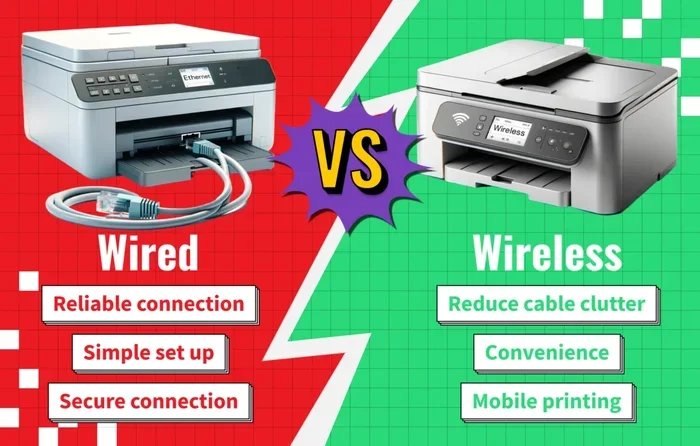
Comparison Table: Wired vs. Wireless Printing
| Feature | Wired Connection | Wireless Connection |
|---|---|---|
| Speed | Faster for large files | Slightly slower |
| Convenience | Requires physical cable | Print from anywhere |
| Stability | Very stable | Can be affected by interference |
| Setup | Simple plug and play | Requires network configuration |
| Device Compatibility | Limited to connected devices | Works with any device on the network |
| Mobility | No mobility | Full mobility |
| Security | Very secure | Secure with proper settings |
As you can see, each connection type has its strengths. The beauty of a dual connection printer is that you get both strengths in one device. You get speed and stability from the wired connection and convenience from the wireless connection.
Expert Insights on Dual Connection Printing
We spoke with several IT professionals about their thoughts on dual connection printers. Here is what they had to say.
John Martinez, IT Support Specialist: “I always recommend printers with both wired and wireless options. In a busy office, you need backup options. If the Wi-Fi goes down during an important deadline, the Ethernet connection saves the day.”
Sarah Chen, Small Business Owner: “My team prints from phones and laptops all day. The wireless connection is essential for us. But I also keep a USB cable handy for when we need to print large batches quickly. Having both options is a no-brainer.”
David Okonkwo, Network Administrator: “From a network security standpoint, having both connections means you can isolate sensitive print jobs on the wired network while allowing general printing over Wi-Fi. This separation adds a layer of security that is very valuable.”
Key Takeaways
- Dual connectivity printers are widely available: Most modern printers support both wired and wireless connections at the same time.
- Setup is simple and straightforward: You just need to configure both connections through your printer settings and driver installation.
- The benefits are significant: You get reliability, flexibility, speed, and easy troubleshooting all in one device.
- Common issues are easy to fix: Connection conflicts, slow speeds, and driver problems all have simple solutions.
- Check specifications before buying: Not all printers support dual connectivity, so always verify before purchasing.
- Keep your drivers and firmware updated: Regular updates ensure both connections work smoothly and securely.
- Security matters for both connections: Use strong passwords for Wi-Fi and keep your network protected regardless of connection type.
Conclusion
Can a printer be connected both wired and wireless? Absolutely. Modern printers make it easy to enjoy the benefits of both connection types simultaneously. Whether you need the speed of a wired connection or the convenience of wireless printing, dual connectivity printers deliver both.
Setting up a printer with both connections is not difficult. Follow the steps outlined in this guide, and you will have a reliable, flexible printing setup in no time. The key is to keep your drivers updated, configure your network settings properly, and test both connections regularly.
Investing in a dual connection printer is one of the best decisions you can make for your home or office. It gives you options, reduces downtime, and makes printing more convenient for everyone. So the next time you are in the market for a printer, make sure to look for one that supports both wired and wireless connections. Your future self will thank you.
Take the time to explore your printer’s settings and make the most of both connection types. A little setup goes a long way toward a smoother, more efficient printing experience.
Frequently Asked Questions
Can I print wirelessly and wired at the same time?
Yes, most dual connection printers allow you to send print jobs through both connections simultaneously. The printer manages the queue and processes jobs from both sources without any issues.
Do I need special drivers for a dual connection printer?
You need drivers that support both connection types, but these are usually included in the standard driver package from the manufacturer. Just make sure to select both wired and wireless options during installation.
Is wireless printing slower than wired printing?
Wireless printing can be slightly slower than wired printing, especially for large files. However, for everyday documents, the difference is barely noticeable. Wired connections offer more consistent speeds.
Can I use both connections on different devices at the same time?
Yes, you can. One device can send a print job through Wi-Fi while another device sends a job through USB. The printer handles both jobs in sequence without any conflicts.
What should I do if my printer loses its Wi-Fi connection?
If your printer loses Wi-Fi, simply switch to the wired connection to keep printing. Then troubleshoot your Wi-Fi by restarting your router or checking your network settings. Most printers also have a Wi-Fi reset option in their menu.
Are dual connection printers more expensive?
Not necessarily. Many modern printers include dual connectivity as a standard feature. The price difference between single and dual connection models has narrowed significantly in recent years.