Why A Line Wont Delete In Microsoft Excel And How To Fix It
When a line wont delete in Microsoft Excel, it can frustrate even experienced users. This guide covers every common cause, from hidden rows and merged cells to sheet protection and shape objects. You will learn step-by-step fixes that actually work, so you can clean up your spreadsheet quickly and get back to what matters.
You click, you right-click, you press Delete — and yet that stubborn line stays right where it is. If a line wont delete in Microsoft Excel, you are not alone. This is one of the most common frustrations spreadsheet users face. Whether it is a gridline, a border, a hidden row boundary, or a shape object, the line just refuses to go away.
The good news is that there is almost always a fix. In this guide, we walk through every reason why a line wont delete in Microsoft Excel. We also give you clear, step-by-step solutions you can try right now. No guesswork. No confusion. Just real fixes that work.
By the end of this article, you will know exactly what is causing the problem and how to remove the line for good. Let us get started.
Key Takeaways
- Hidden rows and columns are the most common reason a line wont delete in Microsoft Excel.
- Sheet protection can lock lines in place and prevent deletion.
- Merged cells create visual lines that behave differently than regular gridlines.
- Shape objects and drawing tools often look like lines but are separate elements.
- Conditional formatting and borders can simulate lines that resist normal deletion.
- Print area settings and page breaks can add persistent lines to your worksheet.
- Multiple fix methods exist, from simple shortcuts to advanced troubleshooting steps.
📑 Table of Contents
- Why A Line Wont Delete In Microsoft Excel
- How To Identify What Type Of Line Is Causing The Problem
- How To Fix A Line That Wont Delete In Microsoft Excel
- Common Mistakes When Trying To Delete Lines In Excel
- Preventing Lines From Reappearing In Excel
- Expert Insights On Excel Line Issues
- When To Seek Additional Help
- Key Takeaways
- Conclusion
Why A Line Wont Delete In Microsoft Excel
Before you can fix the problem, you need to understand what is causing it. A line in Excel can come from many different sources. Each source behaves differently, and each requires a different fix. Here are the most common reasons a line wont delete in Microsoft Excel.
Hidden Rows and Columns
This is the number one culprit. When rows or columns are hidden in Excel, the border lines around them can still appear on screen. You might think you are seeing a real line, but it is actually the edge of a hidden row or column. When you try to delete it, nothing happens because there is no actual line object to remove.
Hidden rows and columns often happen when someone filters data or accidentally hides them. You might not even know they are there until you see a strange line on your sheet.
Merged Cells
Merged cells create visual boundaries that look like lines. When you merge cells in Excel, the borders between them disappear, but the outer borders remain. These borders can look exactly like a line that you want to remove. But because they are part of cell formatting, they do not respond to normal line deletion methods.
Many users struggle with this issue when working with formatted tables or reports. The merged cells hold the line in place, and standard deletion does not work.
Sheet Protection
If your worksheet is protected, many editing features become locked. This includes the ability to delete lines, borders, and rows. Sheet protection is a security feature in Excel, but it can also block you from making changes you want to make.
When a line wont delete in Microsoft Excel, check if the sheet is protected first. This is a quick check that saves a lot of time.
Shape Objects and Drawing Elements
Excel has drawing tools that let you add lines, shapes, and text boxes to your worksheet. These are separate objects sitting on top of your cells. They look like they are part of the grid, but they are not. When you click on them and press Delete, they should disappear. But sometimes they get stuck, locked, or grouped with other objects.
Shape objects are a very common reason people see a line that will not go away. They are especially tricky because they do not show up in the normal cell selection.
Cell Borders and Formatting
Cell borders are not the same as gridlines. When you apply borders to cells, you are adding formatting that stays with those cells. If you apply a bottom border to a row, it looks like a line. But deleting that “line” means removing the border formatting, not deleting the row itself.
Many users confuse borders with actual lines. This confusion leads to a lot of frustration when the line wont delete.
Conditional Formatting
Conditional formatting can add visual lines based on cell values or rules. These lines are not real borders, but they look like them. They are applied dynamically, which means they can reappear even after you remove them. This is one of the trickiest reasons a line wont delete in Microsoft Excel.
Page Breaks and Print Lines
Excel shows page break lines when you are in Page Layout view. These dashed lines indicate where the printer will cut the page. They can look like regular lines on your screen. Some users try to delete them, but they are part of the print settings, not cell formatting.
How To Identify What Type Of Line Is Causing The Problem
Not all lines in Excel are created equal. Before you try any fix, you need to identify what kind of line you are dealing with. Here is a simple way to figure it out.
Click on the area near the line. If the entire row or column highlights, you are likely dealing with a hidden row or column. If only a single cell is selected, the line might be a border or a shape object. If you see a drawing handle or a resize dot, it is probably a shape.
Try right-clicking on the area. If you see options like “Delete Row” or “Unhide,” you know the line is related to row or column formatting. If you see “Format Shape” or “Edit Text,” you are dealing with a drawing object.
This identification step is crucial. Applying the wrong fix wastes time and can make the problem worse. Take a moment to figure out what you are working with before you start deleting.
How To Fix A Line That Wont Delete In Microsoft Excel
Now that you know the common causes, let us go through the fixes. Each solution targets a specific reason why a line wont delete in Microsoft Excel. Try them in order until you find the one that works for your situation.
Fix 1: Unhide Hidden Rows and Columns
This is the first thing you should try. Hidden rows and columns are the most common cause of stubborn lines.
- Select the rows or columns surrounding the line.
- Right-click on the selected area.
- Choose “Unhide” from the context menu.
- The hidden rows or columns will now be visible.
- Select the rows or columns you want to delete.
- Right-click and choose “Delete.”
After deleting, the line should disappear. If it does not, move on to the next fix.
Quick Tip: To select all hidden rows at once, click the triangle in the top-left corner of the spreadsheet to select the entire sheet. Then go to Home > Cells > Format > Hide & Unhide > Unhide Rows.
Fix 2: Remove Sheet Protection
If your worksheet is protected, you cannot delete lines or make structural changes. Here is how to remove protection.
- Go to the “Review” tab on the ribbon.
- Click “Unprotect Sheet.”
- Enter the password if prompted.
- Try deleting the line again.
If you do not know the password, you may need to ask the person who set up the spreadsheet. Sheet protection passwords are not recoverable in Excel without third-party tools.
Fix 3: Delete Shape Objects
If the line is a shape object, you need to select it properly before you can delete it.
- Go to the “Home” tab.
- Click “Find & Select” in the Editing group.
- Choose “Selection Pane.”
- The Selection Pane will show all objects on the sheet.
- Click on the line object in the pane.
- Press the Delete key on your keyboard.
This method works even when the line is hidden behind other objects or grouped with shapes.
Quick Tip: If the line keeps coming back, check if it is part of a template or a linked object. Sometimes shape objects are tied to external files or templates that reload them every time you open the workbook.
Fix 4: Clear Cell Borders
If the line is actually a cell border, you need to clear the border formatting.
- Select the cells that have the line.
- Go to the “Home” tab.
- Click the “Borders” dropdown arrow.
- Choose “No Border.”
- The line will disappear from those cells.
This method removes the visual line without deleting any data in the cells. It is a clean and safe approach.
Fix 5: Remove Conditional Formatting
Conditional formatting rules can create lines that look real but are not permanent. To remove them:
- Select the affected cells.
- Go to the “Home” tab.
- Click “Conditional Formatting.”
- Choose “Clear Rules.”
- Select “Clear Rules from Selected Cells.”
After clearing the rules, the lines created by conditional formatting should vanish. If they do not, the formatting may be applied at the cell level rather than through a conditional rule.
Fix 6: Remove Page Breaks
If the line only appears in Page Layout view, it is probably a page break line.
- Go to the “Page Layout” tab.
- Click “Breaks.”
- Select “Reset All Page Breaks.”
- The dashed lines will disappear.
This fix is simple but effective. It resets all page break settings to their default state.
Common Mistakes When Trying To Delete Lines In Excel
Many people make the same mistakes when they try to remove a line from Excel. Avoiding these errors can save you a lot of frustration.
- Trying to delete a line like a text character. Lines in Excel are not text. You cannot select them with your cursor and press Backspace. They are either borders, shapes, or structural elements like rows and columns.
- Ignoring hidden rows. A hidden row often looks like a line on your screen. If you do not unhide it first, you cannot delete it.
- Forgetting about merged cells. Merged cells hold borders that look like lines. You must clear the border formatting, not delete the cells.
- Not checking for sheet protection. If the sheet is protected, none of your deletion attempts will work until you unprotect it.
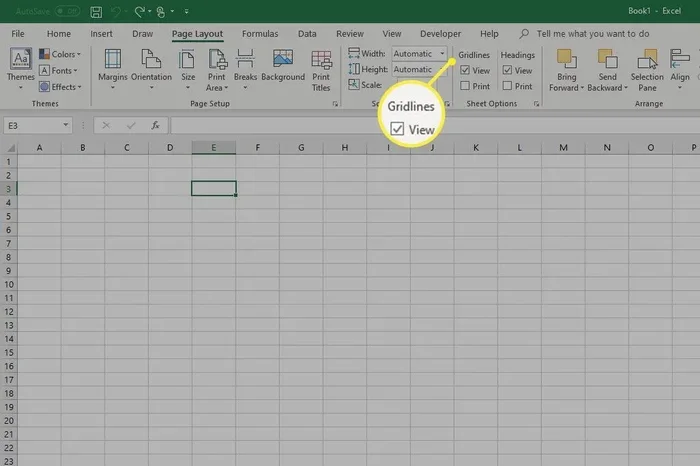
- Confusing gridlines with borders. Gridlines are the light gray lines you see by default. They are not the same as cell borders, and you cannot “delete” gridlines the same way you delete borders.
- Overlooking shape objects. A simple line drawn with the pencil tool is a shape, not a cell border. It requires different steps to remove.
By knowing what not to do, you can skip the trial-and-error phase and go straight to the right solution.
Preventing Lines From Reappearing In Excel
Once you have removed the stubborn line, you want to make sure it does not come back. Here are some tips to keep your Excel sheets clean.
- Save your workbook as a template after cleaning it up. This way, you can start fresh with a line-free sheet every time.
- Avoid merging cells unless absolutely necessary. Merged cells are the root cause of many border-related line issues.
- Unlock sheets before sharing them. If others need to edit the file, make sure sheet protection is removed or they have the password.
- Use conditional formatting carefully. Review your conditional formatting rules regularly to make sure they are not creating unwanted visual lines.
- Check for linked objects. If your workbook pulls in data or objects from other files, those linked elements can reintroduce lines you thought you had removed.
- Use the Selection Pane regularly. Getting into the habit of checking the Selection Pane helps you spot stray shape objects before they become a problem.
Prevention is always easier than cure. A few minutes of maintenance can save you hours of troubleshooting later.
Expert Insights On Excel Line Issues
Experienced Excel users know that lines are rarely just lines. They are almost always a symptom of deeper formatting or structural issues in the worksheet.
Check the cell format first. Before trying anything else, right-click the cell and choose “Format Cells.” Look at the Border tab. This tells you exactly what borders are applied and where. It is the fastest way to diagnose the problem.
Use the Zoom feature. Sometimes a line is actually a very thin row or column. Zoom in to 200% or higher and look closely. You might see that the “line” is just a row with minimal height or a column with minimal width.
Watch for grouped shapes. When multiple shapes are grouped together, deleting one shape does not remove the group. You must ungroup them first. Right-click the shape and select “Grouping > Ungroup.” Then try deleting the line again.
Consider the file format. Older Excel file formats like .xls handle borders and shapes differently than modern .xlsx files. If you are working with an older file, some fixes may behave unexpectedly. Saving the file in the newer format can sometimes resolve stubborn formatting issues.
Restart Excel if nothing works. Sometimes Excel’s display engine gets stuck. Closing and reopening the file can refresh the rendering and make hidden lines visible or removable.
When To Seek Additional Help
Most line deletion issues can be solved with the methods in this guide. But there are times when you might need extra help.
If the line is part of a corporate template managed by your IT department, you may not have permission to change it. If the line appears in every new workbook you create, the problem might be in your default Excel template file. And if the line is tied to a complex macro or VBA script, you may need help from someone with programming experience.
Do not hesitate to reach out to Excel forums, your organization’s IT support, or online communities. Someone has likely encountered the exact same issue and found a solution.
Key Takeaways
- Hidden rows and columns are the most common reason a line wont delete in Microsoft Excel.
- Sheet protection can lock lines in place and prevent deletion.
- Merged cells create visual lines that behave differently than regular gridlines.
- Shape objects and drawing tools often look like lines but are separate elements.
- Conditional formatting and borders can simulate lines that resist normal deletion.
- Print area settings and page breaks can add persistent lines to your worksheet.
- Multiple fix methods exist, from simple shortcuts to advanced troubleshooting steps.
Conclusion
A line wont delete in Microsoft Excel for a variety of reasons, but the fix is almost always within reach. Whether the culprit is a hidden row, a merged cell, a shape object, or sheet protection, the solutions in this guide cover them all. The key is to identify the type of line first, then apply the right fix.
Start with the simplest solutions like unhiding rows and removing sheet protection. If those do not work, move on to clearing borders, removing conditional formatting, or deleting shape objects. Each step takes only a few minutes, and most users resolve the issue within the first two or three methods.
Remember to prevent the problem from coming back. Keep your worksheets clean, avoid unnecessary merged cells, and review your formatting regularly. With these habits, you will spend less time fighting lines and more time working with data that looks the way you want it to.
Now that you know how to fix this common Excel problem, go ahead and try these steps on your own spreadsheet. You will be surprised how quickly the stubborn line disappears.
Frequently Asked Questions
Why does a line keep coming back after I delete it in Excel?
The line is likely tied to a formatting rule, a hidden row or column, or a shape object that is linked to a template. Check your conditional formatting rules and unhide any rows or columns near the line. If the line is a shape, it may be reloading from an external source or template file.
Can I delete a line in Excel using a keyboard shortcut?
Yes, but only if the line is a shape object or a selected row. For shape objects, select the line and press Delete. For rows, select the row and press Ctrl + Minus (-). There is no single shortcut that removes all types of lines, so the method depends on what kind of line you are dealing with.
How do I remove gridlines in Excel without deleting data?
Go to the View tab and uncheck the Gridlines box in the Show group. This removes the visual gridlines from your screen without affecting any data, borders, or formatting in your cells. You can also go to File > Options > Advanced and uncheck “Show gridlines” for a more permanent setting.
What is the difference between a border and a gridline in Excel?
Gridlines are the light gray lines that appear by default between all cells on a worksheet. Borders are formatting you apply manually to specific cells. You cannot delete gridlines the same way you delete borders. Gridlines can only be hidden or shown, while borders can be added, removed, or changed.
How do I know if my Excel sheet is protected?
Look at the Review tab on the ribbon. If the “Unprotect Sheet” button is active, your sheet is protected. You can also try editing a cell. If you cannot type or change anything, the sheet is likely protected. When protected, you will not be able to delete rows, columns, or structural lines.
Can a virus or corrupted file cause lines that wont delete in Excel?
It is rare, but corrupted Excel files or macro-based malware can create strange visual elements that behave like undeletable lines. If none of the standard fixes work, try opening the file in a new workbook, or scan your file with antivirus software. You can also try opening the file in Google Sheets to see if the line appears there as well.





One Comment