How Can I Watch TV Through Wi Fi Without Any Hassle
Watching TV through Wi-Fi is easier than you think. This guide shows you how to set up wireless streaming, choose the right devices, and boost your signal for buffer-free viewing. You will learn practical steps to enjoy your favorite shows and movies on any screen at home.
Key Takeaways
- Wi-Fi streaming lets you watch TV without cables: You can stream live TV, apps, and on-demand content wirelessly to any compatible screen.
- Smart TVs and streaming devices make setup simple: Devices like Roku, Fire Stick, and Chromecast connect to your network in minutes.
- A strong Wi-Fi signal is essential for smooth playback: Position your router wisely and consider extenders for larger homes.
- Screen mirroring and casting offer flexibility: You can display your phone or laptop screen on your TV without extra hardware.
- Troubleshooting common issues is straightforward: Most buffering and connection problems have quick fixes you can do yourself.
📑 Table of Contents
- How Can I Watch TV Through Wi-Fi Without Any Hassle
- Understanding How Wi-Fi TV Streaming Works
- Best Devices for Watching TV Through Wi-Fi
- Setting Up Wi-Fi TV Streaming at Home
- How to Boost Your Wi-Fi Signal for Better TV Streaming
- Common Problems and How to Fix Them
- Screen Mirroring and Casting Tips
- Can You Use Wi-Fi Without a Password for TV Streaming
- Final Thoughts on Watching TV Through Wi-Fi
How Can I Watch TV Through Wi-Fi Without Any Hassle
Watching TV through Wi-Fi has changed how we enjoy our favorite shows. You no longer need a cable box or tangled wires. All you need is a good internet connection and a device that can stream. Whether you want to watch on a smart TV, a laptop, or a phone, Wi-Fi makes it possible.
This guide walks you through everything you need to know. You will learn how to set up wireless streaming, pick the right gear, and fix common problems. We keep things simple so anyone can follow along. Let us get started and help you cut the cord for good.
Before we dive in, let us talk about what you need. A working Wi-Fi router is the foundation. You also need a device that can connect to your network. This could be a smart TV, a streaming stick, or even your phone. If you are setting up Wi-Fi at home for the first time, check out our guide on Can I Get Just Wi-Fi At Home for a head start.
Understanding How Wi-Fi TV Streaming Works
Wi-Fi TV streaming sends video data through your wireless network. Your router acts as a bridge between the internet and your TV. When you tap play on a show, data travels from the internet to your router and then to your TV. This all happens in seconds.
The quality of your stream depends on a few things. Your internet speed matters a lot. A faster connection means better picture quality. The strength of your Wi-Fi signal also plays a big role. And the device you use can affect how smooth playback feels.
What You Need for Basic Wi-Fi Streaming
Here is what you need to get started with wireless TV streaming:
- A reliable internet plan with at least 25 Mbps speed
- A Wi-Fi router that covers your living space
- A smart TV, streaming device, or a phone with casting ability
- A streaming service subscription like Netflix, Hulu, or Disney Plus
You do not need expensive gear to start. Many people already have everything they need. If your TV does not have smart features, a simple streaming stick can fix that. These small devices plug right into your TV’s HDMI port.
How Bandwidth Affects Your Viewing Experience
Bandwidth is the amount of data your connection can handle at once. When you stream TV, you use bandwidth. If other devices are using the network, your stream may suffer. For HD streaming, aim for at least 5 Mbps per device.
If you share your home network with family members, consider how many connected devices are online. Each phone, laptop, and tablet uses some bandwidth. If everyone is streaming at once, you may notice slower speeds. A dual-band router can help by splitting traffic across two frequencies.
Best Devices for Watching TV Through Wi-Fi
Choosing the right device makes a big difference in your streaming experience. There are many options out there, and each has its strengths. Let us look at the most popular choices.
Smart TVs
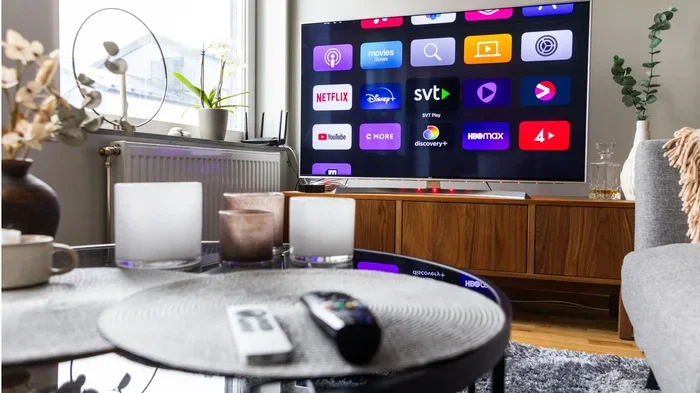
Most modern smart TVs come with built-in Wi-Fi. You can connect directly to your network without extra hardware. Brands like Samsung, LG, and Sony offer smart TVs with easy-to-use streaming menus. Once connected, you can download apps like YouTube, Netflix, and HBO Max right on your TV.
Smart TVs are great because they keep things simple. You do not need a separate box or stick. Everything is built into the TV itself. If you are shopping for a new TV, look for one with Wi-Fi 5 or Wi-Fi 6 support for the best performance.
Streaming Sticks and Boxes
Streaming sticks are small, affordable devices that turn any TV into a smart TV. Here are the top options:
- Amazon Fire TV Stick: Budget-friendly and easy to use. Works with Alexa and supports 4K streaming.
- Roku Express or Roku Ultra: Simple interface with a huge app library. Great for beginners.
- Google Chromecast: Lets you cast content from your phone or laptop directly to your TV.
- Apple TV: Premium option with excellent picture quality and a smooth interface.
Each device connects to your Wi-Fi network in seconds. You just plug it in, follow the on-screen setup, and start watching. If you want to learn more about using your phone as a streaming hub, see our article on Can I Use My Phone Hotspot For Chromecast.
Gaming Consoles
Do you have a PlayStation or Xbox? Both can stream TV content through Wi-Fi. They support popular apps like Netflix and YouTube. This is a great option if you already game on your console and do not want to buy another device.
Setting Up Wi-Fi TV Streaming at Home
Setting up wireless TV streaming is simpler than most people think. Follow these steps and you will be watching in no time.
Step 1: Set Up Your Router
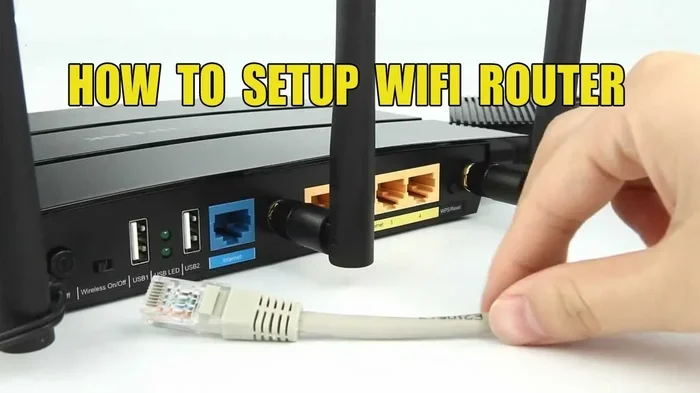
Your router is the heart of your home network. Place it in a central location for the best coverage. Avoid putting it in a closet or behind furniture. Walls and metal objects can weaken your Wi-Fi signal.
If your router is old, consider upgrading to a newer model. Modern routers handle multiple devices better and offer faster speeds. You can also check if your router supports the latest Wi-Fi standards like Wi-Fi 6.
Step 2: Connect Your TV or Device
On your smart TV or streaming device, go to the network settings. Select your Wi-Fi network from the list. Enter your password and wait for the connection. Most devices remember your network, so you only need to do this once.
If you are connecting a PC to your network wirelessly, you might find our guide on Can I Connect My PC to Wi-Fi Without Ethernet helpful for troubleshooting connection issues.
Step 3: Download Streaming Apps
Once connected, open your TV’s app store. Download the services you want to use. Netflix, Hulu, Disney Plus, Amazon Prime Video, and YouTube are the most popular. Sign in with your account and start browsing.
Step 4: Adjust Streaming Quality
Most streaming apps let you choose your video quality. Higher quality uses more data. If your internet is slow, switch to a lower resolution. You can always switch back when your connection improves.
How to Boost Your Wi-Fi Signal for Better TV Streaming
A weak signal causes buffering and poor picture quality. Here are proven ways to strengthen your Wi-Fi connection for streaming.
Move Your Router
This is the simplest fix. Place your router in a central, open area. Keep it away from microwaves, baby monitors, and other electronics that cause interference. Even moving your router to a higher shelf can improve coverage.
Use a Wi-Fi Extender
If your TV is far from the router, a Wi-Fi extender helps. This small device boosts your signal to reach distant rooms. It plugs into a wall outlet and creates a stronger network in the area. You can learn more about extending your network in our article on Can I Extend Wi-Fi With Ethernet Cable.
Switch to the 5GHz Band
Most modern routers broadcast on two bands: 2.4GHz and 5GHz. The 5GHz band is faster and less crowded. It is ideal for streaming HD and 4K content. Check your router settings to switch to 5GHz if available.
Limit Network Traffic During Streaming
If others in your home are downloading large files or gaming online, your stream may suffer. Try to schedule heavy downloads for off-hours. You can also set up Quality of Service (QoS) settings on your router to prioritize streaming traffic.
Update Your Router Firmware
Router manufacturers release updates that improve performance and fix bugs. Check your router’s admin panel regularly for updates. This simple step can make a noticeable difference in your streaming quality.
Common Problems and How to Fix Them
Even with the best setup, you may run into issues. Here are the most common problems and easy fixes.
Buffering and Slow Loading
Buffering happens when your internet cannot keep up with the stream. First, check your speed at a site like Speedtest.net. If it is below what your stream needs, try lowering the video quality. You can also restart your router to refresh the connection.
Sometimes too many devices on the network cause slowdowns. Disconnect devices you are not using and see if that helps. If buffering continues, consider upgrading your internet plan.
TV Not Finding Wi-Fi Network
If your TV does not show your network, try these steps. First, make sure your router is turned on and working. Restart your TV and let it rescan for networks. If the problem continues, check if your router uses a hidden SSID and enable it to broadcast.
Poor Video Quality
Blurry or pixelated video usually means a weak signal or slow speed. Move closer to your router or use an extender. Also check that your streaming app is set to the highest quality your connection can support.
Audio and Video Out of Sync
This issue can be annoying but is usually easy to fix. Restart both your streaming device and your TV. Check for firmware updates on your device. If the problem persists, try lowering the streaming quality.
Screen Mirroring and Casting Tips
Screen mirroring lets you display your phone or laptop screen on your TV. This is a great option if you do not have a smart TV. Most modern devices support casting through protocols like Chromecast or AirPlay.
To cast from your phone, make sure both devices are on the same Wi-Fi network. Open a compatible app and tap the cast icon. Your TV will display whatever is on your phone. This works great for watching videos from apps you do not have on your TV.
For the best results, use a strong Wi-Fi signal. Mirroring uses a lot of bandwidth, so keep that in mind. If you want to explore using your phone as a remote or streaming hub, check out Can I Get Wi-Fi From My Phone for helpful tips.
Can You Use Wi-Fi Without a Password for TV Streaming
Some people wonder if they can stream TV without a secure Wi-Fi password. While open networks exist, they are not recommended for streaming. Open networks are slower and less secure. Your data is more vulnerable without encryption.
If you are setting up a home network, always use a password. It keeps your network safe and ensures consistent speeds. If you need help setting up a password or accessing a network, our guide on Can I Get Wi-Fi Without A Password has useful information.
Final Thoughts on Watching TV Through Wi-Fi
Watching TV through Wi-Fi gives you freedom and flexibility. You choose what to watch, when to watch it, and where to watch it. With the right setup, your home becomes your own personal theater. No more schedules, no more commercials you cannot skip.
Start with the basics. Get a solid router, connect your device, and pick a streaming service. Then fine-tune your setup for the best experience. A strong signal and fast internet make all the difference. Soon you will wonder how you ever watched TV any other way.
Remember, technology is here to make life easier. Take your time setting things up. Experiment with different devices and apps until you find what works best for you. Happy streaming!
Frequently Asked Questions
Do I need a smart TV to watch TV through Wi-Fi?
No, you do not need a smart TV. A regular TV with a streaming stick or box like Roku, Fire Stick, or Chromecast can connect to Wi-Fi and stream content. You just need a TV with an HDMI port and a working wireless network.
What internet speed do I need for streaming TV on Wi-Fi?
For standard definition streaming, you need about 3 to 5 Mbps. For HD streaming, aim for at least 10 Mbps. And for 4K or Ultra HD content, you will want 25 Mbps or more. The more devices sharing your network, the faster your plan should be.
Can I watch live TV through Wi-Fi without cable?
Yes, you can. Services like YouTube TV, Hulu Live, Sling TV, and FuboTV offer live channels over Wi-Fi. You just need a streaming device and a subscription. This replaces the need for a traditional cable box entirely.
Why does my Wi-Fi TV stream keep buffering?
Buffering usually means your internet speed is too slow for the stream quality. It can also happen if too many devices are using the network at once. Try lowering the video quality, restarting your router, or moving closer to the router to fix it.
Is it safe to stream TV on public Wi-Fi?
Streaming on public Wi-Fi is not very safe. These networks are often unsecured and can expose your data. If you must use public Wi-Fi, use a VPN to protect your connection. It is always better to stream on your private home network.
Can I use my phone hotspot to watch TV on my TV?
Yes, you can use your phone hotspot as a Wi-Fi source for your TV. Connect your TV or streaming device to your phone’s hotspot the same way you would connect to a regular network. Just keep in mind that streaming uses a lot of data, so check your mobile data plan to avoid extra charges.