Does Cox Internet Come With Wifi Built Into Your Plan
Yes, Cox internet plans include WiFi, but the details depend on your specific plan and equipment. Most Cox residential plans come with a WiFi modem or gateway that broadcasts a wireless signal throughout your home. However, understanding what is included, what you pay, and whether you can upgrade your home network is essential for getting the best experience.
So you just signed up for Cox internet, or you are thinking about doing so. The big question on your mind is probably this: does Cox internet come with WiFi? The short answer is yes. But like most things in the world of internet service, the full picture has a few important details you should know about.
When you sign up for a Cox internet plan, you are getting more than just a wire coming into your house. You are getting access to a wireless network that lets your phones, laptops, tablets, and smart home devices connect without cables. But how that WiFi works, what equipment you get, and whether it is enough for your home all depend on a few factors. Let us break it all down.
Key Takeaways
- Cox internet plans typically include WiFi: Most plans come with a gateway device that provides wireless internet access right out of the box.
- You may pay a monthly rental fee: Cox charges for the gateway equipment, and this fee is usually bundled into your monthly bill.
- You can buy your own WiFi router: Replacing the Cox-provided equipment can save money over time and improve performance.
- WiFi coverage depends on your home size: Larger homes may need a mesh network or additional access points for full coverage.
- Setting up WiFi is straightforward: Cox provides easy setup guides, and most gateways work right out of the box.
- Internet speed and WiFi performance are linked: A faster internet plan requires a capable router to deliver the full speed wirelessly.
📑 Table of Contents
What Is Included With Your Cox Internet Plan
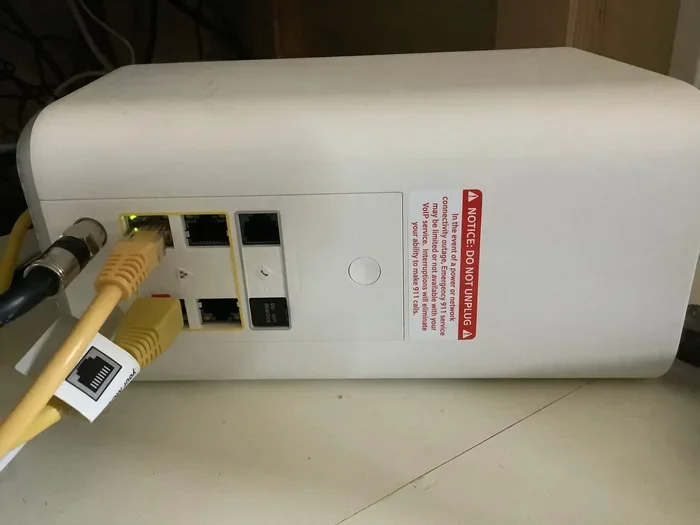
Every Cox internet plan comes with the basic equipment needed to get you online. This usually means a WiFi gateway, which is a device that acts as both a modem and a router. The modem connects to the Cox network through your cable line, and the router part broadcasts the wireless internet signal throughout your home.
Cox calls their main gateway device the Panoramic WiFi Gateway. It is a popular choice because it handles both jobs in one box. You plug it in, follow a simple setup process, and you are browsing in minutes. Most new Cox customers get this device included when they activate their service.
How the Gateway Works
The Panoramic WiFi Gateway does two things at once. First, it translates the signal from Cox’s network into something your devices can use. Second, it creates a local wireless network inside your home. Think of it as the bridge between the internet coming into your house and the devices you use every day.
The gateway typically has two bands: 2.4 GHz and 5 GHz. The 2.4 GHz band covers more distance but is slower. The 5 GHz band is faster but has a shorter range. Most modern gateways handle both bands automatically, switching your devices to the best one based on their location.
Does Every Plan Include WiFi?
Yes, all Cox residential internet plans include WiFi capability. Whether you are on the Starter plan or the Gigablast plan, you get wireless access. The difference is in the speed and the quality of the gateway provided. Higher-tier plans often come with newer gateway models that can handle faster internet speeds without bottlenecks.
Here is a quick look at what you can expect from different Cox plans:
- Starter (10 Mbps): Basic gateway included. Fine for light browsing and email.
- Essential (25 Mbps): Standard gateway with solid WiFi for a small home.
- Preferred (100 Mbps): Better gateway that handles multiple devices well.
- Gigablast (1 Gbps): Top-tier gateway designed for heavy use and smart homes.
The key takeaway here is that WiFi is always part of the package. You do not need to add it separately. But the quality of the WiFi experience depends on your plan tier and your home setup.
The Cost of WiFi With Cox Internet
Here is where things get interesting. While WiFi is included in your Cox internet plan, you are not getting the equipment for free. Cox charges a monthly rental fee for the gateway device. This fee is listed on your bill and typically runs between 10 and 15 dollars per month, depending on the model.
Over a year, that rental fee adds up. If you stay with Cox for five years, you could pay 600 or more in rental fees. That is a lot of money for a piece of equipment that you do not own. This is why many people wonder whether it makes sense to buy their own WiFi router instead.
Rental Fee vs. Buying Your Own Equipment
If you are tired of paying that monthly rental fee, you have an option. You can purchase your own router and connect it to the Cox gateway. This can save you a significant amount of money over time. Many customers who make this switch notice an immediate improvement in their WiFi signal and overall network performance.
Before you buy your own equipment, there are a few things to keep in mind. First, you still need the Cox gateway for the modem function. The gateway connects to the cable line and brings the internet into your home. You then connect your own router to the gateway to create a better wireless network.
Second, make sure any router you buy is compatible with Cox’s network. Most modern routers work fine, but it is always a good idea to check before you spend your money. If you are unsure, you can reach out to Cox support or look for routers that are listed as compatible on Cox’s website.
One great option is to buy your own WiFi box that fits your needs and budget. There are many excellent routers on the market that outperform the standard Cox gateway, especially for larger homes or households with many connected devices.
WiFi Coverage and Performance
Getting WiFi is one thing. Getting good WiFi throughout your home is another story. The gateway that Cox provides works well for small to medium-sized homes. But if you live in a larger house with multiple floors or thick walls, you might notice dead zones where the signal is weak or nonexistent.
Several factors affect your WiFi coverage. The size of your home matters most. The construction materials also play a role. Brick, concrete, and metal can block or weaken the wireless signal. Even the placement of your gateway matters a lot. Putting it in a closet or behind a TV can reduce its effectiveness.
Tips to Improve Your WiFi Coverage
Want better WiFi in every room? Try these simple tips:
- Place your gateway in a central location: This helps the signal reach all parts of your home more evenly.
- Keep it elevated: Put the gateway on a shelf or table rather than on the floor.
- Avoid interference: Keep it away from microwaves, baby monitors, and other electronic devices that can cause signal disruption.
- Restart regularly: A simple restart once a week can keep your connection running smoothly.
- Use an ethernet cable for stationary devices: Devices like smart TVs and gaming consoles perform better with a wired connection.
When You Need More Than a Single Gateway
If your home is large or has tricky layouts, a single gateway might not be enough. In these cases, you may want to consider adding a mesh WiFi system. A mesh network uses multiple nodes placed around your home to create one seamless wireless network. This eliminates dead zones and gives you strong coverage everywhere.
You can add mesh WiFi to your existing router without replacing your entire setup. Many mesh systems are designed to work alongside your current gateway. They simply extend the wireless coverage by placing additional broadcast points in different rooms.
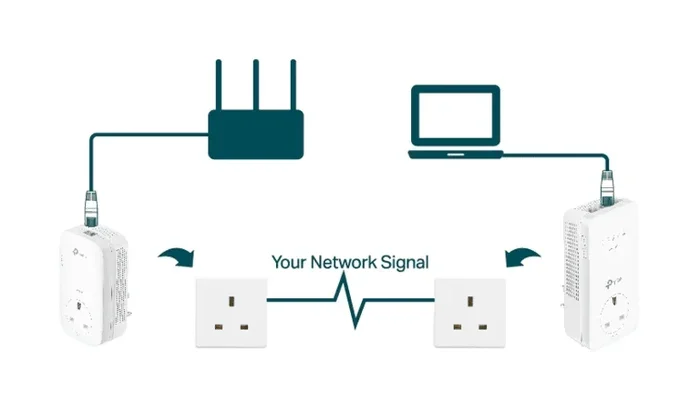
Another option is to use an ethernet cable to extend your network to a distant part of the house. Running a cable to a second router can boost the signal in areas that are too far from the gateway. This is a simple and effective solution that does not require buying new equipment.
Setting Up Your Cox WiFi
Setting up WiFi with Cox is designed to be easy. You do not need to be a tech expert to get things running. The process is straightforward and should take about 15 to 30 minutes from start to finish.
Step-by-Step Setup
- Connect the gateway: Plug the Cox gateway into your cable outlet and power it on. Wait for the lights to stabilize.
- Connect to the network: On your phone or computer, look for the WiFi network name. It is usually printed on a sticker on the gateway itself.
- Enter the password: The default password is also on the sticker. Type it in to connect.
- Open the Cox WiFi app: Download the Panoramic WiFi app on your phone. It walks you through the setup and lets you manage your network.
- Customize your settings: Change the network name and password to something you will remember. This also improves security.
Once setup is complete, you should have a working WiFi network. The app also lets you see which devices are connected, run speed tests, and troubleshoot common issues. It is a handy tool that makes managing your home network much easier.
Troubleshooting Common WiFi Issues
Even with a smooth setup, you might run into issues from time to time. Slow speeds, dropped connections, and devices that will not connect are common complaints. Most of the time, these problems have simple fixes.
Try restarting your gateway first. Unplug it, wait 30 seconds, and plug it back in. This clears minor glitches and refreshes the connection. If that does not work, check for outages in your area. Cox has a service status page and app where you can see if there is a known issue.
If your WiFi is slow, try moving closer to the gateway. If the speed improves, the issue is likely coverage, not your internet plan. In that case, consider repositioning the gateway or adding a mesh node to extend the range.
Cox WiFi for Business Customers
Cox also offers internet plans for businesses, and the WiFi setup is a bit different for commercial customers. Business plans often include more robust equipment and additional features like guest networks and enhanced security. If you are a business owner, you might want to explore what Cox offers for your specific needs.
Business WiFi also comes with the option of a static IP address, which is useful for hosting servers or running certain applications. The equipment is more powerful and designed to handle heavier traffic. If you are considering Cox for your business, it is worth talking to a sales representative about the best internet plan for your setup.
Is Cox WiFi Right for You?
Deciding whether Cox internet is the right choice depends on your needs, budget, and location. Cox offers solid WiFi coverage for most homes, especially when you follow the tips in this guide. The included gateway works well for everyday use, and the option to upgrade your equipment gives you flexibility.
If you live in a small or medium home with moderate internet usage, the standard Cox setup should serve you well. If you have a larger home, many devices, or demanding internet needs, investing in better equipment can make a big difference.
One thing to keep in mind is that your broadband connection is only as good as the equipment delivering it. A fast internet plan paired with an outdated router will not give you the speeds you are paying for. Make sure your setup matches your plan tier for the best results.
Final Thoughts
So, does Cox internet come with WiFi? Absolutely. Every residential plan includes wireless internet access through a gateway device. You get connected right away, and the setup process is simple and user-friendly. The rental fee for the equipment is the trade-off, but you can always buy your own router to save money in the long run.
Whether you are streaming movies, working from home, or running a smart home full of connected devices, Cox WiFi gives you the wireless connectivity you need. Just remember that coverage and performance depend on your home size, your plan tier, and your equipment. With the right setup, you can enjoy a fast, reliable wireless internet connection every day.
Take some time to understand your plan, optimize your gateway placement, and consider upgrading your router if needed. A little effort goes a long way toward getting the most out of your Cox internet service. Happy browsing.
Frequently Asked Questions
Does Cox internet come with a WiFi router included?
Yes, every Cox residential internet plan includes a WiFi gateway. This device serves as both a modem and a router, providing wireless internet access right after setup. The gateway is rented from Cox, and the fee is included in your monthly bill.
Can I use my own router with Cox internet?
Absolutely. You can connect your own router to the Cox gateway to create a better wireless network. Just make sure your router is compatible with Cox’s network. Using your own router can also help you save on the monthly rental fee over time.
How much does Cox charge for WiFi equipment?
Cox typically charges between 10 and 15 dollars per month for the gateway rental. This fee appears on your monthly bill. Over time, this can add up, which is why many customers choose to purchase their own equipment.
What is the Panoramic WiFi Gateway?
The Panoramic WiFi Gateway is Cox’s primary gateway device. It combines a modem and a router into one unit and provides dual-band WiFi. It is included with most Cox internet plans and is designed to deliver reliable wireless coverage for homes of various sizes.
Will my Cox WiFi work in a large home?
It depends on the size and layout of your home. The standard Cox gateway works well for small to medium homes. For larger homes with multiple floors or dead zones, you may need to add a mesh WiFi system or reposition your gateway for better coverage.
How do I set up WiFi with Cox?
Setting up Cox WiFi is easy. Connect the gateway to your cable outlet, power it on, and connect to the network using the default name and password printed on the device. Then download the Cox WiFi app to customize your settings and manage your network. The whole process takes about 15 to 30 minutes.