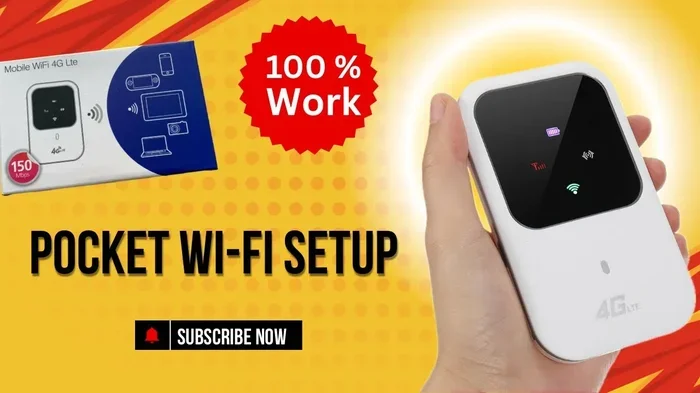
How Can I Create Wi Fi In Mobile With These Easy Steps
Creating Wi-Fi on your mobile phone is easier than you think. You can turn any smartphone into a portable hotspot and share your cellular data with laptops, tablets, and other devices. This guide walks you through every step, from basic setup to advanced security tips.
Have you ever been in a place where the Wi-Fi is slow or completely missing? Maybe you are at a coffee shop, a park, or even at a friend’s house. What if you could just create your own Wi-Fi network right from your phone? That is exactly what you can do. Turning your mobile device into a Wi-Fi hotspot is one of the most useful tricks you can learn today. It gives you portable internet anywhere you go. You do not need any fancy equipment. Your phone already has everything built in.
In this article, we will show you exactly how can I create Wi-Fi in mobile step by step. We cover Android and iPhone instructions. We also share tips on security, data usage, and fixing common problems. By the end, you will feel confident setting up your own mobile hotspot anytime you need it. Let us get started.
Key Takeaways
- Quick Setup: You can create a Wi-Fi hotspot on your phone in under two minutes using built-in settings.
- Works on All Platforms: Whether you use Android or iPhone, the process is simple and straightforward.
- Security Matters: Always set a strong Wi-Fi password to keep your hotspot safe from unauthorized users.
- Battery Impact: Using your phone as a hotspot drains battery faster, so keep a charger handy.
- Data Monitoring: Track your data usage to avoid unexpected overage charges from your carrier.
- Multiple Devices: Most phones allow several devices to connect to your mobile hotspot at once.
- Troubleshooting Is Easy: Common issues like connection drops have simple fixes you can try at home.
📑 Table of Contents
- What Does It Mean to Create Wi-Fi on Your Mobile Phone?
- How to Create Wi-Fi on Android Phones
- How to Create Wi-Fi on iPhone
- Tips for Using Your Mobile Hotspot Effectively
- Securing Your Mobile Hotspot
- Troubleshooting Common Mobile Hotspot Problems
- Advanced Hotspot Features You Should Know About
- Can You Use Your Phone Hotspot for Streaming and Gaming?
- Final Thoughts
What Does It Mean to Create Wi-Fi on Your Mobile Phone?
When you create Wi-Fi on your mobile phone, you are essentially turning it into a wireless router. Your phone uses its cellular data connection and broadcasts it as a Wi-Fi signal. Other devices can then connect to that signal and access the internet. This process is also called tethering or mobile hotspot mode.
Think of it like this. Your phone is the source of the internet. It takes the data from your cell signal and shares it wirelessly. Any device nearby can tap into that shared connection. You might have seen this option before. It is often labeled as “Hotspot,” “Tethering,” or “Mobile Hotspot” in your phone settings.
The great thing is that you do not need to download any extra apps. Both Android and iPhone have this feature built right into the operating system. It works with Wi-Fi, Bluetooth, and USB connections. But the most common way people share their connection is through Wi-Fi.
Who Can Benefit from Mobile Wi-Fi?
Almost anyone can benefit from this feature. Students use it when they are on campus and the campus Wi-Fi is down. Travelers use it in hotels or foreign countries where free Wi-Fi is unreliable. Remote workers use it when they are at a café or co-working space. Even gamers use it when they want to game on the go without being tied to a fixed connection.
If you have ever searched for “how can I get Wi-Fi from my phone,” you are already on the right track. The answer is right there in your pocket. Your phone can do this for you. You just need to know where to look.
How to Create Wi-Fi on Android Phones
Android phones make it very easy to set up a mobile hotspot. The steps are almost the same across most Android devices. Whether you have a Samsung, Google Pixel, or any other brand, the process looks similar. Here is exactly what to do.
Step 1: Open Your Settings
First, unlock your phone and find the Settings app. It usually looks like a gear icon. Tap on it to open the menu. You can also swipe down from the top of your screen and look for a settings shortcut.
Step 2: Find the Hotspot or Network Settings
In the Settings menu, look for “Network & Internet,” “Connections,” or “Hotspot & Tethering.” The exact name depends on your phone brand. On Samsung phones, you will find it under “Connections.” On Google Pixel phones, it is under “Network & Internet.”
Once you find the right menu, tap on “Hotspot & Tethering” or “Mobile Hotspot.” You will see a toggle switch. This is the main switch that turns your hotspot on and off.
Step 3: Turn on the Hotspot
Tap the toggle switch to turn on your mobile Wi-Fi hotspot. Your phone will immediately start broadcasting a Wi-Fi signal. You will see a notification at the top of your screen confirming that the hotspot is active.
Step 4: Configure Your Hotspot Name and Password
Before other devices connect, you should set up your hotspot properly. Tap on “Set up Wi-Fi hotspot” or a similar option. You will see a few fields:
- Network Name (SSID): This is the name that will show up when other devices search for Wi-Fi. You can keep the default or type a custom name.
- Security Type: Always choose WPA2 or WPA3 for the best Wi-Fi security.
- Password: Create a strong password with at least 8 characters. Mix letters, numbers, and symbols.
Once you fill in these details, save your settings. Your hotspot is now ready for other devices to find and connect to.
Step 5: Connect Your Other Devices
On the device you want to connect, open the Wi-Fi settings. Look for your hotspot name in the list of available networks. Tap on it and enter the password you just created. Within seconds, your device will be connected to your mobile internet.
You can check how many devices are connected by going back to your hotspot settings. Most Android phones show a list of connected devices right there.
How to Create Wi-Fi on iPhone
iPhone users can also set up a personal hotspot with just a few taps. Apple calls it “Personal Hotspot,” and it is built into iOS. The steps are simple and clean.
Step 1: Go to Settings
Open the Settings app on your iPhone. Look for the “Personal Hotspot” option. It is usually located right in the main settings list. If you cannot find it there, go to “Cellular” and then “Personal Hotspot.”
Step 2: Turn on Allow Others to Join
Toggle on “Allow Others to Join.” This activates your iPhone’s Wi-Fi hotspot feature. Your phone will start broadcasting its own network name. You will see a blue icon at the top of your screen indicating the hotspot is active.
Step 3: Set Your Hotspot Password
Tap on “Wi-Fi Password” to set a strong password. Make sure it is at least 8 characters long. Use a mix of uppercase letters, lowercase letters, numbers, and symbols. A strong password keeps your mobile data safe from strangers.
Step 4: Connect Other Devices
On the device you want to connect, go to Wi-Fi settings. Find your iPhone’s name in the list of available networks. Enter the password and tap connect. That is it. Your device now has internet access through your iPhone.
If you want to connect via Bluetooth or USB instead, you can do that too. Go back to the Personal Hotspot settings and choose your preferred method. USB tethering is great because it charges your phone while sharing data.
Quick Comparison: Android vs iPhone Hotspot Setup
| Feature | Android | iPhone |
|---|---|---|
| Location in Settings | Network & Internet or Connections | Settings or Cellular |
| Default Hotspot Name | Phone model name | Your iPhone name |
| Security Options | WPA2, WPA3 | WPA2 |
| Max Connected Devices | Usually 5 to 10 | Usually up to 5 |
| Bluetooth Tethering | Yes | Yes |
| USB Tethering | Yes | Yes |
Tips for Using Your Mobile Hotspot Effectively
Now that you know how to set up your hotspot, let us talk about how to use it smartly. There are a few things that can make your experience much better.
Monitor Your Data Usage
When you share your cellular data with other devices, it drains fast. Streaming videos, downloading files, or browsing heavy websites uses a lot of data. Keep an eye on your data usage to avoid surprise charges from your carrier. You can check your data usage in your phone settings under “Data Usage” or “Cellular.”
Some carriers offer hotspot-specific data plans. If you use your hotspot often, check with your provider to see if they have a plan that fits your needs. This can save you a lot of money over time.
Keep Your Phone Charged
Running a hotspot takes a lot of battery power. Your phone is working hard to broadcast the signal and manage connected devices. We recommend keeping your phone plugged into a charger while using the hotspot. A portable power bank is also a great backup option.
Limit the Number of Connected Devices
Most phones work best with 3 to 5 connected devices at a time. If too many devices connect, your internet speed will drop. Each device competes for the same bandwidth. Keep your connections to a reasonable number for the best experience.
Turn Off the Hotspot When Not in Use
This is an important habit. When you are done sharing your internet, turn off the hotspot. This saves battery and keeps your data secure. An open hotspot can be a target for unauthorized users who want to piggyback on your connection.
Place Your Phone in a Central Location
Just like a regular router, the position of your phone matters. Place it in a central spot where the signal can reach all your devices. Avoid putting it in a drawer or behind thick walls. The better the signal, the faster and more stable your connection will be.
Securing Your Mobile Hotspot
Security is one of the most important parts of running a portable Wi-Fi network. You do not want strangers using your data or accessing your phone. Here is how to keep your hotspot safe.
Always Use a Strong Password
Never leave your hotspot open or with a default password. A strong password is your first line of defense. Use at least 12 characters with a mix of letters, numbers, and special symbols. Avoid common words or easy-to-guess combinations like “12345678” or “password.”
Change Your Network Name
Changing your hotspot name can also help with security. A generic name might attract unwanted attention. Choose a unique name that does not reveal personal information. Avoid using your real name, address, or phone number in the network name.
Use WPA2 or WPA3 Encryption
Make sure your hotspot uses WPA2 or WPA3 encryption. These are the most secure protocols available. Older protocols like WEP are not safe and can be easily cracked. If your phone gives you the option, always pick WPA3 for the strongest protection.
Disable Auto-Connect for Unknown Devices
Some phones allow you to control which devices can connect. Disable any auto-connect features for unknown devices. This prevents strangers from joining your hotspot without your permission. You can manage this in your hotspot settings under “Allowed Devices” or “Connected Devices.”
For more tips on keeping your Wi-Fi safe, check out our guide on Can I Get Wi-Fi Without a Password. It covers important security considerations for any Wi-Fi setup.
Troubleshooting Common Mobile Hotspot Problems
Even though setting up a hotspot is easy, you might run into some issues. Here are the most common problems and how to fix them.
Hotspot Not Showing Up on Other Devices
If other devices cannot see your hotspot, try turning it off and back on. Sometimes a simple restart of the hotspot fixes the issue. Also, make sure your phone is not in airplane mode. Check that your cellular data is turned on and that you have a good signal.
Slow Internet Speed on Connected Devices
Slow speeds are usually caused by a weak cellular signal or too many connected devices. Move to an area with better cell reception. Disconnect devices you are not using. You can also try switching from 5GHz to 2.4GHz frequency if your phone supports both bands. The 2.4GHz band has a longer range but slower speeds.
Connected but No Internet Access
If devices connect to your hotspot but cannot access the internet, check your cellular data first. Make sure your phone has an active data connection. Restart your phone and the hotspot. You can also try forgetting the network on the connected device and reconnecting with the password.
Battery Draining Too Fast
Hotspots use a lot of battery. If you notice your phone draining quickly, reduce the number of connected devices. Lower the screen brightness. Close apps you are not using. You might also want to plug your phone into a power source while sharing your connection. If you want to explore other ways to stay connected without draining your battery, check out Can I Get A Hotspot Instead Of Wi-Fi for alternative options.
Carrier Blocking Hotspot Usage
Some carriers restrict or throttle hotspot data. If your hotspot suddenly stops working, check your data plan. You might have hit a data limit. Contact your carrier to ask about hotspot-compatible plans. They can often add or adjust your plan to support tethering.
Advanced Hotspot Features You Should Know About
Once you are comfortable with the basics, there are some advanced features worth exploring. These can make your mobile hotspot experience even better.
Wi-Fi Band Selection
Many modern phones let you choose between 2.4GHz and 5GHz bands for your hotspot. The 5GHz band offers faster speeds but has a shorter range. The 2.4GHz band is slower but reaches further. Choose based on your needs. If you are close to your phone, use 5GHz for streaming and gaming.
AP Band Configuration
Some Android phones have an “AP Band” setting. This lets you lock your hotspot to a specific frequency band. This can help reduce interference from other Wi-Fi networks nearby. If your hotspot keeps dropping, changing the AP band might help.
Scheduled Hotspot
A few Android phones allow you to set a schedule for your hotspot. This means it turns on and off automatically at certain times. It is a great way to save battery and data when you do not need the hotspot all day.
Data Saver Mode
Both Android and iPhone have data saver modes. When you are sharing your connection, turning on data saver can help stretch your data further. It limits background data usage on connected devices and prioritizes the apps you actually need.
Can You Use Your Phone Hotspot for Streaming and Gaming?
Many people wonder if a mobile hotspot is good enough for streaming movies or playing games. The short answer is yes, with some conditions.
For streaming, you need a decent cellular signal and enough data. HD video uses about 3 GB per hour. 4K video uses even more. If you have a strong signal and a generous data plan, you can stream just fine from your hotspot.
For gaming, the key factor is latency or ping. Mobile data usually has higher latency than home Wi-Fi. This can cause lag in fast-paced games. Casual games like puzzle games or turn-based games work well on a hotspot. Competitive multiplayer games might not feel as smooth.
If you are planning to use your phone as a hotspot for gaming or streaming, you might want to read our article on Can I Game On My Wi-Fi. It covers what to expect and how to optimize your setup.
You can also share your mobile data with another phone if needed. Check out Can I Share My Mobile Data With Another Phone for tips on data sharing between devices.
Final Thoughts
So, how can I create Wi-Fi in mobile? The answer is simple. Your phone already has everything you need. Whether you use Android or iPhone, you can set up a hotspot in just a few minutes. It is one of the most practical skills you can learn in today’s connected world.
Remember to always secure your hotspot with a strong password. Keep an eye on your data usage. Turn off the hotspot when you are done. And do not forget to charge your phone while sharing your connection.
With these tips and steps, you will be able to create a reliable mobile Wi-Fi network anytime, anywhere. Whether you are traveling, working remotely, or just need a backup connection, your phone has you covered. Share this guide with friends and family who might benefit from learning how to use their phone as a hotspot. It is a skill that everyone should have.
Frequently Asked Questions
Can I create Wi-Fi on any mobile phone?
Yes, almost all modern smartphones can create a Wi-Fi hotspot. Both Android and iPhone devices have built-in hotspot features. You do not need any special apps or extra hardware. Just check your settings for the hotspot or tethering option.
Does creating Wi-Fi on my phone use a lot of data?
It depends on what the connected devices are doing. Streaming videos and downloading large files use the most data. Browsing and checking emails use very little. Keep an eye on your data usage in your phone settings to stay within your plan limits.
Can I connect more than one device to my mobile hotspot?
Yes, most phones allow multiple devices to connect at the same time. Android phones typically support 5 to 10 devices. iPhones usually support up to 5. Keep in mind that more connected devices means slower speeds for each one.
Why does my mobile hotspot keep disconnecting?
This can happen for several reasons. A weak cellular signal is the most common cause. Too many connected devices can also cause instability. Try moving to an area with better reception, reducing the number of connected devices, or restarting your hotspot.
Is it safe to use my phone as a Wi-Fi hotspot in public?
Yes, as long as you use a strong password and WPA2 or WPA3 encryption. Avoid leaving your hotspot open or unsecured. Change the default password and network name to something unique. This keeps unauthorized users from accessing your connection.
Can I use my phone hotspot while traveling internationally?
You can, but you need to be careful about roaming charges. International data roaming can be very expensive. Check with your carrier about international data plans before using your hotspot abroad. Alternatively, consider buying a local SIM card at your destination.