Can I Get Wi Fi Without A Password On Any Device Today
Yes, you can get Wi-Fi without a password on almost any device today. Whether you want free internet at home, in a café, or on the go, several simple methods work across phones, laptops, and tablets. This guide walks you through every safe and legal way to connect without a password.
Have you ever walked into a room and needed internet right away? Maybe your Wi-Fi password is lost, or you just got a new device and have not typed it in yet. Whatever the reason, the question Can I Get Wi-Fi Without A Password comes up more often than you might think.
The short answer is yes. You absolutely can get Wi-Fi without a password on any device today. Phones, laptops, tablets, and even smart TVs can connect to the internet without typing a single character. This guide will show you exactly how.
We will cover every practical method, safety tip, and setting you need to know. By the end, you will feel confident connecting to wireless internet without a password. Let us dive in.
Key Takeaways
- Open Networks Exist: Many routers broadcast open Wi-Fi networks that need no password to connect.
- WPS Push Button Method: You can use the WPS button on your router to connect without typing a password.
- Public Wi-Fi Hotspots: Libraries, cafes, malls, and airports offer free Wi-Fi without passwords.
- Mobile Hotspot Sharing: A friend or family member can share their connection through a hotspot.
- Guest Networks: Setting up a guest network on your router gives visitors access without your main password.
- Safety Matters: Always use a VPN when connecting to open or public networks to protect your data.
- Device Compatibility: Nearly every modern device supports password-free Wi-Fi connections.
📑 Table of Contents
- What Does It Mean to Get Wi-Fi Without A Password
- Methods to Connect to Wi-Fi Without A Password
- Is It Safe to Use Wi-Fi Without A Password
- How to Set Up Your Own Open Wi-Fi Network
- Common Problems When Connecting Without A Password
- Expert Tips for Better Wi-Fi Without Passwords
- Quick Tips for Everyday Use
- Comparison Table: Password-Free Connection Methods
- Conclusion
What Does It Mean to Get Wi-Fi Without A Password
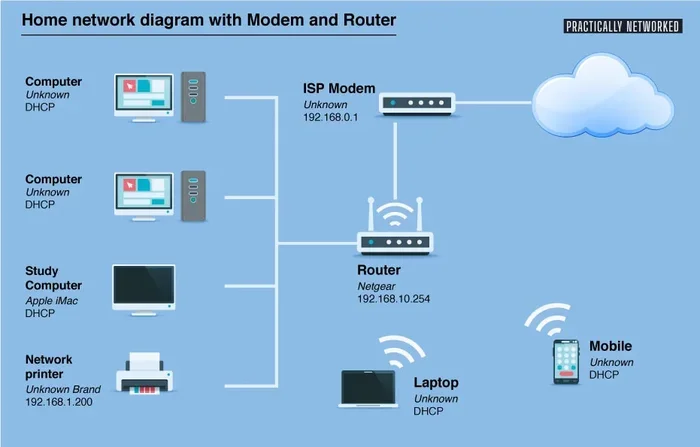
When we talk about Wi-Fi without a password, we mean connecting to a wireless network that does not require a security key. Most home networks use a password to keep strangers out. But not all networks are set up that way.
There are two main types of networks you will encounter. The first is an open network. This is a network that broadcasts its name, called the SSID, without any encryption. The second type uses WPS (Wi-Fi Protected Setup), which lets you connect with the push of a button instead of typing a password.
Both methods are completely normal and widely used. Many people set up open networks for guests or in public spaces. Understanding how they work is the first step to getting online without a password.
How Open Networks Work
An open network has no security encryption. When your device scans for available Wi-Fi networks, it will show the network name. You simply tap on it, and you are connected. No password is needed.
Think of it like a public library. Anyone can walk in and read a book. There is no lock on the door. Open networks work the same way. They are open to anyone within Wi-Fi range.
How WPS Works
WPS stands for Wi-Fi Protected Setup. It is a feature built into most modern routers. Instead of typing a long password, you press a button on the router. Then you select the network on your device. The connection happens automatically.
This method is very popular in homes and offices. It saves time and avoids typing errors. Many people do not even realize their router supports WPS until they need it.
Methods to Connect to Wi-Fi Without A Password
There are several reliable ways to connect to wireless internet without a password. Each method works on different devices and in different situations. Let us go through them one by one.
Method 1: Use a Public Wi-Fi Hotspot
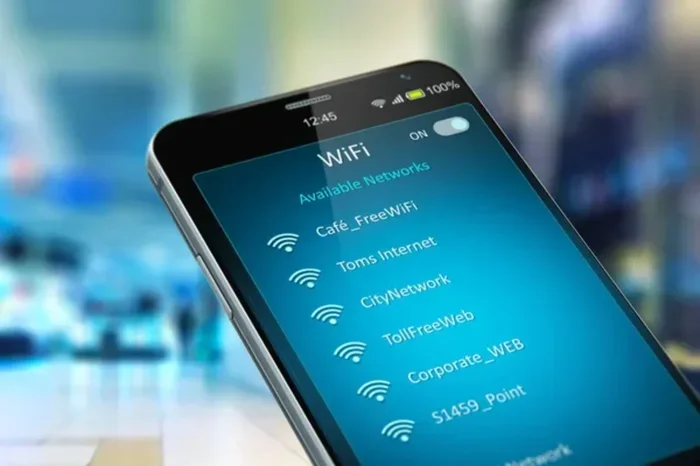
Public Wi-Fi hotspots are everywhere. Coffee shops, restaurants, libraries, malls, airports, and hotels all offer free internet. These networks are designed to be open so customers and visitors can connect easily.
To use a public hotspot, follow these steps:
- Turn on your device’s Wi-Fi.
- Scan for available networks.
- Look for a network with a “Free Wi-Fi” or “Public” label.
- Tap the network name.
- If a login page opens, follow the on-screen instructions.
- You are now connected.
Most public hotspots do not require a password at all. They may ask you to agree to terms of service or enter your email. But no security key is needed to get online.
Method 2: Connect Using WPS Push Button
If you are at home or in an office, the WPS method is very convenient. Here is how it works:
- Find the WPS button on your router. It is usually on the back or side.
- Press and hold the WPS button for a few seconds.
- The router will start searching for a device to pair with.
- On your device, go to Wi-Fi settings and select the network.
- The connection is made automatically.
This method works on almost all Wi-Fi enabled devices. Laptops, smartphones, tablets, and smart home gadgets all support WPS. It is one of the fastest ways to get connected without a password.
Method 3: Ask for the Guest Network Password
Many routers today come with a guest network feature. This is a separate network that the owner sets up for visitors. The guest network often has a simpler password or no password at all.
If you are visiting someone, ask if they have a guest network. You might be surprised how many people set one up just for friends and family. It keeps your main network secure while still giving you easy access.
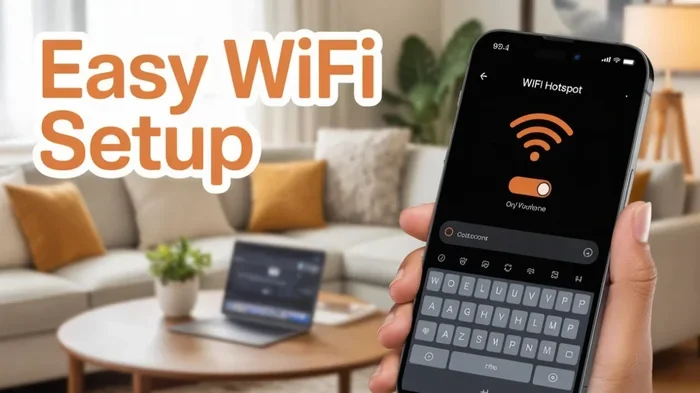
Method 4: Use a Mobile Hotspot
A mobile hotspot turns your phone into a Wi-Fi router. You can share your phone’s data connection with other devices. This is a great option when you are out and about.
To set up a mobile hotspot:
- Go to Settings on your phone.
- Find the Hotspot or Tethering section.
- Turn on the hotspot.
- Set a simple or no password if you want open access.
- Connect your other devices to the hotspot.
This method gives you full control. You decide whether to use a password or leave it open. It works on both Android and iPhone devices.
Method 5: Connect to an Open Router Network
Some people intentionally set up their home routers as open networks. They do this to share internet with neighbors or guests. If you live in an area with many open networks, you might find one that works for you.
To find open networks:
- Open your Wi-Fi settings.
- Look for networks with no lock icon.
- Tap on the network and connect.
Keep in mind that open networks from strangers should be used carefully. We will talk about safety in the next section.
Is It Safe to Use Wi-Fi Without A Password
This is the most important question to ask. Connecting to Wi-Fi without a password is convenient, but it comes with risks. Open networks are not encrypted. That means anyone on the same network can potentially see what you are doing.
The Risks of Open Networks
When you use an open network, your data travels through the air without protection. Hackers on the same network could intercept your information. This includes passwords, emails, and browsing history.
Here are the main risks you should know about:
- Data Theft: Others on the network can see unencrypted data you send.
- Man-in-the-Middle Attacks: A hacker can position themselves between you and the internet to steal information.
- Malware Distribution: Some open networks spread malware to connected devices.
- Session Hijacking: Hackers can take over your logged-in accounts.
How to Stay Safe on Open Networks
The good news is that you can protect yourself. Here are some practical tips:
First, always use a VPN. A virtual private network encrypts your data. It creates a secure tunnel between your device and the internet. Even on an open network, your information stays private.
Second, avoid logging into sensitive accounts. Do not access online banking or enter credit card numbers on public Wi-Fi. Save those tasks for a secure, password-protected network.
Third, turn off file sharing on your device. This prevents others from accessing your files. On Windows, go to Network and Sharing Center and turn off public folder sharing. On Mac, go to System Preferences and disable file sharing.
Fourth, make sure your device has up-to-date antivirus software. This adds an extra layer of protection against threats on open networks.
Fifth, forget the network after you are done. Do not leave your device auto-connecting to open networks. This prevents accidental connections to fake or malicious hotspots.
When Open Wi-Fi Is Completely Safe
Not all open networks are dangerous. Some are perfectly safe. For example, a guest network set up by a trusted friend or family member is low risk. Public networks at reputable businesses like airports or hotels are also generally safe.
The key is to use common sense. If you trust the source, an open network is fine. If you do not know who owns the network, be cautious.
How to Set Up Your Own Open Wi-Fi Network
If you want to share your internet with guests or neighbors, you can set up your own open network. This gives you full control over the connection and keeps your main network secure.
Setting Up a Guest Network on Your Router
Most modern routers have a guest network feature. Here is how to set it up:
- Log in to your router’s admin panel. Type the router’s IP address into your browser. Common addresses are 192.168.1.1 or 192.168.0.1.
- Enter your admin username and password. These are often printed on a sticker on the router.
- Look for the Guest Network section in the settings.
- Turn on the guest network.
- Set the security to “Open” or choose WPA2 with no password.
- Save your settings and restart the router.
Now you have a separate network that visitors can use. Your main network stays protected with your original password.
Using a Wi-Fi Range Extender for Open Access
A Wi-Fi range extender can broadcast a separate open network. Many extenders let you set up a guest network with no password. This is a great option if your router does not support guest networks natively.
Simply plug in the extender, connect it to your main network, and configure the extender’s settings to broadcast an open SSID. Your extended network will be password-free.
Common Problems When Connecting Without A Password
Even though connecting without a password is simple, you may run into some issues. Here are the most common problems and how to fix them.
Network Not Showing Up
If the open network does not appear in your Wi-Fi list, try these steps:
- Make sure Wi-Fi is turned on.
- Restart your device’s Wi-Fi adapter.
- Move closer to the router.
- Check if the network is hiding its SSID. Some open networks are not broadcast publicly.
If the network is hidden, you can manually add it. Go to Wi-Fi settings, select “Add Network,” and type the network name. Leave the password field blank.
Connection Keeps Dropping
Open networks can be unstable. If your connection drops often, try moving closer to the router. You can also check if other devices are causing interference. A Wi-Fi signal strength issue is often the culprit.
Device Does Not Support WPS
Some older devices do not support WPS. If your phone or laptop does not have a WPS option, use the public hotspot method or ask the network owner for a password. Most devices made after 2015 support WPS.
Login Page Keeps Appearing
Many public hotspots show a login page when you first connect. If the page does not load, try opening any website in your browser. This usually triggers the login page. Clear your browser cache if the page still does not appear.
Expert Tips for Better Wi-Fi Without Passwords
Getting connected without a password is one thing. Getting a good, fast connection is another. Here are some expert tips to improve your experience.
Choose the Right Band
Many routers broadcast two bands: 2.4 GHz and 5 GHz. The 2.4 GHz band has a longer range but slower speeds. The 5 GHz band is faster but has a shorter range. Choose the band that fits your needs.
If you are close to the router, use 5 GHz for faster speeds. If you are far away, 2.4 GHz will give you a more stable connection.
Keep Your Device Updated
Regular updates improve your device’s ability to connect to networks smoothly. Update your operating system, Wi-Fi drivers, and browser. This ensures the best compatibility with open and WPS networks.
Use a Wi-Fi Analyzer App
A Wi-Fi analyzer app shows you which networks are available and how strong their signals are. You can find open networks faster and avoid crowded channels. Many of these apps are free to download.
Limit the Number of Connected Devices
If you are sharing an open network, too many devices can slow it down. Try to limit the number of connected devices. This keeps the speed reasonable for everyone.
Consider a Portable Wi-Fi Hotspot
If you travel often, a portable Wi-Fi hotspot is a great investment. These small devices create your own personal network wherever you go. You can set them up with no password if you want. They use cellular data, so you do not need to rely on public hotspots.
Quick Tips for Everyday Use
Here are some quick tips to keep in mind when using Wi-Fi without a password in your daily life:
- Always check the network name. Fake networks with similar names are a common trick used by hackers. Make sure you are connecting to the right one.
- Turn off auto-connect. This prevents your device from connecting to unknown networks without your permission.
- Use HTTPS websites. These sites encrypt your data. Look for the padlock icon in your browser’s address bar.
- Keep your firewall on. A firewall adds an extra layer of security against threats on open networks.
- Forget the network after use. This stops your device from automatically reconnecting to networks you do not trust.
Comparison Table: Password-Free Connection Methods
| Method | Best For | Security Level | Device Compatibility |
|---|---|---|---|
| Public Wi-Fi Hotspot | Travel, cafes, airports | Low to Medium | All devices |
| WPS Push Button | Home, office | Medium | Most modern devices |
| Guest Network | Visiting friends or family | Medium to High | All devices |
| Mobile Hotspot | On the go, travel | High | All Wi-Fi devices |
| Open Home Network | Sharing with neighbors | Low | All devices |
Conclusion
So, can you get Wi-Fi without a password on any device today? Absolutely. There are more ways now than ever to connect to the internet without typing a password. Whether you use a public hotspot, WPS, a guest network, or a mobile hotspot, the options are simple and accessible.
The key is to stay safe while you enjoy the convenience. Always use a VPN on open networks, avoid sensitive transactions on public Wi-Fi, and keep your devices updated. With the right precautions, password-free Wi-Fi is both easy and secure.
Try the methods in this guide today. You will be surprised how quickly you can get online without ever needing a password. The internet is meant to be accessible, and now you know how to tap into it on any device.
Frequently Asked Questions
Can I connect to Wi-Fi without a password on any smartphone?
Yes, both Android and iPhone devices can connect to Wi-Fi without a password. Simply go to your Wi-Fi settings, find an open network, and tap connect. No password is needed for open or WPS-enabled networks.
Is it illegal to use Wi-Fi without a password?
Using an open network that is meant for public access is legal. However, connecting to someone’s private network without permission is illegal in many places. Always use networks that are openly shared or provided by businesses.
What is the difference between WPS and an open network?
WPS lets you connect by pressing a button on the router instead of typing a password. An open network has no security at all and requires no action from the router. Both allow password-free connections but work differently.
Can I set my own home Wi-Fi to have no password?
Yes, you can set up a guest network on your router with no password. This lets visitors connect easily while keeping your main network secure. Just be aware that open networks carry some security risks.
Do I need a VPN when using Wi-Fi without a password?
It is highly recommended to use a VPN on any open or public network. A VPN encrypts your data and keeps your online activity private. This is especially important on networks that have no password or encryption.
Why does my device not show any open Wi-Fi networks?
Your device may not detect open networks if Wi-Fi is turned off, if you are too far from a router, or if the network is hiding its SSID. Try restarting your Wi-Fi, moving closer to the router, or manually adding the network name.