Can I Share My Mobile Data With Another Phone Today
Yes, you can share your mobile data with another phone using several simple methods. Whether you use mobile hotspot, Bluetooth tethering, or USB tethering, connecting two phones is easy and fast. This guide covers every way to share internet between devices. You will learn how to set up a portable hotspot on both Android and iPhone. We also cover tips to save data usage and avoid common mistakes.
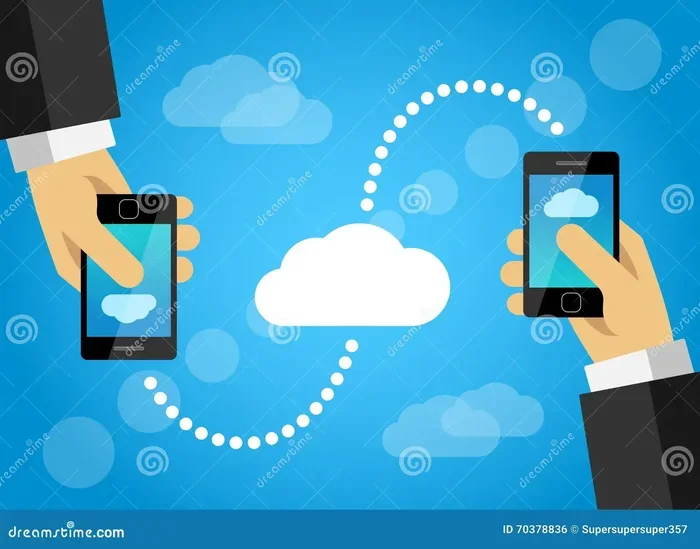
Can I share my mobile data with another phone? The short answer is yes. You can connect two phones and let one phone use the other phone’s internet. This is useful when you are traveling, when your Wi-Fi is down, or when a friend needs quick access to the web.
Sharing mobile data is not hard. Most phones today have built-in tools for this. You can use a mobile hotspot, Bluetooth, or a USB cable. Each method has its own benefits. Some are faster. Some use less battery. This guide walks you through every option.
Whether you have an Android phone or an iPhone, you will find clear steps here. We also share tips to keep your data safe and your battery healthy. By the end, you will know exactly how to share internet between phones like a pro.
Key Takeaways
- Mobile Hotspot: The most popular way to share data between phones using Wi-Fi.
- Bluetooth Tethering: A low-power option that works without Wi-Fi.
- USB Tethering: The fastest method using a cable connection.
- Carrier Rules: Some plans may block or charge extra for data sharing.
- Battery Drain: Hotspot use drains battery fast. Use a power bank or charger.
- Data Limits: Always monitor your usage to avoid overage fees.
📑 Table of Contents
- What Does It Mean to Share Mobile Data?
- How to Share Mobile Data Using Wi-Fi Hotspot
- How to Share Mobile Data Using Bluetooth Tethering
- How to Share Mobile Data Using USB Tethering
- Can You Share Data Between iPhone and Android?
- Things to Watch Out For
- How to Monitor Your Shared Data Usage
- Why Would You Need to Share Mobile Data?
- Conclusion
What Does It Mean to Share Mobile Data?
When you share mobile data, you let another device use your phone’s internet connection. Your phone acts like a router. It sends its data signal to another phone, tablet, or laptop. This process is also called tethering.
There are three main ways to do this:
- Wi-Fi Hotspot: Your phone creates a Wi-Fi network. Other devices connect to it just like a regular router.
- Bluetooth Tethering: Two phones pair up wirelessly. One shares its data through Bluetooth.
- USB Tethering: You connect two phones with a cable. The data flows through the wire.
All three methods work well. Wi-Fi is the most common. Bluetooth uses less power but is slower. USB is the fastest and most stable. Let us look at each one in detail.
How to Share Mobile Data Using Wi-Fi Hotspot
The Wi-Fi hotspot method is the easiest and most popular way to share internet between phones. Your phone turns into a mini router. Another phone connects to it just like it would connect to a home Wi-Fi network.
Setting Up a Hotspot on Android
On most Android phones, you can set up a hotspot in just a few taps. Here is how:
- Open your Settings app.
- Tap on Network and Internet or Connections (the name varies by brand).
- Look for Hotspot and Tethering or Mobile Hotspot.
- Tap Mobile Hotspot to turn it on.
- Set a network name and password.
- On the other phone, go to Wi-Fi settings and find your network.
- Enter the password and connect.
That is it! The second phone now uses your data. You can check how much data you are sharing in your data usage settings.
Setting Up a Hotspot on iPhone
iPhones call this feature Personal Hotspot. The steps are simple:
- Open Settings.
- Tap Personal Hotspot.
- Toggle it on.
- Set a password for the Wi-Fi network.
- On the other phone, find your iPhone in the Wi-Fi list.
- Enter the password and connect.
You can also share your iPhone hotspot via Bluetooth or USB. We will cover those below. The Wi-Fi method works great for most situations. It is fast and can connect multiple devices at once.
Quick Tips for Using Hotspot
- Use a strong password. This keeps your data safe from strangers.
- Turn off hotspot when not in use. It saves battery and data.
- Set a data limit. Go to your data settings and set a warning or limit.
- Place phones close together. This gives a stronger signal and faster speeds.
How to Share Mobile Data Using Bluetooth Tethering
Bluetooth tethering is a great option when you do not want to use Wi-Fi. It works by pairing two phones together wirelessly. Then one phone shares its data through the Bluetooth connection.
Bluetooth tethering is slower than Wi-Fi. But it uses much less battery. It is also more private since the signal does not spread out like Wi-Fi does. This method is perfect for quick tasks like checking emails or sending messages.
Steps to Share Data via Bluetooth
Here is how to set up Bluetooth tethering on both phones:
- Turn on Bluetooth on both phones.
- Pair the two phones. Go to Bluetooth settings and select the other phone from the list.
- Accept the pairing request on both devices.
- On the phone sharing data, go to Hotspot and Tethering settings.
- Turn on Bluetooth Tethering.
- The other phone will now be connected to the internet through Bluetooth.
Bluetooth tethering works well for short-term use. It is not ideal for streaming videos or downloading large files. But for light browsing, it gets the job done.
Expert Insight: Bluetooth tethering is a lifesaver when your battery is low and you do not have a charger. It uses far less power than a hotspot. Keep it in mind for situations where battery life matters most.
How to Share Mobile Data Using USB Tethering
USB tethering is the fastest and most reliable way to share internet between phones. You use a USB cable to connect the two devices. The phone sharing data acts as a modem. The other phone gets a wired internet connection.
This method is best when you need stable, fast internet. It is also great for sharing data with a laptop or tablet. The connection is very hard to interrupt.
Steps to Share Data via USB
- Connect the two phones using a USB cable.
- On the phone sharing data, go to Settings.
- Find Network and Internet or Connections.
- Tap on Hotspot and Tethering.
- Turn on USB Tethering.
- The second phone will now have internet access.
USB tethering does not drain the battery of the sharing phone as fast as a hotspot does. In fact, the sharing phone may even charge while connected. This makes it a very efficient method for long use.
Quick Tip: Use a high-quality USB cable. Cheap cables can cause slow speeds or dropped connections. A good cable ensures the best performance.
Can You Share Data Between iPhone and Android?
Yes! You can share data between an iPhone and an Android phone. The methods work across both platforms. You just need to pick the right one for your situation.
Wi-Fi hotspot works between any two phones regardless of the operating system. iPhone’s personal hotspot creates a standard Wi-Fi network. Any Android phone can connect to it. Same goes the other way around.
Bluetooth tethering also works cross-platform. Both iPhones and Androids support Bluetooth. Pairing them together is simple.
USB tethering works too, but it can be a bit trickier between iOS and Android. You may need to trust the device on both phones when prompted. The connection still works smoothly once set up.
Here is a quick comparison of the methods across platforms:
- Wi-Fi Hotspot: Works on all phones. Fast and easy. Best for most users.
- Bluetooth Tethering: Works cross-platform. Slower but saves battery.
- USB Tethering: Fastest method. May need extra steps between iPhone and Android.
Things to Watch Out For
Sharing mobile data is simple, but there are a few things to keep in mind. These tips will help you avoid problems and save money.
Carrier Restrictions
Some mobile carriers put limits on data sharing. They may block tethering altogether. Others may charge extra fees for using your phone as a hotspot. Check with your carrier before you start sharing data regularly.
Carriers do this because tethering uses more data than normal phone use. Streaming videos on a shared connection uses a lot of data. Some plans include tethering data, and some do not. Know your plan details to avoid surprise charges.
Battery Drain
Running a hotspot drains your phone battery fast. This is true for both Android and iPhone. If you plan to share data for a long time, keep your phone plugged into a charger or a portable power bank.
Common Mistake: Many people forget to turn off their hotspot after use. This drains battery and uses data in the background. Always check that your hotspot is off when you are done.
Data Usage Limits
When you share internet, you use your data plan faster. Here are some rough estimates of how much data common activities use:
- Web browsing: about 60 MB per hour
- Music streaming: about 50 MB per hour
- Video streaming: about 300 MB to 1 GB per hour
- Video calls: about 150 MB per hour
- Social media scrolling: about 100 MB per hour
Keep these numbers in mind. If you have a small data plan, limit heavy activities like video streaming when sharing data.
Security Tips
When you share your data, you open a connection that others could access. Follow these simple security steps:
- Always use a strong password for your hotspot.
- Do not share your password with strangers.
- Turn off hotspot when you are not using it.
- Use WPA3 or WPA2 encryption if your phone supports it.
- Monitor connected devices in your hotspot settings.
Expert Insight: A strong hotspot password is your first line of defense. Do not use simple passwords like “123456” or “password”. A mix of letters, numbers, and symbols keeps your connection safe.
How to Monitor Your Shared Data Usage
It is important to keep track of how much data you use when sharing. Both Android and iPhone offer built-in tools for this.
On Android
Go to Settings > Network and Internet > Data Usage. You will see how much data you have used. You can set a warning and a data limit. Your phone will alert you when you get close to your limit.
On iPhone
Go to Settings > Cellular. Scroll down to see your data usage for the current period. You can reset the statistics at the end of your billing cycle.
Quick Tip: Check your data usage daily when you are actively sharing. This helps you stay in control and avoid bill shocks.
Why Would You Need to Share Mobile Data?
There are many real-life situations where sharing mobile data comes in handy:
- Traveling abroad: You may not have access to Wi-Fi. Sharing data with a travel companion is very useful.
- Emergency situations: When your home internet goes down, your phone’s data can save the day.
- Outdoor events: Concerts, festivals, and outdoor gatherings often have no Wi-Fi.
- Working remotely: You can share data with a colleague who needs internet for a quick task.
- Helping friends: A friend’s data is out. You can help them stay connected.
Knowing how to share data is a valuable skill. It can help you in many everyday situations. It also gives you peace of mind when you are away from home.
Conclusion
Can I share my mobile data with another phone? Yes, absolutely. You have several easy options at your fingertips. Use a mobile hotspot for fast Wi-Fi sharing. Use Bluetooth tethering for low-power connections. Use USB tethering for the fastest and most stable link.
Each method has its place. Wi-Fi is the go-to for most people. Bluetooth is great for saving battery. USB is perfect for speed and reliability. You can even share data between iPhone and Android phones without any problem.
Remember to watch your data usage and set limits. Keep your hotspot password strong. Turn off sharing when you are done. These simple habits will keep you safe and save you money.
Now you have everything you need to share internet between phones. Try it today and see how easy it really is. You will wonder why you did not do it sooner.
Frequently Asked Questions
Can I share my mobile data with another phone without Wi-Fi?
Yes, you can. You can use Bluetooth tethering or USB tethering instead of Wi-Fi. Bluetooth does not need Wi-Fi at all. USB tethering uses a cable connection. Both methods work well for sharing data without a Wi-Fi network.
Does sharing mobile data cost extra money?
It depends on your carrier and plan. Some plans include tethering at no extra cost. Others may charge a fee or reduce your data speed. Check with your carrier to understand your plan’s data sharing rules. Always monitor your usage to avoid overage charges.
How many devices can connect to my mobile hotspot?
Most phones allow 5 to 10 devices to connect at once. Android phones typically support up to 10 connections. iPhones usually allow up to 5 devices. The exact number depends on your phone model and carrier.
Does sharing mobile data drain battery fast?
Yes, using a hotspot drains battery quickly. Bluetooth tethering uses less battery than a hotspot. USB tethering uses the least battery and may even charge your phone while connected. Turn off sharing when you are not using it to save battery.
Can I share data between an iPhone and an Android phone?
Yes, you can. Wi-Fi hotspot works across both platforms. Bluetooth tethering also works between iPhone and Android. USB tethering works too, but may need a few extra steps. The connection process is simple and straightforward.
Is sharing mobile data safe and secure?
It can be safe if you take the right steps. Always use a strong password for your hotspot. Use WPA2 or WPA3 encryption. Do not share your password with people you do not know. Turn off your hotspot when you are done to prevent unauthorized access.
=== META TITLE ===
Can I Share My Mobile Data With Another Phone Today?
=== URL SLUG ===
can-i-share-my-mobile-data-with-another-phone
=== SEO TITLE ===
Can I Share My Mobile Data With Another Phone Today?
=== OPENING SUMMARY ===
Can I share my mobile data with another phone? Yes, you absolutely can, and it is easier than you think. Whether you have an Android or an iPhone, you can use mobile hotspot, Bluetooth, or a USB cable to share internet with another device. This guide covers every method step by step so you can connect phones in minutes. You will also learn how to save battery, stay secure, and avoid extra data charges. Keep reading to master data sharing like a pro.