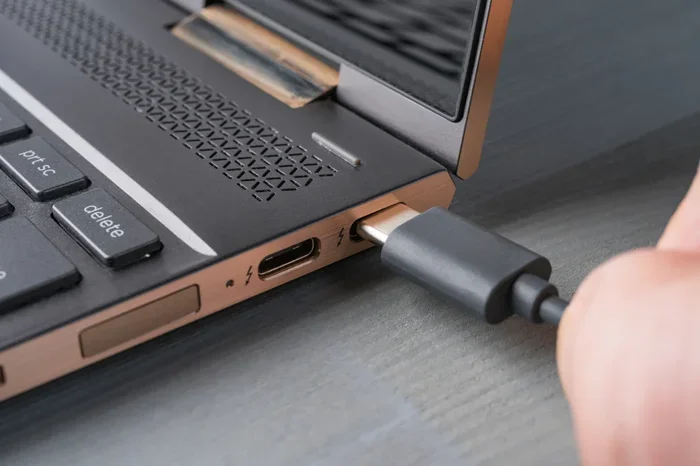
Can Any Usb C Cable Charge A Laptop Here Is The Answer
Not every USB C cable can charge a laptop. The right cable depends on power delivery, wattage, and cable quality. Using the wrong one can slow charging or even damage your device. This guide breaks down everything you need to know about USB C charging compatibility and helps you pick the best cable for your laptop.
This is a comprehensive guide about Can Any Usb C Cable Charge A Laptop.
Key Takeaways
- USB C does not mean universal compatibility: Not all USB C cables support the power levels needed for laptops.
- Check the wattage and power delivery rating: Laptops typically need 45W to 100W, and only certified cables handle that safely.
- Cable quality matters a lot: Cheap or damaged cables can cause slow charging, overheating, or even safety hazards.
- Thunderbolt and USB C are not the same: Thunderbolt cables offer higher data and power capabilities than standard USB C.
- Always match your cable to your laptop’s requirements: Using the wrong cable may prevent charging altogether or harm your battery over time.
[FEATURED_IMAGE_PLACEHOLDER]
Can Any USB C Cable Charge A Laptop Here Is The Answer
You plug a USB C cable into your laptop and wait. Nothing happens. Or worse, it charges so slowly you can barely get through a workday. This happens to thousands of people every single day. The frustration is real, and the answer is simpler than you think.
Not every USB C cable can charge a laptop. While USB C has become the standard connector for many modern devices, the cables themselves vary widely in capability. Some handle just 5 watts of power, which is fine for a phone but useless for a laptop. Others support up to 240 watts through USB Power Delivery protocols. The difference between these cables is huge, and picking the wrong one can waste your time or even harm your device.
In this guide, we will walk through everything you need to know. You will learn how USB C charging works, what to look for on a cable, and how to avoid common mistakes. By the end, you will never grab the wrong cable again.
How USB C Charging Actually Works
USB C is just a connector shape. It does not tell you anything about power or speed. Think of it like a wall outlet. The shape is the same, but the power behind it can be very different. This is the first thing most people misunderstand about USB C charging.
When you plug a cable into your laptop, the cable and the charger negotiate power levels. This process is called USB Power Delivery, or USB PD. The devices talk to each other and agree on the right amount of power. If your cable cannot handle that power, charging slows down or stops completely.
The Role of Power Delivery Protocols
USB PD is the protocol that allows devices to request specific power levels. A laptop might ask for 60 watts. A phone might ask for 10 watts. The charger and cable must both support the requested level. If the cable is rated for only 10 watts, your laptop will either charge very slowly or not at all.
Here are the common power levels you will see:
- 5W: Basic charging, fine for phones and small accessories.
- 15W: Fast charging for phones and tablets.
- 45W: Common for ultrabooks and lightweight laptops.
- 65W to 100W: Standard for most full-size laptops.
- 100W to 240W: For gaming laptops and workstations.
The cable you use must match or exceed the power your laptop needs. A cable rated for 45W will not properly charge a laptop that needs 100W. This is why choosing the right USB C cable matters so much.
Why Not All USB C Cables Are Equal
This is where most people get tripped up. The USB C connector looks the same on every cable, but the internal wiring and chip inside can be completely different. A $2 cable from a gas station and a $30 certified cable are worlds apart.
What Makes a Cable Capable of Laptop Charging
Several factors determine whether a USB C cable can charge a laptop:
- Wire gauge: Thicker wires carry more power. Laptop charging cables use thicker copper inside.
- E-marker chip: This small chip inside the cable tells the device what the cable can handle. Higher-powered cables have this chip; cheap ones often do not.
- USB PD support: The cable must support USB Power Delivery to negotiate higher wattages.
- Data vs. power-only cables: Some cables only carry power and no data. These can still charge laptops if they are rated correctly.
If your cable lacks an E-marker chip, it likely cannot handle more than 5 or 10 watts. That is great for a phone but not enough for any laptop. Always check the cable specifications before trusting it with your device.
The Problem With Cheap Cables
Cheap cables are tempting, but they come with real risks. A cable with thin wires can overheat during charging. Over time, this can damage your battery or even cause a fire. I have seen people use phone chargers for laptops and wonder why their battery degrades fast. The cable was simply not built for the job.
Also, some cheap cables do not have proper voltage regulation. This means the power reaching your laptop can spike or drop, which stresses the internal components. Investing in a quality cable is one of the best things you can do for your laptop’s longevity.
USB C Cable Types You Should Know
Not all USB C cables serve the same purpose. Understanding the different types helps you make smarter buying decisions. Here is a breakdown of what you will find on the market.
Standard USB C Cables
These are the basic cables that come with many devices. They support data transfer up to 480 Mbps (USB 2.0) and power up to 3A at 5V or 60W at 20V if they support USB PD. Standard cables work fine for many laptops that need 45W or 65W charging.
USB C Cables With Thunderbolt
Thunderbolt 3 and Thunderbolt 4 cables use the USB C connector but offer much more. They support data speeds up to 40 Gbps and can carry up to 100W of power. If you have a Thunderbolt laptop, using a Thunderbolt cable ensures the best performance for both charging and data.
USB C to USB C Cables
This is the most common type for laptop charging. Both ends are USB C connectors. Make sure the cable is rated for the wattage your laptop requires. Look for markings like “65W” or “100W” on the cable or its packaging.
USB A to USB C Cables
These cables have a USB A plug on one end and a USB C plug on the other. They are common for older chargers. However, USB A ports are limited in power output, usually capping at 15W. These cables are generally not ideal for charging laptops, especially modern ones that need 45W or more.
How to Pick the Right Cable for Your Laptop
Choosing the right cable does not have to be complicated. Follow these steps and you will get it right every time.
Step 1: Check Your Laptop’s Charging Requirements
Look at your laptop’s original charger. It will list the wattage, voltage, and amperage. Write this down or take a photo. This tells you exactly what your laptop needs. Most modern laptops list their charging requirements on the bottom of the device or in the manual.
Step 2: Look for USB PD Support on the Cable
Make sure the cable explicitly supports USB Power Delivery. This is the standard that allows laptops to request and receive higher wattages. A cable without USB PD support will limit your charging speed or may not charge your laptop at all.
Step 3: Match the Wattage Rating
If your laptop needs 65W, buy a cable rated for at least 65W. Buying a cable rated for 100W when your laptop needs 65W is perfectly fine. The laptop will only draw what it needs. But a cable rated for 45W will struggle with a 65W laptop.
Step 4: Buy from Reputable Brands
Stick with known brands or cables that carry certification marks. Look for USB-IF certification or Thunderbolt certification. These marks mean the cable has been tested and meets safety and performance standards.
If you are working on a spreadsheet or document while your laptop charges and suddenly face a weird issue like a line that wont delete in Microsoft Excel, you might want to check if your connection is stable. A faulty cable can sometimes cause unexpected behavior with peripherals and external monitors too.
Step 5: Avoid Cables That Look Too Thin
A thick cable usually means thicker internal wires, which handle more power. If a cable feels flimsy or paper-thin, it probably cannot safely charge a laptop. Trust your instincts on this one.
Common Mistakes People Make With USB C Charging
Even careful people make mistakes with laptop charging. Here are the most common ones and how to avoid them.
Using a Phone Charger for Your Laptop
This is the number one mistake. Phone chargers typically output 5W to 18W. Most laptops need at least 45W. Using a phone charger will either not charge your laptop at all or charge it so slowly that you lose battery while working. I know it is tempting when you are traveling and forgot your charger, but it is not a long-term solution.
Assuming Any USB C Cable Works
The shape of the connector does not guarantee capability. A USB C cable that works perfectly for your phone might be completely useless for your laptop. Always check the power rating before plugging in.
Ignoring Cable Length
Longer cables can lose some power during transmission. A 6-foot cable might deliver slightly less power than a 1-foot cable of the same rating. For best results, use the shortest cable that works for your setup.
Using Damaged or Worn Cables
Frayed cables, bent connectors, and visible wear are red flags. A damaged cable can cause intermittent charging, slow speeds, or even electrical hazards. Replace any cable that shows physical damage immediately.
Not Checking for Compatibility With Your Charger
The cable and the charger must work together. A great cable with a weak charger will still charge slowly. Always make sure both your charger and cable support the required power levels for your laptop.
If you ever notice strange behavior on your screen while troubleshooting charging issues, such as display glitches, it might be worth checking your cable or adapter. Sometimes issues like unexpected lines appearing on screen in Microsoft Excel can be a sign of a loose or faulty connection rather than a software problem.
Quick Tips for Better USB C Charging
Follow these simple tips to get the most out of your USB C charging setup:
- Use the cable that came with your laptop whenever possible. It was designed specifically for your device.
- Unplug and replug the cable if charging seems stuck. Sometimes the negotiation between devices needs a fresh start.
- Keep your cable away from heat sources. Heat degrades cable performance over time.
- Store cables loosely rather than tightly coiled. Tight coils can damage internal wiring.
- Check for firmware updates on your laptop. Some charging issues are resolved through software updates.
- Use a surge protector to protect your laptop and charger from power spikes.
Can You Use a Third Party USB C Cable Safely
Yes, you can use a third-party cable, but with caveats. The key is certification. Look for cables that carry the USB-IF certification or Thunderbolt certification. These labels mean the cable has been independently tested for safety and performance.
Cheap uncertified cables are a gamble. Some work fine. Others are dangerously close to failing. The risk is not just about slow charging. A poorly made cable can overheat, damage your laptop’s charging port, or in rare cases, cause a short circuit. It is not worth the savings.
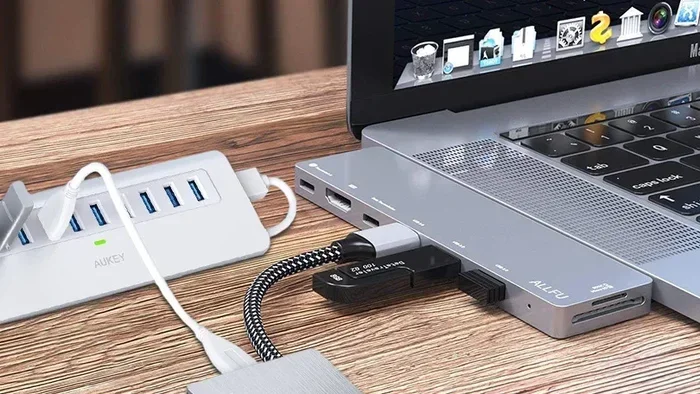
If you are using an external monitor or docking station while your laptop charges, the cable needs to handle both data and power. A single Thunderbolt 4 cable can do both jobs efficiently. This simplifies your setup and reduces cable clutter on your desk.
The Future of USB C Laptop Charging
USB C is here to stay. The industry is moving toward universal charging standards, and USB C is leading that shift. Newer laptops are dropping proprietary chargers entirely in favor of USB C. This means one cable can charge your laptop, phone, tablet, and even some external hard drives.
The latest standard, USB PD 3.1, supports power up to 240 watts. This opens the door for even more powerful laptops to charge through a single USB C cable. As this technology becomes more widespread, the confusion around cable compatibility should decrease.
However, for now, the responsibility still falls on the user to choose the right cable. Understanding what your laptop needs and matching it with a properly rated cable is the best way to ensure safe, fast, and reliable charging every time.
Just like you would not ignore a strange line or artifact while working in your spreadsheet and try to ignore it, do not ignore warning signs with your charging setup. If your cable feels hot, charges slowly, or fits loosely in the port, replace it immediately. And if you ever run into a stubborn issue like a stubborn line in Microsoft Excel that wont go away, remember that sometimes the root cause is a hardware or connection issue rather than a software bug.
Conclusion
The short answer to whether any USB C cable can charge a laptop is no. The right cable must match your laptop’s power requirements, support USB Power Delivery, and be built with quality components. Taking a few minutes to check these details can save you from slow charging, battery damage, and even safety risks.
Invest in a certified, properly rated cable. Check the wattage. Look for USB PD support. And avoid cheap, uncertified options whenever possible. Your laptop is a significant investment, and the cable you use to charge it deserves the same attention.
With the right USB C cable, you can charge your laptop quickly, safely, and confidently every single day. Keep this guide handy the next time you buy a replacement cable, and you will never have to guess again.
Frequently Asked Questions
Can I use any USB C cable to charge my laptop?
No, not every USB C cable can charge a laptop. The cable must support USB Power Delivery and be rated for the wattage your laptop requires. Using a cable that is not rated for your laptop can result in slow charging or no charging at all.
How do I know if my USB C cable supports laptop charging?
Check the cable specifications for wattage and USB PD support. Look for markings on the cable itself or the packaging. Certified cables from reputable brands will clearly state their power rating. If it says 45W, 65W, or 100W, it is designed for laptop charging.
Will a 65W USB C cable charge a 100W laptop?
It depends on the laptop. Some laptops will charge slowly on a 65W cable because they draw less power than they need. Others may not charge at all while under heavy load. For best results, use a cable rated for your laptop’s full power requirement.
Are Thunderbolt cables better for charging laptops?
Thunderbolt cables are excellent for charging laptops because they support up to 100W of power and offer faster data transfer speeds. If you have a Thunderbolt-compatible laptop, using a Thunderbolt cable ensures optimal performance for both charging and data connectivity.
Can a damaged USB C cable damage my laptop?
Yes, a damaged cable can cause overheating, inconsistent charging, or even electrical damage to your laptop. If you notice fraying, bent connectors, or excessive heat during charging, replace the cable immediately to protect your device.
What is the difference between USB C and USB Power Delivery?
USB C is just the connector shape. USB Power Delivery is the protocol that allows devices to negotiate higher power levels. A USB C cable must support USB PD to charge a laptop efficiently. Not all USB C cables include USB PD support, which is why checking specifications is so important.
Frequently Asked Questions
What is Can Any Usb C Cable Charge A Laptop?
Can Any Usb C Cable Charge A Laptop is an important topic with many practical applications.