Can Any Printer Print An Envelope Without Any Issues
Not every printer handles envelopes the same way. Whether you own an inkjet or a laser machine, printing on envelopes is possible with the right printer settings and envelope feeding method. This guide walks you through envelope printing for all major printer types, common problems, and expert tips to get clean, professional results every single time.
Have you ever stared at a stack of blank envelopes and wondered if your printer could handle the job? You are not alone. Many people assume that only special printers can print on envelopes. The truth is, can any printer print an envelope is a question with a surprisingly simple answer. Most modern printers can print envelopes, but the process is not always straightforward. You need the right settings, the right tray, and a bit of patience.
In this guide, we will walk you through everything you need to know about printing envelopes at home or in the office. We will cover which printer types work best, step-by-step setup instructions, common problems, and expert tips. By the end, you will feel confident feeding envelopes into your machine and getting great results every time.
Key Takeaways
- Most printers can print envelopes: Both inkjet and laser models support envelope printing with proper setup.
- Choose the right tray: Using the correct paper tray and envelope orientation prevents jams and misalignment.
- Check envelope size: Standard sizes like #10 and #12 work best, and knowing your size ensures correct template selection.
- Adjust print settings: Matching printer settings to envelope paper weight and orientation is essential for quality output.
- Avoid common mistakes: Overloading the tray, ignoring paper weight settings, and skipping test prints cause most problems.
- Use templates for best results: Word processors and dedicated software offer built-in envelope templates for mail merge and return address printing.
- Test before mass printing: Always run a test print on scrap paper before printing a full batch of envelopes.
📑 Table of Contents
- How Printers Handle Envelope Printing
- Types of Printers and Their Envelope Capabilities
- Step-by-Step: How to Print Envelopes Correctly
- Common Envelope Printing Problems and How to Fix Them
- Tips for Professional-Quality Envelope Prints
- Common Mistakes to Avoid When Printing Envelopes
- Frequently Asked Questions About Printing Envelopes
- Conclusion
How Printers Handle Envelope Printing
Printing on an envelope is different from printing on regular paper. Envelopes are thicker, they have a flap, and they come in different sizes. Your printer needs to handle all of these differences correctly. Let us break down how this works.
The Basics of Envelope Feeding
Most printers use one of two methods to feed envelopes. The first method is manual feeding. You open a small slot on the printer, place the envelope inside, and close the slot. The printer grabs the envelope and pulls it through. The second method uses a dedicated tray. Some printers come with a special tray designed for thicker paper like envelopes.
Manual feeding works well for small jobs. If you only need to print a few envelopes, this is the easiest way. For larger jobs, a dedicated tray saves time and effort. Check your printer manual to see which method your model supports.
Why Envelope Printing Is Different
Envelopes are not standard paper. They are usually heavier, which means they need different pressure and speed settings. The paper weight matters a lot. Regular office paper is about 20 pounds. Envelopes can range from 24 pounds to 40 pounds or more. If your printer does not adjust for this, the print quality drops and jams become more likely.
Also, envelopes have a curved shape. When the printer feeds an envelope, it must navigate that curve without folding or creasing the paper. This is why proper placement and orientation are so important. Getting the envelope in the right position prevents smudging and misalignment.
Types of Printers and Their Envelope Capabilities
Not all printers are created equal when it comes to envelope printing. Some handle envelopes with ease, while others struggle. Here is a closer look at the most common printer types.
Inkjet Printers
Inkjet printers are the most common home printers. They use liquid ink to create images and text. Most inkjet printers can print envelopes, but you need to use the manual feed slot. Never try to stack envelopes in the main paper tray of an inkjet printer. The rollers are not designed to grab thick envelopes one at a time from a stack.
Inkjet printers produce vibrant colors, which makes them great for branded envelopes with logos and graphics. However, ink can smear if you touch it too soon. Let the ink dry for a few minutes before handling the printed envelope.
Laser Printers
Laser printers use toner instead of liquid ink. They are faster and produce sharper text. Most laser printers handle envelopes well, especially in an office setting. Many laser models come with a dedicated multi-purpose tray that accepts thicker media like envelopes.
Laser prints are more smudge-resistant than inkjet prints. This makes them ideal for bulk mailing projects. If you print a lot of envelopes regularly, a laser printer is a solid choice.
Multifunction Printers
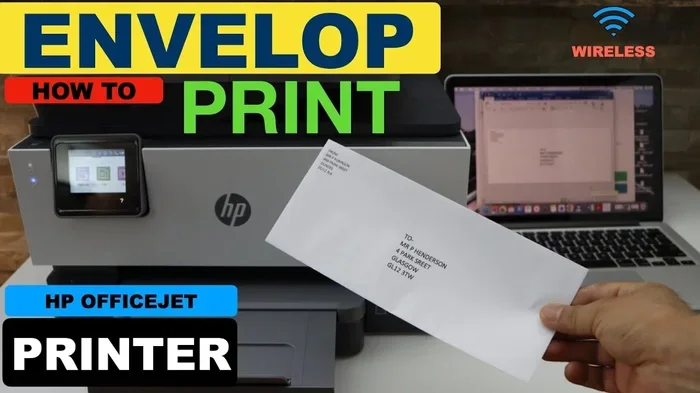
Multifunction printers combine printing, scanning, copying, and sometimes faxing in one device. Many modern multifunction printers support envelope printing. They often have a rear manual feed slot or a multipurpose tray. These machines are very versatile and work well for home offices.
All-in-One Printers for Small Businesses
If you run a small business, you need a printer that can handle envelopes reliably. Look for models with a dedicated envelope tray and adjustable paper guides. These features make envelope printing faster and reduce the risk of jams. Popular brands like HP, Canon, Epson, and Brother offer models designed for this purpose.
Comparison Table: Printer Types and Envelope Compatibility
| Printer Type | Envelope Support | Best For | Print Quality | Speed |
|---|---|---|---|---|
| Inkjet | Manual feed slot | Home use, color graphics | High for photos | Moderate |
| Laser | Multipurpose tray | Office use, bulk printing | Sharp text | Fast |
| Multifunction | Rear slot or tray | Home office, versatility | Good all-around | Moderate |
| Dedicated Envelope Printer | Built-in envelope feeder | Mailing businesses | Professional | Very Fast |
Step-by-Step: How to Print Envelopes Correctly
Now that you understand the basics, let us walk through the actual process. Follow these steps to get clean, properly aligned envelope prints every time.
Step 1: Choose the Right Envelope Size
Standard envelope sizes include #10, #12, and #14. The #10 envelope is the most common for business mail. Before you print, make sure your printer supports the size you are using. Most printers handle sizes up to 8.5 by 14 inches, but it is always good to double-check.
Step 2: Load the Envelope Correctly
For manual feeding, open the input tray or slot. Place the envelope with the flap facing up or down, depending on your printer model. Check your printer manual for the correct orientation. The print side of the envelope should face the correct direction for the rollers to grab it properly.
If you are using a tray, adjust the paper guides so they snugly fit around the envelope. Loose guides cause envelopes to feed crooked, which leads to misaligned prints.
Step 3: Adjust Printer Settings
On your computer, open the document you want to print. Go to the print settings and select the correct paper size. Choose the envelope size that matches the physical envelope you loaded. Set the orientation to portrait or landscape based on your layout.
Next, adjust the paper type setting. Select “Envelope” or “Heavy Paper” if your printer offers this option. This tells the printer to use slower feed speeds and more ink or toner, which improves quality.
Step 4: Run a Test Print
Before you print on a real envelope, run a test print on regular paper. Hold the test page up to a window and compare it to the envelope layout. This simple step saves envelopes, ink, and frustration. If the alignment is off, adjust the margins in your document and try again.
Step 5: Print and Let It Dry
Once you are happy with the test print, feed your envelope into the printer and hit print. After printing, let the ink or toner dry completely before handling the envelope. This is especially important for inkjet prints. Smudging fresh ink is one of the most common problems people face.
Common Envelope Printing Problems and How to Fix Them
Even with the best setup, things can go wrong. Here are the most common issues and how to solve them.
Envelope Jams
Printer jams are the number one problem when printing envelopes. They happen when the envelope folds or gets stuck inside the machine. To prevent jams, make sure the envelope is flat and not curled. Do not overfill the tray. Feed one envelope at a time through the manual slot.
If you get a jam, turn off the printer and gently remove the envelope. Check for any torn pieces of paper inside the rollers. Restart the printer and try again with a fresh envelope.
Misaligned Print
If your text or logo prints off-center, the issue is usually with the envelope orientation or margins. Go back to your print settings and check the layout. Try flipping the envelope in the tray. You can also adjust the top and side margins in your document until the alignment is perfect.
Smudging or Fading Ink
Smudging happens when ink does not dry fast enough. This is common with inkjet printers on envelopes. To fix this, use the correct paper type setting in your print dialog. You can also let envelopes dry on a flat surface for several minutes before stacking them.
If fading is a problem, check your ink levels. Low ink cartridges produce faded prints. Replace them before starting a big printing job.
Printer Does Not Recognize the Envelope Size
Some printers do not list every envelope size in their settings. In this case, choose the closest matching size or use a custom size option. In Microsoft Word or Google Docs, you can set a custom envelope size under the page setup menu. Make sure the custom size matches your physical envelope exactly.
Quick Tips for Smooth Envelope Printing
- Always fan the envelopes before loading them to prevent sticking.
- Remove any air bubbles by pressing the envelope flat before feeding.
- Use the rear manual feed slot whenever possible for better control.
- Clean the printer rollers regularly to prevent dust buildup.
- Store envelopes in a cool, dry place to prevent curling.
Tips for Professional-Quality Envelope Prints
Whether you are printing return address envelopes or mailing labels, you want the results to look sharp. Here are some tips that make a big difference.
Use Envelope Templates
Most word processors like Microsoft Word and Google Docs have built-in envelope templates. These templates automatically position your text and graphics in the correct spot. You just type in your address and hit print. This saves time and ensures consistent results.
For mail merge projects, envelope templates are even more powerful. You can print hundreds of personalized envelopes from a spreadsheet. This is a huge time saver for businesses and nonprofits.
Choose the Right Paper Weight
Not all envelopes are the same thickness. Standard business envelopes work well for most printers. But if you are using decorative or textured envelopes, check the paper weight first. Very heavy envelopes may require a printer with a dedicated heavy media setting.
Consider Print Quality Settings
For the best results, use the highest print quality setting. This uses more ink and takes longer, but the output is noticeably sharper. For everyday envelopes, a standard quality setting is fine. Reserve high quality for important mailings and branded envelopes.
Add a Return Address
Always include a return address on your envelopes. You can print it in the top-left corner using the same template. This ensures that undeliverable mail comes back to you. It is a small detail that makes a big professional impression.
Expert Insight: Get the Flap Right
Expert tip: The position of the envelope flap affects how the printer feeds the envelope. Some printers work best with the flap on the left, others with the flap on the bottom. Experiment with different orientations to find what works for your specific model. Once you find the right position, stick with it for consistent results.
Common Mistakes to Avoid When Printing Envelopes
Learning what not to do is just as important as learning what to do. Here are mistakes that cause problems.
- Using the main paper tray for envelopes: The main tray is designed for standard paper. Envelopes can jam or feed crookedly in this tray.
- Ignoring paper weight settings: If you do not tell the printer it is printing on heavy paper, it will feed too fast and cause misalignment.
- Overloading the tray: Feeding more than one envelope at a time almost always leads to a jam.
- Skipping the test print: A test print on regular paper costs nothing and saves real envelopes from wasted ink.
- Handling wet ink too soon: Touching a fresh inkjet print before it dries transfers ink to your fingers and smears the design.
- Using the wrong envelope size setting: If your software says #10 but you loaded a #12 envelope, your print will be off-center.
Avoiding these simple mistakes keeps your printer running smoothly and your envelopes looking professional.
Frequently Asked Questions About Printing Envelopes
Can any printer print an envelope without any issues?
Most printers can print envelopes, but not all handle them equally well. Inkjet and laser printers both support envelope printing. The key is using the right feed method, correct settings, and proper orientation. Manual feeding through the rear slot gives the best results for most home printers.
What is the best envelope size for printer printing?
The #10 envelope is the most popular and widely supported size. It fits standard business letters and works with almost all printers. Other common sizes include #12 and #14. Always check your printer manual for the maximum supported envelope size before printing.
Can I print on both sides of an envelope?
Printing on both sides of an envelope is tricky. Most printers do not support duplex printing on envelopes because of the thickness and the flap. If you need printing on the back, it is best to print the front, let it dry, and then manually feed the envelope again for the back.
Why does my printer keep jamming when I print envelopes?
Jams happen when the envelope is not loaded correctly or the paper guides are too loose. Always use the manual feed slot for envelopes. Make sure the envelope is flat and not curled. Fan the stack before loading to prevent sheets from sticking together. Also, check that the paper type setting matches the envelope weight.
Do I need special software to print envelopes?
No, you do not need special software. Microsoft Word, Google Docs, and most word processors have built-in envelope templates. These templates handle the layout and positioning automatically. You can also find free envelope template downloads online from printer manufacturers and office supply websites.
How do I print a return address on envelopes?
Use a built-in envelope template in your word processor. Type your return address in the designated area, usually the top-left corner. Adjust the font size and position until it looks right. Run a test print on regular paper first to confirm the placement before printing on real envelopes.
Conclusion
The answer to can any printer print an envelope is yes, with the right approach. Most inkjet and laser printers can handle envelope printing just fine. The secret lies in using the correct feed method, adjusting your printer settings for the envelope size and paper weight, and avoiding common mistakes that cause jams and misalignment.
Whether you are printing a few personal envelopes or hundreds for a business mailing, the steps are the same. Load the envelope correctly, choose the right template, run a test print, and let the ink dry. These simple habits make a huge difference in the quality of your output.
Remember, envelope printing does not have to be complicated. With a little practice and the tips in this guide, you will be printing professional-looking envelopes with confidence. Start with a small test batch, refine your settings, and scale up when you are ready. Your envelopes will look clean, sharp, and ready for the mailbox.