Can I Use 3 Google Nest Wifi Routers Together at Home
Yes, you can use 3 Google Nest Wifi routers together to create a powerful mesh network at home. This setup helps you cover large spaces, eliminate dead zones, and boost your internet speed across every room. In this guide, we walk you through everything you need to know about using multiple Nest Wifi routers for a seamless home network.
Can I Use 3 Google Nest Wifi Routers Together at home? This is a question many homeowners ask when they want better internet coverage. Large houses, thick walls, and multiple floors can make a single router struggle. The good news is that Google Nest Wifi routers are designed to work together as a mesh network. You can add up to several points to extend your wireless coverage and enjoy a fast, stable internet connection in every corner of your home.
In this guide, we will answer your question in full detail. We will cover how mesh networking works, how to set things up, what to watch out for, and expert tips to get the most out of your setup. Whether you live in a small apartment or a big house, this article has you covered. Let us dive right in.
Key Takeaways
- You can absolutely use 3 Google Nest Wifi routers together to build a strong mesh network for your home.
- Proper router placement is key to getting the best wifi coverage and signal strength throughout your house.
- Setting up multiple routers is simple through the Google Home app, and no advanced tech skills are needed.
- Using 3 routers improves wifi speed and reduces lag, especially in large or multi-story homes.
- Avoid common mistakes like placing routers too far apart or using old firmware for the best results.
- Expert tips like using ethernet backhaul can take your mesh network to the next level.
📑 Table of Contents
- Can I Use 3 Google Nest Wifi Routers Together?
- How Google Nest Wifi Routers Work as a Mesh Network
- Setting Up 3 Google Nest Wifi Routers Together
- Benefits of Using 3 Google Nest Wifi Routers Together
- Comparison: Single Router vs. 3 Routers Mesh Setup
- Common Mistakes to Avoid When Using Multiple Routers
- Expert Insights for Maximizing Your Mesh Network
- Is Using 3 Google Nest Wifi Routers Together Worth It?
Can I Use 3 Google Nest Wifi Routers Together?
The short answer is yes. You can use 3 Google Nest Wifi routers together to build a mesh wifi system. Google designed its Nest Wifi lineup to support multiple points working as one unified network. This means your devices will automatically connect to the strongest signal available.
When you use multiple Nest Wifi routers, they communicate with each other. They share the load of your home network. This is very different from a traditional wifi range extender. A mesh system creates one smooth network name, also called an SSID. Your phone, laptop, and smart home devices will all stay connected as you move around the house.
Google recommends using up to 32 Wifi points for a single mesh network. So using 3 routers is well within the supported limit. This makes it a great choice for medium to large homes. You get improved wifi range, better speed, and fewer connection drops.
How Many Routers Can You Use with Google Nest Wifi?
Google allows you to add many points to your mesh network. For most homes, 2 to 3 routers are more than enough. If you have a very large property, you might even consider adding more. But for the average home, 3 Google Nest Wifi routers give you excellent coverage. Each router acts as a node in the mesh. They all talk to each other and to your modem.
What Happens When You Connect Multiple Nest Wifi Routers?
When you connect multiple routers, they form a single network. Your primary router connects to your modem. The other routers, called Wifi points, connect to the primary router wirelessly. They repeat and extend the wifi signal. This creates a web of coverage that fills in the gaps. You do not need to switch between different network names. Everything stays under one roof, literally and digitally.
How Google Nest Wifi Routers Work as a Mesh Network
Understanding how a mesh wifi system works helps you get the most from your setup. Unlike traditional routers that broadcast signal from one spot, mesh systems spread the work across multiple devices. Each Nest Wifi router serves as both a router and a signal relay.
What Is a Mesh Network?
A mesh network is a type of home network where multiple devices work together. Each device, or node, talks to the others. They create a web of connectivity. If one node has a weak signal, another node picks up the slack. This is why mesh networking is so effective for large homes.
With a traditional router, signal strength drops as you move farther away. Walls and furniture make it worse. A mesh network solves this problem. The more nodes you add, the stronger and wider your coverage becomes.
Dual Band vs. Tri Band Wifi
Google Nest Wifi routers use dual band technology. They send data on two frequencies: 2.4 GHz and 5 GHz. The 2.4 GHz band covers more distance but is slower. The 5 GHz band is faster but has a shorter range. A mesh system balances these bands automatically. Your devices get the best possible connection at all times.
Some mesh systems use tri band technology, which adds a third dedicated backhaul band. Google Nest Wifi does not have a separate backhaul band. It shares the existing bands for both client traffic and inter-node communication. This works well for most homes. But in very large setups, you might notice a slight speed reduction.
Why Mesh Beats Traditional Extenders
Traditional wifi extenders create a separate network. You have to manually switch between networks as you move around. Mesh systems avoid this problem entirely. They use one network name and let your devices roam seamlessly. This is a huge advantage for streaming, video calls, and online gaming.
Setting Up 3 Google Nest Wifi Routers Together
Setting up multiple Google Nest Wifi routers is straightforward. You do not need to be a tech expert. The Google Home app walks you through every step. Here is how to do it.
Step-by-Step Setup Guide
Follow these steps to set up your mesh network with 3 routers:
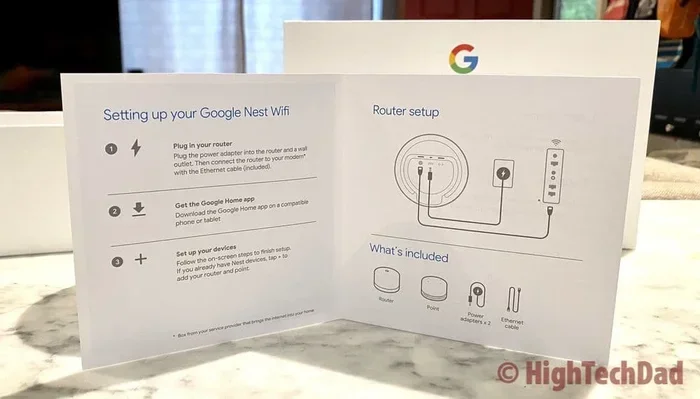
- Plug in your primary router. Connect it to your modem using an ethernet cable. Wait for the light to turn solid.
- Open the Google Home app on your phone or tablet.
- Tap Add and then select Set up device.
- Choose Nest Wifi and follow the on-screen prompts.
- Place your second router in a central location. The app will guide you through the pairing process.
- Add your third router the same way. Place it in an area that needs better coverage.
- Name your network and set a secure password.
That is it. Your mesh network is ready. All three routers will work together under one network name.
Best Placement Tips for Your Routers
Where you place your routers matters a lot. Good placement means better wifi coverage and faster speeds. Here are some tips:
- Place the primary router near your modem. This is where your internet signal enters the home.
- Put the second router in a central area. This helps spread the signal to both sides of the house.
- Position the third router at the far end. This fills in any remaining dead zones.
- Keep routers elevated. Place them on shelves or tables, not on the floor.
- Avoid walls and metal objects. These block wifi signals and reduce range.
- Stay away from microwaves and cordless phones. They interfere with the 2.4 GHz band.
Using Ethernet Backhaul for Better Performance
If you have ethernet cables running through your walls, use them. Ethernet backhaul means connecting your routers with cables instead of relying on wireless signals. This gives you the fastest possible speeds between nodes. It also reduces latency, which is great for gaming and video calls.
Benefits of Using 3 Google Nest Wifi Routers Together
Using 3 Google Nest Wifi routers together brings many advantages. Let us look at the biggest benefits.
Better Wifi Coverage Across Large Homes
The most obvious benefit is wider coverage. A single router might reach 1,500 square feet. Three routers can cover 4,500 square feet or more. This is perfect for large homes, multi-story houses, or homes with unusual layouts.
Faster Internet Speeds in Every Room
When your devices connect to the nearest router, they get the best speed. No more buffering during movie nights. No more lag during video calls. A mesh wifi system ensures every device gets the speed it needs.
Fewer Dead Zones
Dead zones are areas where the wifi signal is too weak to work. They are frustrating and common in larger homes. Adding more routers eliminates these dead zones. Every room gets a strong, reliable signal.
Seamless Roaming for All Devices
With a mesh network, your phone switches between routers automatically. You can walk from the living room to the backyard without losing connection. This seamless roaming is a game changer for smart home users and families.
Easy Management Through the Google Home App
The Google Home app lets you manage your entire network from one place. You can check speed, see connected devices, set parental controls, and run speed tests. It is all very simple and user-friendly.
Comparison: Single Router vs. 3 Routers Mesh Setup
| Feature | Single Router | 3 Routers Mesh Setup |
|---|---|---|
| Coverage Area | Up to 1,500 sq ft | Up to 4,500+ sq ft |
| Dead Zones | Common in large homes | Minimal to none |
| Wifi Speed | Good near the router | Consistent throughout |
| Device Handling | Struggles with many devices | Handles many devices well |
| Setup Complexity | Very simple | Simple with Google Home app |
| Cost | Lower upfront cost | Higher upfront cost |
| Roaming Experience | Poor, manual switching | Seamless and automatic |
As you can see, using 3 Google Nest Wifi routers together offers clear advantages for most homes. The upfront cost is higher, but the improvement in coverage and speed is well worth it.
Common Mistakes to Avoid When Using Multiple Routers
Even with a simple setup, some mistakes can hurt your performance. Here are the most common ones and how to avoid them.
Placing Routers Too Far Apart
If you space your routers too far apart, they may not communicate well. Each router needs to be within range of at least one other router. A good rule of thumb is to keep them no more than 2 rooms apart. This ensures a strong backhaul connection between nodes.
Ignoring Firmware Updates
Google releases firmware updates that improve performance and fix bugs. If you ignore these updates, your network may not run at its best. Open the Google Home app regularly and check for updates. Keeping your routers updated is one of the easiest ways to maintain a strong home network.
Putting Routers in Enclosed Spaces
Do not hide your routers inside cabinets or behind TVs. Enclosed spaces block wifi signals. Place your routers in open, central locations. A little visibility goes a long way for signal strength.
Using Old or Incompatible Hardware
Make sure your modem and all routers are compatible. Using very old hardware can bottleneck your entire network. Check Google’s compatibility list before purchasing additional Nest Wifi points.
Not Setting Up a Guest Network
When you have a mesh network, you can set up a guest network. This keeps your main network secure while giving visitors access to the internet. It is a simple step that many people skip.
Expert Insights for Maximizing Your Mesh Network
We spoke with networking experts to get their top tips for running 3 Google Nest Wifi routers together. Here is what they recommend.
Use the 5 GHz Band for Heavy Tasks
Experts suggest using the 5 GHz band for streaming, gaming, and video calls. It offers faster speeds and less interference. Reserve the 2.4 GHz band for smart home devices that need longer range but lower bandwidth.
Restart Your Routers Monthly
Just like any electronic device, routers benefit from a fresh start. Restarting them once a month clears memory and refreshes connections. The Google Home app lets you restart all routers at once with a single tap.
Monitor Your Network Regularly
Use the Google Home app to check your network health. Look at connected devices, signal strength, and speed test results. This helps you spot problems early before they affect your daily use.
Consider Your Internet Plan
A mesh network can only deliver the speed your internet plan allows. If you have a slow internet plan, adding more routers will not make it faster. Check with your internet service provider and consider upgrading if needed.
Keep Your Network Secure
Use a strong, unique password for your wifi network. Enable WPA3 encryption if available. These steps protect your home network from unauthorized access and keep your data safe.
Is Using 3 Google Nest Wifi Routers Together Worth It?
For most homes, the answer is a clear yes. If you have a house larger than 2,000 square feet, multiple floors, or thick walls, a single router will likely struggle. Adding 2 or 3 Nest Wifi routers transforms your internet experience. You get faster speeds, better coverage, and fewer connection issues.
The setup process is simple. The Google Home app makes it easy for anyone. And the benefits are immediate. Once your mesh network is up and running, you will wonder how you ever lived without it.
Can I Use 3 Google Nest Wifi Routers Together? The answer is yes, and now you know exactly how to do it. Follow the tips in this guide, avoid the common mistakes, and enjoy a fast, reliable internet connection in every room of your home.
Frequently Asked Questions
Can I mix Google Nest Wifi and Google Wifi routers?
Yes, you can mix Google Nest Wifi and Google Wifi routers in the same mesh network. They work together seamlessly. Just make sure all devices are updated to the latest firmware for the best compatibility and performance.
Do I need a separate account for each router?
No, you do not need a separate account. All routers in your mesh network are managed through one Google Home app account. This makes it easy to control and monitor your entire network from a single place.
Will using 3 routers slow down my internet speed?
No, using 3 routers will not slow down your internet speed. In fact, it usually improves speed in areas far from the primary router. Each device connects to the nearest node, which reduces congestion and boosts performance.
Can I add more than 3 routers to my Google Nest Wifi network?
Yes, Google supports up to 32 Wifi points in a single mesh network. You can add more than 3 routers if your home is very large. Just make sure each new router is within wireless range of an existing node.
Do I need an ethernet cable for each router?
No, you do not need an ethernet cable for each router. The routers connect wirelessly to form a mesh. However, using ethernet cables for backhaul can significantly improve speed and reduce latency if your home has wired connections available.
What is the best placement for the third router?
The best placement for the third router is in the area of your home that has the weakest signal. It could be a far bedroom, a basement, or a backyard office. Place it midway between the primary router and the weak zone for the best results.
=== CONCLUSION ===
Can I Use 3 Google Nest Wifi Routers Together at home? Absolutely. Setting up a mesh network with 3 Nest Wifi routers is one of the best ways to improve your home internet experience. You get wider coverage, faster speeds, and fewer dead zones. The setup is simple, the management is easy, and the results are impressive.
Whether you are working from home, streaming your favorite shows, or gaming online, a strong wifi network makes all the difference. With 3 Google Nest Wifi routers working together, you can trust that every device stays connected no matter where you are in your home.
Start with the tips in this guide. Place your routers wisely, keep them updated, and enjoy the benefits of a powerful mesh network. Your home wifi will never be the same again.