Can I Replace My Wifi Card With an Ssd for Faster Speeds
No, you cannot replace a wifi card with an ssd because they are completely different hardware components. A wifi card handles wireless connectivity, while an ssd is a storage drive for your data. However, upgrading either one can significantly improve your overall laptop or PC experience.
Have you ever wondered, can I replace wifi card with ssd for faster internet speeds? It is a question that pops up more often than you might think. People see their laptops slowing down and assume swapping one internal component for another will solve the problem. The truth is, a wifi card and an ssd are two very different pieces of hardware that do completely different jobs.
But here is the good news. Understanding what each component does puts you in a much better position to make the right upgrade. Whether you want faster wireless speeds, a quicker boot time, or both, this guide has you covered. We will walk through everything you need to know in plain, simple language.
So, let us clear up the confusion once and for all. By the end of this article, you will know exactly what each part does, why they cannot replace each other, and what you should actually do to get the speeds you want.
Key Takeaways
- A wifi card and an ssd serve entirely different purposes and cannot be swapped or used interchangeably.
- Your wifi card controls wireless speeds, while your ssd affects how fast your system boots and loads files.
- Upgrading to a newer wifi card like a WiFi 6 or WiFi 6E adapter can dramatically improve your internet speeds.
- Upgrading to an ssd improves system responsiveness but does not directly increase your wireless bandwidth.
- Both upgrades together create a faster, more responsive computing experience overall.
- Compatibility matters — check your laptop or motherboard for available slots before buying any hardware.
- Software updates and driver installs also play a big role in getting the best wireless performance.
📑 Table of Contents
What Does a Wifi Card Do?
A wifi card, also called a wireless network adapter, is the hardware inside your laptop or desktop that connects you to a wireless network. It sends and receives radio signals between your device and your router. Without it, you would need a physical ethernet cable to access the internet.
Think of your wifi card as the antenna that lets your computer talk to the outside world through the air. The better the card, the faster and more stable your wireless connection will be.
How Wifi Cards Work
A wireless network card uses radio frequencies to transmit data. Most modern cards support the 802.11ac or 802.11ax (WiFi 6) standards. These standards define how fast data can travel between your router and your device.
Here are the key things a wifi adapter handles:
- Signal reception and transmission — how well your device picks up and sends wireless signals.
- Frequency bands — most cards work on 2.4 GHz or 5 GHz bands, and some support both.
- MIMO technology — this allows multiple data streams at once for higher wireless bandwidth.
- Range and stability — better cards maintain connections over longer distances and through walls.
The network interface card inside your device directly impacts your internet throughput. If you have an older wifi card, your speeds will be capped no matter how fast your internet plan is.
What Does an Ssd Do?
An ssd, or solid state drive, is your computer’s storage. It holds your operating system, programs, files, and everything else. Unlike an old hard disk drive (HDD), an ssd has no moving parts. It uses flash memory to read and write data at incredible speeds.
The ssd speed affects how quickly your computer starts up, how fast apps open, and how quickly large files transfer. It does not, however, have anything to do with your wireless network connection.
How Ssds Improve System Performance
An ssd upgrade is one of the most impactful changes you can make to an older computer. Here is what it improves:
- Boot times — your operating system loads in seconds instead of minutes.
- App launch speeds — programs open almost instantly.
- File read and write speeds — copying, saving, and moving files happens much faster.
- Overall responsiveness — your system feels snappier and more fluid.
An ssd makes your entire computer feel faster. But it does not change how fast your internet connection is. That job belongs to the wifi card or network adapter.
Can You Replace a Wifi Card With an Ssd?
The short answer is no. You cannot replace a wifi card with an ssd. They are fundamentally different components that serve completely different functions.
Here is why this swap simply does not work:
- A wifi card connects you to the internet wirelessly. It communicates with your router using radio signals.
- An ssd stores your data locally on your device. It has no wireless transmitting capability.
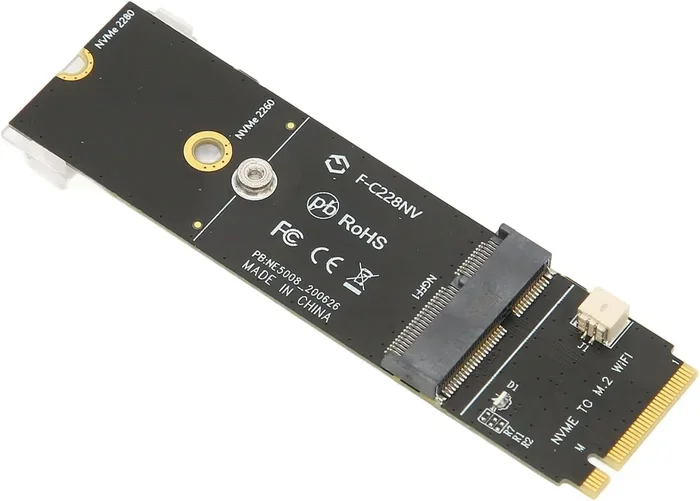
- The physical slots are different — a wifi card typically uses a M.2 slot or a PCIe slot designed for networking. An ssd uses a 2.5-inch bay or an M.2 slot configured for storage protocols like NVMe or SATA.
- The drivers and firmware are completely different — your operating system treats a network adapter and a storage drive as entirely separate devices.
Even if the physical slot looks similar — say, both use an M.2 connector — the protocols and functions are not compatible. A PCIE wifi card and a PCIe NVMe ssd may both plug into the same type of slot, but they operate on completely different communication standards.
Why People Confuse the Two
This confusion happens a lot. Many people notice that after they install a new ssd, their computer feels faster overall. They assume that means their internet speeds also improved. In reality, the ssd made the system more responsive, but the wireless connection speed depends entirely on the wifi card and your internet plan.
Similarly, some users see their wifi card listed as a device in their system and assume it stores data like a drive. It does not. A wireless network card only handles data transmission over the air.
How to Actually Boost Your Wifi Speed
If your goal is faster wireless speeds, upgrading your wifi card is the right move — not replacing it with an ssd. Here is what actually works.
Upgrade to a Modern Wifi Card
The single best way to improve your wireless connectivity is to install a newer wifi card. If your current card only supports WiFi 5 (802.11ac), upgrading to a WiFi 6 (802.11ax) or WiFi 6E card can make a huge difference.
Here is what a modern wireless network adapter offers:
- Faster data rates — WiFi 6 can deliver speeds up to 9.6 Gbps under ideal conditions.
- Better performance in crowded areas — WiFi 6 handles multiple devices more efficiently.
- Lower latency — online gaming and video calls become smoother.
- Improved range — newer cards maintain stronger connections at greater distances.
Popular options include the Intel AX210 and Intel AX200 PCIE wifi cards. These are widely available and work with most modern laptops and desktops that have an open M.2 slot or PCIe x1 slot.
Use a USB Wifi Adapter
If your laptop does not have an open internal slot, a USB wifi dongle is a great alternative. These external wifi adapters plug right into a USB port and provide a wireless upgrade without opening your computer.
Look for a USB WiFi 6 adapter for the best results. Brands like TP-Link and ASUS make reliable options that are easy to install.
Optimize Your Router and Settings
Sometimes the problem is not your network card at all. Try these steps first:
- Update your wifi card drivers — outdated drivers can cause slow speeds and connection drops.
- Restart your router — a simple reboot can fix many temporary connection issues.
- Switch to the 5 GHz band — it offers faster speeds than the 2.4 GHz band.
- Change your wifi channel — less congestion means better wireless bandwidth.
- Place your router centrally — distance and walls weaken your wireless signal.
These steps cost nothing and often solve slow internet speed problems right away.
Quick Tips for Maximum Wireless Performance
- Keep your wifi card drivers updated — manufacturers release updates that improve network adapter performance.
- Disable power-saving mode on your wifi card — this prevents your system from throttling the wireless connection.
- Use a wired connection when possible — ethernet always provides more stable speeds than wireless.
- Check your internet plan speed — no network card can give you speeds faster than what your ISP provides.
- Scan for interference — other electronic devices like microwaves can disrupt your wireless signal.
When Should You Upgrade Your Ssd vs Wifi Card?
Both ssd upgrades and wifi card upgrades improve your computer, but they solve different problems. Here is how to decide which one you need.
Upgrade Your Ssd If…
- Your computer takes a long time to boot up.
- Apps and files take forever to open or load.
- Your system uses an old hard disk drive (HDD) instead of an ssd.
- You want a more responsive and smoother overall experience.
- You hear clicking sounds from your current drive.
An ssd transforms how your computer feels during daily use. It does not change your internet speed, but it makes everything else faster.
Upgrade Your Wifi Card If…
- Your internet speeds are much slower than what your plan promises.
- You experience frequent disconnections or weak signals.
- You live in a building with many competing wireless networks.
- You want to take advantage of WiFi 6 or WiFi 6E speeds from your router.
- Your current wireless adapter only supports older standards like 802.11n or WiFi 4.
A new wifi card directly improves your internet throughput and wireless bandwidth. It is the right choice when your internet connection itself feels slow or unstable.
Comparison: Ssd Upgrade vs Wifi Card Upgrade
Here is a quick comparison of what each upgrade delivers:
- Ssd upgrade: Faster boot times, quicker app loading, smoother multitasking, better file transfer speeds. No impact on wireless internet speed.
- Wifi card upgrade: Faster wireless speeds, better range, lower latency, improved connection stability. No impact on storage or boot times.
The best scenario? Upgrade both. A new ssd paired with a modern wifi card gives you the fastest overall experience. Your system boots quickly, apps load instantly, and your wireless connection is strong and fast.
Common Mistakes People Make
Before you rush to buy any hardware, avoid these common pitfalls:
- Assuming a new ssd will fix slow internet — it will not. Slow internet is a network issue, not a storage issue.
- Buying a wifi card without checking compatibility — make sure your laptop or motherboard has an open slot and supports the card you choose.
- Ignoring driver updates — even the best network adapter performs poorly with outdated drivers.
- Confusing internal and external upgrades — a USB wifi dongle is an external option that does not require opening your computer.
- Overlooking your router — an old router can bottleneck your speeds even with the best wireless network card.
Take the time to identify the real problem before spending money. Run a speed test to see if your broadband speed matches what you pay for. If it does not, the issue may be with your internet service provider, not your hardware.
Expert Insights
According to networking professionals, most people who ask about replacing a wifi card with an ssd are actually looking to improve their overall system and internet performance. The solution is usually simpler than they think.
Start with the basics. Update your drivers, restart your router, and run a speed test. If your wireless connection is still slow after that, a wifi card upgrade is the most direct path to faster speeds.
On the storage side, if your computer still uses an HDD, switching to an ssd is one of the best upgrades you can make at any age or price point. It is affordable, easy to install, and delivers immediate results.
Many tech experts recommend upgrading both components when refurbishing an older laptop. The ssd gives you a responsive system, and the wifi card ensures you get the most out of your wireless connection. Together, they turn an aging machine into a fast, reliable daily driver.
Final Thoughts
So, to answer the question directly: you cannot replace a wifi card with an ssd. They are completely different hardware components with different jobs. A wifi card handles your wireless network connection, while an ssd handles your data storage.
But the good news does not stop there. You can upgrade both separately to get the best of both worlds. A modern wifi card like the Intel AX210 gives you faster wireless speeds and better range. A new ssd gives you lightning-fast boot times and smooth performance.
The key is understanding what each component does and what it can actually improve. Once you know that, making the right upgrade decision becomes simple. Don’t waste money on the wrong component. Identify your actual problem, choose the right hardware, and enjoy the results.
Take action today. Check your current wifi card and storage drive, research compatible upgrades, and give your computer the boost it deserves. You will notice the difference immediately.
Frequently Asked Questions
Can I use an ssd as a wifi card?
No, an ssd cannot function as a wifi card. An ssd is a storage device that holds your data, while a wifi card is a network adapter that connects you to wireless networks. They use different protocols, slots, and drivers.
Will upgrading my ssd make my internet faster?
No, upgrading your ssd will not directly increase your internet speed. However, it will make your computer faster overall, which can improve how quickly web pages load and apps respond. Your wireless bandwidth depends on your wifi card and internet plan.
What is the best wifi card for faster speeds?
The Intel AX210 is one of the most popular and reliable wifi 6 cards available. It supports WiFi 6 and WiFi 6E, offering significantly faster speeds and better performance than older standards. Make sure your device has a compatible slot before purchasing.
Can a wifi card and ssd share the same M.2 slot?
No, they cannot share the same slot. Even if both use an M.2 connector, they operate on different protocols — a wifi card uses a PCIe or SDIO interface, while an ssd uses NVMe or SATA. They are not interchangeable.
How do I know if my wifi card needs an upgrade?
If your wireless speeds are consistently slower than what your internet plan offers, or if you experience frequent disconnections, your network adapter may be outdated. Run a speed test and check your card’s supported wifi standard in your device manager.
Is a USB wifi adapter as good as an internal wifi card?
A good USB wifi adapter can deliver excellent speeds and is much easier to install. However, internal PCIE wifi cards generally offer better performance and more stable connections because they connect directly to the motherboard. Choose based on your needs and technical comfort level.
=== CONCLUSION ===
Understanding the difference between a wifi card and an ssd is essential before making any hardware decision. You cannot replace one with the other, but upgrading both independently can transform your computing experience. Your wifi card determines how fast your wireless connection is, while your ssd determines how fast your system responds.
Focus on upgrading the component that addresses your actual problem. If your internet feels slow, invest in a better wireless network adapter. If your computer feels sluggish, switch to a new ssd. And if you want the full package, upgrade both for the best results.
Take the time to research your options, check compatibility, and make the upgrade that fits your needs. You will be glad you did.