Can A USB Be Extended Wirelessly Without Any Cables
Yes, you can extend a USB connection wirelessly using specialized adapters, wireless USB hubs, and signal boosters. This guide covers the best methods, products, and tips to help you ditch cables and keep your devices connected from anywhere in your home or office.
Have you ever wanted to use a USB device but found the cable too short? Maybe your printer sits across the room, or your external hard drive is tucked away in a desk drawer that is just out of reach. The good news is that you can extend a USB connection wirelessly without running long cables across your floor or desk. This guide will walk you through everything you need to know about wireless USB extension, from the technology behind it to the best products on the market.
Wireless USB technology has come a long way. What used to be clunky and slow is now fast, reliable, and surprisingly affordable. Whether you need to extend USB over Wi-Fi, share a single USB device with multiple computers, or simply get rid of that tangled mess of cables, there is a solution for you. Let us dive in and explore how this works.
Key Takeaways
- Wireless USB extension is real: You can extend USB signals up to 30+ feet using wireless adapters and hubs.
- Multiple solutions exist: From wireless USB transmitters to Wi-Fi-based USB sharing, there is an option for every need.
- Speed varies by method: Wireless USB 3.0 can deliver speeds up to 5 Gbps, while older methods may be slower.
- Latency matters: Wireless connections introduce slight delays, so choose based on your use case.
- Setup is simple: Most wireless USB extenders plug and play with minimal configuration.
- Avoid common mistakes: Overlooking interference and distance limits can cause frustrating connection drops.
📑 Table of Contents
- What Is Wireless USB Extension?
- How Does Wireless USB Technology Work?
- Types of Wireless USB Solutions
- Benefits of Extending USB Wirelessly
- Common Mistakes to Avoid
- Expert Tips for the Best Wireless USB Setup
- Comparison of Wireless USB Solutions
- Is Wireless USB Extension Worth It?
- Final Thoughts on Extending USB Wirelessly
- Key Takeaways
What Is Wireless USB Extension?
Wireless USB extension means sending USB data through the air instead of a physical cable. You use a transmitter on one end and a receiver on the other. The transmitter plugs into your computer or host device. The receiver plugs into your USB device, like a printer, external drive, or webcam. Together, they create a wireless bridge that carries USB signals across a room or even a building.
This technology is different from simply buying a longer USB cable. A cable has a maximum length, usually about 16 feet for USB 2.0 and even less for USB 3.0. Beyond that, the signal weakens. A wireless USB extender solves this problem by converting the USB signal into a wireless transmission and then back into USB on the other side.
How Far Can You Go?
The range depends on the product you choose. Basic wireless USB kits work well up to about 10 to 15 feet. More advanced long range USB extenders can reach 30 to 50 feet or more. Some enterprise-grade solutions can push USB signals over a local network to distances of 100 feet or beyond. Your walls, furniture, and other electronics all play a role in how far the signal travels.
How Does Wireless USB Technology Work?
Understanding the basics of wireless USB technology helps you pick the right solution. At its core, a wireless USB extender takes the digital data from a USB port and encodes it into a radio signal. That signal travels through the air to a receiver, which decodes it back into USB data. The whole process happens in milliseconds, so you barely notice any difference from a wired connection.
The Role of Wireless USB Adapters
A wireless USB adapter is the most common way to extend USB wirelessly. These small devices plug directly into a USB port. One adapter acts as the sender, and the other acts as the receiver. Many adapters support USB 3.0 speeds, which means you can transfer large files at up to 5 Gbps. That is fast enough for most people, including those who work with video or large datasets.
Some adapters use Wi-Fi or Bluetooth to transmit the signal. Others use dedicated radio frequencies for a more stable connection. The dedicated frequency options tend to offer less interference and more consistent speeds, which makes them ideal for professional use.
USB Over Wi-Fi and Ethernet
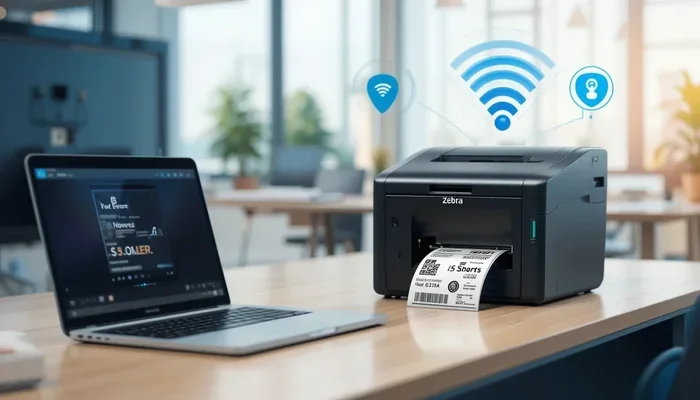
Another popular approach is USB over Wi-Fi or USB over Ethernet. These methods let you share a USB device across your home or office network. You connect the USB device to a network-enabled USB server or hub. Then, any computer on the same network can access that device as if it were plugged in directly. This is especially useful for shared printers and storage devices.
Types of Wireless USB Solutions
Not all wireless USB solutions are the same. Different setups work better for different situations. Here is a look at the most common options available today.
Wireless USB Transmitter and Receiver Kits
These are the simplest and most popular option. You get a pair of small devices. One plugs into your computer, and the other plugs into your USB device. They communicate wirelessly and create a seamless connection. Most kits are plug and play, meaning you do not need to install complicated software.
These kits are great for extending a single USB device, like a printer or webcam, to a different room. They work well for home offices and small businesses. Prices range from about $20 to $100, depending on the speed and range.
Wireless USB Hubs
A wireless USB hub takes the concept further. Instead of supporting just one device, a wireless hub can connect multiple USB devices at once. You plug the hub into your computer, and then all your USB devices connect to it wirelessly. This is perfect for desks with lots of peripherals, including keyboards, mice, external drives, and printers.
Wireless USB hubs are more expensive than simple transmitter kits, but they offer much more flexibility. Some hubs also support USB device sharing, which means multiple computers can access the same USB devices over the network.
USB Signal Repeaters and Boosters
If your USB signal is weak but you still want to use a cable, a USB signal booster can help. These devices amplify the USB signal and retransmit it, effectively extending the range. While not fully wireless, they are a good middle-ground solution when you need a bit more reach without going completely cable-free.
Some boosters also include wireless capabilities, giving you the best of both worlds. You can plug in a cable for the primary connection and then extend it wirelessly to a secondary device.
Network-Based USB Sharing Devices
For advanced setups, network-based USB sharing devices let you place a USB device anywhere on your network. These devices connect to your router via Ethernet and then present the USB device to any computer on the network. You can access shared printers, hard drives, and even USB dongles from multiple computers simultaneously.
This approach is popular in office environments where a single printer or storage device needs to serve many users. The setup is slightly more involved than a simple wireless USB kit, but the results are powerful.
Benefits of Extending USB Wirelessly
Going wireless with your USB devices offers several real advantages. Here are some of the biggest reasons people make the switch.
1. Freedom From Cables
The most obvious benefit is freedom. No more cables running across your floor or desk. Your workspace stays clean and organized. You can place your USB devices wherever you want, as long as they are within range of the wireless extender.
2. Flexibility and Portability
Wireless USB solutions make it easy to move devices around. Need to set up a temporary workstation? Just pack up your wireless USB receiver and go. This is especially helpful for people who work from coffee shops, attend conferences, or switch between multiple desks.
3. Multi-Device Sharing
With the right setup, you can share a single USB device among several computers. A shared printer, for example, can serve everyone in the office without needing a direct USB connection to each machine. This saves money and reduces clutter.
4. Reduced Wear and Tear
Cables break. USB ports get damaged from frequent plugging and unplugging. A wireless connection eliminates this wear and tear, which can extend the life of your devices and ports.
5. Easy Expansion
Adding new USB devices to a wireless setup is straightforward. You simply pair the new device with your wireless hub or adapter. No need to reroute cables or rearrange your desk every time you add something new.
Common Mistakes to Avoid
While wireless USB extension is convenient, there are some pitfalls you should watch out for. Avoiding these mistakes will save you time and frustration.
Ignoring Interference
Wireless USB signals can be disrupted by other electronics. Wi-Fi routers, microwaves, cordless phones, and even fluorescent lights can cause interference. Place your wireless USB adapter away from these sources for the best performance. If you experience dropouts, try moving the adapter to a different USB port or a different location in the room.
Overestimating Range
Manufacters often list the maximum range under ideal conditions. In a real-world office with walls and furniture, the effective range is usually shorter. Always test your setup before relying on it for important work. If you need a longer range, consider a higher-powered extender or a signal booster.
Choosing the Wrong Speed Grade
Not all wireless USB solutions support the same data speeds. A wireless USB 2.0 extender will be much slower than a wireless USB 3.0 extender. If you are transferring large files or streaming high-definition video, make sure your setup supports the speed you need. Check the product specifications carefully before buying.
Skipping Driver Updates
Some wireless USB adapters require drivers to work properly. Skipping driver updates can lead to compatibility issues and slower performance. Check the manufacturer’s website regularly for the latest software. If you run into problems, a driver update is often the first fix to try.
Forgetting About Latency
Wireless connections always introduce a small amount of latency. For most tasks, like printing or file transfers, this is barely noticeable. But if you are using a USB device for real-time applications, like audio interfaces or gaming peripherals, the latency might matter. Test your setup with your specific use case to make sure it meets your needs.
Expert Tips for the Best Wireless USB Setup
Getting the most out of your wireless USB extension setup comes down to a few smart choices. Here are some tips from the pros.
Place Your Receiver Strategically
Line of sight is your best friend. Try to keep a clear path between the transmitter and receiver. Walls and metal objects weaken the signal. If you can place both devices in the same room with no obstructions, you will get the best performance.
Use a Powered USB Hub
If you are connecting multiple devices wirelessly, use a powered USB hub. Unpowered hubs can struggle with power delivery, especially over wireless connections. A powered hub ensures each device gets the electricity it needs to run smoothly.
Update Firmware Regularly
Just like drivers, firmware updates can improve performance and fix bugs. Check your wireless USB adapter’s firmware at least once every few months. Manufacturers often release updates that improve range, speed, and stability.
Test Before Committing
Before you commit to a wireless USB setup for daily use, test it thoroughly. Try transferring a large file, printing a document, and using any peripheral you plan to rely on. Make sure everything works as expected before you dismantle your cable setup entirely.
Consider a Hybrid Approach
You do not have to go fully wireless. A hybrid setup works well for many people. Keep your most critical devices on short cables for the best speed and reliability, and go wireless for devices that are less demanding. This gives you the best of both worlds.
Comparison of Wireless USB Solutions
| Solution Type | Range | Max Speed | Best For | Price Range |
|---|---|---|---|---|
| Transmitter/Receiver Kit | 10-30 ft | Up to 5 Gbps (USB 3.0) | Single device extension | $20-$100 |
| Wireless USB Hub | 15-50 ft | Up to 5 Gbps (USB 3.0) | Multiple devices, shared use | $50-$200 |
| USB Over Wi-Fi | Varies (network-dependent) | Limited by network speed | Shared printers, storage | $30-$150 |
| USB Signal Booster | Up to 16 ft (cable extension) | Same as cable speed | Weak signal recovery | $10-$50 |
| Network USB Server | Up to 300 ft (Ethernet) | Gigabit Ethernet speed | Office device sharing | $100-$400 |
Each solution has its strengths. The transmitter/receiver kit is the most popular choice for home users. The wireless USB hub is ideal for busy desks with many peripherals. Network USB servers shine in office environments where multiple people need access to shared devices.
One thing to keep in mind: if you are dealing with a situation where a simple cable fix would solve the problem, like fixing a stubborn line that will not delete in Microsoft Excel, sometimes the simplest solution is still the best. Wireless USB extension is a powerful tool, but it is not always the right answer for every problem.
Is Wireless USB Extension Worth It?
The short answer is yes, for most people. Wireless USB extension gives you flexibility, cleanliness, and convenience. You can connect devices that are too far away for a standard cable, share peripherals across multiple computers, and keep your workspace tidy. The technology has matured to the point where it is reliable and affordable.
If you work from home, run a small business, or just want to simplify your desk setup, a wireless USB extender is a smart investment. Start with a basic transmitter/receiver kit to see if it meets your needs. You can always upgrade to a more advanced solution later.
Final Thoughts on Extending USB Wirelessly
Wireless USB extension is no longer a niche technology. It is a practical, everyday solution for anyone who wants to break free from cable constraints. Whether you choose a simple transmitter kit, a full wireless USB hub, or a network-based sharing solution, you have options that fit every budget and use case.
The key is to understand your needs, pick the right solution, and set it up correctly. Follow the tips in this guide, avoid the common mistakes, and you will enjoy a clean, cable-free workspace in no time. Embrace the freedom of wireless USB connectivity and make your devices work the way you want them to.
Key Takeaways
- Wireless USB extension works: You can extend USB signals without cables using transmitters, receivers, hubs, and network solutions.
- Speed and range vary: Choose a solution that matches your data speed needs and the distance between your devices.
- Setup is straightforward: Most wireless USB adapters are plug and play and require minimal configuration.
- Interference is the biggest enemy: Keep your wireless USB devices away from other electronics for the best performance.
- Consider a hybrid approach: Combine wireless and wired connections for the best balance of speed and flexibility.
- Invest in quality: A slightly more expensive wireless USB kit often delivers better range, speed, and reliability.
Frequently Asked Questions
Can I extend USB wirelessly without any extra hardware?
No, you need at least one wireless USB adapter or transmitter to extend a USB connection without cables. Some solutions use Wi-Fi or Bluetooth built into your computer, but a dedicated adapter will give you the best results and most reliable connection.
Does wireless USB slow down data transfer speeds?
Wireless USB can be slightly slower than a direct wired connection due to signal processing and potential interference. However, modern wireless USB 3.0 adapters can deliver speeds up to 5 Gbps, which is fast enough for most tasks including file transfers and streaming.
How far can I extend a USB connection wirelessly?
The range depends on the product you use. Basic kits work up to about 15 feet, while more advanced extenders can reach 30 to 50 feet. Network-based USB sharing solutions can extend USB over Ethernet to distances of 100 feet or more, depending on your network setup.
Can I share a USB printer wirelessly with multiple computers?
Yes, you can. A wireless USB hub or a network USB server allows multiple computers to share a single USB printer. You connect the printer to the hub or server, and then each computer on the network can send print jobs wirelessly.
Is wireless USB extension secure?
Most wireless USB adapters use encrypted connections to protect your data. Look for products that support WPA2 or WPA3 encryption if you are concerned about security. For sensitive data, always verify that your wireless USB solution includes proper encryption features.
What is the difference between a wireless USB hub and a USB over Wi-Fi solution?
A wireless USB hub creates a direct wireless connection between your computer and USB devices, similar to a cable. A USB over Wi-Fi solution shares USB devices across your existing Wi-Fi network, allowing multiple computers to access the device. The former is simpler and faster; the latter is better for sharing across many users.
=== CONCLUSION ===
Extending a USB connection wirelessly is easier than ever. With the right wireless USB adapter, hub, or sharing solution, you can ditch your cables and enjoy a cleaner, more flexible workspace. The technology is mature, affordable, and suitable for home offices, small businesses, and even large enterprises.
Remember to choose the right solution for your needs, place your devices strategically to avoid interference, and test everything before relying on it daily. Whether you are extending a single printer or sharing multiple devices across an entire office, wireless USB extension gives you the freedom and convenience you have been looking for. Start exploring your options today and experience the benefits of a truly cable-free setup.