Can You Share Wi Fi Password on iPhone Step by Step
Yes, you can share Wi-Fi password on iPhone easily using built-in tools like iCloud Keychain and QR codes. Whether you are connecting a friend or a new device, Apple makes the process fast and secure. This step-by-step guide walks you through every method, from AirDrop sharing to manual entry, so you never get stuck with a slow or failed connection again.
Have you ever had a friend hand you their iPhone and say, “Just connect to my Wi-Fi”? It sounds simple, right? But if you have ever stood there staring at a screen wondering how to get that password, you know it can be a little frustrating. The good news is that sharing Wi-Fi password on iPhone is actually very easy. Apple built this feature right into iOS, and it works smoothly once you know the steps.
In this guide, we will walk you through every way you can share Wi-Fi password on iPhone. From AirDrop to QR codes, from iCloud Keychain to manual entry, we cover it all. You will also learn what to do if something goes wrong and how to keep your network safe. Let us get started.
Key Takeaways
- iPhone makes sharing Wi-Fi passwords effortless using AirDrop, iCloud Keychain, and QR codes built right into iOS.
- Both devices need Wi-Fi and Bluetooth turned on and must be saved in each other’s contacts for seamless password sharing.
- You can generate a QR code manually if the automatic sharing method does not work for your situation.
- iOS 17 and later versions offer the most streamlined Wi-Fi password sharing experience with fewer steps.
- Always check your network security after sharing a password to make sure no unauthorized devices connect.
- Resetting your router password is a good practice after sharing Wi-Fi access with multiple people.
- iCloud Keychain syncs passwords across all your Apple devices, making retrieval and sharing quick and easy.
📑 Table of Contents
- Can You Share Wi-Fi Password on iPhone?
- How to Share Wi-Fi Password on iPhone Step by Step
- What You Need Before Sharing Wi-Fi Password on iPhone
- Common Problems When Sharing Wi-Fi Password on iPhone
- Tips to Keep Your Wi-Fi Password Secure After Sharing
- Why Sharing Wi-Fi Password on iPhone Is So Easy
- Quick Tips for Smooth Wi-Fi Password Sharing
- Expert Insights on Wi-Fi Password Sharing
- Conclusion
Can You Share Wi-Fi Password on iPhone?
Yes, you absolutely can share Wi-Fi password on iPhone. Apple introduced this feature several years ago, and it has only gotten better with each new iOS update. The method you use depends on what devices you and the other person have, and which version of iOS you are running.
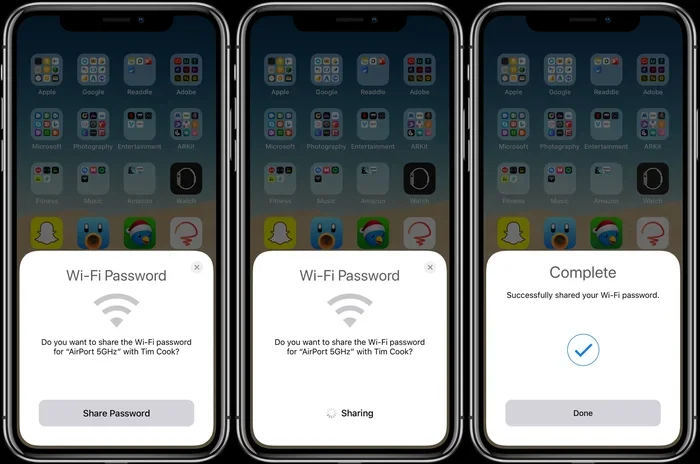
The most common way to share Wi-Fi password on iPhone is through AirDrop. This works when both people have iPhones or Macs. You simply tap “Share Password” when prompted, and the other person gets the Wi-Fi password instantly. No typing required. No mistakes. No hassle.
If you are wondering whether Android users can receive a Wi-Fi password from an iPhone, the answer is a bit more limited. The automatic sharing works best between Apple devices. However, you can still use workarounds like QR codes to share Wi-Fi password on iPhone with any device, including Android phones and Windows laptops.
Why Sharing Wi-Fi Passwords Matters
We live in a connected world. Smart TVs, tablets, gaming consoles, and laptops all need internet access. When guests come over, they want to hop on your Wi-Fi network without making you type out a long, complicated password. Sharing Wi-Fi password on iPhone solves this problem in seconds.
It also matters for productivity. Imagine setting up a new smart home device or a work tablet. You need the Wi-Fi password to get it online. Being able to share Wi-Fi password on iPhone quickly means less downtime and more time doing what matters.
How to Share Wi-Fi Password on iPhone Step by Step
Now let us get into the actual steps. This is the part you have been waiting for. We will break it down into clear, easy-to-follow instructions. Each method works slightly differently, so pick the one that fits your situation best.
Method 1: Using AirDrop to Share Wi-Fi Password
AirDrop is the fastest way to share Wi-Fi password on iPhone. Here is exactly how to do it:
- Make sure both iPhones have Wi-Fi and Bluetooth turned on.
- Open the Settings app on your iPhone.
- Tap on Wi-Fi and find the network you want to share.
- Tap the info icon (the small “i” next to the network name).
- Tap on the password field. A popup will appear asking how you want to share it.
- Choose AirDrop and select the contact you want to send it to.
- The other person will receive a prompt. They just tap “Join” and they are connected.
This method works beautifully when both people are standing close to each other. AirDrop uses Bluetooth to discover nearby devices and Wi-Fi to transfer the data. It is fast, secure, and requires no internet connection to work.
Method 2: Using iCloud Keychain to Retrieve and Share
If you need to find a saved Wi-Fi password on your own iPhone, iCloud Keychain is your best friend. Here is how it works:
- Open the Settings app on your iPhone.
- Go to Passwords.
- You may need to authenticate with Face ID or Touch ID.
- Search for the Wi-Fi network name in the list.
- Tap on the network to reveal the password.
- You can now copy it or share it through any messaging app.
iCloud Keychain keeps your Wi-Fi passwords synced across all your Apple devices. So if you saved a network on your Mac, you can find that same Wi-Fi password on iPhone. This is incredibly handy when you need to share Wi-Fi password on iPhone with someone who is not physically near you.
Method 3: Creating a QR Code for Wi-Fi Sharing
Not everyone has an iPhone. Maybe your friend uses an Android phone, or your guest has a Windows laptop. In these cases, creating a QR code is the best way to share Wi-Fi password on iPhone with any device.
Here is how to do it:
- Open a Wi-Fi QR code generator app or website on your iPhone.
- Enter your network name (SSID), password, and security type (usually WPA2).
- The app will generate a QR code on your screen.
- Show the QR code to the other person.
- They simply scan it with their phone’s camera, and the Wi-Fi password is entered automatically.
Some third-party apps that work well for this include “QR Code Generator” and “Wi-Fi QRCard.” These apps make it super easy to create a scannable code without needing any technical skills. It is one of the most universal ways to share Wi-Fi password on iPhone with devices of any kind.
Method 4: Sharing Through the Passwords App
Apple introduced a dedicated Passwords app in iOS 15 and later. This app centralizes all your saved passwords, including Wi-Fi credentials. Here is how you can use it to share Wi-Fi password on iPhone:
- Open the Passwords app on your iPhone.
- Navigate to the Wi-Fi section.
- Find the network you want to share.
- Tap the three-dot menu or the share icon.
- Choose your sharing method: AirDrop, Messages, Mail, or copy to clipboard.
This method gives you more control over how you share the password. You can send it through a text message or email if AirDrop is not available. It is a great backup option when the other sharing methods do not work.
What You Need Before Sharing Wi-Fi Password on iPhone
Before you start sharing Wi-Fi password on iPhone, there are a few things you need to have ready. Skipping these prerequisites can cause frustration and delays.
Requirements for AirDrop Sharing
- Wi-Fi and Bluetooth must be enabled on both devices. This is non-negotiable for AirDrop to work.
- Both devices must be within close range. AirDrop works best within about 30 feet.
- Both users must be in each other’s contacts. If you do not have someone saved in your contacts, AirDrop may not offer the password-sharing option.
- AirDrop must be set to “Contacts Only” or “Everyone.” You can change this in Control Center by long-pressing the AirDrop icon.
- Both devices should be running a relatively recent version of iOS. Older versions may not support password sharing through AirDrop.
Requirements for QR Code Sharing
- A QR code generator tool. This can be a free app or a website.
- Knowledge of your network name and password. You need to enter these details accurately.
- A screen bright enough to be scanned. Make sure your iPhone display is at a comfortable brightness level.
Requirements for iCloud Keychain Sharing
- iCloud Keychain must be turned on. Go to Settings, tap your name, then iCloud, and make sure Keychain is enabled.
- The Wi-Fi password must already be saved on your device. If you have never connected to that network from this iPhone, it will not appear in Keychain.
Common Problems When Sharing Wi-Fi Password on iPhone
Even though sharing Wi-Fi password on iPhone is designed to be simple, things can go wrong sometimes. Here are the most common issues and how to fix them.
AirDrop Not Working
If AirDrop does not show the password-sharing option, try these fixes:
- Turn Wi-Fi and Bluetooth off and then back on again.
- Make sure both devices are unlocked and on the home screen.
- Check that AirDrop is set to “Contacts Only” or “Everyone” in Control Center.
- Restart both iPhones and try again.
- Make sure both users are saved in each other’s contacts list.
Password Not Showing Up
Sometimes you tap on the Wi-Fi network in Settings and the password field is grayed out or does not appear. This usually happens because:
- The password was never saved to your device in the first place.
- iCloud Keychain is turned off, so saved passwords are not synced.
- You are trying to view a password on a device that was not the one used to join the network.
The fix is straightforward. Go to Settings, then Passwords, and check if the Wi-Fi network is listed there. If it is not, you will need to connect to the network first or ask the network owner for the password directly.
QR Code Not Scanning Properly
If the other person’s phone cannot scan the QR code, try these tips:
- Increase the brightness of your iPhone screen.
- Hold the QR code steady and make sure it fills the camera frame.
- Clean the camera lens on both devices.
- Try a different QR code generator app.
- Make sure the other person’s camera app has permission to scan QR codes.
Tips to Keep Your Wi-Fi Password Secure After Sharing
Sharing Wi-Fi password on iPhone is convenient, but it also means you are giving someone access to your internet connection. Here are some smart steps to keep your network secure.
Change Your Password Regularly
After hosting a gathering or sharing your Wi-Fi with a visitor, consider changing your Wi-Fi password. This prevents anyone from using your network without your knowledge. Most routers let you change the password through a web-based admin panel. Simply log in, find the wireless settings, and update the password.
Use a Guest Network
Many modern routers support a guest network feature. This creates a separate Wi-Fi network for visitors while keeping your main network and devices private. When you share Wi-Fi password on iPhone with a guest, give them the guest network password instead. It is a simple but effective security practice.
Monitor Connected Devices
You can check which devices are connected to your Wi-Fi network through your router’s admin panel. If you see unfamiliar devices, change your password immediately. Some routers also let you block specific devices right from the admin dashboard.
Avoid Sharing Passwords Publicly
Never post your Wi-Fi password on social media or leave it written on a visible note. Keep it private and share it only with people you trust. When you share Wi-Fi password on iPhone, you are sending it through a secure channel, which is much safer than shouting it across a room or writing it on a whiteboard.
Why Sharing Wi-Fi Password on iPhone Is So Easy
Apple has always focused on making technology simple and intuitive. The ability to share Wi-Fi password on iPhone is a perfect example of this philosophy. Instead of making users type long passwords or remember complex strings of characters, Apple built sharing right into the operating system.
The integration between iOS, iCloud Keychain, and AirDrop creates a seamless experience. When you share Wi-Fi password on iPhone, the entire process takes just a few seconds. Both people stay protected because the password transfer happens over an encrypted connection. There is no need for third-party apps, no risk of typos, and no awkward back-and-forth.
With each new iOS update, Apple continues to refine this feature. iOS 17 made the process even smoother by simplifying the sharing interface and reducing the number of steps required. If you have an older iPhone, updating to the latest iOS version can make a big difference in how easily you can share Wi-Fi password on iPhone.
It is also worth noting that this feature works across the Apple ecosystem. You can share Wi-Fi passwords between your iPhone and your iPad, your iPhone and your Mac, or even between two Apple Watches. This cross-device compatibility is one of the biggest advantages of staying within the Apple ecosystem.
Quick Tips for Smooth Wi-Fi Password Sharing
- Always update your iPhone to the latest iOS version before sharing passwords. Newer versions fix bugs and improve performance.
- Restart both devices if the sharing process does not start. A simple reboot can resolve most connection issues.
- Keep your contacts updated. Make sure the person you are sharing with has your name and number saved, and vice versa.
- Use the Passwords app as a backup method if AirDrop fails. It gives you more flexibility in how you send the password.
- Turn off Personal Hotspot temporarily if it is interfering with the Wi-Fi sharing process.
- Be patient with older devices. Devices running older iOS versions may not support all sharing methods.
Expert Insights on Wi-Fi Password Sharing
Cybersecurity experts agree that sharing Wi-Fi passwords through Apple’s built-in tools is one of the safest methods available. Unlike typing passwords into public-facing apps or websites, AirDrop and iCloud Keychain use end-to-end encryption. This means your Wi-Fi password stays private during the transfer.
Network administrators also recommend using a guest network whenever possible. It adds a layer of protection to your main network and limits what guests can access. Even if someone you share Wi-Fi password on iPhone with has good intentions, a guest network ensures they cannot reach your personal files or smart home devices.
Another expert tip is to periodically review your saved passwords. Open the Passwords app on your iPhone and go through the list. Remove any networks you no longer use. This keeps your password library clean and reduces the risk of accidentally sharing outdated or incorrect credentials.
Conclusion
Sharing Wi-Fi password on iPhone is easier than most people think. Whether you use AirDrop, iCloud Keychain, QR codes, or the Passwords app, Apple gives you multiple reliable options. Each method is designed to be fast, secure, and user-friendly. You do not need to be a tech expert to get it done.
Remember the key steps: make sure Wi-Fi and Bluetooth are on, keep your devices updated, and use the sharing method that works best for your situation. If something goes wrong, the troubleshooting tips in this guide should help you get back on track quickly.
Next time someone asks to connect to your Wi-Fi, you will know exactly what to do. Share Wi-Fi password on iPhone with confidence, knowing that your network stays secure and your connections stay strong. Happy sharing!
Frequently Asked Questions
Can I share Wi-Fi password on iPhone with an Android phone?
Yes, you can share Wi-Fi password on iPhone with an Android phone using a QR code. Create a QR code with your network name and password, then show it to the Android user. They scan it with their camera, and the Wi-Fi password is entered automatically. AirDrop only works between Apple devices.
Why can’t I find the share password option when I tap the Wi-Fi network?
This usually happens because AirDrop is not set correctly or the other person is not in your contacts. Make sure AirDrop is set to “Contacts Only” or “Everyone” in Control Center. Also ensure both devices have Wi-Fi and Bluetooth turned on. Restart both phones if the issue persists.
Is sharing Wi-Fi password on iPhone safe?
Yes, it is very safe. Apple uses end-to-end encryption for AirDrop transfers and iCloud Keychain syncing. The password is never sent through an unsecured channel. However, always use a guest network when sharing with visitors to protect your main network and connected devices.
Do both devices need to be on the same Wi-Fi network to share passwords?
No, both devices do not need to be on the same Wi-Fi network. They do need Wi-Fi and Bluetooth turned on, but they can be on different networks. AirDrop uses Bluetooth for discovery and a direct Wi-Fi connection for the transfer, so an internet connection is not required.
Can I share a Wi-Fi password I saved on my iPhone with someone who has never connected to that network?
Yes, you can. If the Wi-Fi password is saved on your iPhone through iCloud Keychain, you can retrieve it and share it with anyone. Open Settings, go to Passwords, find the network, and share it through AirDrop, Messages, or by copying it to your clipboard.
What should I do after sharing my Wi-Fi password with multiple people?
After sharing Wi-Fi password on iPhone with several people, it is a good idea to change your password. This ensures that only people you trust have access. You should also check your router settings to see which devices are connected and remove any that do not belong. Using a guest network is the best long-term solution.