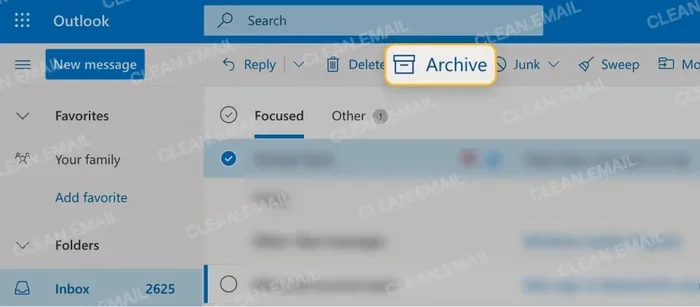
Archive Emails Outlook Access Tips for Everyday Users
Archive Emails Outlook Access is simpler than most people think. This guide shows you how to find, manage, and organize your archived emails in just a few clicks. You will learn step-by-step methods for both desktop and web versions of Outlook. We also cover auto-archive setup, common problems, and best practices to keep your inbox clean and fast.
Have you ever needed an old email but could not find it? You are not alone. Many people struggle with Archive Emails Outlook Access every single day. The good news is that accessing your archived emails is much easier than it seems. In this guide, we will walk you through everything you need to know. You will learn how to find your archived emails in Outlook desktop and Outlook web. We will also show you how to set up auto-archive and avoid common mistakes. By the end, you will feel confident managing your Outlook mailbox like a pro.
Email management is a skill everyone needs today. The average worker receives over 100 emails per day. Without proper email organization, your inbox becomes a messy mess. That is where archiving comes in. Archiving moves old emails out of your main inbox but keeps them safe. This frees up space and helps your Outlook mailbox run faster. Let us dive into the world of archive emails Outlook Access and make your life easier.
Key Takeaways
- Easy Access: You can reach archived emails in Outlook desktop, Outlook web, and mobile with just a few simple steps.
- Auto-Archive Saves Time: Setting up auto-archive keeps your mailbox lean without manual effort every day.
- Common Problems Have Fixes: Missing archived emails or slow performance can usually be solved quickly with the right steps.
- Organization Matters: Using folders, labels, and archive policies helps you find any email fast.
- Security Is Key: Keep your archive secure by managing retention settings and backing up your PST file.
- Works for Everyone: Whether you use Outlook desktop or Outlook web, the archive tools are built right in.
📑 Table of Contents
- What Is Archive Emails Outlook Access and Why It Matters
- How to Access Archived Emails in Outlook Desktop
- Accessing Archived Emails in Outlook on the Web
- Setting Up Auto-Archive for Better Email Management
- Common Problems When Accessing Archived Emails
- Best Practices for Managing Your Outlook Archive
- Conclusion
What Is Archive Emails Outlook Access and Why It Matters
Before we get into the how-to, let us understand what archiving really means. Many people confuse archiving with deleting. But they are very different. When you delete an email, it goes to the trash and disappears after a while. When you archive an email, it moves to a separate folder called the archive folder. The email stays there safely until you need it again.
Understanding the Basics of Archiving
Archiving is like putting old papers into a filing cabinet. You are not throwing them away. You are just moving them out of your desk drawer. In Outlook, the archive folder works the same way. It stores emails you do not need every day but might need later. This is especially helpful for people who keep years of email conversations.
The Outlook mailbox has a size limit. When you hit that limit, things slow down. Archiving helps you stay under that limit. It also makes your email search faster because Outlook does not have to scan as many active messages. Think of it as decluttering your digital workspace.
Why Everyday Users Should Care
You might think archiving is only for business professionals. That is not true. Anyone who uses email benefits from it. Here are a few reasons why archive emails Outlook Access matters for everyday users:
- Faster inbox performance: A lighter mailbox loads quicker and runs smoother.
- Easy email retrieval: Old emails are still searchable even after archiving.
- Better email management: You keep your inbox focused on current messages.
- More storage space: Freeing up room means fewer storage warnings.
- Peace of mind: Important emails are safe and not lost in a crowded inbox.
Now that you understand why archiving is important, let us look at how to actually do it. The next section will show you exactly how to access your archived emails in Outlook desktop.
How to Access Archived Emails in Outlook Desktop
Accessing archived emails on the Outlook desktop app is straightforward once you know where to look. Many users do not even realize the archive folder exists because it is hidden by default. Let us change that right now.
Step-by-Step Guide for Windows Users
Follow these simple steps to find your archived emails on a Windows computer:
- Open the Outlook desktop app on your computer.
- Look at the left-hand panel. This is your navigation pane.
- Scroll down until you see the archive folder or “Archives” section.
- Click on it to expand the folder.
- You will now see all your archived emails organized by date.
If you do not see the archive folder, do not worry. It might not be set up yet. Go to Outlook settings and check your archive options. We will cover that in a later section. Also, some users store archived emails in a separate PST file. A PST file is a personal storage file that holds your archived data outside your main mailbox.
Finding Archived Emails on Mac
Mac users follow a similar process. Open Outlook for Mac and look at the folder list on the left side. Your archive folder should appear there. If it does not, go to the Outlook menu and select Preferences. Then click on Accounts and look for archive settings. The archive folder may be labeled differently on Mac, but the process is very similar.
Expert Insight: If you use a PST file for archiving, make sure you know where it is stored on your computer. You can access it through the Outlook desktop by going to File and then Open. Choosing the PST file will add it to your folder list. This is a great way to keep old emails separate and organized.
Quick Tips:
- Use the search bar: Type keywords in the search box to find specific archived emails fast.
- Pin the archive folder: Right-click the archive folder and select “Show in Favorites” for quick access.
- Check the navigation pane: The archive folder is always in the left panel under your main inbox.
Accessing Archived Emails in Outlook on the Web
Not everyone uses the Outlook desktop app. Many people prefer Outlook on the web. The good news is that archive emails Outlook Access works just as well in the browser version. Let us walk through it.
Navigating the Online Interface
To access your archived emails on Outlook web, follow these steps:
- Go to outlook.office.com and sign in to your account.
- On the left side, you will see your folder list.
- Look for the “Archive” folder or “Inbox” section.
- Click on the archive folder to open it.
- Your archived emails will appear in the main window.
The online archive in Outlook web may look slightly different depending on your account type. Some users have a dedicated “Archive” section. Others find archived emails under a folder called “All Mail” or within their main inbox structure. It depends on how your email administrator set up your account.
Tips for Faster Email Retrieval Online
Searching for old emails online can sometimes feel slow. Here are a few tips to speed things up:
- Use specific keywords: Instead of searching “meeting,” try “Q3 budget meeting.”
- Filter by date: Use the date filter to narrow down search results quickly.
- Use the search bar wisely: Click the search bar and use the filters that appear above it.
- Check folder filters: Make sure you are searching within the right folder, not just the inbox.
These small tips make a big difference when you are looking for a specific email in your archive folder. The email search tool in Outlook web is powerful, but you need to use it correctly to get the best results.
Quick Tip: Bookmark your archive folder in Outlook web for even faster access next time. Right-click the folder and choose “Pin to Favorites.”
Setting Up Auto-Archive for Better Email Management
Manually archiving emails takes time. That is why Outlook offers an auto-archive feature. Auto-archive automatically moves old emails to your archive folder based on rules you set. This is a game-changer for email management.
Configuring Auto-Archive Settings
Here is how to set up auto-archive in Outlook desktop:
- Click on File and then Options.
- Select the Advanced tab.
- Look for the AutoArchive section and click “AutoArchive Settings.”
- Check the box that says “Run AutoArchive every.”
- Set the frequency. Every 14 days is a good starting point.
- Choose how old emails should be before they move to the archive. Six months is a popular choice.
- Click OK to save your settings.
Once auto-archive is set up, Outlook will handle the work for you. You do not need to think about it anymore. Your Outlook mailbox stays clean and organized automatically. This is one of the best ways to maintain good email organization habits.
Customizing Your Archive Schedule
Not everyone needs the same auto-archive schedule. Here are some options to consider:
- Every 7 days: Great for people who receive a lot of emails daily.
- Every 30 days: Good for moderate email users who want less frequent archiving.
- Move emails older than 3 months: Ideal for keeping recent emails accessible.
- Move emails older than 12 months: Best for people who rarely need old emails.
You can also set different rules for different folders. For example, you might want your inbox auto-archived every 14 days but your sent folder every 30 days. This level of customization gives you full control over your email storage and mailbox size.
Common Problems When Accessing Archived Emails
Even with the best setup, problems can happen. Let us look at the most common issues people face with archive emails Outlook Access and how to fix them.
Missing Archived Emails
This is the most common complaint. You archived an email, but now you cannot find it. Before you panic, try these steps:
- Check the archive folder: Make sure you are looking in the right place.
- Use the search bar: Search for the email by keyword or sender name.
- Check your PST file: If you use a PST file, make sure it is still connected to Outlook.
- Look in the “All Mail” folder: Some versions of Outlook put archived emails here.
Sometimes emails get archived to a different location than expected. This usually happens when the auto-archive settings are not configured correctly. Double-check your archive policy to make sure it matches your preferences.
Slow Performance When Opening Archive Folders
If your archive folder takes forever to load, your mailbox size might be the culprit. Large archives slow down Outlook. Here is what you can do:
- Compact your PST file: Go to File, then Account Settings, and compact your data file.
- Reduce the archive age: Move older emails to a secondary PST file stored on an external drive.
- Check your internet speed: If you use Outlook web, a slow connection affects folder loading.
- Repair your Outlook profile: Go to Control Panel and use the Mail app to repair your profile.
These fixes usually resolve performance issues quickly. A well-maintained Outlook mailbox should open the archive folder in seconds.
Common Mistakes: Many users accidentally delete archived emails thinking they are unimportant. Always double-check before deleting anything from your archive folder. Also, never move your PST file to a different location without updating Outlook. This can break the link to your archived emails.
Best Practices for Managing Your Outlook Archive
Now that you know how to access and set up archiving, let us talk about best practices. These tips will help you get the most out of your Outlook archive and keep everything running smoothly.
Organizing Archived Folders
A messy archive is just as bad as a messy inbox. Here is how to keep your archive organized:
- Create subfolders: Make folders for projects, clients, or topics within your archive.
- Use consistent naming: Name folders clearly so you know what is inside.
- Review your archive quarterly: Go through old emails every few months and delete what you no longer need.
- Use categories and tags: Color-code emails for quick visual identification.
Good email organization in your archive saves you time when you need to find something later. It also keeps your Outlook mailbox running at peak performance.
Keeping Your Archive Secure
Your archived emails contain sensitive information. Keeping them secure should be a priority. Here are some tips:
- Back up your PST file regularly: Store it in a safe location like an external hard drive or cloud storage.
- Set strong passwords: Protect your Outlook profile with a strong, unique password.
- Review your email retention policy: Make sure your company or personal settings align with your needs.
- Keep Outlook updated: Updates often include security patches that protect your archived data.
A secure archive means your important emails are safe from loss or unauthorized access. This is especially important for email retention compliance in professional settings.
Expert Insight: According to Outlook experts, the best practice is to keep your active inbox under 500 MB. This ensures fast performance and easy archive emails Outlook Access at all times. If your inbox grows beyond that, consider archiving more frequently or expanding your storage plan.
Comparison: Outlook Desktop vs. Outlook Web Archive Access
| Feature | Outlook Desktop | Outlook Web |
|---|---|---|
| Archive folder visibility | Always visible in navigation pane | Visible in folder list on the left |
| Auto-archive setup | Full control with custom settings | Limited; depends on admin settings |
| PST file support | Yes, full support | No, web-only storage |
| Search speed | Fast for local archives | Depends on internet connection |
| Offline access | Yes, if data is downloaded | No, requires internet |
Both versions offer solid archive emails Outlook Access capabilities. Choose the one that fits your workflow and needs best.
Conclusion
Archive Emails Outlook Access does not have to be complicated. With the right knowledge, you can find any archived email in seconds. We covered how to access your archive in both Outlook desktop and Outlook web. You also learned how to set up auto-archive, troubleshoot common problems, and follow best practices for email management.
Remember, archiving is not just about freeing up space. It is about keeping your digital life organized and your Outlook mailbox running smoothly. Take a few minutes today to check your archive settings and organize your archive folder. Small steps lead to big improvements in your daily email workflow.
Start applying these tips now. Your future self will thank you when you need that important old email and find it instantly. Happy archiving!
Frequently Asked Questions
How do I find archived emails in Outlook desktop?
Open Outlook and look at the left navigation pane. Scroll down to find the archive folder or “Archives” section. Click on it to view all your archived emails. If you do not see it, check your Outlook settings to make sure archiving is enabled.
Can I access my Outlook archive from my phone?
Yes, you can access archived emails on the Outlook mobile app. Open the app, tap the menu icon, and look for the archive folder in your folder list. The archive emails Outlook Access process on mobile is similar to the desktop version.
What is the difference between archiving and deleting emails?
Archiving moves an email to a separate folder where it stays safe and searchable. Deleting sends it to the trash, where it is permanently removed after a set period. Archiving is the better choice if you want to keep emails for future reference.
How often should I run auto-archive in Outlook?
Every 14 days is a good default for most users. However, you can adjust this based on your email volume. Heavy email users might benefit from running auto-archive every 7 days. Light users can stretch it to every 30 days.
Why can I not see my archive folder in Outlook?
This usually happens if auto-archive is not enabled or if your archive folder has not been created yet. Go to File, then Options, then Advanced, and click AutoArchive Settings. Make sure the feature is turned on. Once enabled, the folder should appear in your navigation pane.
Is my archived email data safe and secure?
Yes, archived emails in Outlook are stored securely in your mailbox or a local PST file. To keep them safe, back up your PST file regularly, use strong passwords, and keep Outlook updated. Following these steps ensures your email retention and data security remain intact.