Can Unlocked Iphones Be Updated to the Latest iOS Software
Yes, unlocked iPhones can absolutely be updated to the latest iOS software. An unlocked phone gives you full control over updates without waiting for carrier approval. You can download and install updates directly from Apple whenever a new version drops.
If you own an unlocked iPhone, you probably have one big question on your mind. Can you update it to the latest iOS software? The short answer is yes. But the full story is a lot more interesting and helpful than a simple yes or no.
When you buy a phone that is unlocked, it means it is not tied to any single carrier. You can use it with any network you choose. This freedom also applies to software updates. Apple sends iOS updates straight to all compatible devices. No carrier gets in the way. No extra waiting period. You get the same update experience as someone with a locked phone.
In this guide, we will walk you through everything you need to know about updating an unlocked iPhone. We will cover how updates work, step-by-step instructions, common problems, and tips to keep your device running smoothly. Whether you have an older model or the newest iPhone, this article has you covered.
Let us dive right in and make sure your unlocked iPhone is always running the best version of iOS possible.
Key Takeaways
- Unlocked iPhones receive updates directly from Apple: No carrier delays or restrictions hold you back.
- All unlocked iPhone models support updates: From older models to the newest devices, Apple pushes updates to all compatible phones.
- The update process is simple and free: Just go to Settings, tap General, and select Software Update.
- Backing up your phone first is essential: This protects your data if anything goes wrong during the update.
- Common issues like low storage or weak Wi-Fi can block updates: Knowing how to fix them saves time and frustration.
- Unlocked phones get updates faster: They don’t need carrier approval, so you get new features sooner.
📑 Table of Contents
- What Does It Mean to Have an Unlocked iPhone?
- How to Check If Your iPhone Can Receive Updates
- Step-by-Step Guide to Updating an Unlocked iPhone
- Common Problems When Updating an Unlocked iPhone
- Tips to Keep Your Unlocked iPhone Running Smoothly
- What to Do If Your iPhone Won’t Update
- Frequently Asked Questions
- Final Thoughts
What Does It Mean to Have an Unlocked iPhone?
Before we talk about updates, let us quickly cover what an unlocked iPhone actually is. Many people buy phones through carriers like AT&T, Verizon, or T-Mobile. These phones are locked to that specific network. You cannot switch carriers without unlocking the device first.
An unlocked iPhone is free from this restriction. You can pop in a SIM card from any carrier and start using it right away. People unlock their phones for many reasons. Some travel internationally and want to use local SIM cards. Others simply prefer the freedom to switch plans whenever they want.
Here is the good news. Unlocking your iPhone does not affect its ability to receive software updates. Apple treats all iPhones the same way when it comes to iOS updates. The lock status of your phone does not matter to Apple’s update system. Your device gets the same features and security patches as any other iPhone.
Why Unlocked Phones Get Updates Faster
One big advantage of having an unlocked iPhone is speed. When Apple releases a new iOS update, it goes through a staged rollout. This means updates reach devices in waves over several days or even weeks.
For locked phones, there is an extra step. The carrier must first test and approve the update before it reaches your device. This can add days or even weeks to the process. With an unlocked phone, you skip this step entirely. You can download the update as soon as it becomes available to your region.
This also applies to beta versions. If you want to try out early builds of iOS, an unlocked phone makes the process much simpler. You can enroll in Apple’s beta program without any carrier interference.
How to Check If Your iPhone Can Receive Updates
Not every iPhone can run every version of iOS. Apple supports its devices for several years, but older models eventually fall behind. Before you try to update, it is smart to check if your phone is compatible with the latest software update.
Finding Your iPhone Model
First, you need to know which iPhone model you have. Here is how to find out:
- Open the Settings app on your phone.
- Tap on General.
- Select About.
- Look for the Model Name or Model Number.
You will see something like “iPhone 14 Pro” or “iPhone SE (2nd generation).” Write this down. Now you can check if this model supports the latest iOS version.
Checking iOS Compatibility
Apple lists which iPhone models support each new version of iOS. You can check Apple’s official website for this information. Simply search for the latest iOS version and look at the supported devices list.
Here is a quick reference for recent updates:
- iOS 17 supports iPhone XR and newer models.
- iOS 16 supports iPhone XS and newer models.
- iOS 15 supports iPhone 8 and newer models.
If your unlocked iPhone is on this list, you are good to go. If it is not, you will stay on your current version of iOS and continue receiving security updates for a while.
Step-by-Step Guide to Updating an Unlocked iPhone
Updating your unlocked iPhone is a straightforward process. Apple designed it to be simple so anyone can do it. Follow these steps carefully to make sure your update goes smoothly.
Step 1: Back Up Your iPhone
This is the most important step. Always back up your phone before installing any software update. A backup protects your photos, messages, apps, and settings. If anything goes wrong during the update, you can restore everything.
You can back up your phone in two ways:
- iCloud Backup: Go to Settings, tap your name, select iCloud, and choose iCloud Backup. Tap Back Up Now.
- Computer Backup: Connect your phone to a Mac or PC. Open Finder (on Mac) or iTunes (on Windows). Select your device and click Back Up Now.
Both methods work great. iCloud is convenient because it happens automatically. A computer backup gives you a local copy that you can control.
Step 2: Connect to Wi-Fi
iOS updates are large files. They can be several gigabytes in size. You need a stable Wi-Fi connection to download them. Using cellular data for an update is not recommended and may not even be allowed by Apple.
Make sure your Wi-Fi signal is strong. A weak connection can interrupt the download and cause problems with the update process.
Step 3: Charge Your Phone
Your phone needs enough battery to complete the update. Apple recommends at least 50% battery or plugging in your phone. The update process can take 20 minutes to over an hour depending on the size of the update.
If your phone dies during the update, it could cause serious problems. So plug it in and let it charge before you start.
Step 4: Download and Install the Update
Now comes the fun part. Here is exactly what to do:
- Open the Settings app.
- Tap General.
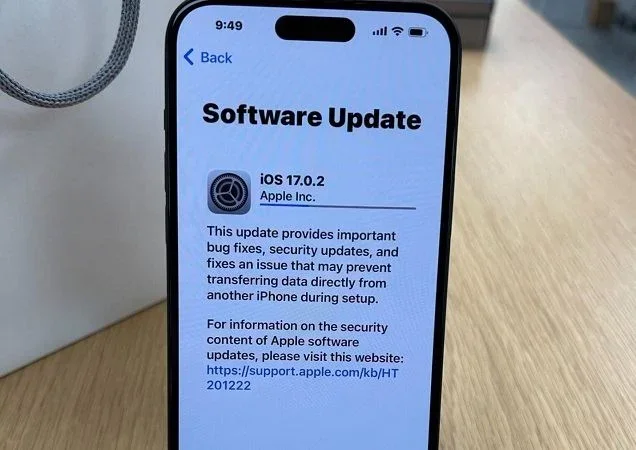
- Select Software Update.
- Your phone will check for available updates.
- If an update is available, tap Download and Install.
- Enter your passcode if prompted.
- Agree to the terms and conditions.
- Wait for the download to complete.
- Tap Install Now to restart and install.
Your phone will restart during the installation. This is normal. Do not turn off your phone or disconnect it from power during this time. The update process needs uninterrupted time to complete.
Step 5: Set Up Your Phone After the Update
Once the update finishes, your phone will restart. You may see a setup screen. Follow the on-screen instructions. Your apps, photos, and data should all still be there thanks to your backup.
Go to Settings and check that your iPhone model is now running the latest version of iOS. You did it!
Common Problems When Updating an Unlocked iPhone
Even though updating an unlocked iPhone is usually smooth, sometimes problems pop up. Knowing what can go wrong helps you fix it fast.
Not Enough Storage Space
The most common reason an update fails is low storage. iOS updates need several gigabytes of free space. If your phone is full, the download will not complete.
Here is how to free up space:
- Delete apps you no longer use.
- Offload large photos and videos to iCloud or a computer.
- Clear out old messages and attachments.
- Remove unused files from the Files app.
Apple recommends keeping at least 5GB of free space before updating. This gives the system room to work properly.
Weak or Unstable Wi-Fi Connection
A spotty Wi-Fi connection can interrupt your software update. The download may fail halfway through, leaving your phone in an awkward state.
To fix this, move closer to your router. Turn your Wi-Fi off and back on. Or restart your router if needed. A strong, stable connection makes all the difference.
Update Stuck on Preparing Update
Sometimes your phone gets stuck on the “Preparing Update” screen. This can be scary, but it usually resolves itself. The phone is unpacking files and preparing the installation. Give it 10 to 15 minutes before panicking.
If it stays stuck for over an hour, try a force restart. The method depends on your iPhone model. For newer phones, press and release the volume up button, then the volume down button, then hold the side button until the Apple logo appears.
Update Fails with Error Message
Error messages during an update can mean different things. Here are the most common ones:
- “Not Enough Storage”: Free up space and try again.
- “Network Error”: Check your Wi-Fi connection and try again.
- “Unable to Check for Update”: Restart your phone and check for the update again.
- “Failed to Install”: Try downloading the update again or use a computer with Finder or iTunes.
Most errors are easy to fix. If you cannot resolve the issue, contact Apple Support for help. They can walk you through troubleshooting steps specific to your device.
Tips to Keep Your Unlocked iPhone Running Smoothly
Once you have successfully updated your unlocked iPhone, you want to keep it running well. Here are some practical tips that help.
Enable Automatic Updates
Apple has a feature that lets your phone update automatically. This ensures you always have the latest iOS software without lifting a finger.
Here is how to turn it on:
- Go to Settings.
- Tap General.
- Select Software Update.
- Tap Automatic Updates.
- Turn on Download iOS Updates and Install iOS Updates.
With this enabled, your phone will download updates overnight when it is charging and connected to Wi-Fi. You just approve the installation when prompted.
Keep Enough Free Storage
Regular maintenance keeps your phone healthy. Make a habit of clearing out unnecessary files every few weeks. Check your storage by going to Settings, then General, then iPhone Storage.
This screen shows you exactly what is taking up space. You can make smart decisions about what to keep and what to remove.
Stay on Top of Security Updates
Not all iOS updates bring flashy new features. Some are purely security patches. These updates fix vulnerabilities that could put your personal data at risk.
Even if you love your current version of iOS, install security updates as soon as they become available. They are small, quick, and essential for protecting your phone.
Use a Reliable Power Source
When you install updates, make sure your phone is plugged into a power source. A power outage or dead battery during an update can cause serious issues. Use a wall charger rather than a computer USB port for the most reliable power supply.
What to Do If Your iPhone Won’t Update
Sometimes, despite your best efforts, your unlocked iPhone refuses to update. Do not panic. There are several things you can try before giving up.
Force Restart Your Phone
A simple restart can fix many software glitches. A force restart is even more powerful. It clears temporary files and resets the system without deleting your data.
The method varies by iPhone model, but the general process is the same. You press and release specific buttons in a sequence, then hold the side button until the Apple logo appears.
Try Updating Through a Computer
If over-the-air updates keep failing, connect your phone to a computer. Open Finder on a Mac or iTunes on a Windows PC. Your phone should appear in the sidebar.
Click on your device and look for a button that says Check for Update or Update. This method often works when the phone’s own update system is having trouble.
Reset All Settings
This is a more drastic step, but it can solve stubborn update problems. Resetting all settings does not delete your photos or data. It simply resets your network settings, keyboard dictionary, and other system preferences to their defaults.
Go to Settings, tap General, select Transfer or Reset iPhone, and choose Reset All Settings. You will need to re-enter your Wi-Fi password after this, but it often fixes update-related issues.
Contact Apple Support
If nothing else works, reach out to Apple Support. You can chat with them online, call them, or visit an Apple Store. Their technicians are trained to handle even the trickiest update problems.
Have your iPhone model number and the exact error message ready. This helps them diagnose the issue faster and get your phone updated.
Frequently Asked Questions
Can I update my unlocked iPhone without Wi-Fi?
No, Apple requires a Wi-Fi connection to download and install iOS updates. The files are too large for cellular data. Make sure you have a stable Wi-Fi connection before starting the update process.
Do unlocked iPhones get updates before locked iPhones?
Often, yes. Since unlocked phones do not need carrier approval, they can receive iOS updates as soon as Apple releases them. Locked phones may wait for their carrier to test and approve the update first.
Will updating my unlocked iPhone erase my data?
No, a normal software update does not erase your data. However, it is always smart to back up your phone before updating. A backup ensures your photos, messages, and apps are safe no matter what happens.
How long does it take to update an unlocked iPhone?
The download usually takes 5 to 15 minutes depending on your Wi-Fi speed. The installation and setup can take another 10 to 30 minutes. Total time is typically around 20 to 45 minutes.
Can I go back to a previous version of iOS after updating?
No, Apple does not allow you to downgrade to an older version of iOS after installing a newer one. Once the update is installed, you are on that version. This is why backing up before updating is so important.
Are unlocked iPhones eligible for the latest iOS version?
Yes, all unlocked iPhone models that are compatible with a given version of iOS can receive that update. Apple does not restrict updates based on lock status. If your phone is on the supported list, you can update it.
Final Thoughts
The answer to the question “can unlocked iPhones be updated” is a clear and confident yes. Your unlocked iPhone gives you the freedom to update whenever you want, without waiting for carrier approval. You get the latest features, security patches, and performance improvements the moment Apple releases them.
Updating your phone is one of the simplest and most important things you can do. It keeps your device secure, fast, and full of new features. Whether you are updating to the latest iOS software or just installing a routine security patch, the process is easy and straightforward.
Remember to back up your phone, connect to Wi-Fi, and keep your battery charged before every update. If you run into problems, the fixes are usually simple and quick. And if all else fails, Apple Support is always there to help.
Take control of your unlocked iPhone today. Check for your next software update and enjoy the latest iOS experience. Your phone will thank you for it.