Can I See My Passwords On Safari And How To Find Them
Yes, you can see your passwords on Safari across all Apple devices. Whether you use a Mac, iPhone, or iPad, Safari stores your login credentials securely and lets you view them with just a few taps. This guide walks you through every method to find, view, and manage your saved passwords in Safari, plus tips to keep your accounts safe.
Have you ever opened Safari on your Mac or iPhone and wondered where all your saved passwords went? Maybe you need to log into a website on a new device and cannot remember your password. Or perhaps you just want to double-check what credentials Safari has stored for you. Whatever the reason, seeing your passwords on Safari is straightforward once you know where to look.
Safari is Apple’s built-in web browser, and it comes with a powerful password management system. This system is called iCloud Keychain, and it works across all your Apple devices. It saves your usernames, passwords, and even credit card details so you can fill them in automatically when needed. But sometimes, you need to actually see what is stored. That is where this guide comes in.
In this article, we will cover every way you can view your saved passwords in Safari. We will walk you through the steps for Mac, iPhone, and iPad. We will also look at how to manage those passwords, keep them secure, and fix common issues. By the end, you will feel confident navigating Safari’s password tools like a pro.
Key Takeaways
- Safari stores passwords locally and in iCloud: You can view saved login credentials on Mac, iPhone, and iPad using built-in tools.
- iCloud Keychain syncs passwords across all Apple devices: This means you can see the same passwords on every device signed into your Apple ID.
- Viewing passwords requires authentication: You will need your Mac password, Face ID, or Touch ID to reveal saved credentials.
- Keychain Access on Mac gives advanced control: This built-in app lets you manage and view all stored passwords in detail.
- You can edit, delete, and add passwords directly in Safari: No third-party tools are needed for basic password management.
- Security features like Password Monitoring help protect you: Safari can alert you if your passwords appear in known data breaches.
- Autofill settings control how Safari handles your credentials: You can turn password saving on or off at any time.
📑 Table of Contents
- Understanding How Safari Stores Your Passwords
- How to See Your Passwords on Safari on Mac
- How to See Your Passwords on Safari on iPhone and iPad
- Managing and Editing Your Saved Passwords
- Security Tips for Protecting Your Safari Passwords
- Troubleshooting Common Password Issues in Safari
- Comparing Safari Password Management With Other Browsers
- When to Use a Third-Party Password Manager With Safari
- Conclusion
Understanding How Safari Stores Your Passwords
Before we dive into the “how,” let us quickly understand the “where.” Safari does not just stash your passwords in some hidden folder. It uses a dedicated system designed by Apple to keep your credentials safe. Understanding this system helps you make the most of it.
What Is iCloud Keychain?
iCloud Keychain is Apple’s built-in password manager. It lives across all your Apple devices and syncs your saved credentials through your iCloud account. When you save a password in Safari, it gets stored both locally on that device and in iCloud. This means you can pull up the same password on your Mac, iPhone, or iPad.
The key benefit of iCloud Keychain is that it uses end-to-end encryption. This means only you can read your saved passwords. Apple cannot access them, and neither can anyone else. Your data stays private and secure while still being available whenever you need it.
How Safari Saves Your Login Credentials
When you log into a website using Safari, the browser asks if you want to save the password. If you click “Yes,” Safari stores the username and password combination. It also remembers the website URL so it can autofill the details the next time you visit that site.
Safari uses your device passcode, Face ID, or Touch ID to protect these stored credentials. You cannot simply open a list and read every password without verifying your identity first. This is a good thing. It means that even if someone gets hold of your device, they cannot easily access your saved logins.
How to See Your Passwords on Safari on Mac
If you use a Mac, you have several ways to view your saved Safari passwords. Let us go through each method step by step.
Using Safari Preferences to View Saved Passwords
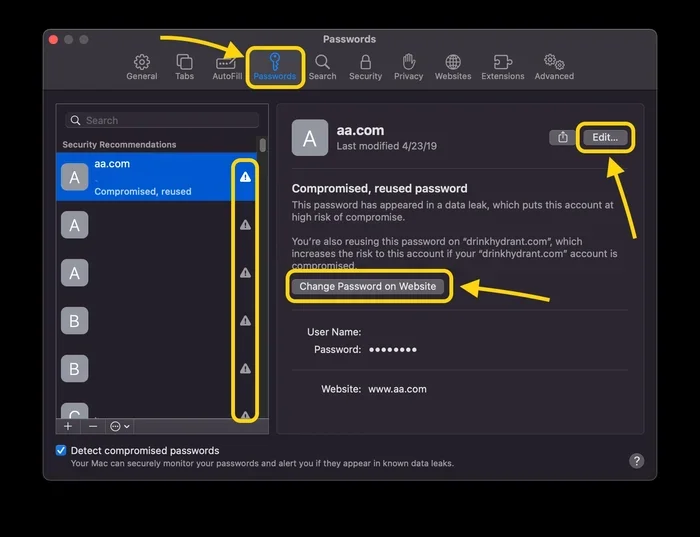
This is the easiest and most common way to find your passwords in Safari on Mac. Here is how to do it:
- Open Safari on your Mac.
- Click “Safari” in the top menu bar.
- Select “Preferences” or “Settings” (the name changes depending on your macOS version).
- Click on the “Passwords” tab.
- You will see a list of websites for which you have saved credentials.
- Click on any website to reveal the username and password.
When you click on a saved entry, Safari will ask you to authenticate. You can use your Mac password, Touch ID, or Face ID to confirm. Once verified, the password will appear in plain text so you can read or copy it.
Quick Tip: If you have a lot of saved passwords, use the search bar at the top of the Passwords window. Type in the name of the website to quickly find the specific entry you need.
Using Keychain Access on Mac
For more advanced users, Keychain Access is a powerful built-in Mac app that stores all kinds of sensitive data. It includes passwords, secure notes, and certificates. You can use it to view Safari passwords in a more detailed interface.
Here is how to open Keychain Access:
- Open “Finder” on your Mac.
- Go to the “Applications” folder.
- Open the “Utilities” folder.
- Double-click “Keychain Access.”
- In the search bar, type the name of the website or service.
- Double-click the entry you want to view.
- Check the box that says “Show password.”
- Enter your Mac password to confirm.
Keychain Access gives you more control over individual password entries. You can view notes, update passwords, and even see when a password was last modified. It is a great tool for managing your browser password security on a deeper level.
How to See Your Passwords on Safari on iPhone and iPad
If you use an iPhone or iPad, the process is a bit different but just as simple. Apple has designed the mobile experience to be clean and intuitive.
Using the Settings App on iPhone and iPad
This is the primary way to view Safari passwords on your iOS device:
- Open the “Settings” app on your iPhone or iPad.
- Scroll down and tap “Passwords.”
- You may need to authenticate with Face ID, Touch ID, or your device passcode.
- You will see a list of all saved passwords sorted by website.
- Tap on any entry to view the username, password, and website.
- Tap “Password” and then authenticate again to reveal the actual password.
From this screen, you can also tap “Edit” to change or delete a saved password. You can copy the password to your clipboard with a single tap, which is handy when logging into a site on another device.
Using Safari Settings Directly
You can also access your saved passwords directly from within Safari on your iPhone or iPad:
- Open Safari.
- Tap the “Aa” icon or the profile icon in the address bar.
- Tap “Passwords.”
- Authenticate with Face ID, Touch ID, or your passcode.
- Browse the list or search for a specific site.
This method is quick and convenient when you are already browsing the web. It saves you from switching apps just to check a saved password.
Managing and Editing Your Saved Passwords
Viewing your passwords is only half the story. You also need to know how to manage them. Safari gives you the tools to edit, delete, and add passwords right from the browser.
Adding New Passwords to Safari
When you create a new account or change a password on a website, Safari can save the new credentials automatically. Just make sure the Autofill feature is turned on. Here is how:
- On Mac: Go to Safari > Preferences > AutoFill. Check the boxes for “Usernames and passwords” and other details you want Safari to remember.
- On iPhone/iPad: Go to Settings > Safari > AutoFill. Turn on “Use Contact Info” and “Names and Passwords.”
When Safari detects a new password, it will prompt you to save it. Simply tap “Save” or “Yes,” and the credentials are stored in iCloud Keychain.
Deleting or Updating Stored Passwords
Sometimes you need to remove an old password or update a saved one. Here is how to do it on each device:
On Mac:
- Open Safari > Preferences > Passwords.
- Select the website entry you want to change.
- Click “Edit” to update the password or “Remove” to delete it.
On iPhone/iPad:
- Open Settings > Passwords.
- Find the entry you want to modify.
- Tap “Edit” to change the password or swipe left and tap “Delete” to remove it.
Quick Tip: It is a good habit to review your saved passwords every few months. Delete any entries for sites you no longer use. Update passwords for accounts that may have been compromised.
Enabling Password Monitoring in Safari
Apple added a password monitoring feature that alerts you if any of your saved passwords appear in known data breaches. This is one of the best things you can do to protect your online accounts.
On Mac:
- Go to Safari > Preferences > Passwords.
- Look for the “Passwords” section and click “Open Password Recommendations.”
- Safari will show you any compromised passwords and suggest stronger alternatives.
On iPhone and iPad:
- Go to Settings > Passwords.
- Look for “Password Recommendations” near the top.
- Tap it to see any weak or compromised passwords.
This feature works silently in the background. It checks your saved credentials against databases of known breaches and notifies you if any of your passwords have been exposed.
Security Tips for Protecting Your Safari Passwords
Now that you know how to find and manage your passwords, let us talk about keeping them safe. Browser password security matters a lot, especially with rising cyber threats.
Use a Strong Device Passcode
Your Safari passwords are only as secure as your device lock. If someone can unlock your phone or Mac, they can access your saved credentials. Use a strong passcode with at least six digits. Better yet, use a custom alphanumeric code that is harder to guess.
Enable Two-Factor Authentication on Your Apple ID
Two-factor authentication adds an extra layer of protection to your Apple ID. Even if someone gets your password, they cannot access your iCloud Keychain without a second verification step. Go to Settings > [Your Name] > Password & Security to turn this on.
Keep Your Devices Updated
Apple regularly releases updates that patch security vulnerabilities. Make sure your Mac, iPhone, and iPad are running the latest version of their operating systems. These updates often include improvements to how iCloud Keychain protects your data.
Be Careful on Shared or Public Devices
Avoid saving passwords on devices you share with others. If you must use a public computer, do not let Safari save your login details. Always log out and clear your browsing data when you are done.
Troubleshooting Common Password Issues in Safari
Sometimes things do not work as expected. Here are solutions to the most common problems people face when trying to view or use their saved passwords in Safari.
Passwords Not Syncing Across Devices
If your passwords show up on your Mac but not on your iPhone, or vice versa, the most common cause is a sync issue with iCloud Keychain. Here is what to check:
- Make sure you are signed into the same Apple ID on all devices.
- Go to Settings > [Your Name] > iCloud on your iPhone or iPad.
- Make sure “Keychain” is turned on.
- On your Mac, go to System Settings > Apple ID > iCloud and check that “Keychain” is enabled.
- Wait a few minutes for the sync to complete.
If the issue persists, try toggling iCloud Keychain off and back on. This often forces a fresh sync and resolves the problem.
Safari Not Autofilling Saved Passwords
If Safari is not filling in your saved passwords automatically, the autofill settings may be turned off. Here is how to check:
- On Mac: Go to Safari > Preferences > AutoFill. Make sure “User names and passwords” is checked.
- On iPhone/iPad: Go to Settings > Safari > AutoFill. Turn on “Names and Passwords.”
Also, make sure that the website you are visiting supports autofill. Some sites use custom login forms that Safari cannot recognize. In those cases, you may need to paste the password manually.
Forgotten Mac Password Blocks Access to Keychain
If you cannot view passwords in Keychain Access because you forgot your Mac password, you have a few options:
- If you have an Apple ID linked to your Mac, you may be able to reset it through Apple’s account recovery process.
- If you have a Time Machine backup, you might be able to restore your keychain.
- Contact Apple Support for guided help with keychain recovery.
To avoid this situation in the future, make sure your Apple ID recovery options are up to date. Keep your recovery key in a safe place.
Comparing Safari Password Management With Other Browsers
Safari is not the only browser that saves passwords. Let us quickly compare how Safari stacks up against other popular browsers.
| Feature | Safari | Chrome | Firefox |
|---|---|---|---|
| Built-in Password Manager | Yes (iCloud Keychain) | Yes (Google Password Manager) | Yes (Firefox Lockwise) |
| Cross-Platform Sync | Apple devices only | All platforms | All platforms |
| Password Monitoring | Yes | Yes | Yes |
| Autofill Support | Yes | Yes | Yes |
| Third-Party Password Manager Support | Yes | Yes | Yes |
| Encryption | End-to-end | Encrypted | End-to-end |
As you can see, Safari offers solid password management features within the Apple ecosystem. However, it does not sync to Windows or Android devices. If you use multiple platforms, you might want to consider a cross-platform password manager like 1Password, Bitwarden, or Dashlane alongside Safari.
When to Use a Third-Party Password Manager With Safari
While Safari’s built-in tools work well for Apple users, there are times when a third-party password manager makes sense. If you share devices with people who use different platforms, or if you need advanced features like secure sharing or password generation across all browsers, a dedicated tool can help.
Popular options include 1Password, Bitwarden, and Dashlane. All of these integrate with Safari and offer browser extensions that make saving and autofilling passwords seamless. They also work on Windows, Android, and other platforms, giving you access to your credentials no matter what device you are using.
That said, for most Apple users, Safari’s native password manager is more than enough. It is free, built-in, and secure. You only need a third-party tool if you have specific needs that iCloud Keychain does not meet.
Conclusion
Seeing your passwords on Safari is simple once you know the right steps. Whether you are on a Mac, iPhone, or iPad, Apple gives you easy access to all your saved credentials through iCloud Keychain and Safari’s built-in settings. You can view, edit, delete, and monitor your passwords without ever leaving the browser or device you are using.
Remember to keep your devices secure with strong passcodes and two-factor authentication. Review your saved passwords regularly and use Safari’s password monitoring feature to stay ahead of potential breaches. With the tips and methods in this guide, you now have full control over your Safari password management.
Take a few minutes today to check your saved passwords. Make sure they are up to date and strong. Your online security depends on it, and Safari makes it easy to stay on top of your stored credentials whenever you need them.
Frequently Asked Questions
Can I see all my saved passwords in Safari at once?
Yes, you can. On Mac, go to Safari > Preferences > Passwords, and you will see a full list of all saved entries. On iPhone and iPad, open Settings > Passwords to view every saved credential. You will need to authenticate with Face ID, Touch ID, or your device passcode before the list appears.
Is it safe to view my passwords in Safari?
Absolutely. Safari requires you to verify your identity before showing any saved passwords. This means your Mac password, Face ID, or Touch ID must be used. As long as your device is secure and your Apple ID is protected, viewing your passwords in Safari is safe.
Will I lose my passwords if I reset my Mac or iPhone?
No, your passwords are stored in iCloud Keychain, so they will be restored when you set up your device again. Just make sure you sign in with the same Apple ID and enable iCloud Keychain during the setup process. Your saved credentials will sync back automatically.
Can I export my Safari passwords to another browser or device?
Safari does not offer a direct export option for passwords. However, you can use a third-party password manager like 1Password or Bitwarden that supports importing and exporting credentials across platforms. These tools also integrate with Safari for seamless autofill.
Why are some of my passwords not showing up in Safari?
This is usually a sync issue. Make sure iCloud Keychain is enabled on all your devices and that you are signed into the same Apple ID. Also check that you are connected to Wi-Fi. If the problem continues, try toggling iCloud Keychain off and back on to force a fresh sync.
Can Safari tell me if any of my passwords have been compromised?
Yes, it can. Safari includes a built-in password monitoring feature that checks your saved passwords against known data breaches. You can find this in Safari > Preferences > Passwords on Mac, or in Settings > Passwords on iPhone and iPad. It will alert you and suggest stronger replacements for any compromised credentials.