Can I Connect My Iphone To My G Shock With Bluetooth
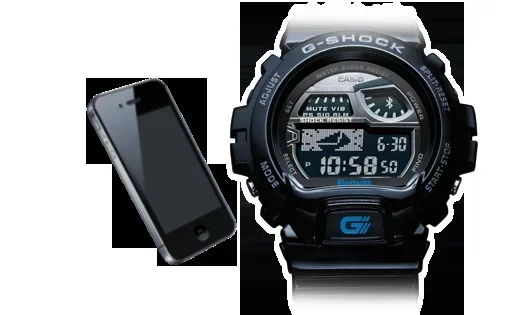
Yes, you can connect your iPhone to your G-Shock with Bluetooth — but only on select models that support wireless connectivity. You will need the Casio Watches app, a compatible G-Shock watch, and an iPhone running a recent iOS version. This guide walks you through every step, from pairing to troubleshooting common issues.
You just got a sleek new G-Shock watch and your iPhone is sitting right next to you. The thought of syncing them together sounds cool. But can you actually do it? The short answer is yes — under the right conditions. Not every G-Shock model has Bluetooth capability, but the ones that do open up a whole new world of convenience. You get automatic time updates, phone notifications, and even remote camera control right from your wrist.
If you have been searching for “connect my iPhone to my G-Shock,” you are in the right place. This guide covers everything you need to know. We will walk through compatible models, the pairing process, and how to fix common problems. By the end, you will feel confident connecting your devices like a pro.
Key Takeaways
- Not all G-Shock watches support Bluetooth: Only models with Bluetooth Low Energy (BLE) can connect to an iPhone.
- The Casio Watches app is essential: You must download this free app from the App Store to pair and manage your watch.
- Pairing is simple and fast: The process takes about 3-5 minutes if you follow the steps correctly.
- Common issues are easy to fix: Most Bluetooth problems can be solved by restarting devices or resetting network settings.
- You get smart features: Connected G-Shock models offer phone notifications, world time sync, and automatic time adjustment.
- Battery life is not heavily impacted: Bluetooth uses very little power on G-Shock watches designed for it.
- Check compatibility first: Confirm your specific G-Shock model supports iPhone connectivity before starting.
📑 Table of Contents
- Understanding Bluetooth Connectivity on G-Shock Watches
- How to Connect Your iPhone to Your G-Shock
- Features You Get After Connecting
- Troubleshooting Common Connection Issues
- Is a Bluetooth G-Shock Worth It?
- Common Mistakes to Avoid When Connecting
- Expert Insights on G-Shock and iPhone Connectivity
- How to Disconnect or Unpair Your G-Shock from Your iPhone
- Final Thoughts
Understanding Bluetooth Connectivity on G-Shock Watches
Before you try to pair anything, it helps to understand what Bluetooth actually does on a G-Shock watch. Not all G-Shock watches are created equal. Some are purely analog or digital with no wireless features at all. Others come loaded with Bluetooth smart technology designed to work with your phone.
What Bluetooth Does on a G-Shock
When your G-Shock has Bluetooth, it opens up several useful features. The watch can sync its clock with your iPhone automatically. This means you never have to worry about the time being wrong. You can also receive call and message notifications directly on your wrist. Some models let you control your phone’s camera remotely. Others allow you to track daily activity and steps. The Casio Watches app acts as the bridge between your phone and your watch.
Which G-Shock Models Support Bluetooth?
Casio has been adding Bluetooth to many of its G-Shock lines over the years. Here are some of the most popular Bluetooth-enabled models:
- G-Shock GA-B2100 — A modern classic with full Bluetooth smart features.
- G-Shock GA-2100-1A1ER — A slim design with reliable wireless connectivity.
- G-Shock GMW-B5000D — A premium metal model with advanced Bluetooth functions.
- G-Shock GW-M5610GE — Combines multi-band 6 atomic timekeeping with Bluetooth.
- G-Shock GA-110GB — A bold digital model with Bluetooth and app support.
- G-Shock GA-2100-2A1ER — A compact option with full iPhone compatibility.
If your model is not on this list, check the back of the watch or the user manual. Look for the Bluetooth symbol or “Bluetooth Smart” labeling. You can also visit the Casio website and search for your specific model number. The key thing to remember is that you cannot connect a non-Bluetooth G-Shock to your iPhone. It simply does not have the hardware for it.
How to Connect Your iPhone to Your G-Shock
The actual pairing process is straightforward. You do not need to be a tech expert to get it done. Follow these steps carefully and you should be connected in just a few minutes.
Step 1: Download the Casio Watches App
Open the App Store on your iPhone. Search for “Casio Watches.” The official app is free to download. Make sure you are getting the real Casio app and not a knockoff. Look for the Casio logo and check the developer name. Once you find it, tap the download button and wait for the installation to finish.
Step 2: Turn on Bluetooth on Your iPhone
Open the Settings app on your iPhone. Tap on Bluetooth. Toggle the switch to turn it on. You should see the Bluetooth icon appear in your status bar at the top of the screen. Make sure your iPhone is not connected to another device that might interfere.
Step 3: Put Your G-Shock in Pairing Mode
On your G-Shock watch, you need to enter pairing mode. The exact method depends on your model. For most models, you hold down the Adjust button (the bottom-left button) for about 3 seconds. The watch screen should display the Bluetooth symbol or a pairing prompt. Some models require you to go into the Settings menu and select Bluetooth, then choose “Search” or “Pair.”
Step 4: Find Your G-Shock on Your iPhone
Go back to your iPhone. Open the Casio Watches app. The app should automatically start searching for nearby Bluetooth devices. Your G-Shock should appear on the screen. Tap on it to begin the pairing process. You may see a confirmation code on both your watch and phone. Make sure the codes match, then tap confirm.
Step 5: Complete the Setup
Once paired, the app will guide you through a quick setup. You can choose your preferred time format, set up notifications, and adjust other preferences. The watch will now sync its time with your iPhone automatically. You are all set to enjoy your connected G-Shock experience.
Features You Get After Connecting
So what do you actually get when you connect your G-Shock to your iPhone? The answer is more than you might expect. Here is a breakdown of the features available on most Bluetooth-enabled G-Shock models.
Automatic Time Sync
This is one of the best features. Your G-Shock watch pulls the exact time from your iPhone whenever the connection is active. You never have to adjust the time manually again. This is especially useful when you travel across time zones. The watch updates automatically as soon as you arrive in a new location. It also adjusts for daylight saving time without any input from you.
Phone Notification Alerts
When your iPhone receives a call, text message, or app notification, your G-Shock vibrates and shows the alert on screen. You can glance at your wrist and decide whether to answer or ignore. This is incredibly handy during meetings, workouts, or when your phone is on silent. You can customize which apps send notifications through the Casio Watches app.
World Time Function
If you travel frequently or work with people in different time zones, this feature is a game-changer. Your G-Shock can display the time in up to 300 cities around the world. The watch syncs with your iPhone’s location data to keep everything accurate. Switching between time zones takes just a button press.
Remote Camera Control
Some G-Shock models let you use your watch as a remote shutter for your iPhone camera. Open your camera app, tap the shutter icon on your watch, and take the photo. This works great for group selfies or long-exposure shots where you do not want to touch your phone. It is a fun and surprisingly useful feature.
Activity Tracking and Step Counting
Many modern G-Shock Bluetooth models include basic fitness tracking. The watch counts your steps, tracks your daily activity, and estimates calories burned. This data syncs with the Casio Watches app on your iPhone. You can set daily goals and monitor your progress over time. It is not as detailed as a dedicated fitness tracker, but it works well for everyday use.
Troubleshooting Common Connection Issues
Sometimes things do not go as smoothly as you hope. Bluetooth connections can be finicky at times. Here are the most common problems people face when trying to connect their iPhone to a G-Shock, and how to fix them.
The Watch Does Not Appear in the App
This is the number one issue people run into. If your G-Shock does not show up on your iPhone, try these steps. First, make sure Bluetooth is turned on and your iPhone is not connected to another device. Turn off Bluetooth, wait 10 seconds, and turn it back on. On your G-Shock, make sure it is in pairing mode. If it still does not appear, restart both devices. Sometimes a simple reboot fixes everything.
Pairing Keeps Failing
If the pairing process fails repeatedly, try removing old Bluetooth connections. On your iPhone, go to Settings, tap Bluetooth, find any old G-Shock entries, and tap the “i” icon next to them. Choose “Forget This Device.” Then try pairing again from scratch. Also make sure your Casio Watches app is up to date. An outdated app can cause connection problems.
Connection Drops Frequently
A stable Bluetooth connection should stay connected within about 30 feet. If your connection keeps dropping, check for interference. Other Bluetooth devices, Wi-Fi routers, and even microwaves can cause signal disruption. Move closer to your iPhone and see if the connection stabilizes. Also check that your G-Shock battery is not low, as weak batteries can cause unstable connections.
Time Sync Is Not Working
If your watch time is not syncing with your iPhone, make sure the connection is active. Open the Casio Watches app and check the connection status. If the watch shows as connected but the time is still wrong, try manually triggering a sync. In the app, look for a “Sync Time” option and tap it. Also make sure your iPhone has the correct date and time settings set to automatic.
The Casio App Keeps Crashing
If the app crashes or freezes during setup, try closing it completely and reopening it. Check the App Store for any available updates. If the problem persists, delete the app and reinstall it. Before doing this, make sure your watch is already paired with your iPhone, or you will need to start the pairing process again.
Quick Tips for a Smooth Connection
- Always update your iPhone to the latest iOS version before pairing.
- Keep your G-Shock firmware updated through the Casio Watches app.
- Stay within 30 feet of your iPhone during the initial pairing process.
- Turn off other Bluetooth devices temporarily to reduce interference.
- Restart both devices if you encounter any connection problems.
- Be patient — some pairing processes take a few attempts to succeed.
Is a Bluetooth G-Shock Worth It?
This is a fair question, especially if you are considering buying a new G-Shock specifically for iPhone connectivity. The answer depends on what you value in a watch. If you love the rugged durability and classic G-Shock design, adding Bluetooth makes the experience even better. You get the toughness of a G-Shock with the smart features of a modern wearable.
Bluetooth G-Shock watches are not meant to replace your iPhone or a smartwatch like an Apple Watch. They serve a different purpose. A connected G-Shock gives you essential notifications and time sync without the need to charge your watch every night. Most Bluetooth G-Shock models run on standard batteries that last for years. That is a huge advantage over smartwatches that need daily charging.
The Casio Watches app is well-designed and easy to navigate. It does not overwhelm you with features you do not need. The app focuses on the essentials like time sync, notifications, and basic settings. It works reliably in the background once your watch is paired. Overall, if you want a durable, low-maintenance watch that connects to your iPhone, a Bluetooth G-Shock is a solid choice.
Common Mistakes to Avoid When Connecting
Even with clear instructions, people make mistakes that slow down the process. Here are some common errors to watch out for.
- Skipping the Casio Watches app: You cannot pair a G-Shock with your iPhone using the iPhone Bluetooth settings alone. The app is required for the full setup experience.
- Not checking compatibility: Trying to connect a non-Bluetooth G-Shock will not work. Always verify your model supports Bluetooth before starting.
- Ignoring firmware updates: An outdated watch firmware can cause pairing issues. Always update your watch through the app before troubleshooting.
- Standing too far away: During initial pairing, stay within a few feet of your iPhone. Bluetooth range is limited during the discovery phase.
- Forgetting to restart devices: A simple restart solves more Bluetooth problems than any other fix. Do not skip this step.
- Leaving Bluetooth on for other devices: Multiple active Bluetooth connections can confuse the pairing process. Temporarily disconnect other devices.
Expert Insights on G-Shock and iPhone Connectivity
Many watch enthusiasts and tech reviewers have tested the connection between G-Shock watches and iPhones extensively. The general consensus is that the experience is reliable and straightforward once you get past the initial setup. The Bluetooth Low Energy technology used in modern G-Shock models is designed to be power-efficient and stable.
One thing experts often highlight is the importance of the Casio Watches app. It is the control center for everything related to your connected G-Shock. Without it, you would only have basic Bluetooth functionality. The app unlocks the full range of features and ensures your watch stays updated with the latest firmware improvements. Casio has also improved the app significantly over the years, fixing bugs and adding new features based on user feedback.
Another insight from experienced users is to be patient during the first connection. The pairing process may feel a bit slow the first time. This is normal. Once the initial pairing is complete, subsequent connections happen almost instantly. Your G-Shock will automatically reconnect to your iPhone whenever both devices have Bluetooth turned on and are within range.
How to Disconnect or Unpair Your G-Shock from Your iPhone
There may come a time when you want to disconnect your G-Shock from your iPhone. Maybe you are selling the watch, or you just want to use it without the Bluetooth connection. Here is how to do it properly.
Open the Casio Watches app on your iPhone. Find your connected G-Shock in the device list. Look for an option to disconnect or unpair. On your G-Shock watch, go to the Settings menu, find Bluetooth settings, and select “Disconnect” or “Unpair.” This removes the connection from both devices. If you want to pair the watch with a different iPhone later, you can start the pairing process from scratch.
Keep in mind that unpairing does not erase any data from your watch. Your watch settings and history remain intact. You can reconnect at any time by following the pairing steps described earlier in this guide.
Final Thoughts
So, can you connect your iPhone to your G-Shock with Bluetooth? Absolutely. As long as you have a Bluetooth-enabled G-Shock model and an iPhone with a recent iOS version, the process is simple and rewarding. You get automatic time syncing, phone notifications, world time, and more — all from a watch known for its incredible durability.
The key is to follow the steps carefully, keep your app updated, and troubleshoot patiently if something goes wrong. Most connection issues have simple fixes. Once your G-Shock is connected to your iPhone, you will wonder how you ever lived without it. The combination of Casio’s legendary build quality with smart connectivity makes for a watch that is both tough and practical.
Take some time to explore all the features available through the Casio Watches app. Customize your notification preferences, set up your world time cities, and enjoy the seamless connection between your G-Shock and your iPhone. It is a small upgrade that makes a big difference in your daily routine.