Are Usb Hubs Safe For Laptops Here Is What You Need To Know
Are USB hubs safe for laptops? The short answer is yes, when you choose the right hub and use it correctly. USB hubs expand your connectivity, but using the wrong type can cause power issues, overheating, or data loss. This guide covers everything you need to know about laptop safety with USB hubs, from powered vs unpowered options to best practices.
You plug in a USB hub to your laptop, and suddenly you have all the ports you need. It is convenient. It is practical. But then a thought hits you: are USB hubs safe for laptops?
You are not alone in asking this question. Thousands of laptop users connect hubs every day without thinking twice. But the truth is, not all hubs are created equal. Some are perfectly safe. Others can cause real problems. USB hub safety depends on the type of hub you buy, how you use it, and whether your laptop can handle the extra load.
This guide breaks it all down. You will learn about powered vs unpowered hubs, common risks, how to pick a safe option, and simple tips to keep your laptop protected. By the end, you will feel confident about using a USB hub without worrying about damage.
Key Takeaways
- Powered USB hubs are safer: They draw power from an outlet, not your laptop, reducing strain on your battery and ports.
- Unpowered hubs work for light tasks: But they may struggle with power-hungry devices like external hard drives.
- Check compatibility first: Not every hub works with every laptop, especially with USB-C and Thunderbolt models.
- Overheating is a real risk: Cheap or overloaded hubs can cause laptop overheating and port damage.
- Surge protection matters: A good hub with built-in surge protection adds a layer of device connectivity safety.
- Stick to reputable brands: Quality hubs from trusted manufacturers reduce the chance of electrical issues.
📑 Table of Contents
What Is a USB Hub and Why Do People Use Them
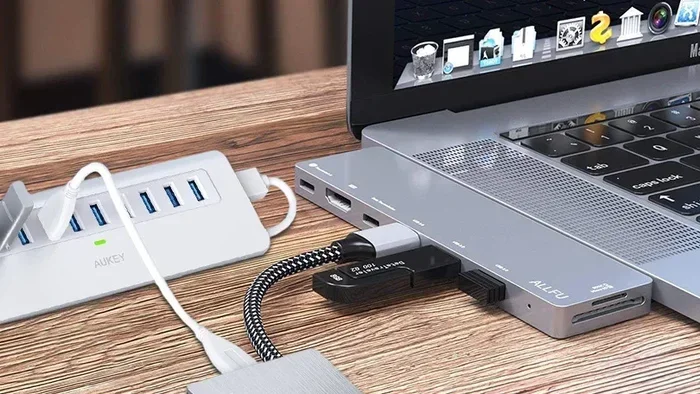
A USB hub is a small device that adds extra ports to your laptop. It plugs into one USB port and gives you several more. Think of it like a power strip for your data connections.
People use hubs for all kinds of reasons:
- Connecting multiple devices: Mice, keyboards, printers, and external drives all at once.
- Expanding storage: Plug in an external hard drive or SSD without unplugging other gear.
- Charging devices: Keep your phone, tablet, or earbuds charged throughout the day.
- Home office setups: Create a tidy desk with one hub instead of a tangled mess of cables.
- Travel convenience: A compact hub takes up little space but adds big functionality.
Hubs come in two main shapes. There are small portable ones that fit in your pocket. And there are larger desktop models with extra features like power delivery or Ethernet ports. Both types serve the same basic purpose: giving you more ports than your laptop offers.
But here is the thing most people overlook. Every device you plug into a hub pulls power. And that power has to come from somewhere. That is where laptop safety becomes a real concern.
Are USB Hubs Safe For Laptops
The direct answer to are USB hubs safe for laptops is yes, in most cases. A quality hub used correctly will not harm your laptop. But cheap, low-quality hubs or misuse can lead to problems. Let us look at the details.
Powered vs Unpowered USB Hubs
This is the biggest factor in USB hub safety. There are two types of hubs, and they work very differently.
Powered USB hubs plug into a wall outlet. They have their own power source. This means they do not drain your laptop battery. They can also deliver full power to every connected device. If you plug in a power-hungry device like a large external hard drive, a powered hub handles it easily.
Unpowered USB hubs draw all their power from the laptop’s USB port. This works fine for low-power devices like a mouse or keyboard. But if you connect multiple devices at once, the hub may not get enough power. The result? Devices that disconnect randomly, slow data transfer speeds, or worse, put strain on your laptop’s port.
Here is a quick comparison:
- Powered hubs: Safer for heavy use, stable power, no battery drain on your laptop.
- Unpowered hubs: Fine for light use, portable, but limited by your laptop’s power output.
If you want the safest option, go with a powered hub. It takes the pressure off your laptop and gives your devices steady, reliable power.
Power Delivery and Your Laptop’s Battery
Modern laptops use USB-C ports that support power delivery. This means the port can both charge your laptop and send data. Some hubs support this feature too.
When you use a USB-C hub with power delivery, it can actually charge your laptop while you use it. This is a great feature. But it only works if the hub supports the right wattage.
A low-quality hub might not deliver enough power. In that case, your laptop could slowly lose battery instead of gaining it. Over time, this kind of mismatch can affect battery health. So always check the power specs before buying a hub.
Also, some hubs advertise fast charging but do not meet the standards. They might deliver inconsistent power. This is another reason why choosing a reputable brand matters so much.
Common Risks of Using USB Hubs
Most people use hubs without any issues. But there are real risks you should know about. Understanding these risks helps you avoid them.
Overheating
When you connect several devices to a hub, it generates heat. Cheap hubs lack proper heat dissipation. They can get hot to the touch. In some cases, this heat transfers to your laptop, causing laptop overheating.
Overheating is not just uncomfortable. It can reduce the lifespan of your laptop’s internal components. Your battery degrades faster. Your processor throttles performance. And in rare cases, it can cause permanent damage.
You can avoid this by:
- Using a hub with a built-in fan or metal casing for heat dissipation.
- Not plugging in too many power-hungry devices at once.
- Giving your laptop and hub breaks during long sessions.
Electrical Surges and Short Circuits
A bad hub can cause an electrical surge. This happens when the hub’s internal wiring fails or when there is a manufacturing defect. A surge can fry your laptop’s USB port or even damage the motherboard.
Surges are rare but they happen. This is why surge protection in a hub is so important. Good hubs include circuitry that blocks excess voltage. They protect both your hub and your laptop.
Never buy a hub with no brand name or suspiciously low price. You get what you pay for, and a $5 hub from an unknown seller is a gamble with your laptop’s safety.
Data Loss and Slow Transfer Speeds
A poor-quality hub can mess with your data transfer speeds. You might notice files taking longer to copy. Or worse, files that corrupt during transfer.
This happens because cheap hubs often use low-grade chipsets. They cannot handle the bandwidth that modern devices need. If you frequently transfer large files, this is a real concern.
Look for hubs that support USB 3.0 or higher. These offer much faster speeds and more stable connections. The extra cost is worth the peace of mind.
How to Choose a Safe USB Hub
Not all hubs are the same. Picking the right one is the single best thing you can do for laptop safety. Here is what to look for.
Check the Power Rating
Every hub has a power rating measured in watts or amps. This tells you how much power it can deliver to connected devices. If you plan to use power-hungry devices, choose a hub with a high power rating.
For most users, a hub with 5 watts per port is plenty. For heavy use, look for 10 watts or more per port. And if you want to charge your laptop too, make sure the hub supports the right power delivery standard.
Look for Brand Reputation
Stick with trusted brands. Companies like Anker, Sabrent, and Ugreen have solid track records. They test their products thoroughly and offer warranties. When you buy from a reputable brand, you reduce the risk of defects and electrical issues.
Read customer reviews before you buy. Look for mentions of overheating, disconnections, or port damage. Real user experiences are the best indicator of quality.
Match the Hub to Your Laptop Type
Not every hub works with every laptop. USB hub compatibility depends on your laptop’s ports and chipset.
If you have a modern laptop with USB-C or Thunderbolt ports, you need a compatible hub. A standard USB-A hub will not give you the speeds or features you need. And some hubs work better with certain operating systems. Check that the hub supports your laptop model before you buy.
Also, think about what you will connect. If you need Ethernet, an HDMI output, and an SD card reader, pick a hub that offers all of these. A hub that matches your workflow is a hub you will use safely and correctly.
Best Practices for Using USB Hubs With Laptops
Buying a good hub is only half the battle. How you use it matters just as much. Follow these simple tips to keep your laptop and hub running smoothly.
- Do not overload the hub. Every hub has a limit. Check the manufacturer’s specs and stay within them. Plugging in too many devices can cause overheating and power issues.
- Use a powered hub for heavy devices. External hard drives, printers, and monitors pull a lot of power. A powered hub handles this without stressing your laptop.
- Keep your hub and laptop in a ventilated area. Do not bury the hub under papers or leave it on a soft surface like a bed. Airflow keeps temperatures down.
- Update your hub drivers. Some hubs need drivers to work properly. Outdated drivers can cause connection drops or slow speeds. Check the manufacturer’s website for updates.
- Unplug the hub when not in use. This is a simple habit that reduces wear on your laptop’s ports and saves a bit of battery life.
- Inspect your cables regularly. Frayed or damaged cables can cause short circuits. Replace them immediately if you notice any damage.
These tips take seconds to follow. But they can save you from expensive repairs or data loss down the road.
Quick Tips for Hub Safety
- Always plug the hub into your laptop before powering on connected devices.
- Use the original USB cable that came with your laptop when possible.
- If your hub feels hot, unplug some devices and let it cool down.
- Avoid using a hub as a permanent charging station for devices overnight.
When to See a Professional
Most hub-related issues are easy to fix. You unplug the hub, and the problem goes away. But sometimes, a hub can cause real damage. Know the warning signs.
If your laptop’s USB port stops working after connecting a hub, get it checked. If you notice a burning smell or see scorch marks near the port, stop using the hub immediately. And if your laptop runs unusually hot after connecting a hub, that is a red flag.
Do not try to fix electrical issues yourself. Take your laptop to a certified technician. They can assess the damage and recommend the right fix. In most cases, the port can be repaired if you catch the problem early.
For more tips on keeping your tech safe and connected, you might want to explore apps and tools that help manage your devices. Check out this guide on 4 apps that are like Uber for finding dog walkers if you are interested in how technology connects us in unexpected ways. And for broader device care advice, also look at resources on USB hub safety and laptop accessories to build your knowledge further.
Final Thoughts on USB Hub Safety
So, are USB hubs safe for laptops? Yes, they are, as long as you make smart choices. The key is picking a quality hub, using it correctly, and paying attention to how your laptop responds.
A powered USB hub from a reputable brand is your safest bet. It gives you all the ports you need without putting your laptop at risk. Pair that with the best practices in this guide, and you can enjoy the convenience of a hub without worry.
Your laptop is a significant investment. Taking a few extra minutes to choose the right accessory pays off in the long run. USB hub safety is not complicated. It just takes a little knowledge and common sense. Use what you learned here, and your laptop will stay safe, cool, and connected.
Frequently Asked Questions
Can a USB hub damage my laptop?
A low-quality or overloaded hub can potentially damage your laptop. Electrical surges, overheating, and power mismatches are the main risks. Choosing a reputable, powered hub greatly reduces these risks.
Do I need a powered USB hub?
If you connect power-hungry devices like external hard drives or monitors, yes. A powered hub has its own power source and does not rely on your laptop for energy. For light use like a mouse or keyboard, an unpowered hub is usually fine.
Is it safe to leave a USB hub plugged in all the time?
It is generally safe for short periods. But unplugging it when you are not using it reduces wear on your laptop’s ports and lowers the risk of electrical issues. Think of it like unplugging a toaster when you are done.
Can a USB hub cause my laptop to overheat?
Yes, especially cheap hubs or hubs with too many devices connected. Heat builds up and can transfer to your laptop. Using a well-ventilated, quality hub and not overloading it prevents overheating.
What is the difference between USB 3.0 and USB 2.0 hubs?
USB 3.0 hubs offer much faster data transfer speeds and better power delivery. USB 2.0 hubs are older and slower. For most modern laptops, a USB 3.0 or higher hub is the better and safer choice.
Are USB-C hubs safer than USB-A hubs?
USB-C hubs are not inherently safer, but they often support modern features like power delivery and faster data speeds. As long as you buy a quality USB-C hub from a trusted brand, it is just as safe as a USB-A hub.
=== CONCLUSION ===
Are USB hubs safe for laptops is a question with a clear answer: yes, when you do it right. A USB hub is a handy tool that makes your laptop more versatile. But safety starts with the right choice. Pick a powered hub, check compatibility, and follow the best practices in this guide.
Your laptop deserves the best care you can give it. A quality hub is a small investment that protects your device and boosts your productivity. Use these tips, stay informed, and enjoy the benefits of extra ports without the worry.