Are All Webcams Usb Or Do Some Models Use Different Ports
Not all webcams use USB. While USB is the most common connection type, some webcams use HDMI, wireless, or even proprietary ports depending on their design and purpose. Understanding the different webcam connection types helps you choose the right model for streaming, video calls, or security needs. This guide breaks down every port type so you can make a confident, informed decision.
Key Takeaways
- USB is the most common webcam port: The vast majority of webcams on the market use USB connections, making them easy to set up and widely compatible.
- HDMI webcams exist for professional use: These are popular in broadcasting, streaming setups, and situations where you need higher-quality video output.
- Wireless webcams offer more flexibility: Wi-Fi and Bluetooth-enabled webcams let you place your camera anywhere without worrying about cable length.
- USB-C is becoming the new standard: Newer webcams are shifting toward USB-C for faster data transfer and better power delivery.
- Some webcams use proprietary or specialized ports: Certain security cameras and industrial webcams use unique connectors designed for specific systems.
- Your use case determines the best port type: Casual video callers need different features than professional streamers or security monitors.
📑 Table of Contents
- Are All Webcams USB? The Short Answer
- Why USB Dominates the Webcam Market
- HDMI Webcams: The Professional Choice
- Wireless Webcams: Freedom Without Cables
- Specialized and Proprietary Webcam Ports
- How to Choose the Right Webcam Port for Your Needs
- Common Mistakes People Make When Choosing a Webcam
- The Future of Webcam Connectivity
- Final Thoughts
Are All Webcams USB? The Short Answer
The short answer is no. Not all webcams are USB. While USB is the most popular connection type by a wide margin, the world of webcams is more diverse than most people realize. You will find models that use HDMI, wireless connections, and even specialized ports depending on what they are built to do.
If you have ever walked into a store or browsed online looking for a webcam, you probably noticed that most of them say USB right on the box. That is because USB has become the default standard for external webcams. It is simple, reliable, and works with almost every computer made in the last 15 years. But convenience does not mean exclusivity.
Understanding the different types of webcam ports matters more than you might think. The connection type affects video quality, setup ease, cable length, and even how you can use the camera. Whether you are setting up a home office, streaming on Twitch, or monitoring your pets, the right port type makes a real difference.
In this article, we will walk through every webcam port type you might encounter. We will explain how each one works, who it is best for, and what to watch out for. By the end, you will know exactly which type of webcam fits your needs.
Why USB Dominates the Webcam Market
USB has become the go-to connection for webcams for several good reasons. First, it is universal. Almost every laptop, desktop, and tablet made today has at least one USB port. Second, USB webcams are plug and play. You plug them in, and most computers recognize them instantly without needing extra software or drivers.
Third, USB handles both data and power through a single cable. This means you do not need a separate power source for most USB webcams. Just connect the cable to your computer, and the camera powers on. This simplicity is a huge selling point for everyday users.
USB 2.0 vs USB 3.0 Webcams
Not all USB connections are the same. You will typically find two versions in the webcam world: USB 2.0 and USB 3.0. Here is a quick look at how they compare.
- USB 2.0: This is the older standard. It still works fine for basic video calls and low-resolution streaming. However, it has slower data transfer speeds, which can limit video quality at higher resolutions.
- USB 3.0: This is the newer and faster standard. It supports higher resolutions and frame rates, making it better for streaming and content creation. USB 3.0 is also backward compatible with USB 2.0 ports.
Most modern webcams use USB 3.0, but you will still find plenty of USB 2.0 models at lower price points. If you want better video quality, look for a USB 3.0 webcam. The speed difference is noticeable, especially when you are streaming at 1080p or 4K.
The Rise of USB-C Webcams
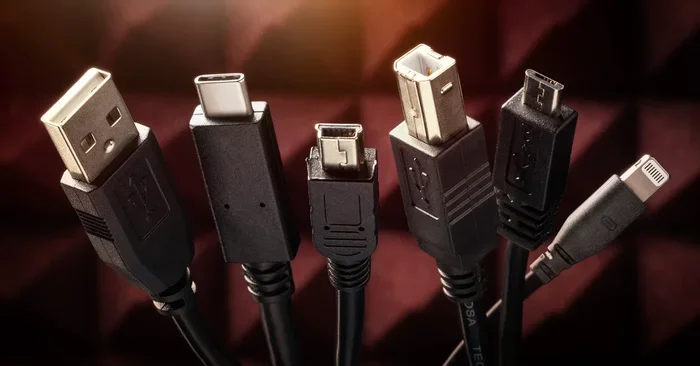
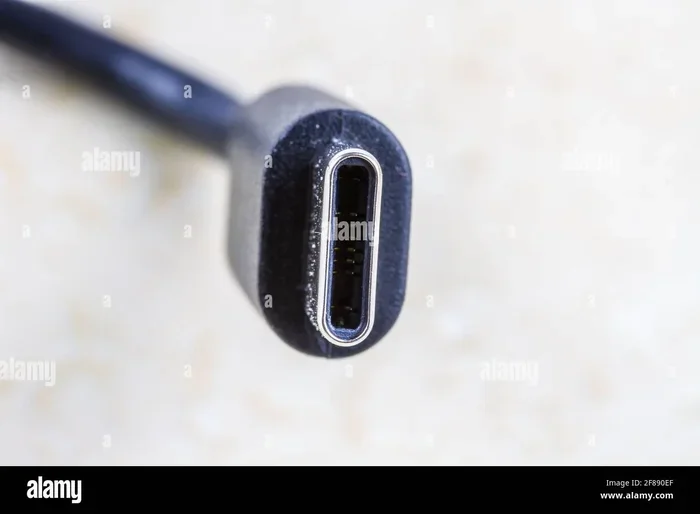
USB-C is the newest addition to the USB family, and it is changing the game. USB-C ports are smaller, reversible, and much faster than older USB types. Many new laptops now use USB-C as their primary port, which has pushed webcam manufacturers to follow suit.
USB-C webcams offer faster data transfer and better power delivery. Some can even charge your laptop while streaming. If you have a modern laptop or tablet, a USB-C webcam is a great choice. Just make sure your device has a USB-C port that supports data transfer, not just charging.
HDMI Webcams: The Professional Choice
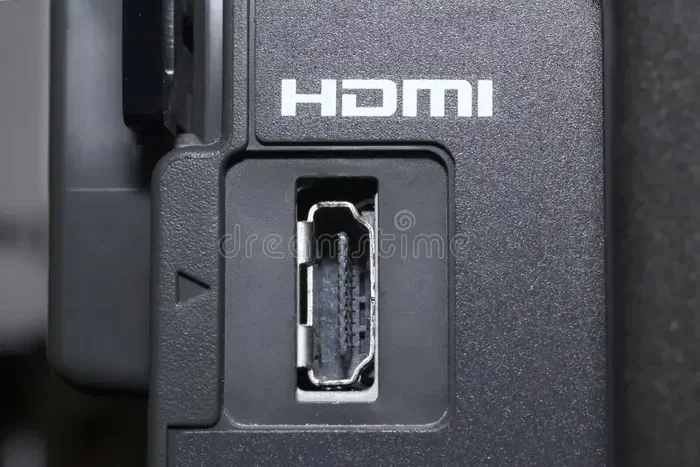
HDMI webcams are less common than USB models, but they play an important role in professional settings. These cameras output video directly through an HDMI cable, just like a Blu-ray player or gaming console connects to a TV.
HDMI webcams are popular among streamers, videographers, and broadcast professionals. They often use high-end mirrorless cameras or dedicated HDMI capture devices that deliver superior image quality compared to standard USB webcams.
When to Choose an HDMI Webcam
You should consider an HDMI webcam if you fall into one of these categories.
- Professional streamers: HDMI output gives you cleaner video with less compression, which matters when you are broadcasting at high quality.
- Video production teams: HDMI cameras integrate more easily with professional mixing boards and capture cards.
- High-end video conferencing: Some businesses use HDMI webcams for boardroom setups where image quality reflects their brand.
One thing to keep in mind is that HDMI webcams usually need a separate power source. They do not draw power from the connection cable the way USB webcams do. This adds a bit of complexity to setup, but the video quality payoff is worth it for serious users.
Wireless Webcams: Freedom Without Cables
Wireless webcams are becoming more popular, especially as home setups become more flexible. These cameras connect to your device using Wi-Fi or Bluetooth instead of a physical cable.
The biggest advantage of a wireless webcam is placement freedom. You can position the camera anywhere within range of your Wi-Fi network. This is great for people who want to monitor a room, set up a pet camera, or stream from a location where running a cable is impractical.
Wi-Fi vs Bluetooth Webcams
Not all wireless webcams use the same technology. Here is a quick breakdown of the two main types.
- Wi-Fi webcams: These connect to your home network and can stream video over the internet. They are ideal for security cameras and remote monitoring. Many Wi-Fi webcams also work with companion apps on your phone.
- Bluetooth webcams: These have a shorter range but use less power. They work well for close-range video calls where your camera is sitting right next to your laptop.
Wireless webcams do have some trade-offs. They can experience latency or signal drops, especially if your Wi-Fi network is crowded. Video quality may also be slightly lower than a wired connection because of data compression. For most casual users, these issues are minor, but professional users may notice the difference.
Using Webcams for Pet Monitoring
One fun and growing use for wireless webcams is pet monitoring. Many pet owners set up cameras to watch their animals while they are away from home. Some even use their webcams to connect with dog walkers or pet sitters through apps. For example, if you want to find reliable dog walking services, you can check out 4 apps that are like Uber for finding dog walkers to see how technology makes pet care easier.
These pet monitoring setups often use Wi-Fi webcams with two-way audio. You can talk to your pet through the camera, which helps reduce separation anxiety for both you and your furry friend. The wireless design means you can place the camera wherever your pet spends the most time.
Specialized and Proprietary Webcam Ports
Beyond USB, HDMI, and wireless, some webcams use specialized or proprietary ports. These are less common but still worth knowing about, especially if you are working with specific equipment or systems.
Security Camera Connectors
Many security cameras use proprietary connectors like BNC, RJ45 (for PoE), or proprietary plug-and-play systems. These are designed for surveillance setups and are not typical consumer webcams. They connect to dedicated recording systems or network video recorders rather than directly to a computer.
If you are setting up a home security system, you will likely encounter these port types. They are built for reliability and long cable runs, which is important when you are monitoring multiple areas of a property.
SDI and Other Professional Connectors
In professional broadcasting and film production, you may come across webcams or cameras that use SDI (Serial Digital Interface) connections. These carry uncompressed video signals over long distances without any quality loss. They are expensive and niche, but they are the gold standard for live broadcast setups.
You do not need to worry about SDI unless you are working in professional video production. For 99% of users, USB, HDMI, or wireless will cover all your needs.
How to Choose the Right Webcam Port for Your Needs
Now that you know the main port types, let us talk about how to pick the right one. The best choice depends on what you plan to do with the webcam and what devices you have available.
Consider Your Primary Use Case
Think about what you will use the webcam for most often. Different use cases call for different connection types.
- Casual video calls: A basic USB webcam is all you need. It is simple, affordable, and works with every major video conferencing platform.
- Streaming and content creation: A USB 3.0 or USB-C webcam gives you better quality. If you want top-tier results, consider an HDMI setup with a capture card.
- Pet monitoring or home security: A wireless Wi-Fi webcam is the most flexible option. You can check in from anywhere with your phone.
- Professional broadcasting: HDMI or SDI connections deliver the quality and reliability that professionals demand.
Check Your Device Compatibility
Before buying any webcam, check the ports available on your device. A USB-C webcam will not work with a USB-A port unless you have an adapter. Similarly, an HDMI webcam needs an HDMI input or a capture card to work with a computer.
Here is a quick compatibility guide.
- Modern laptops with USB-C: USB-C webcams are a perfect match. You may also be able to use a USB-A webcam with an adapter.
- Older desktops with USB-A: USB 2.0 or USB 3.0 webcams work great. These are the most affordable options.
- Televisions and monitors with HDMI: HDMI webcams can connect directly to these displays for video calls or streaming.
- Tablets and phones: Wireless webcams or USB-C models work best, depending on your device’s port options.
Think About Cable Length and Placement
Cable length matters more than most people think. USB cables have a maximum recommended length of about 5 meters (16 feet) before signal quality drops. If you need to place your webcam farther away, consider a USB extension cable or a wireless model.
HDMI cables can run much longer without signal loss, which is one reason they are popular in professional setups. Wireless webcams eliminate cable length concerns entirely, but you need a strong and stable Wi-Fi signal for the best experience.
Common Mistakes People Make When Choosing a Webcam
Choosing a webcam is not just about picking the one with the best resolution. Several common mistakes can lead to frustration after purchase.
- Ignoring port compatibility: Buying a USB-C webcam when your computer only has USB-A ports is a costly mistake. Always check your device ports first.
- Overlooking wireless signal strength: A wireless webcam is useless if your Wi-Fi signal is weak in the room where you plan to use it.
- Assuming all USB cables are the same: Cheap or damaged USB cables can cause connectivity issues and poor video quality. Invest in a good-quality cable.
- Neglecting power requirements: Some webcams, especially HDMI models, need external power. Make sure you have the right setup before buying.
- Focusing only on resolution: A 4K webcam on a slow USB 2.0 connection will not perform well. Balance resolution with connection speed.
Avoiding these mistakes saves you time, money, and headaches. Take a few minutes to plan your setup before you click that buy button.
The Future of Webcam Connectivity
Webcam technology is evolving fast. USB-C is becoming the new standard for most consumer webcams, and wireless technology is improving every year. We are also seeing webcams that support multiple connection types, giving users more flexibility than ever before.
In the near future, we may see webcams that connect through Thunderbolt or even wireless standards like Wi-Fi 6, which offer faster speeds and lower latency. These advances will make it even easier to get high-quality video from any device, anywhere.
For now, USB remains the king of webcam connections, but the landscape is expanding. Whether you choose a simple plug-and-play USB model or invest in a professional HDMI setup, understanding your options puts you ahead of the curve.
Final Thoughts
So, are all webcams USB? The answer is clearly no. USB is the most common and convenient option for most users, but HDMI, wireless, and specialized ports all have their place. The right choice depends on your needs, your devices, and how you plan to use the camera.
Take some time to evaluate your setup. Think about where you will use the webcam, what quality you need, and what ports your devices have. With the right information, you can confidently pick a webcam that works perfectly for you. Whether it is a simple USB model for daily video calls or a wireless camera for pet monitoring, the right connection type makes all the difference.
Do not settle for the first webcam you find. Explore your options, compare connection types, and invest in a setup that meets your real needs. The perfect webcam is out there, and now you have the knowledge to find it.
Frequently Asked Questions
Can I use an HDMI webcam with my laptop?
It depends on your laptop’s ports. Most laptops do not have HDMI inputs, only outputs. To use an HDMI webcam with a laptop, you will need an HDMI capture card that converts the signal to USB. Some all-in-one monitors and docking stations also accept HDMI input, which can work with HDMI webcams directly.
Are wireless webcams as good as wired ones?
Wireless webcams have come a long way, but wired models still generally offer better reliability and lower latency. For casual video calls and pet monitoring, wireless works great. For professional streaming or broadcasting, a wired USB or HDMI connection is usually the better choice.
Do USB webcams need drivers?
Most modern USB webcams are plug and play and do not need drivers. Your operating system should recognize them automatically. However, some advanced models may include optional software for adjusting settings like exposure, zoom, and background replacement.
What is the best webcam port for streaming?
For most streamers, USB 3.0 or USB-C offers the best balance of quality and ease of use. Professional streamers who need the highest quality often use HDMI setups with a capture card. The best port for you depends on your streaming quality goals and your budget.
Can I connect a security camera as a webcam?
Yes, in many cases you can use a security camera as a webcam. Some models support direct USB or network connections that allow them to function as a video input device. You may need specific software or an adapter depending on the camera model and your computer setup.
Why does my USB webcam keep disconnecting?
USB webcam disconnections are usually caused by cable issues, power problems, or driver conflicts. Try using a different USB cable, connecting to a different USB port, or updating your webcam drivers. If the problem persists, the webcam itself may be faulty or incompatible with your system.
=== CONCLUSION ===
The question “are all webcams USB” has a clear answer: no. Webcams come in many port types, each designed for different purposes and users. USB remains the most popular and versatile option, but HDMI, wireless, and specialized connectors all serve important roles in the webcam ecosystem.
Whether you need a simple webcam for work meetings, a high-quality setup for streaming, or a wireless camera to keep an eye on your home, there is a connection type that fits. Understanding the differences empowers you to make the best choice for your situation.
Take what you have learned here and apply it to your next webcam purchase. You will save time, avoid compatibility headaches, and end up with a setup that works exactly the way you need it to. The right webcam connection is out there, and now you know how to find it.