Can A 10 Year Old Mac Be Updated And Still Run Well
Yes, a 10 year old Mac can be updated, but the experience depends on the model, macOS version, and hardware specs. Older Macs may run the latest macOS with reduced performance, or they might stop receiving updates entirely. This guide covers which models support updates, how to boost speed, and whether an upgrade or replacement makes more sense.
So you have a Mac that’s about 10 years old. Maybe it still works fine, or maybe it’s starting to feel sluggish. Either way, you’re probably wondering, can a 10 year old Mac be updated. The short answer is yes, but the full story is more interesting than that.
Apple has a specific timeline for supporting its hardware. Most Macs receive macOS updates for around 7 to 10 years after they launch. By the 10 year mark, your machine is right at the edge of that window. Some models will still accept the latest macOS. Others will not. And even the ones that do might struggle with performance.
This article breaks it all down. You’ll learn which Mac models from around 2014 and 2015 still get updates. You’ll discover how to make an old Mac run faster. And you’ll find out when it’s smarter to replace your machine instead of trying to keep it alive. Let’s dive in.
Key Takeaways
- macOS Support Has Limits: Apple typically supports Macs for about 7 to 10 years, so a 10 year old machine is at the edge of official support.
- Performance Drops Are Common: Even if an update installs, older Macs often run slower due to limited RAM and outdated processors.
- Hardware Upgrades Help: Adding RAM or swapping in an SSD can dramatically improve an old Mac’s speed and responsiveness.
- Security Risks Exist: Unsupported Macs miss critical security patches, making them vulnerable over time.
- Alternatives Exist: Lightweight Linux distros or open source macOS-like projects can extend a Mac’s useful life.
- Know When to Replace: If repair costs exceed the value, it may be time to invest in a newer machine.
📑 Table of Contents
Understanding macOS Support for Older Macs
Apple is known for keeping software support tight. They don’t support every Mac forever. This approach helps them push new features and optimize performance for current hardware. But it also leaves older machines behind.
How Apple Decides Which Macs Get Updates
Apple uses a few key factors when choosing which Macs get the latest macOS. The processor type matters a lot. Intel Macs from 2018 and later generally get the newest macOS versions. Macs before that may be skipped. The amount of RAM and storage also plays a role. Apple wants machines to handle new features smoothly.
Here’s a quick look at how macOS support has evolved over the years:
- macOS Catalina (2019): Supported Macs from 2012 and newer.
- macOS Big Sur (2020): Required Macs from 2013 and newer.
- macOS Monterey (2021): Required Macs from 2015 and newer.
- macOS Ventura (2022): Required Macs from 2017 and newer.
- macOS Sonoma (2023): Required Macs from 2018 and newer.
- macOS Sequoia (2024): Required Macs from 2019 and newer.
As you can see, the support window has been shrinking. A Mac from 2014 or 2015 might have made it through macOS Monterey. But it likely won’t run macOS Sonoma or Sequoia. This is a key reason why can a 10 year old Mac be updated has a nuanced answer.
The Intel vs Apple Silicon Factor
Apple made a huge shift in 2020 when they moved from Intel processors to their own Apple Silicon chips. M1, M2, M3, and M4 Macs are incredibly fast and energy efficient. They also get longer software support. If your 10 year old Mac uses an Intel processor, you’re already at a disadvantage when it comes to the latest macOS versions.
Intel Macs still receive important security updates for a while. But the big feature updates stop coming. This means your Mac stays safe from the worst vulnerabilities. But it won’t get new apps or features that require the latest operating system.
What Happens When You Update a 10 Year Old Mac
Let’s say you do manage to install a macOS update on your older machine. What changes? The experience can vary widely depending on the specific Mac model and its hardware.
Performance Changes After Updating
Many users report that their old Macs slow down after a major macOS update. This is frustrating but common. Newer versions of macOS come with more features. Those features need more processing power and memory. An older chip simply can’t keep up the way it used to.
Here are some common changes you might notice:
- Slower boot times: Your Mac takes longer to start up.
- Lag when switching apps: Moving between windows feels sluggish.
- Fan noise increases: The fans spin up more often.
- Battery drains faster: On older MacBooks, battery life drops noticeably.
- Apps take longer to open: Even simple programs feel delayed.
These issues don’t happen on every old Mac. But they’re common enough that you should be prepared. If your Mac has been running fine without updates, installing a new macOS might actually make things worse.
Compatibility Issues With Apps and Peripherals
Another thing to consider is app compatibility. Some modern apps require newer versions of macOS to run. If your old Mac can’t update past a certain point, you might lose access to popular software. This includes web browsers too. Google Chrome and Mozilla Firefox eventually drop support for older macOS versions.
External devices can also become problematic. Older USB connections, display adapters, and peripherals might not work well with newer macOS versions. You could find that your printer or external hard drive suddenly isn’t recognized after an update.
How to Make a 10 Year Old Mac Run Better
If you want to keep using your old Mac, there are plenty of things you can do to improve its performance. These tips can help you get more life out of your machine without spending much money.
Free Up Storage Space
macOS needs free storage to operate smoothly. Apple recommends keeping at least 10 to 15 percent of your disk space empty. On a 10 year old Mac with a small hard drive, this can be tough. But it makes a huge difference.
Start by deleting large files you no longer need. Empty your trash. Remove old downloads. Use Apple’s built-in storage management tools to find and remove junk files. You can also offload photos and videos to an external drive or cloud storage.
Add More RAM If Possible
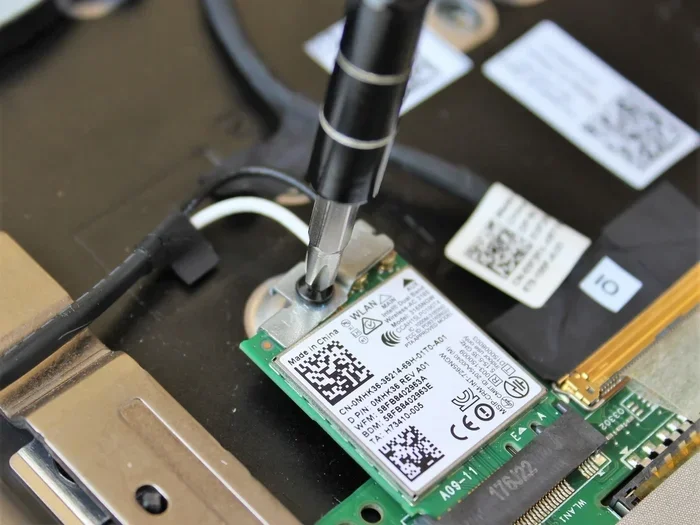
Memory upgrades can transform an old Mac. More RAM means your machine can handle more tasks at once without slowing down. Unfortunately, many modern Macs have soldered RAM that can’t be upgraded. But older models from around 2012 to 2015 often allow memory upgrades.
Check your specific Mac model to see if RAM upgrades are possible. If they are, adding more memory is one of the best investments you can make. Even upgrading from 4GB to 8GB or 16GB can feel like a new computer.
Replace the Hard Drive With an SSD
This is probably the single biggest upgrade you can make. Swapping out an old spinning hard drive for a solid state drive, or SSD, is a game changer. SSDs are dramatically faster. Your Mac will boot up in seconds instead of minutes. Apps will open instantly. Files will copy much quicker.
An SSD upgrade costs between 50 and 150 dollars depending on the size. It’s one of the most affordable ways to breathe life into an aging Mac. If your 10 year old Mac still has a traditional hard drive, this upgrade alone might justify keeping it.
Reset the System Management Controller
Resetting the SMC can fix various performance and hardware issues on Intel Macs. This includes fan behavior, sleep problems, and sluggish performance. The process varies by Mac model, so check Apple’s support page for specific instructions.
Clean Up Your Desktop and Login Items
Your desktop acts like a mini hard drive in macOS. Every file on it uses memory. A cluttered desktop slows things down. Move files into proper folders. Also, go through your login items and remove anything you don’t need. Fewer apps launching at startup means a faster, more responsive Mac.
Reinstall macOS Clean
If your Mac is really struggling, a clean installation can help. This wipes the drive and installs a fresh copy of macOS. It removes years of accumulated junk and conflicts. Just make sure you back up everything first using Time Machine or another backup tool.
Security Concerns With Older Macs
Running an old Mac without updates creates real security risks. Cyber threats evolve constantly. Apple releases patches to address new vulnerabilities. When your Mac stops receiving updates, those holes stay open.
What Happens When Security Updates Stop
Once Apple stops supporting a Mac model, it no longer receives security patches. Hackers can exploit known vulnerabilities that Apple would normally fix. Over time, these unpatched flaws make your Mac increasingly unsafe.
You don’t have to panic. There are ways to reduce risk even on an unsupported Mac. Use a good antivirus program. Keep your browser updated separately. Avoid visiting suspicious websites. Don’t download software from untrusted sources. These habits help protect your data even without official macOS updates.
Is It Safe to Use an Old Mac for Banking and Shopping?
This is a question many people ask. The honest answer is it depends. If your Mac is completely unsupported and unpatched, there’s always some risk. For sensitive tasks like online banking, consider using a different device if possible. A newer phone or tablet might be safer for financial transactions.
For everyday tasks like writing documents or browsing safe websites, an old Mac can still work fine. Just stay cautious and keep your expectations realistic about security.
Should You Repair or Replace Your Old Mac
This is the big question when your Mac starts showing its age. Sometimes fixing things makes sense. Other times, it’s better to move on.
When Repair and Upgrades Make Sense
If your Mac is still solid otherwise, upgrades can extend its life significantly. An SSD swap or RAM addition costs a fraction of a new Mac. If the machine still does everything you need, these improvements can make it feel almost new again.
Consider repair and upgrade if:
- The Mac still meets your daily needs after upgrades.
- The repair cost is under 30 percent of a new Mac’s price.
- You have emotional attachment or specific software that only runs on macOS.
- The machine handles basic tasks like web browsing and word processing well enough.
When It’s Time to Replace
Sometimes the smart move is to let go. If your Mac can’t handle modern web browsing, struggles with basic apps, or requires frequent repairs, replacement might be the better choice.
Consider replacing if:
- Repair costs exceed the value of the machine.
- The Mac can’t run current versions of essential apps.
- You’re constantly frustrated by slow performance.
- Security vulnerabilities put your personal data at risk.
- Apple has completely dropped support for your model.
Even if you do decide to replace your old Mac, you can still repurpose it. Use it as a media server, a dedicated home automation controller, or a machine for your kids to learn on. An old Mac doesn’t have to become e-waste.
Alternatives to the Latest macOS
If your 10 year old Mac can’t run the latest macOS, you still have options. The open source community has created alternatives that can give your old machine a new purpose.
Open Source macOS-Like Projects
Projects like OpenCore Legacy Patcher allow you to install newer macOS versions on unsupported Macs. This is not officially supported by Apple. But it works surprisingly well on many older models. It’s a great way to get security updates and newer features on hardware Apple has abandoned.
Be cautious with this approach. It requires some technical know-how. And it can sometimes cause instability. But for tech-savvy users, it’s a powerful way to extend a Mac’s life.
Linux Distributions for Old Macs
Linux offers lightweight operating systems designed to run on older hardware. Distributions like Linux Mint, Ubuntu MATE, or elementary OS can run beautifully on a 10 year old Mac. They’re free and open source. And they come with a familiar desktop experience.
Switching to Linux means giving up macOS apps. But for basic tasks like web browsing, email, and document editing, Linux works great. It can also be a fun way to learn about open source software.
Final Thoughts
So, can a 10 year old Mac be updated. The answer is still yes, in many cases. But the experience comes with tradeoffs. You might get security updates but not feature updates. Your Mac might run slower after an update. And some apps might stop working altogether.
The best path forward depends on your needs and your Mac’s specific model. For some users, a few affordable upgrades like an SSD or more RAM can make an old Mac perfectly usable. For others, it’s time to invest in a newer machine.
Whatever you decide, don’t just throw your old Mac away. It still has value. Whether you keep it as a backup machine, repurpose it, or pass it on to someone who needs it, a 10 year old Mac can still do meaningful work. The key is knowing its limits and working within them.
Take care of your hardware. Keep it clean and well-ventilated. Back up your data regularly. And stay informed about what Apple supports and when they plan to end updates for your model. With the right approach, your old Mac can keep serving you well for years to come.
Frequently Asked Questions
Can a 10 year old Mac still get security updates?
It depends on the model. Some 10 year old Macs still receive critical security patches even after feature updates stop. Check Apple’s official support page to see if your specific model is still listed. If not, consider using OpenCore Legacy Patcher or switching to Linux for continued protection.
Is it worth upgrading a 10 year old Mac with an SSD?
Absolutely. An SSD upgrade is one of the most impactful improvements you can make. It dramatically speeds up boot times, app launches, and file transfers. For under 150 dollars, it can make a 10 year old Mac feel much faster and more responsive.
Will updating macOS slow down my old Mac?
Yes, this is common. Newer macOS versions include more features and require more resources. Older hardware can struggle to keep up. If you notice significant slowdowns after an update, consider free storage space, RAM upgrades, or even downgrading to an older macOS version.
What macOS version is the last to support a 10 year old Mac?
Most Macs from 2014 and 2015 last received macOS Monterey or Ventura. The exact version depends on the specific model. Apple’s support page lists the latest compatible macOS for every Mac ever made.
Can I run Windows on a 10 year old Mac?
Yes, through Boot Camp or virtualization software like Parallels. However, performance may be limited on older hardware. Boot Camp is no longer supported on Apple Silicon Macs, but Intel Macs from this era generally still support it.
How long should a Mac last before needing replacement?
Most Macs last between 5 and 10 years with proper care. After 7 to 10 years, you may notice declining performance and lack of software support. Regular maintenance like cleaning up storage and resetting the SMC can help extend your Mac’s lifespan significantly.
=== CONCLUSION ===
Can a 10 year old Mac be updated remains a relevant question for millions of Apple users worldwide. The answer is yes, but with important caveats. Your Mac may still accept updates, especially security patches. But feature updates are increasingly unlikely at the 10 year mark.
If you want to keep your old Mac running well, focus on practical upgrades. An SSD and extra RAM go a long way. Clean up your storage regularly. Stay on top of security even if Apple stops patching your model. And know when it’s time to move on to a newer machine.
A 10 year old Mac can still serve you well. It just needs a little extra care and realistic expectations. With the right approach, you can squeeze more value out of your aging Apple computer and make informed decisions about when to upgrade.