Can A USB Go Bad And How To Tell If It Still Works
Yes, a USB can absolutely go bad over time due to wear, corruption, or physical damage. Knowing the early warning signs of a failing USB drive can save you from losing important files. This guide covers how to test your USB flash drive, why drives fail, and what you can do to bring a dead USB back to life.
You plug in your USB flash drive and nothing happens. The computer does not recognize it. Or maybe it shows up but files are missing or scrambled. It is a frustrating moment that almost everyone has experienced at least once.
A USB drive going bad is more common than most people think. These small storage devices carry our most important files, and when they fail, the consequences can be serious. Whether you use a USB for work, school, or personal backups, understanding why they fail and how to spot the warning signs is essential.
In this article, we will walk you through everything you need to know about USB failure. You will learn how to tell if your USB is still good, what causes drives to die, and the steps you can take to fix or recover data from a failing drive. Let us get into it.
Key Takeaways
- USB drives do fail: They have a limited lifespan and can degrade from repeated use.
- Early detection matters: Catching signs of a failing USB early helps you recover data before it is lost.
- Physical damage is common: Broken connectors and loose ports are top reasons USBs stop working.
- Software issues can mimic hardware failure: Corrupted files or driver problems often look like a dead USB.
- Recovery is often possible: You can fix or recover data from many failing USB drives with simple tools.
- Prevention extends life: Proper handling and storage can significantly increase your USB drive lifespan.
📑 Table of Contents
What Happens When A USB Flash Drive Goes Bad
A USB flash drive is a solid-state storage device with no moving parts. That makes it durable in some ways, but it also has limits. Over time, the memory chips inside the drive wear out. Each cell can only handle so many read and write cycles before it starts to degrade.
When a USB goes bad, it usually happens in one of two ways. The first is gradual degradation. Files become corrupted slowly. The drive takes longer to open. Some files simply vanish. The second type is sudden failure. One day the drive works perfectly, and the next day it is completely invisible to your computer.
Logical vs Physical Failure
It is important to understand the difference between logical and physical failure when talking about USB failure.
- Logical failure means the drive is physically fine, but the software or file system has become corrupted. Your computer may still recognize the drive, but files are inaccessible or scrambled.
- Physical failure means something is actually broken. The connector is damaged, the internal chip is fried, or the circuit board has a fault.
Both types of failure can make your storage device useless if you do not act quickly. The good news is that logical failures are usually easier to fix than physical ones.
Common Signs Your USB Is Failing
The earlier you catch a failing USB drive, the better your chances of saving the data on it. Here are the most common signs that your USB is going bad.
1. The Computer Does Not Recognize The Drive
This is the most obvious sign. You plug in your USB stick and nothing happens. The device manager does not show any new hardware. This could be a driver issue, but if you have tried multiple ports and computers, the drive itself is likely the problem.
2. Files Become Corrupted Or Missing
If files that were perfectly fine yesterday now show errors when you try to open them, that is a red flag. Corrupted data on a USB drive often means the memory cells are starting to fail. You might see error messages like “file or directory is corrupted” or “data error (cyclic redundancy check).”
Sometimes you will notice that a file transfer that used to take seconds now stalls or fails halfway through. This is another warning sign of a degrading drive.
3. The Drive Shows Up As Empty
Your computer detects the USB, but it shows zero bytes or no files at all. This can be terrifying, but it does not always mean the data is gone forever. It often points to a corrupted file system rather than actual data loss.
4. Unusual Heat Or Smells
A USB flash drive should never get hot to the touch. If it feels unusually warm or you notice a burning smell, stop using it immediately. This could indicate an electrical short or a failing component inside the drive.
5. Slow Read And Write Speeds
Everything takes forever. Opening a file, copying data, or saving to the drive feels painfully slow. While slow speeds can sometimes be caused by the USB port or the cable, if the problem persists across multiple systems, the drive itself is likely dying.
6. The Drive Keeps Disconnecting
If your USB drive keeps popping in and out of your computer, the connector might be loose or damaged. This is a common physical issue that can sometimes be fixed, but it also signals wear and tear on the device.
| Symptom | Likely Cause | Severity |
|---|---|---|
| Drive not recognized | Physical damage or driver issue | High |
| Files corrupted or missing | Memory cell degradation | High |
| Drive shows as empty | Corrupted file system | Medium |
| Overheating or burning smell | Electrical failure | Critical |
| Slow read/write speeds | Wearing memory cells or port issue | Medium |
| Intermittent disconnection | Loose connector or damaged port | Medium |
Why Do USB Drives Fail?
Understanding why USB drives fail can help you prevent it from happening to yours. There are several common causes, and most of them are preventable.
Wear From Repeated Use
Every time you write data to a USB flash drive, you use up a small portion of the memory cells. Flash memory has a limited number of write cycles. Over years of daily use, these cells wear out and start to fail. This is the most natural reason a storage device dies.
Physical Damage
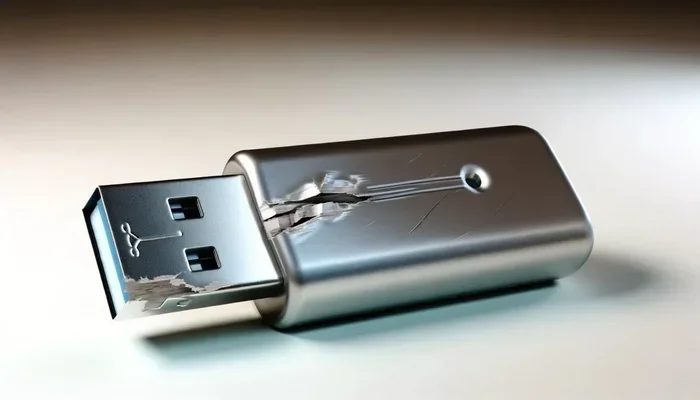
USB drives are small and portable, which means they get bumped, dropped, and jostled around. A damaged USB connector is one of the most common reasons a drive stops working. If the metal pins inside the connector bend or break, the drive simply cannot make proper contact with the computer.
Power Surges And ESD
Plugging a USB drive into a computer that is experiencing a power surge can fry the internal electronics. Electrostatic discharge (ESD) is another silent killer. You might not feel a shock, but even a tiny static charge can damage the sensitive components inside a USB drive.
Moisture And Heat Exposure
Leaving your USB stick in a hot car or exposing it to moisture can cause serious damage over time. Heat accelerates the degradation of electronic components, and moisture can cause corrosion on the internal circuit board.
Malware And Viruses
Plugging your USB drive into an infected computer can introduce malware that corrupts the file system or damages the drive’s firmware. This is especially common with drives that are shared across multiple computers.
Firmware Bugs
Sometimes the problem is not with the hardware at all. USB firmware can have bugs that cause the drive to behave erratically or become completely unresponsive. Manufacturers occasionally release firmware updates to fix these issues, but many users never check for them.
Quick Tip
If you ever need to troubleshoot a USB connection issue and also work with spreadsheets, you might run into situations where a line in Excel won’t delete properly after a file transfer error. Check out our guide on A Line Wont Delete In Microsoft Excel for helpful troubleshooting steps.
How To Test If Your USB Still Works
If you suspect your USB flash drive is going bad, you should run some tests before assuming it is completely dead. Here is a step-by-step approach to testing your USB drive.
Step 1: Try Different Ports And Computers
Before you panic, rule out simple causes. Plug the USB into a different port on your computer. Try a different computer entirely. If the drive works on another machine, the problem is with your original computer, not the drive.
Step 2: Check Device Manager
On Windows, open the device manager and look under “Disk Drives.” If your USB drive appears there, the computer can see it at a hardware level. If it does not appear, the drive may have a physical issue or a driver problem.
Step 3: Run CHKDSK
CHKDSK is a built-in Windows tool that checks the integrity of your drive and fixes file system errors. Open Command Prompt as an administrator and type chkdsk X: /f /r (replace X with your USB drive letter). This tool can often fix corrupted data and restore access to your files.
Step 4: Test With Disk Management
Open Disk Management on your computer. If your USB drive shows up here but not in File Explorer, the issue might be a drive letter conflict or a formatting problem. You can assign a new drive letter or try reformatting the drive from here.
Step 5: Use Third-Party Diagnostic Tools
Tools like CrystalDiskInfo or H2testw can give you detailed information about the health of your USB drive. H2testw is especially useful because it writes test data to every block of the drive and then reads it back to verify integrity. This is one of the most thorough ways to check if a dead USB can be revived.
Quick Tip
Always back up your data before running diagnostic tools or attempting any repairs on your USB drive. Testing can sometimes cause further data loss if the drive is already failing.
Can You Fix A Bad USB Drive?
The answer depends on what kind of failure your USB flash drive is experiencing. Some issues are fixable, while others mean the drive is truly dead.
Fixing Logical Failures
If your USB drive has a corrupted file system but the hardware is intact, you can often fix it yourself. Here are the most effective methods.
- Reformat the drive. Right-click the drive in File Explorer, select Format, and choose a file system like FAT32 or NTFS. This will erase all data, so make sure you have a backup first.
- Use data recovery software. Tools like Recuva, EaseUS Data Recovery, or Disk Drill can scan a failing drive and recover files that are still readable.
- Run CHKDSK. As mentioned above, this built-in tool can repair file system errors without losing data.
- Update or reinstall drivers. Sometimes the USB port or the drive’s driver is the problem, not the drive itself.
Fixing Physical Failures
Physical damage is harder to deal with, but it is not always the end of the road.
- Bent connector: If the metal pins inside the USB connector are bent, you can sometimes carefully straighten them with a pair of tweezers. Be very gentle.
- Loose connection: If the drive wobbles in the port, the connector may be worn out. A USB extension cable or adapter can sometimes provide a better connection.
- Broken circuit board: This is more serious. A soldering expert might be able to repair the board, but it is usually not worth the cost for a standard USB drive.
If the memory chip inside the drive is physically damaged, there is no reliable DIY fix. You would need professional data recovery services, which can be expensive.
Common Mistakes To Avoid
- Do not keep plugging in a failing drive. Each attempt can worsen the damage and make data recovery harder.
- Do not format a drive without backing up first. Formatting erases everything, and if the drive is failing, you may lose data permanently.
- Do not ignore warning signs. If your USB stick is showing symptoms of failure, start backing up your data immediately.
- Do not use a damaged drive for important files. A drive that has already failed once is likely to fail again, and possibly worse.
How To Prevent USB Drive Failure
The best way to deal with a bad USB is to prevent it from happening in the first place. Here are proven strategies to extend the life of your USB flash drive.
1. Safely Eject Before Removing
Always use the “Safely Remove Hardware” option before pulling out your USB drive. This ensures that all read and write operations are complete before you disconnect the drive. Removing a drive mid-write can corrupt both the files and the file system.
2. Keep It Dry And Cool
Store your USB stick in a cool, dry place. Avoid leaving it in direct sunlight or in hot environments like a car dashboard. Heat is one of the biggest enemies of electronic storage devices.
3. Use Quality Drives From Reputable Brands
Cheap, no-name USB drives may seem like a good deal, but they often use lower-quality memory chips that fail much faster. Stick with trusted brands like SanDisk, Samsung, Kingston, or Corsair for reliability.
4. Avoid Plugging Into Unfamiliar Computers
Computers in public places or shared workstations may carry malware that can infect your USB drive. Always scan any computer before plugging in your drive if you are unsure about its safety.
5. Make Regular Backups
A USB flash drive should never be your only copy of an important file. Follow the 3-2-1 backup rule: keep three copies of your data, on two different types of storage, with one copy stored offsite. Cloud storage is a great complement to physical USB drives.
6. Limit Write Cycles When Possible
Every write cycle wears out the memory cells slightly. If you use your USB drive as a permanent storage solution, consider moving large files to a more reliable storage medium like an external hard drive or cloud storage.
Expert Insight
Most consumer-grade USB flash drives are rated for around 10,000 to 100,000 write cycles per cell. In normal use, this translates to roughly 5 to 10 years of lifespan. However, heavy daily use can shorten that dramatically. If you rely on a USB drive for critical data, treat it as a temporary transfer tool rather than long-term storage.
Key Takeaways
- USB drives do go bad: They have a finite lifespan and wear out from repeated use.
- Watch for warning signs: Slow speeds, corrupted files, and unrecognized drives are early indicators of failure.
- Test before you assume it is dead: Use Device Manager, CHKDSK, and diagnostic tools to determine the real issue.
- Logical failures are fixable: Reformatting and data recovery software can often rescue a logically corrupted drive.
- Physical damage is harder to repair: Bent connectors and broken circuit boards may require professional help.
- Prevention is your best defense: Safe ejection, proper storage, and regular backups can significantly extend your drive’s life.
Conclusion
The short answer to “can a USB go bad” is yes. USB flash drives are convenient and portable, but they are not immortal. They wear out, get damaged, and can suffer from corruption just like any other storage device. The key is to recognize the warning signs early and take action before your data is lost.
If your USB stick is showing symptoms of failure, do not ignore them. Run diagnostics, back up your data, and try the recovery methods outlined in this guide. Most importantly, start treating your USB drive as a temporary tool rather than a permanent storage solution.
A little care and attention goes a long way in keeping your USB flash drive healthy and your data safe. Follow the prevention tips above, and you will get the most life possible out of every drive you own.
Frequently Asked Questions
Can a USB flash drive recover data after it goes bad?
Yes, in many cases data can be recovered from a failing USB drive. Software tools like Recuva or EaseUS Data Recovery can scan the drive and retrieve readable files. However, if the memory chip is physically damaged, professional data recovery services may be needed, and they can be expensive.
How long does a USB drive typically last before it goes bad?
Most consumer-grade USB drives last between 5 and 10 years with normal use. The lifespan depends on how often you write and delete data, the quality of the drive, and how well you take care of it. Drives used daily for heavy file transfers tend to fail sooner.
Why does my USB drive keep disconnecting and reconnecting?
This is usually caused by a loose or damaged connector, a faulty USB port, or a driver issue. Try plugging the drive into a different port or computer first. If the problem persists, the connector on the drive itself may be worn out and needs replacement or the drive should be retired.
Is it safe to format a USB drive that is showing errors?
Formatting can fix file system errors, but it will erase all data on the drive. Only format if you have already backed up your files or if the data is not important. If you need to recover data first, use data recovery software before formatting.
Can a power surge damage a USB drive?
Yes, a power surge can send an unexpected voltage through the USB port and damage the internal electronics of the drive. Using a surge-protected power strip or a USB hub with surge protection can help prevent this type of damage.
What is the difference between a USB 2.0 and USB 3.0 drive in terms of durability?
The USB version does not significantly affect the durability of the drive itself. Both USB 2.0 and USB 3.0 drives use similar flash memory technology. However, USB 3.0 drives tend to have faster write speeds, which can reduce the time the drive is under stress during large file transfers.
=== CONCLUSION ===
A USB can go bad, but you do not have to be caught off guard. By understanding the signs of a failing drive, knowing how to test it, and taking preventive steps, you can protect your data and get the most out of your USB flash drive. Remember to back up your files regularly, safely eject your drive, and replace aging drives before they fail completely. Your data is worth the effort.