How Do I Check My ATT Bill On My iPhone Step by Step
Checking your ATT bill on your iPhone is quick and easy using the AT&T app, the AT&T online portal, or your iPhone’s Settings app. You can view your AT&T bill details, payment history, data usage, and plan information right from your device. This guide covers every method step by step so you can stay on top of your AT&T wireless account anytime.
Ever found yourself staring at your phone wondering how to check your ATT bill on your iPhone? Maybe you just got a notification that your bill is due, or you want to see what you used last month. Whatever the reason, checking your AT&T bill from your iPhone is simpler than you might think.
In this guide, we walk you through every way to check your AT&T bill on your iPhone. From the AT&T app to the online portal, we cover it all. You will learn how to view your AT&T bill, track your data usage, and even set up payment reminders. Let us get started.
Key Takeaways
- Use the AT&T app: The fastest way to check your ATT bill on iPhone with push notifications and alerts.
- Log in online: Visit att.com from your iPhone browser to access your full AT&T account and billing details.
- Check via Settings: Use your iPhone’s Settings app to view your AT&T mobile data usage and plan info.
- Set up auto-pay: Avoid missed payments by enabling AT&T auto-pay and paperless billing on your account.
- Track data usage: Monitor your AT&T data usage in real time to avoid overage charges on your bill.
- Contact support: Reach AT&T customer service through chat or phone if you need help with your AT&T bill.
📑 Table of Contents
- Why Checking Your ATT Bill on iPhone Matters
- How to Check Your ATT Bill on iPhone Using the AT&T App
- How to Check Your ATT Bill Online Through Your iPhone Browser
- Using iPhone Settings to Check AT&T Data Usage
- Managing Your AT&T Plan and Payment Options on iPhone
- Troubleshooting Common Issues When Checking Your ATT Bill
- Tips to Keep Your AT&T Bill Low and Under Control
- Frequently Asked Questions
- Conclusion
Why Checking Your ATT Bill on iPhone Matters
Keeping an eye on your AT&T bill helps you stay in control of your spending. When you check your ATT bill on iPhone regularly, you catch errors early. You also avoid surprise overage charges that can sneak up on you.
Your AT&T wireless account tracks a lot of data. This includes your call logs, text messages, and data usage. If you do not check your AT&T bill often, you might miss important details. For example, you may not notice that your data usage spiked last month. Or you might overlook a charge you do not recognize. Checking your bill on your iPhone makes this easy. You can do it from your couch, on the bus, or anywhere you have a signal.
Another big reason to check your AT&T bill on iPhone is to manage your plan. AT&T offers many different plans, and they change often. By reviewing your AT&T statement regularly, you can see if a plan change saved you money. You can also check if you are using all the data you pay for.
How to Check Your ATT Bill on iPhone Using the AT&T App
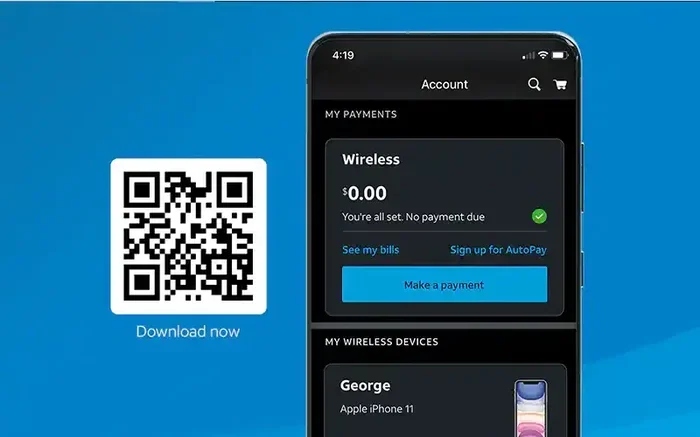
The AT&T app is the easiest way to check your ATT bill on iPhone. It is free, fast, and gives you access to your full AT&T account right from your phone.
Step 1: Download the AT&T App
Open the App Store on your iPhone. Search for “AT&T” and look for the official AT&T app. It has a blue icon with the AT&T logo. Tap “Get” to download and install it on your device.
Step 2: Log In to Your AT&T Account
Once the app is installed, open it. You will see a login screen. Enter your AT&T account username and password. If you do not remember your login details, tap “Forgot Password” and follow the prompts. You can also use your Apple ID to sign in if you have set that up.
Step 3: View Your Bill
After logging in, you will see your AT&T dashboard. Tap on “My Bill” or “Billing” to view your current bill. You can see the total amount due, the due date, and a breakdown of charges. The app also shows your past bills, so you can compare month to month.
Step 4: Set Up Bill Alerts
One of the best features of the AT&T app is bill alerts. Go to “Settings” within the app and turn on notifications. You can choose to get alerts when your bill is ready, when it is due, or when you are close to your data limit. This helps you stay on top of your AT&T billing cycle without having to check manually every time.
Quick Tip: If you use Can I Get Wi Fi From My Phone to connect to AT&T hotspots, make sure your app is updated. Updated apps sync your AT&T account data faster and more accurately.
How to Check Your ATT Bill Online Through Your iPhone Browser
Not a fan of apps? No problem. You can check your ATT bill on iPhone using your mobile browser. This method works just as well and gives you access to the full AT&T online portal.
Step 1: Open Safari or Any Browser
Open Safari or whichever browser you prefer on your iPhone. Make sure you have a good internet connection. You can use Wi-Fi or your AT&T mobile data. If you are not sure how to check your data connection, you can refer to our guide on Can I Get Wi Fi From My Phone for helpful tips.
Step 2: Go to att.com
Type “att.com” into the address bar and hit Enter. You will be taken to the AT&T homepage. Look for the “Sign In” button at the top right corner of the screen.
Step 3: Navigate to Your Bill
After signing in, click on “My Account.” From there, select “Billing & Payments.” You will see your current AT&T bill along with your payment history. You can also download past bills as PDFs. This is handy if you need to keep records for your budget or taxes.
Step 4: Make a Payment
While you are on the billing page, you can also make a payment right there. AT&T accepts credit cards, debit cards, and even bank transfers. You can set up one-time payments or enroll in AT&T auto-pay. Auto-pay is a great way to never miss a due date again.
Quick Tip: If you want to buy extra data for your plan, check out our guide on Can I Buy Hotspot Data On Att. It covers how to add data to your AT&T account easily.
Using iPhone Settings to Check AT&T Data Usage
Your iPhone has built-in tools that show your AT&T mobile data usage. While this does not show your full bill, it helps you track how much data you are using. This is important because going over your data limit can increase your AT&T bill.
Step 1: Open Settings
On your iPhone, open the Settings app. Scroll down and tap “Cellular” or “Mobile Data.” You will see a list of all apps and how much data each one has used.
Step 2: Check Your Current Period Data
At the top of the Cellular settings page, you will see your total data usage for the current billing period. This number resets each time your AT&T billing cycle starts. If you notice your data usage is high, you might want to switch to Wi-Fi more often to avoid extra charges.
Step 3: Reset Statistics
At the bottom of the Cellular settings, you will find a “Reset Statistics” button. Tap this at the start of each new AT&T billing cycle. This gives you a fresh start and helps you track your usage accurately each month.
Expert Insight: Many people do not realize that background apps use data even when you are not actively using them. Apps like social media, email, and weather apps can drain your data quickly. Check your Cellular settings regularly to see which apps are using the most data.
Managing Your AT&T Plan and Payment Options on iPhone
Once you know how to check your ATT bill on iPhone, it is time to manage your plan. AT&T offers several ways to customize your account and payment options right from your device.
Explore Your AT&T Plan Details
In the AT&T app, tap on “My Plan” to see your current plan details. You can view your data allowance, talk time, and text message limits. If you are close to your data cap, consider sharing your mobile data with another phone to make the most of what you have.
Set Up Auto-Pay and Paperless Billing
Auto-pay is one of the best features AT&T offers. When you set up auto-pay, your bill is paid automatically each month. You never have to worry about late fees. To set this up, go to the AT&T app, tap “Billing,” and select “Auto-Pay.” You can choose to pay the full balance or a custom amount.
Paperless billing is another great option. Instead of receiving a paper bill in the mail, you get an email notification when your bill is ready. This is better for the environment and helps you access your AT&T statement instantly. To enable paperless billing, go to “Account Settings” in the AT&T app and toggle on “Paperless Billing.”
Add a Hotspot to Your AT&T Plan
If you use your phone as a hotspot frequently, you might want to add a hotspot data plan. Check out our guide on Can I Add A Hotspot To My Att Unlimited Plan 2 to learn more about adding hotspot data to your AT&T unlimited plan.
Troubleshooting Common Issues When Checking Your ATT Bill
Sometimes things do not go smoothly. Here are some common problems you might face when checking your ATT bill on iPhone and how to fix them.
Cannot Log In to the AT&T App
If you cannot log in, first make sure your username and password are correct. Try resetting your password if needed. Also, check that your iPhone is connected to the internet. You can try switching between Wi-Fi and mobile data to see if that helps.
Bill Not Loading or Displaying Incorrectly
If your bill will not load, try closing the app and reopening it. You can also clear your browser cache if you are using Safari. Make sure your AT&T app is updated to the latest version. Outdated apps sometimes have syncing issues that prevent your bill from displaying correctly.
Payment Not Going Through
If your payment fails, check your card details. Make sure your card has enough funds and is not expired. You can also try a different payment method. If the problem continues, contact AT&T customer service for help.
Quick Tip: If you need help from a real person, you can chat with AT&T support directly. Check out our guide on Can I Chat With Att Support to learn how to reach an AT&T representative quickly.
Tips to Keep Your AT&T Bill Low and Under Control
Now that you know how to check your ATT bill on iPhone, here are some tips to keep your bill low and manageable.
Monitor Your Data Usage Regularly
Data overages are the number one reason AT&T bills spike. Use the iPhone Settings app to track your daily data usage. If you notice you are close to your limit, switch to Wi-Fi whenever possible. You can also check if Can I Get Wi Fi Without A Password at nearby locations to save your mobile data.
Use Wi-Fi Calling
Wi-Fi calling lets you make calls over Wi-Fi instead of using your cellular network. This saves your talk time and can reduce your bill. Go to Settings > Phone > Wi-Fi Calling on your iPhone to enable this feature.
Review Your Plan Every Few Months
AT&T updates its plans regularly. A plan that was perfect six months ago might not be the best fit now. Review your AT&T bill every few months and compare it to other available plans. You might find a better deal that saves you money each month.
Opt for Auto-Pay and Paperless Billing
Some AT&T plans offer discounts for enrolling in auto-pay and paperless billing. This is an easy way to save a few dollars every month without any effort. Check your AT&T app to see if your plan qualifies for these savings.
Key Takeaway: Staying on top of your AT&T bill is all about building a routine. Check your bill weekly or at least twice a month. Set up alerts and auto-pay. These small habits make a big difference over time.
Frequently Asked Questions
Can I check my ATT bill on iPhone without downloading the AT&T app?
Yes, you can. Simply open Safari or any browser on your iPhone and go to att.com. Sign in to your AT&T account and navigate to the Billing section to view your current and past bills.
How often does my ATT bill come?
ATT bills are generated once per billing cycle. The cycle length depends on your plan and account setup. Most AT&T wireless plans have a 30-day billing cycle. You can check your exact billing dates in the AT&T app under “My Bill.”
Can I pay my ATT bill directly from my iPhone?
Absolutely. You can pay your ATT bill through the AT&T app or the AT&T website on your iPhone. Both methods accept credit cards, debit cards, and bank transfers. You can also set up auto-pay to have your bill paid automatically each month.
Why is my ATT bill higher than usual?
Several factors can cause a higher-than-usual AT&T bill. These include increased data usage, international calls, roaming charges, or one-time fees. Check your AT&T bill breakdown to identify the specific charges. If you see something you do not recognize, contact AT&T customer service.
How can I see my AT&T data usage on my iPhone?
Go to Settings > Cellular on your iPhone. The top of the page shows your total data usage for the current billing period. You can also check detailed data usage per app in the same menu. Remember to reset your statistics at the start of each new billing cycle for accurate tracking.
What should I do if I see a charge on my ATT bill that I do not recognize?
First, review the charge details in the AT&T app or online portal. Some charges may take a few days to appear with full descriptions. If you still do not recognize the charge, contact AT&T support through the app chat, phone, or by visiting an AT&T store. They can help you investigate and resolve the issue.
Conclusion
Checking your ATT bill on iPhone is something you should do regularly. It keeps you informed, helps you avoid surprises, and gives you control over your AT&T wireless account. Whether you use the AT&T app, the online portal, or your iPhone Settings, you have all the tools you need right at your fingertips.
Follow the steps in this guide to check your AT&T bill, track your data usage, and manage your payments with ease. Set up alerts, enable auto-pay, and review your plan from time to time. These simple habits will save you time, money, and stress.
Your AT&T bill does not have to be a mystery. With the right tools and a little consistency, you can stay on top of it every single month. So go ahead, open that app, and take control of your AT&T account today.