How Do I Check My Epson Wi Fi and Solve Internet Issues
Checking your Epson Wi Fi connection is simpler than you think, and fixing most issues takes just a few minutes. This guide walks you through every step to verify your wireless printer settings, diagnose common problems, and restore your Epson connection fast. You will learn practical tips, expert tricks, and clear solutions that work for every Epson model.
Printers are annoying when they stop working. And nothing is more frustrating than an Epson printer that suddenly loses its Epson Wi Fi connection. You have a document to print, the ink is full, the paper is loaded, but your wireless printer just sits there doing nothing.
Whether you use your Epson for home office work or school projects, a dropped Wi Fi connection can bring everything to a halt. The good news is that checking your Epson Wi Fi status and fixing most problems is way easier than you might think. You do not need to be a tech expert. You just need the right steps.
In this guide, we will walk you through every method to check your Epson Wi Fi connection, identify common issues, and get your wireless printer back online quickly. We will cover simple checks, advanced troubleshooting, and long-term tips to prevent future problems. Let us get started.
Key Takeaways
- Check Wi Fi status directly from your Epson printer screen: The control panel shows signal strength and network name instantly.
- Use the Epson Status Monitor on your computer: This tool gives you detailed connection info without touching the printer.
- Restart your router and printer first: This simple fix solves the majority of Epson Wi Fi problems.
- Verify your Wi Fi password and security type: Wrong credentials or outdated security settings are the top causes of connection failures.
- Update printer drivers regularly: Outdated drivers often cause wireless printing errors that look like Wi Fi issues.
- Use Wi Fi Direct for quick connections: This bypasses your router when you need a fast, temporary link.
- Contact Epson support if problems persist: Some issues need firmware updates or professional diagnosis.
📑 Table of Contents
Understanding Your Epson Wi Fi Connection
Before you start fixing anything, it helps to understand how your Epson connects to your wireless network. Most modern Epson printers use a wireless network configuration that links your printer to your home router. Once connected, any device on the same network can send print jobs wirelessly.
Your Epson printer communicates with your router using Wi Fi signals, just like your phone or laptop does. The printer receives an IP address from the router, which allows it to send and receive data over the network. When something interrupts this process, your printer shows offline or connection errors.
How Epson Wi Fi Works
Epson printers support several wireless connection types. The most common ones are:
- Standard Wi Fi: Your printer connects to your home router just like any other device. This is the default method for most users.
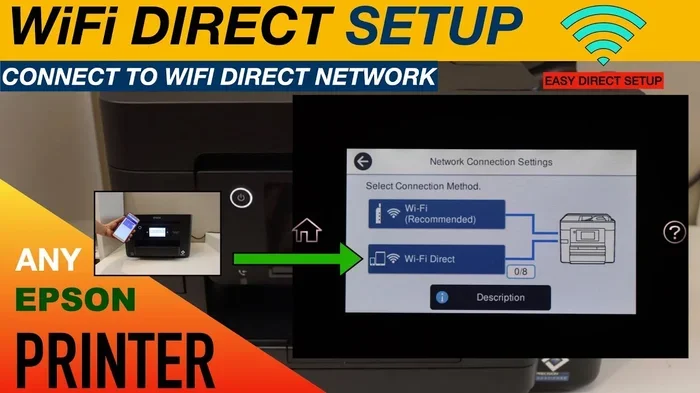
- Wi Fi Direct: This lets your printer create its own small network. You can connect your phone or computer directly to the printer without a router.
- Wi Fi Protected Setup (WPS): This is a quick push-button method that pairs your printer with your router in seconds.
Each method has its own way of showing connection status. Understanding which type you use helps you troubleshoot more effectively. Check your printer manual or the Epson website to confirm which wireless standard your model supports.
Why Epson Wi Fi Connections Drop
Wireless connections are not always stable. Several factors can cause your Epson Wi Fi to disconnect or fail to connect in the first place:
- Router interference: Other electronic devices, walls, and distance can weaken the Wi Fi signal reaching your printer.
- Password changes: If you recently changed your Wi Fi password, your printer will not know the new one.
- Router firmware updates: Sometimes a router update changes settings that affect printer connectivity.
- IP address conflicts: Two devices on the same network trying to use the same address causes connection problems.
- Outdated firmware: Old printer firmware may not work well with newer router security protocols.
Knowing these common causes helps you narrow down the problem faster. Most issues fall into one of these categories, and the fixes are straightforward.
How to Check Your Epson Wi Fi Status
Checking your Epson Wi Fi status is the first step in solving any connection problem. There are several ways to do this, and each gives you different levels of detail. You can check directly on the printer, from your computer, or through your router settings.
Method 1: Check From the Printer Control Panel
Most Epson printers with Wi Fi have a built-in screen or status light that shows your connection. Here is how to check:
- Turn on your Epson printer and wait for it to fully start up.
- Look at the control panel display or the Wi Fi indicator light on the top or front of the printer.
- If your model has a screen, navigate to the Network Settings or Wi Fi Status menu.
- You should see the network name (SSID) your printer is connected to and the signal strength.
- If the screen shows “Not Connected” or “No Signal,” your printer has lost its Epson Wi Fi connection.
For printers without a screen, the Wi Fi light will be solid blue or green when connected and flashing or off when disconnected. Check your specific model’s manual for exact light behavior.
Method 2: Use the Epson Status Monitor on Your Computer
If you have installed the Epson printer software on your computer, you can check the connection status easily:
- Open the Epson Status Monitor from your computer’s system tray or applications folder.
- The status monitor shows whether your printer is online or offline.
- It also displays the network name, IP address, and signal strength.
- Right-click the printer icon and look for options like “Check Connection” or “Network Status.”
This method is especially helpful because it gives you detailed network information without walking over to the printer. You can also use the Epson Status Monitor to run basic wireless troubleshooting directly from your computer.
Method 3: Check From Your Router
Your router keeps a list of all devices connected to your network. You can use this to confirm whether your Epson printer appears:
- Open a web browser and type your router’s IP address into the address bar (usually 192.168.1.1 or 192.168.0.1).
- Log in to your router admin panel using your username and password.
- Find the “Connected Devices” or “DHCP Client List” section.
- Look for your Epson printer by name or IP address.
- If it is not on the list, your printer is not connected to the network.
This method is great for confirming whether the problem is with the printer or the network itself. If other devices also cannot connect, the issue is likely your router, not your Epson printer.
Method 4: Print a Network Configuration Page
Epson printers can print a detailed network status report directly from the device. This is one of the most thorough ways to check your connection:
- Press and hold the Wi Fi button on your printer for a few seconds (the exact button varies by model).
- Alternatively, go to the printer menu, select Network Settings, then choose Print Network Configuration Page.
- The printed report shows your IP address, subnet mask, gateway, DNS servers, and signal strength.
- Compare this information with your router settings to spot any mismatches.
This method gives you the most technical detail and is very useful when you need to share information with Epson support or a network technician.
Common Epson Wi Fi Problems and How to Fix Them
Not all Wi Fi problems are the same. Some are simple fixes you can do in under a minute. Others need a bit more digging. Here are the most common Epson Wi Fi issues and the solutions that work.
Problem 1: Printer Shows Offline
The most common complaint is that the printer shows as offline on your computer. This usually means the computer cannot communicate with the printer over the network. Try these steps:
- Make sure both your printer and computer are on the same Wi Fi network.
- Restart your printer by turning it off, waiting 30 seconds, and turning it back on.
- Restart your computer to refresh the network connection.
- Check that the printer is not in “Sleep” or “Offline” mode from its control panel.
If the printer still shows offline, try removing it from your computer’s printer list and adding it back. This forces your computer to rediscover the printer on the network.
Problem 2: Printer Will Not Connect to Wi Fi
When your Epson refuses to connect to your wireless network at all, the cause is usually one of these:
- Wrong password: Double-check that you are entering the correct Wi Fi password. Passwords are case-sensitive.
- Wrong security type: Some older Epson models do not support WPA3 security. Try switching your router to WPA2.
- 5 GHz band issues: Many Epson printers only connect to 2.4 GHz networks. Make sure your printer is trying to join the right band.
- Too many devices: Some routers limit the number of connected devices. Check if you have reached the limit.
For the password issue, you can also try connecting your printer to Wi Fi Direct as a temporary workaround. This creates a direct link between your device and the printer without needing the router.
Problem 3: Intermittent Connection Drops
If your printer connects sometimes but drops off randomly, the signal strength is likely the culprit:
- Move your router closer to your printer if possible.
- Remove physical obstacles between the router and printer, especially thick walls and metal objects.
- Switch your router to a less crowded Wi Fi channel using your router settings.
- Consider adding a Wi Fi range extender to boost the signal to your printer’s location.
Intermittent drops are frustrating but usually solvable with better signal placement. A quick test is to print from the printer’s control panel. If it prints without issues, the problem is with your computer’s connection to the printer, not the printer’s connection to the router.
Problem 4: Printer Connects but Will Not Print
Sometimes the Epson Wi Fi shows connected, but print jobs never come out. This is often a software issue:
- Check the print queue on your computer and cancel any stuck jobs.
- Update your Epson printer drivers from the official Epson website.
- Make sure the correct printer is selected as the default in your computer’s printer settings.
- Try printing a test page from the printer’s control panel to rule out hardware issues.
If the test page prints fine from the printer but not from your computer, the issue is with your computer’s settings or drivers, not the wireless connection itself.
Step-by-Step Troubleshooting Guide
When nothing else works, follow this systematic troubleshooting process. It covers all the major fixes in order from simplest to most advanced.
Step 1: Restart Everything
This is the oldest trick in the book, and it works. Restarting clears temporary glitches and refreshes all connections:
- Turn off your Epson printer and unplug it from the power outlet.
- Unplug your router from power as well.
- Wait at least 60 seconds for both devices to fully power down.
- Plug in your router first and wait for all lights to stabilize.
- Plug in your printer and wait for it to reconnect to the network.
- Try printing a test page.
This simple restart fixes about 70% of all wireless printing issues. Do not skip this step even if it seems too simple.
Step 2: Reconnect to Your Wi Fi Network
If restarting does not help, try reconnecting your printer to the network from scratch:
- Go to your printer’s control panel and find the Wi Fi Setup or Network Settings menu.
- Select your network name from the list and enter your password.
- If your printer does not show your network, make sure the router is broadcasting the SSID.
- For WPS-compatible routers, press the WPS button on your router, then press the Wi Fi button on your printer within two minutes.
Reconnecting forces your printer to get a fresh IP address and renegotiate the connection with your router. This often resolves issues caused by expired leases or changed settings.
Step 3: Update Firmware and Drivers
Outdated software is a hidden cause of many connection problems:
- Visit the Epson support website and enter your printer model number.
- Download and install the latest firmware for your printer.
- Also update the printer drivers on your computer.
- Restart both devices after updating.
Firmware updates often include fixes for Wi Fi connectivity bugs and improve compatibility with newer routers. Keeping your Epson updated prevents many issues before they start.
Step 4: Reset Network Settings
If none of the above works, a full network reset may be needed:
- Go to your printer’s network settings and select “Restore Network Settings” or “Factory Reset.”
- This clears all saved Wi Fi passwords and network configurations.
- You will need to set up the Wi Fi connection again from scratch.
- Follow the on-screen prompts to reconnect to your network.
Be careful with this step, as it resets all network settings, not just the Wi Fi connection. Make sure you know your Wi Fi password before starting.
Step 5: Check for IP Address Conflicts
Every device on your network needs a unique IP address. If two devices share the same address, one or both will lose connection:
- Print a network configuration page from your Epson printer (see Method 4 above).
- Check the IP address listed on the page.
- Log into your router and look at the DHCP client list.
- If another device has the same IP, your router may need to be configured to assign addresses differently.
Setting your router to use static IP assignment for your printer can prevent this problem from happening again. This is a more advanced fix but very effective for permanent solutions.
Tips to Keep Your Epson Wi Fi Running Smoothly
Prevention is always better than cure. A few simple habits can keep your Epson Wi Fi connection stable and reliable for years.
Keep Your Printer Close to Your Router
Physical distance is the enemy of wireless signals. The closer your printer is to your router, the stronger the connection. If you can, place your printer in the same room as your router or within 30 feet of it. Walls, furniture, and appliances all weaken the signal.
Update Regularly
Set a reminder to check for firmware and driver updates every few months. Epson releases updates that fix bugs, improve performance, and add new features. Staying current keeps your printer running at its best.
Use a Stable Network
If your household has many devices competing for Wi Fi bandwidth, your printer may suffer. Consider setting up a separate network band or a guest network just for your printer. This reduces interference from streaming, gaming, and other heavy internet activities.
Secure Your Network
An open or poorly secured Wi Fi network invites unauthorized devices that can slow down your connection. Use WPA2 or WPA3 encryption and a strong password. This keeps your network fast and your printer connection stable.
Avoid Frequent Power Cycling
While restarting helps fix problems, constantly turning your printer off and on can cause connection instability. Let your printer stay in sleep mode when not in use, and only restart when troubleshooting an actual issue.
When to Contact Epson Support
Most Epson Wi Fi issues resolve with the steps above. But some problems need professional help. Contact Epson support if:
- Your printer still will not connect after a full factory reset.
- You see error codes on the printer display that you cannot resolve.
- Your printer works on Wi Fi Direct but not on your home network.
- You suspect a hardware issue with the printer’s wireless card.
- Your router is very new and may have compatibility issues with your printer model.
Epson support can walk you through advanced steps like checking your printer’s wireless card, updating router firmware, or configuring advanced network settings. They can also arrange a repair or replacement if your printer has a hardware defect.
Before contacting support, have your printer model number, network name, and the steps you have already tried ready. This saves time and helps the support team diagnose the issue faster.
Conclusion
Checking and fixing your Epson Wi Fi connection does not have to be complicated. Start with the simple checks, work through the troubleshooting steps, and most issues will resolve quickly. The key is to stay calm, follow the steps in order, and not skip the basics like restarting your devices.
Regular maintenance like updating firmware, keeping your printer close to the router, and securing your network goes a long way toward preventing future problems. A little effort now saves you a lot of frustration later.
If you have tried everything and your printer still will not connect, reach out to Epson support or check your router settings. Sometimes the issue lies outside the printer itself. For more tips on managing your home network, you might find our guide on connecting your PC to Wi Fi without Ethernet helpful for understanding your broader network setup. Similarly, if you are dealing with multiple devices on your network, learning how to block a device from using your Wi Fi can help keep your network clean and your printer running smoothly.
Remember, every connection problem has a solution. The steps in this guide give you the tools to find it. Keep your printer connected, your documents printing, and your stress levels low.
For users who want to expand their network knowledge, check out our article on adding Wi Fi to your PC for helpful tips on strengthening your overall wireless setup at home.
Frequently Asked Questions
Why does my Epson printer keep losing its Wi Fi connection?
Most of the time, this happens because of weak signal strength, router interference, or an IP address conflict. Try moving your printer closer to your router and restarting both devices. If the problem continues, check for firmware updates or reset your network settings to fix the connection.
Can I connect my Epson printer to Wi Fi without a password?
Yes, if your router supports WPS (Wi Fi Protected Setup), you can connect your Epson printer by pressing the WPS button on your router and then the Wi Fi button on your printer. However, this is less secure than using a password, so it is best to use it only when necessary.
How do I know if my Epson printer is connected to Wi Fi?
Check the Wi Fi indicator light on your printer. A solid light means connected, while a flashing or off light means not connected. You can also print a network configuration page from your printer or check the Epson Status Monitor on your computer for detailed connection info.
What should I do if my Epson printer shows “Wi Fi Not Available”?
This usually means the wireless feature has been turned off or the printer cannot detect any networks. Go to your printer’s network settings and make sure Wi Fi is enabled. Also check that your router is broadcasting its network name and is within range of the printer.
Is Wi Fi Direct the same as connecting through my router?
No, Wi Fi Direct creates a direct connection between your device and the printer without using your router. It is useful for quick, temporary connections but does not give you access to network features like scanning to email or cloud printing.
How often should I update my Epson printer firmware?
You should check for firmware updates at least once every few months. Epson releases updates that fix connectivity bugs, improve performance, and add new features. Keeping your printer updated helps prevent many common Wi Fi issues before they start.