Show My Wi Fi Password on Mac With These Easy Steps
Showing your Wi-Fi password on a Mac is quick and easy using built-in tools like Keychain Access and System Preferences. You don’t need third-party apps or technical expertise. This guide walks you through every method so you can find your Wi-Fi password on Mac in minutes, whether you’re troubleshooting a connection or sharing credentials with a guest.
Key Takeaways
- Keychain Access is the fastest way to reveal saved Wi-Fi passwords on any Mac running macOS.
- System Preferences offers a simpler method for users who prefer a graphical interface over terminal commands.
- You can view your Wi-Fi password on Mac without downloading any third-party software or apps.
- macOS stores all your network credentials securely, so you can recover them anytime you need them.
- QR code sharing is a modern alternative if you want to share your Wi-Fi password without typing it out.
- Knowing how to retrieve your password helps you troubleshoot connection issues and set up new devices faster.
📑 Table of Contents
- Show My Wi-Fi Password on Mac With These Easy Steps
- Why You Might Need to Find Your Wi-Fi Password on Mac
- Method 1: Use Keychain Access to Show Your Wi-Fi Password on Mac
- Method 2: Check System Preferences for Your Wi-Fi Password on Mac
- Method 3: Use Terminal to Retrieve Your Wi-Fi Password on Mac
- How to Share Your Wi-Fi Password with Others
- How to Change Your Wi-Fi Password on Mac
- Troubleshooting Common Password Issues on Mac
- Keep Your Wi-Fi Network Secure on Your Mac
- Summary: How to Show My Wi-Fi Password on Mac
Show My Wi-Fi Password on Mac With These Easy Steps
Have you ever stood in front of a friend’s router, trying to connect your laptop, and realized you forgot your Wi-Fi password? It happens to all of us. The good news is that your Mac remembers it. Whether you use a MacBook Pro, MacBook Air, or an older Mac desktop, you can find your Wi-Fi password on Mac in just a few clicks. You don’t need to be a tech expert. This guide shows you every method that works on modern macOS versions.
We’ll cover the easiest approaches first and then dive into more advanced options. By the end, you’ll know exactly how to view, share, and manage your wireless network credentials. No more guessing. No more resetting your router. Just straightforward steps that anyone can follow. Let’s get started.
Why You Might Need to Find Your Wi-Fi Password on Mac
There are plenty of reasons you’d want to show my Wi-Fi password on Mac. Maybe you’re setting up a new smart TV and need the network key. Perhaps a friend is visiting and wants to jump on your network. Or you might be troubleshooting a connection issue and need to verify what your Mac has stored.
Whatever the reason, knowing where your password lives saves time and frustration. Your Mac keeps a record of every Wi-Fi network you’ve ever connected to. This includes the password for each one. The only question is how to access that information. We’ll answer that right now.
Common Scenarios Where You Need Your Password
- Adding a new device: Smart home gadgets, gaming consoles, and streaming devices all need your Wi-Fi credentials.
- Troubleshooting connection drops: Sometimes verifying your password helps identify configuration problems.
- Sharing with guests: Instead of typing it out letter by letter, you can pull it up instantly.
- Setting up a second Mac: Migrating to a new computer means you’ll need your network details.
- Security check: You might want to confirm your password strength or update it.
Method 1: Use Keychain Access to Show Your Wi-Fi Password on Mac
The most reliable way to find your saved Wi-Fi password is through Keychain Access. This built-in macOS tool stores all your passwords securely. It works on every version of macOS from Sierra onward. Here’s exactly how to use it.
Step-by-Step Guide for Keychain Access
First, open Keychain Access. Click the Spotlight magnifying glass in the top-right corner of your screen. Type “Keychain Access” and press Enter. The app will open in a new window. You’ll see a search bar at the top right of that window.
Next, type the name of your Wi-Fi network into the search bar. Make sure you type it exactly as it appears. The network should show up in the list below. Double-click on it to open a details window.
Now, check the box that says “Show password.” Your Mac will ask for your user account password or Touch ID. Enter it. The password field will reveal your Wi-Fi network password in plain text. You can now copy it or write it down.
What If Keychain Access Doesn’t Show the Password?
Sometimes Keychain Access won’t display the password right away. This usually happens when your Mac hasn’t connected to the network recently. Try connecting to the Wi-Fi network first, then reopen Keychain Access. The password should appear without issues.
Another reason could be that the network entry was never saved. In that case, try the second method below. It’s simpler and works in most situations.
Method 2: Check System Preferences for Your Wi-Fi Password on Mac
If Keychain Access feels too technical, you can use System Preferences instead. This method uses the graphical interface you’re already familiar with. It’s perfect for users who prefer clicking through menus rather than searching for apps.
How to Access Wi-Fi Password Through System Preferences
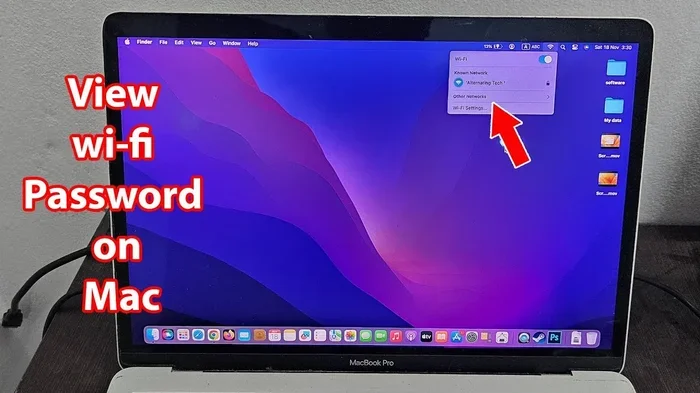
Open System Preferences by clicking the Apple logo in the top-left corner. Select “System Preferences” from the dropdown menu. Click on the Network icon. On the left side, you’ll see a list of connections. Select your active Wi-Fi connection.
Click the “Advanced” button in the bottom-right corner. A new window opens with several tabs. Go to the “Wi-Fi” tab. Here, you’ll see your network name listed. The password field is right there, but it shows dots instead of the actual characters.
Check the box next to “Show password” to reveal it. Just like with Keychain Access, your Mac will ask for authentication. Enter your user password or use Touch ID. The wireless password will now display clearly.
This method only works if your Mac is currently connected to the Wi-Fi network. If you’ve forgotten the network and aren’t connected, you’ll need to use Keychain Access instead.
Method 3: Use Terminal to Retrieve Your Wi-Fi Password on Mac
For those who love the command line, Terminal offers a powerful way to find Wi-Fi password on Mac. This method works even if you’re not currently connected to the network. It pulls the password directly from your system’s stored network data.
Terminal Commands Step by Step
Open Terminal by going to Spotlight and typing “Terminal.” Or find it in your Applications folder under Utilities. Once Terminal is open, type the following command:
security find-generic-password -wa "Your Network Name"
Replace “Your Network Name” with the exact name of your Wi-Fi network. Press Enter. Terminal will ask for your user password. Type it in — you won’t see the characters appear, which is normal. Press Enter again.
The password will display on the screen. You can then copy it directly from Terminal. This method is fast and doesn’t require navigating through multiple menus. It’s especially useful if you manage several networks and need to pull them up quickly.
networksetup -listallhardwareports. This helps you find the exact network name if you’re unsure of the spelling.
Is It Safe to Use Terminal for Password Retrieval?
Absolutely. Terminal is a built-in macOS tool, and these commands only read stored credentials. They don’t change anything or expose your data to external sources. The security command simply pulls what macOS already has saved. As long as you trust your own Mac, this method is completely safe.
How to Share Your Wi-Fi Password with Others
Once you know how to find your password, you might want to share it. macOS makes this surprisingly easy, especially if you’re near another Apple device. You can also use a QR code to share credentials without typing anything.
Sharing via Apple Devices
If someone with an iPhone or iPad is near your Mac, you can share your Wi-Fi password wirelessly. Make sure both devices have Bluetooth and Wi-Fi turned on. When the other person tries to connect to your network, your Mac will show a prompt asking if you want to share the password. Simply click “Share.” The other device connects automatically.
This works best with devices running iOS 11 or later and macOS High Sierra or later. It’s one of the most convenient features Apple has built into the ecosystem. No more squinting at a tiny screen to type in a long password.
Creating a QR Code for Your Wi-Fi Network
If you want to share your password without using Apple devices, consider creating a QR code. You can visit a site like Can I Create a QR Code for My Wi-Fi to generate one. Scan the code with any smartphone camera, and it will connect to your network automatically.
This method is great for hosting guests or setting up smart home devices. You print the QR code and place it near your router. Anyone who needs access simply scans it with their phone. No typing required.
How to Change Your Wi-Fi Password on Mac
Sometimes finding your password is only half the battle. You might also need to change it. Whether you’re improving security or a device has been compromised, updating your network password is straightforward.
Steps to Change Your Router Password
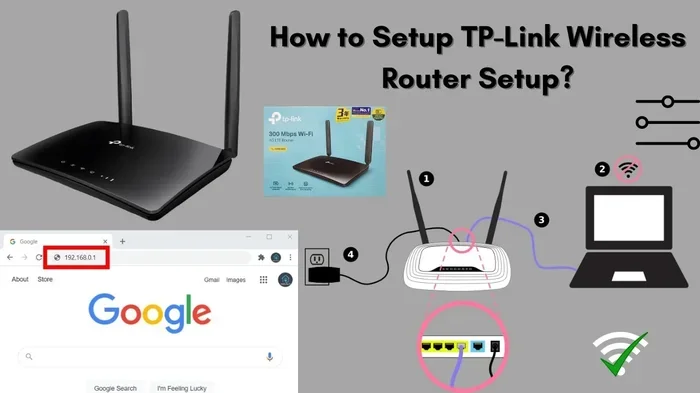
First, log into your router’s admin panel. Open a browser and type your router’s IP address — usually 192.168.1.1 or 192.168.0.1. Enter your admin username and password. These are often printed on a sticker on the back of your router.
Navigate to the wireless settings section. Look for “Wi-Fi Password” or “Network Key.” Delete the old password and type a new one. Make sure it’s strong — use a mix of uppercase letters, lowercase letters, numbers, and symbols. Save your changes, and all connected devices will need the new password.
After changing the password, your Mac will disconnect. Reconnect using the new credentials. macOS will automatically save the updated password in Keychain Access, so you won’t need to remember it again.
Troubleshooting Common Password Issues on Mac
Sometimes things don’t go as smoothly as we’d like. Here are the most common issues people face when trying to show Wi-Fi password on Mac and how to fix them.
Password Doesn’t Match What You Remember
This happens more often than you’d think. You might be remembering an old password that was changed months ago. Always trust what your Mac shows you over what you think you remember. If the Mac says the password is correct, it is.
Keychain Access Shows an Error
If Keychain Access gives you an error message, try restarting your Mac first. Sometimes the keychain database gets temporarily locked. A simple reboot usually fixes it. If the problem persists, you might need to reset your keychain through System Preferences.
Wi-Fi Network Not Listed in Keychain
If your network doesn’t appear in Keychain Access, your Mac might not have saved it. This can happen if you selected “Don’t Save” when you connected. In that case, you’ll need to check your router directly or contact the network administrator.
You can also check if your router stores the password in its admin panel. Most modern routers keep the current Wi-Fi password visible in their settings. Logging in is the fastest way to retrieve it if your Mac can’t help.
Keep Your Wi-Fi Network Secure on Your Mac
Finding your password is just one part of managing your network. You also want to keep it safe. Here are some best practices for maintaining strong network security on your Mac and home network.
- Use WPA3 encryption if your router supports it. It’s the most secure wireless protocol available today.
- Change your password regularly. Every three to six months is a good rhythm.
- Don’t share your password publicly. Only give it to people you trust.
- Update your router firmware. Manufacturers release security patches regularly. Keeping your router updated closes known vulnerabilities.
- Use a unique password. Avoid reusing passwords from other accounts. A password manager helps with this.
- Enable your firewall. macOS has a built-in firewall that adds an extra layer of protection.
Taking these steps means that even if someone discovers your password, they’ll have a hard time doing anything harmful. Security is an ongoing process, not a one-time setup.
Summary: How to Show My Wi-Fi Password on Mac
We’ve covered three main ways to show my Wi-Fi password on Mac. Keychain Access gives you the most complete view of all saved networks. System Preferences offers a simpler path for users who prefer visual menus. Terminal provides a fast command-line option for advanced users. Pick whichever method feels most comfortable to you.
You now know how to retrieve, share, and manage your wireless network credentials. You also understand how to troubleshoot common issues and keep your network secure. The next time someone asks for your Wi-Fi password, you’ll have it ready in seconds.
Remember, your Mac stores all this information for a reason. It’s designed to make your life easier. You just need to know where to look. With the steps in this guide, you’ll never be stuck without your password again.
If you’re curious about other Wi-Fi topics, check out Can I Get Wi-Fi Without a Password or learn how to Connect to Wi-Fi Without a Password for more networking tips. You can also explore seeing your Wi-Fi password from a QR code if you prefer that approach.
Frequently Asked Questions
Can I see my Wi-Fi password on Mac without Keychain Access?
Yes. You can use System Preferences or Terminal to retrieve your saved Wi-Fi password. Both methods are built into macOS and don’t require any third-party tools. System Preferences is the simplest option if you’re currently connected to the network.
Why can’t I find my Wi-Fi network in Keychain Access?
Your Mac might not have saved the network password. This happens if you chose not to save it when connecting. It can also occur if the network entry was deleted. Try connecting to the network again and make sure to save the password this time.
Is it safe to share my Wi-Fi password from my Mac?
It’s safe as long as you trust the person you’re sharing with. macOS has built-in sharing features that encrypt the password during transfer. Avoid sharing your password over unsecured channels like public email or text messages.
Can I recover my Wi-Fi password if I reset my Mac?
If you reset your Mac and didn’t back up your keychain, you may lose saved passwords. However, you can always log into your router’s admin panel to find the current password. Most routers display the Wi-Fi password in their wireless settings.
Does macOS automatically update my saved Wi-Fi password when I change it?
Yes. When you connect to a network with a new password, macOS updates the stored credentials in Keychain Access automatically. You don’t need to do anything manually. Just make sure you connect with the new password at least once.
Can I use my Mac to find the Wi-Fi password for a network I’m not connected to?
Yes, but only if your Mac previously connected to that network and saved the password. Keychain Access and Terminal can both retrieve passwords for networks you’ve connected to in the past, even if you’re not currently connected to them.