Can I See Wi Fi Password From Qr Code On Any Device
Yes, you can see WiFi password from a QR code on most devices, but the method depends on your phone or operating system. A WiFi QR code stores your network name, password, and encryption type in a scannable image. Whether you use Android, iPhone, or a computer, there are simple ways to scan the code and extract the password. This guide walks you through every method step by step. You will learn how to create, scan, and safely manage WiFi QR codes for everyday use.
Have you ever seen a small square barcode on a router or a piece of paper and wondered what it holds? That little image is a WiFi QR code, and it contains everything needed to connect to a wireless network. People use these codes to share internet access without typing long, complicated passwords. But the real question is: can I see WiFi password from QR code on my own device? The short answer is yes. The longer answer depends on what kind of phone or computer you are using.
In this guide, we will walk through every method you can use to scan a WiFi QR code and retrieve the password. We will cover Android phones, iPhones, Windows laptops, and even Mac computers. You will also learn how to create your own WiFi QR code for sharing. By the end, you will feel confident working with wireless network credentials in QR format. Let us get started.
Key Takeaways
- WiFi QR codes store network credentials: They hold your SSID, password, and encryption type in a single scannable image.
- You can see the password on Android easily: Most Android phones let you view the full network details after scanning.
- iPhone users need a workaround: iOS does not show the password directly, but you can still retrieve it through specific apps or settings.
- Creating a WiFi QR code is simple: Free online tools and apps let you generate shareable QR codes for your network.
- Security matters: Always share WiFi QR codes carefully to protect your network from unauthorized access.
- Common scanning issues are fixable: Most problems with reading WiFi QR codes have simple solutions.
📑 Table of Contents
- What Is a WiFi QR Code and How Does It Work?
- Can You See WiFi Password From a QR Code on Any Device?
- How to Scan a WiFi QR Code and Retrieve the Password
- How to Create a WiFi QR Code Yourself
- Is It Safe to Share WiFi Passwords Using QR Codes?
- Common Problems When Scanning WiFi QR Codes (and How to Fix Them)
- Expert Insights on WiFi QR Codes
- Key Takeaways
- Frequently Asked Questions
- Conclusion
What Is a WiFi QR Code and How Does It Work?
A WiFi QR code is a special type of barcode that holds your network details. When someone scans it, their device reads the information and prepares to connect. The code usually contains three pieces of data. First, it stores the WiFi SSID, which is the name of your network. Second, it holds the WiFi password or security key. Third, it includes the WiFi encryption type, such as WPA2 or WPA3.
Here is how a typical WiFi QR code string looks behind the scenes:
- WIFI:T:WPA;S:MyNetworkName;P:MyPassword123;;
Each part of this string has a purpose. The “T” stands for the WiFi authentication type. The “S” is the network name or SSID. The “P” is the password. The double semicolons at the end signal the end of the data string. When a QR code scanner app reads this, it understands exactly what to do.
These codes are incredibly useful in many situations. You might print one and place it near your front door for guests. Or you could share it with a new roommate so they can connect quickly. Some businesses display them on counters so customers can jump online fast. The beauty of a WiFi QR code is that it removes the hassle of typing long passwords on a small phone screen.
Types of WiFi Encryption Found in QR Codes
Not all WiFi networks use the same security setup. When you look at a WiFi QR code, the encryption type tells you how protected the network is. Here are the most common types you will encounter:
- WPA2: The most widely used security standard today. It offers strong protection for home networks.
- WPA3: The newest standard with even better security features. It is becoming more common in modern routers.
- WEP: An older and weaker form of security. You should avoid using WEP if possible.
- Open: No password at all. This means anyone can connect without entering credentials.
When you scan a WiFi QR code, the scanner app reads this encryption type and uses it during the connection process. This is why the QR code approach works so smoothly — the device handles all the technical details for you.
Can You See WiFi Password From a QR Code on Any Device?
The honest answer is: it depends on your device and operating system. Android users generally have the easiest time viewing WiFi passwords from QR codes. iPhone users face more limitations, but there are still workarounds. Windows and Mac users can also retrieve this information using the right tools. Let us break it down by device.
Viewing WiFi Password From QR Code on Android
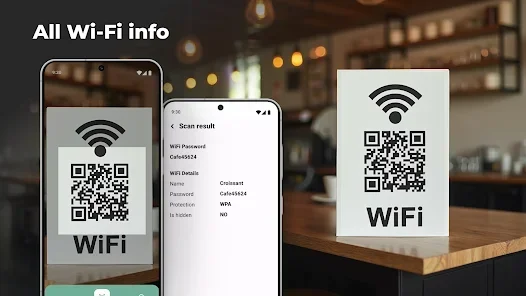
Most modern Android phones make this process very simple. When you scan a WiFi QR code using your phone’s built-in camera or a QR code scanner app, the device often shows a preview screen. This screen typically displays the network name and offers a “Connect” button. But here is the key question: can you see the actual password on Android?
The answer is usually yes, but with a small catch. On many Android phones, after scanning, you can tap on the network details to view the full WiFi network credentials. The password field may be hidden behind dots, but you can often toggle a visibility icon to reveal it. Some Android versions also let you view the password in your saved network settings after connecting.
Here is a quick step-by-step for most Android phones:
- Open your camera app or a QR code scanner app.
- Point it at the WiFi QR code until it recognizes the data.
- Tap the notification or link that appears on screen.
- Look for the network details screen showing SSID and password.
- Tap the password field to reveal the actual characters.
- Connect to the network or write down the password for later use.
Keep in mind that Android versions differ slightly. Some older phones may not show the password directly after scanning. In those cases, connecting to the network first and then checking your saved WiFi settings can help you find the password.
Viewing WiFi Password From QR Code on iPhone
iPhone users face a slightly different experience. Apple’s iOS does not always display the WiFi password directly after scanning a QR code. When you point your iPhone camera at a WiFi QR code, it typically shows a prompt to connect. Once you tap “Connect,” your phone joins the network. But finding the actual password text is not as straightforward.
However, there are reliable workarounds. Here are the best methods for iPhone users:
- Use a third-party QR scanner app: Apps like “QR Scanner” or “WiFi Key Share” can decode the QR code and display the password directly on screen.
- Check your router settings: If you own the network, log into your router’s admin panel to find the password in the wireless settings.
- Use iCloud shared passwords: If you connected through the QR code and share devices with the same Apple ID, the password may appear in your iCloud password manager.
The main takeaway is that iPhone users can still see the WiFi password, but they usually need an extra step or a helper app. It is not as instant as on Android, but it is absolutely doable.
Viewing WiFi Password From QR Code on Windows and Mac
Desktop computers are not left out of the process. On Windows, you can use a web-based QR code reader or download a desktop scanner app. Once you scan the WiFi QR code, the tool will decode the data string and display the network name and password on screen.
On a Mac, you can use the built-in Preview app or a web-based QR decoder. Simply upload an image of the QR code to a free online tool, and it will extract the credentials. Some popular web tools include QR Code Reader Online and ZXing Decoder Online. These work in any browser and do not require software installation.
For both Windows and Mac users, the process is straightforward. You scan or decode the image, read the displayed password, and use it to connect. The advantage of using a computer is that the screen is larger, making it easier to read and copy the WiFi network credentials.
How to Scan a WiFi QR Code and Retrieve the Password
Scanning a WiFi QR code is a simple process, but doing it correctly ensures you get the password without errors. Here is a detailed walkthrough that works across most devices.
Method 1: Using Your Phone’s Built-In Camera
Most modern smartphones have a built-in QR scanner in the camera app. This is the fastest way to read a WiFi QR code. Simply open your camera, point it at the code, and wait for a notification to appear. On Android, you might see a banner that says “WiFi network detected.” On iPhone, you will see a prompt to join the network.
For Android users, tap the notification and look for a “Details” or “View Password” option. For iPhone users, tap “Join” and then use one of the workarounds mentioned earlier to find the password text.
Method 2: Using a Dedicated QR Scanner App
If your phone’s camera does not support QR scanning, or if you want more features, a dedicated QR code scanner app is a great choice. These apps are free and available on both the App Store and Google Play Store. Some popular options include:
- QR & Barcode Scanner by Gamma Play
- QR Code Reader by Kaspersky
- NeoReader by Scan
- Google Lens (built into many Android phones)
When you use a QR code scanner app, you open the app, point your camera at the code, and the app decodes the information. Many of these apps display the full data string, including the password, in a readable format. This method works especially well when you want to copy the password to paste it somewhere else.
Method 3: Using Online QR Decoders
If you have a screenshot or image file of a WiFi QR code, you can use an online decoder. Websites like ZXing Decoder Online or QR Code Monitor let you upload an image and extract the data. This is handy when someone sends you a QR code image through email or messaging apps.
Just visit the website, upload your image, and the tool will display the decoded string. You can then look for the password section within the string. This method works on any device with a web browser, including tablets, laptops, and desktop computers.
How to Create a WiFi QR Code Yourself
Creating your own WiFi QR code is surprisingly easy. You do not need any special skills or expensive software. Many free tools let you generate a QR code that contains your network name and password. Here is how to do it.
Using a Free Online WiFi QR Generator
Several websites offer free WiFi QR code generation. Some popular options include:
- QRCode Monkey
- GoQR.me
- QR Tiger
- Unitag QR Code Generator
The process is similar across all these sites. You enter your WiFi SSID, select the encryption type, type in your password, and the site generates a QR code instantly. You can then download the image and print it or share it digitally.
Using a Mobile App to Generate WiFi QR Codes
If you prefer using your phone, several apps can create WiFi QR codes directly on your device. Search for “WiFi QR generator” in your app store. These apps often let you save the generated code as an image, making it easy to print or share. Some apps even let you customize the design of the QR code with colors and logos.
When creating a WiFi QR code, always double-check your password for typos. A single wrong character means no one can connect. It is also smart to test your own code before sharing it with others. Scan it with your phone to confirm it works correctly.
Is It Safe to Share WiFi Passwords Using QR Codes?
Sharing your WiFi password through a QR code is convenient, but safety matters. A WiFi QR code reveals your network credentials to anyone who scans it. If the wrong person gets hold of it, they could use your internet or potentially access devices on your network.
Here are some smart safety tips to keep in mind:
- Only share with people you trust: Do not post your WiFi QR code publicly on social media or forums.
- Use a guest network: Most modern routers let you create a separate guest network. Share the QR code for the guest network instead of your main one.
- Change your password regularly: If you shared a QR code widely, consider updating your WiFi password afterward.
- Use WPA2 or WPA3 encryption: This ensures your network has strong security even if someone connects.
- Monitor connected devices: Check your router’s admin panel occasionally to see which devices are using your network.
As long as you follow these precautions, sharing a WiFi QR code is perfectly safe for everyday use. The key is to be intentional about who receives the code and how widely it spreads.
Common Problems When Scanning WiFi QR Codes (and How to Fix Them)
Even though scanning a WiFi QR code is usually smooth, you might run into issues occasionally. Here are the most common problems and their solutions.
The QR Code Does Not Scan
If your camera or scanner app cannot read the code, try these fixes. First, clean your phone’s camera lens. A smudge or fingerprint can block the scanner. Second, hold your phone steady and make sure the QR code is in focus. Third, adjust the distance between your phone and the code — too close or too far can cause problems. Fourth, try a different QR code scanner app if your built-in camera fails.
The Password Shows Up as Garbled Text
Sometimes the decoded text looks like a mess of letters and symbols. This usually happens when the QR code contains special characters in the password. Try scanning the code again with a different app. If the problem persists, the QR code image itself might be low quality or damaged. In that case, ask the person who created it for a new version.
The QR Code Connects but Does Not Show the Password
On some devices, scanning a WiFi QR code connects you directly without displaying the password text. This is common on iPhones and some Android models. In this case, connect to the network first, then check your saved WiFi settings to find the password. On Android, go to Settings > Network & Internet > WiFi and tap the connected network to view its details.
Expert Insights on WiFi QR Codes
According to cybersecurity experts, WiFi QR codes are a secure and convenient way to share network access — as long as you control who sees the code. The WiFi authentication process built into QR codes follows industry standards, so the connection itself is safe. The real risk comes from oversharing the code, not from the technology itself.
Network professionals also recommend using WPA3 encryption whenever possible. This adds an extra layer of protection even if someone gains access to your network through a shared QR code. For businesses, generating unique QR codes for each guest session is a best practice that limits exposure and improves overall WiFi security.
Another expert tip is to rotate your shared codes periodically. If you run a business or frequently host guests, creating fresh WiFi QR codes every few weeks keeps your network more secure. This is especially important if you use a single main network for both personal and guest devices.
Key Takeaways
- WiFi QR codes store your network credentials: They hold the SSID, password, and encryption type in a single scannable image.
- Android users can usually see the password directly: Built-in scanners and settings make retrieval simple and fast.
- iPhone users need a small workaround: Third-party apps or checking saved network settings will reveal the password.
- Creating your own WiFi QR code takes seconds: Free online tools and mobile apps make generation effortless.
- Safety is manageable with smart habits: Use guest networks, share carefully, and update passwords regularly.
- Most scanning problems have easy fixes: Clean your lens, try a different app, or regenerate a clearer QR code image.
Frequently Asked Questions
Can I see the WiFi password from a QR code without connecting to the network?
Yes, on most Android devices you can view the password from a WiFi QR code without actually connecting. After scanning, look for a “Details” or “View Password” option on the screen. On iPhone, you may need to connect first or use a third-party QR code scanner app that displays the decoded data including the password.
Is it legal to scan someone else’s WiFi QR code?
Scanning a WiFi QR code that is publicly displayed or shared with you is generally legal. However, connecting to a network without the owner’s permission is not legal in many places. Always make sure you have the network owner’s consent before using a shared WiFi QR code to connect.
Can I create a WiFi QR code for a hidden network?
Yes, most WiFi QR code generators allow you to create a code for a hidden network. You simply enter the SSID and select the option to hide the network. When someone scans the code, their device will attempt to connect to the hidden WiFi SSID using the provided password and encryption type.
What format does a WiFi QR code use?
A WiFi QR code uses a specific text format that starts with “WIFI:” followed by the encryption type, network name, and password. The standard format is WIFI:T:WPA;S:NetworkName;P:Password;;. This format is recognized by all major QR code scanner apps and device operating systems.
Do I need an internet connection to scan a WiFi QR code?
No, scanning a WiFi QR code does not require an internet connection. The QR scanner reads the image data locally on your device. However, you will need an active internet connection to actually use the WiFi network after connecting through the QR code.
Can I edit a WiFi QR code after creating it?
You cannot edit an existing QR code image directly. If you need to change the password or network name, you must create a new WiFi QR code with the updated details. This is why it is a good idea to keep your WiFi QR generator bookmarked for quick access whenever you need to make changes.
Conclusion
Can I see WiFi password from QR code on any device? Absolutely yes. Whether you use Android, iPhone, Windows, or Mac, there is a reliable method to scan a WiFi QR code and retrieve your network password. Android users enjoy the most seamless experience, while iPhone users can use a few simple workarounds to get the same result.
Creating your own WiFi QR code is just as easy as scanning one. Free online tools and mobile apps let you generate shareable codes in seconds. The key is to use these codes wisely and keep your WiFi network security in mind at all times. Share codes only with trusted people, use guest networks when possible, and update your password regularly.
Now that you know how WiFi QR codes work, you can use them confidently in your daily life. Whether you are hosting guests, setting up a new device, or helping a friend connect, the WiFi password QR code makes the process faster and easier than ever. Try it out for yourself and see how convenient wireless sharing can be.