Can I Use A USB To HDMI Cable To Connect My Laptop To My TV
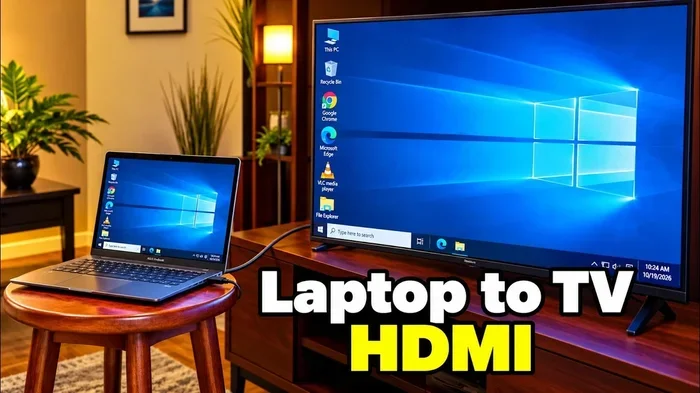
Yes, you can use a USB to HDMI cable to connect your laptop to your TV, but compatibility depends on your laptop’s USB port type and the adapter you choose. A USB to HDMI adapter lets you mirror or extend your laptop screen onto a larger display, making movie nights and presentations effortless. This guide covers everything you need to know about laptop to TV connection options, setup tips, and common pitfalls to avoid.
Have you ever wanted to watch something on a bigger screen and thought, “Can I just plug my laptop straight into my TV with a USB to HDMI cable?” It is a question a lot of people ask. The answer is yes, but there are some important details you need to know first. Not all USB cables and ports are created equal, and using the wrong one can leave you frustrated and staring at a blank screen.
This guide walks you through everything you need to know about using a USB to HDMI cable for connecting your laptop to your TV. We will cover how the connection works, what equipment you need, and how to avoid common mistakes. Whether you want to stream movies, give a presentation, or just enjoy gaming on a bigger display, this article has you covered.
Key Takeaways
- USB to HDMI adapters work with most modern laptops: They enable you to connect your laptop to your TV for screen mirroring or extended displays.
- USB-C and USB-A are different: Make sure you buy the right adapter for your laptop’s port type to avoid compatibility issues.
- Setup is simple: Plug in the adapter, select the correct HDMI input on your TV, and adjust your display settings.
- Not all USB ports support video output: Some older USB ports only handle data transfer and cannot carry a video signal.
- Alternative connection methods exist: Wireless casting, VGA cables, and DisplayPort adapters offer other ways to link your devices.
- Check your TV input settings: Switching to the correct HDMI channel is essential for getting a picture on your screen.
📑 Table of Contents
How USB To HDMI Connections Work
A USB to HDMI adapter acts as a bridge between your laptop and your TV. Your laptop sends a video signal through the USB port, and the adapter converts that signal into a format your TV can read through an HDMI cable. Think of it like a translator that helps two devices speak the same language.
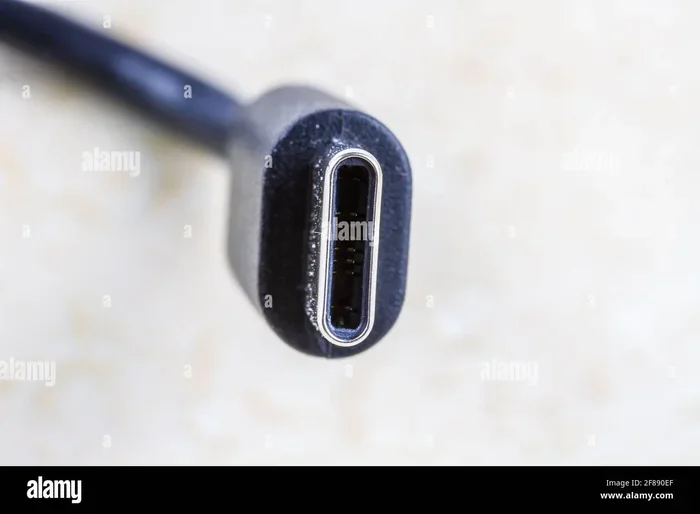
There are two main types of USB ports found on modern laptops. The first is USB-A, which is the classic rectangular port. The second is USB-C, which is smaller and oval-shaped. Both can support video output, but they need different adapters. A USB-C to HDMI adapter is different from a USB-A to HDMI adapter, and using the wrong one will not work.
Understanding Video Output Over USB
Not every USB port can send video signals. USB 3.0 and USB 3.1 ports generally support video output, but older USB 2.0 ports often do not. This is because USB 2.0 was designed mainly for data transfer, not for carrying high-definition video. If you try to use a USB to HDMI cable with a USB 2.0 port, you may get no picture at all, or the quality might be very poor.
Here are some quick tips to check if your USB port supports video output:
- Look for a lightning bolt symbol next to the USB port on your laptop.
- Check your laptop’s manual or the manufacturer’s website for port specifications.
- USB-C ports on newer laptops almost always support video output.
- If you are unsure, try a different port or test with a known working adapter.
Also, keep in mind that some laptops have Thunderbolt ports, which look similar to USB-C but offer much faster data transfer speeds and better video support. A Thunderbolt 3 or Thunderbolt 4 port will work great with a USB-C to HDMI adapter. If you want to learn more about connecting different devices, check out our article on adding prefixes to numbers on iPhone for helpful device connectivity tips.
Types Of USB To HDMI Cables And Adapters
The market is full of different adapters and cables, and choosing the right one can feel overwhelming. Let us break down the most common types so you can make an informed choice.
USB-A to HDMI Adapters
These adapters plug into the standard rectangular USB-A port on your laptop and provide an HDMI output for your TV. They are widely available and affordable. However, they tend to be bulkier and may not support the highest resolution displays. Most USB-A to HDMI adapters work well for 1080p output, which is perfect for everyday viewing.
USB-C to HDMI Adapters
USB-C to HDMI adapters are the most popular option today. They are slim, compact, and support high-resolution output, including 4K in many cases. If your laptop has a USB-C port, this is the adapter you should get. Look for one that supports DisplayPort Alt Mode, which ensures smooth video transmission.
USB To HDMI Cables (All-in-One)
Some brands sell a single cable that has a USB connector on one end and an HDMI connector on the other. These are convenient because you do not need a separate adapter and cable. However, they can be limited in terms of resolution support and cable length. They work best for simple setups where you do not need to stretch the cable across a room.
| Adapter Type | Max Resolution | Price Range | Best For |
|---|---|---|---|
| USB-A to HDMI | 1080p | $10 – $25 | Older laptops with USB-A ports |
| USB-C to HDMI | 4K | $15 – $40 | Modern laptops with USB-C |
| USB to HDMI Cable | 1080p | $8 – $20 | Simple, short-distance setups |
When shopping for an adapter, always check the product description for resolution support and compatibility. A cheap adapter might seem like a great deal, but it could cause flickering, low resolution, or no signal at all. If you are looking for more tech gadgets that simplify your life, our article on 10 gadgets to make moms life easier has some great recommendations for home tech accessories.
Step By Step Guide To Connecting Your Laptop To Your TV
Setting up a laptop to TV connection using a USB to HDMI adapter is straightforward. Follow these steps and you will be watching your favorite show on the big screen in no time.
Step 1: Check Your Laptop Ports
Before you buy anything, look at the ports on your laptop. Identify whether you have USB-A, USB-C, or both. This determines which adapter you need. If your laptop only has USB-A ports, you will need a USB-A to HDMI adapter. If it has USB-C, go with a USB-C to HDMI adapter.
Step 2: Purchase The Right Adapter
Buy a quality adapter from a reputable brand. Avoid the cheapest options on the market, as they often have poor build quality and unreliable performance. Look for adapters that are certified and have good user reviews. Spending a little extra upfront saves you from headaches later.
Step 3: Connect The Adapter To Your Laptop
Plug the USB end of the adapter into your laptop. If you are using a USB-C adapter, make sure it clicks in firmly. Some adapters require you to install a driver or software first. Check the manufacturer’s instructions before proceeding.
Step 4: Connect The HDMI Cable To Your TV
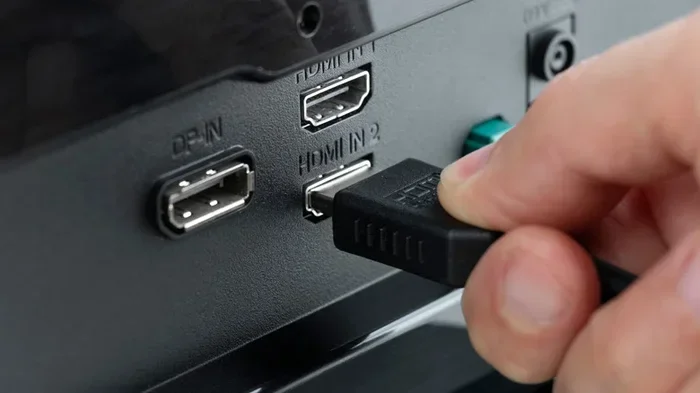
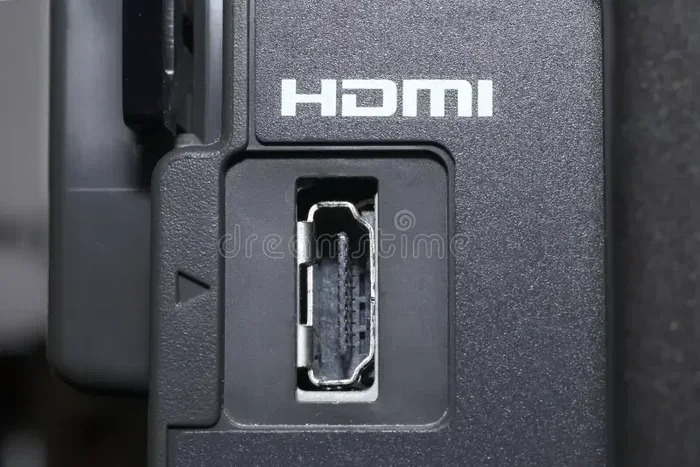
Take an HDMI cable and plug one end into the adapter. Plug the other end into one of the HDMI ports on your TV. Most modern TVs have at least two or three HDMI ports. If you are not sure which port to use, any HDMI port will work.
Step 5: Switch Your TV Input
Use your TV remote to change the input source. Look for the HDMI port number you plugged the cable into. For example, if you used HDMI Port 2, select HDMI 2 on your TV. You should see your laptop screen appear on the TV.
Step 6: Adjust Display Settings On Your Laptop
Once you see the image on your TV, you may want to adjust the display settings. On Windows, right-click on your desktop and select Display Settings. On a Mac, go to System Preferences and then Displays. From there, you can choose to mirror your screen or extend it as a second display.
Some users run into issues with display settings and need to troubleshoot. If you are dealing with other laptop problems, you might find our article on fixing a line that won’t delete in Microsoft Excel helpful for general troubleshooting tips.
Common Problems And How To Fix Them
Even with the right adapter, you might run into issues. Here are the most common problems and how to solve them.
No Signal On Your TV
This is the most common issue. First, check that both ends of the HDMI cable are securely plugged in. Next, make sure your TV is on the correct input source. If that does not work, try unplugging the adapter and plugging it back in. Sometimes a simple restart of both devices fixes the problem.
Flickering Or Distorted Image
A flickering image usually means the adapter or cable is low quality. Try a different HDMI cable or a different adapter. Also, check your display settings and make sure the resolution matches what your TV supports. Lowering the resolution temporarily can help you identify if the issue is resolution-related.
Audio Is Not Working
Sometimes the video comes through but there is no sound. This happens when your laptop is still sending audio to its own speakers instead of the TV. Go to your sound settings and change the output device to your TV or HDMI display. On Windows, click the speaker icon in the taskbar and select the HDMI output. On Mac, go to Sound Preferences and choose the HDMI output.
Adapter Not Recognized By Laptop
If your laptop does not detect the adapter, try a different USB port. Some ports may not be functioning properly. You should also check if you need to update your display drivers. On Windows, go to Device Manager and look for display adapters. Right-click and select Update Driver. On a Mac, go to System Preferences and check for software updates.
When A USB To HDMI Cable Is Not The Right Choice
A USB to HDMI adapter works great for most situations, but it is not always the best option. Let us look at some scenarios where you might want to consider alternatives.
You Need Wireless Streaming
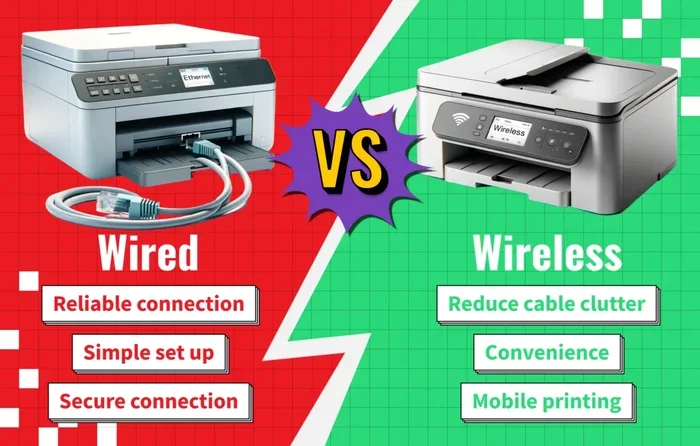
If you do not want to deal with cables at all, wireless casting is a great option. Devices like Chromecast, Apple TV, and Roku let you stream content from your laptop to your TV over Wi-Fi. This is perfect for casual viewing where you do not need a permanent setup. Wireless streaming also means no adapter clutter on your desk.
You Want The Highest Quality Picture
For the best picture quality, a direct HDMI connection from your laptop is ideal. Many modern laptops come with a dedicated HDMI port. This gives you a direct digital signal without any conversion, which means better image quality and less latency. If your laptop has an HDMI port, skip the USB adapter and use it directly.
You Are Using An Older Laptop
Very old laptops may not support video output over USB at all. If your laptop is several years old and only has USB 2.0 ports, a USB to HDMI adapter might not work. In this case, consider a VGA cable or upgrading to a newer laptop with better connectivity options.
Best Practices For A Seamless Laptop To TV Setup
Getting the connection right is only half the battle. Here are some best practices to ensure a smooth and reliable experience every time you connect your laptop to your TV.
Use High-Quality Cables And Adapters
Cheap cables and adapters are the number one cause of connection problems. Invest in a well-reviewed adapter from a trusted brand. A good USB-C to HDMI adapter can cost between $15 and $40, and it will last you for years. Avoid adapters that look flimsy or have no brand name on them.
Keep Your Drivers Updated
Display drivers play a big role in how well your laptop communicates with external displays. Make it a habit to check for driver updates regularly, especially after a major operating system update. On Windows, you can use the built-in Device Manager. On a Mac, System Preferences handles most updates automatically.
Match Your TV Resolution
Most modern TVs support 1080p or 4K resolution. Set your laptop display settings to match your TV’s native resolution for the sharpest picture. If you set your laptop to a lower resolution, the image on your TV will look blurry or pixelated. If you set it too high, the TV might not display anything at all.
Manage Cable Length And Placement
Keep your HDMI cable as short as possible for the best signal quality. If you need a longer cable, look for one that is well-shielded to prevent signal loss. Also, make sure the adapter and cable are not bent sharply or under tension, as this can damage the connectors over time.
Test Before Important Presentations
If you are using your laptop to TV setup for a presentation or event, always test it beforehand. Do not wait until the last minute to plug everything in. Test the adapter, the cable, and the audio to make sure everything works smoothly. This simple step can save you from an embarrassing tech failure in front of an audience.
Setting up a USB to HDMI connection is one of the easiest ways to enjoy your laptop content on a bigger screen. With the right adapter and a few simple steps, you can transform your TV into a second monitor or a home theater screen. The key is knowing which adapter fits your laptop, making sure your ports support video output, and using quality cables.
Remember that not every USB port can handle video signals, and not every adapter works with every laptop. Check your device specifications before you buy, and do not be afraid to try a different adapter if the first one does not work. Most issues are easy to fix with a little patience and basic troubleshooting.
Whether you are streaming your favorite show, giving a work presentation, or playing games on a bigger screen, a USB to HDMI setup gives you flexibility and convenience. It is a simple accessory that makes a big difference. Start with the right adapter, follow the setup steps carefully, and you will be enjoying your laptop on the big screen in no time.
If you want to explore more ways to enhance your tech setup at home, consider looking at helpful accessories and gadgets that make everyday tech tasks easier and more enjoyable.
Frequently Asked Questions
Can any USB to HDMI cable work with my laptop?
Not all USB to HDMI cables work with every laptop. You need to match the adapter type to your laptop’s USB port. A USB-C to HDMI adapter will not work with a USB-A port, and vice versa. Always check your laptop’s port type before purchasing an adapter.
Do I need to install software for a USB to HDMI adapter to work?
Most modern USB to HDMI adapters work plug and play without any software. However, some adapters may require a driver installation, especially on older Windows laptops. Check the manufacturer’s instructions before you buy to confirm whether software is needed.
Can I use a USB to HDMI adapter for 4K resolution?
Yes, but only if your adapter and HDMI cable support 4K. Not all adapters handle 4K output. Look for adapters labeled as 4K compatible and make sure your TV also supports 4K resolution for the best results.
Why is there no sound when I connect my laptop to my TV via USB to HDMI?
This usually happens because your laptop is still sending audio to its own speakers. Go to your sound settings and change the output device to HDMI or your TV. On Windows, click the speaker icon in the taskbar and select the HDMI output.
Is a USB to HDMI connection good for gaming?
A USB to HDMI connection can work for casual gaming, but it may introduce slight input lag compared to a direct HDMI connection. For competitive or fast-paced gaming, a dedicated HDMI port on your laptop is a better choice for the smoothest experience.
Can I connect multiple laptops to the same TV using USB to HDMI adapters?
Yes, you can connect multiple laptops to the same TV using separate USB to HDMI adapters. Simply switch the TV input source to the corresponding HDMI port when you want to use a different laptop. This is useful for shared setups or presentations from multiple devices.
=== CONCLUSION ===
Using a USB to HDMI cable to connect your laptop to your TV is a practical and affordable way to enjoy bigger screen entertainment. The process is simple, the equipment is widely available, and the results are satisfying once you get everything set up correctly. Just remember to match your adapter to your laptop’s port type, use quality cables, and adjust your display and sound settings for the best experience.
With the tips and steps outlined in this guide, you are well equipped to set up a reliable laptop to TV connection that works every time. Whether you are watching movies, sharing presentations, or gaming, a USB to HDMI setup opens up a world of possibilities right from your living room. Give it a try and enjoy your favorite content on the big screen today.