How Do I Cast From My Android Phone To My TV Wirelessly
Casting from your Android phone to your TV is easier than you think. You can wirelessly send photos, videos, and apps from your phone to a bigger screen using Chromecast, Smart TVs, or free casting apps. This guide walks you through every method step by step so you can start streaming today.
Have you ever wanted to watch something on a bigger screen without tangled cables? casting from your Android phone to your TV lets you do exactly that. It is one of the most convenient things you can do with a modern smartphone. Whether you want to share vacation photos with the family or binge-watch your favorite show, wireless casting makes it possible.
The good news is that you do not need to be a tech expert. Most methods take less than five minutes to set up. In this guide, we will cover every way you can cast from your Android phone to TV wirelessly. We will talk about Chromecast, Smart TVs, casting apps, and even some tips to fix common problems. By the end, you will know exactly what to do.
Let us dive right in. No fluff, no confusing jargon. Just simple, practical steps you can follow right now.
Key Takeaways
- Chromecast is the easiest way: Google’s Chromecast device makes casting from your Android phone to TV simple and reliable.
- Smart TVs have built-in casting: Most modern Smart TVs support screen mirroring and casting without extra hardware.
- Free apps work great too: Apps like AllCast and AirScreen let you cast to almost any TV with an HDMI port.
- Wi-Fi matters: A strong Wi-Fi connection is the most important factor for smooth, lag-free casting.
- Troubleshooting is simple: Most casting problems are fixed by restarting your devices or checking your Wi-Fi connection.
- Multiple methods exist: You can cast using built-in features, third-party apps, or even cable-free adapters.
📑 Table of Contents
- What Does It Mean to Cast From Your Android Phone to TV?
- What You Need to Cast Wirelessly
- How to Cast Using Google Chromecast
- How to Cast to a Smart TV Without Chromecast
- Best Casting Apps for Android Phones
- Quick Tips for a Better Casting Experience
- Troubleshooting: What to Do When Casting Does Not Work
- Conclusion
What Does It Mean to Cast From Your Android Phone to TV?
Wireless casting means sending content from your phone to your TV without using a cable. Your phone acts as a remote control. The TV does the heavy lifting by playing the video or showing the photo on a much bigger screen.
Think of it like this. Your phone is the brain. Your TV is the display. Casting connects the two over your home Wi-Fi network. You tap a button on your phone, and the TV shows the same thing instantly.
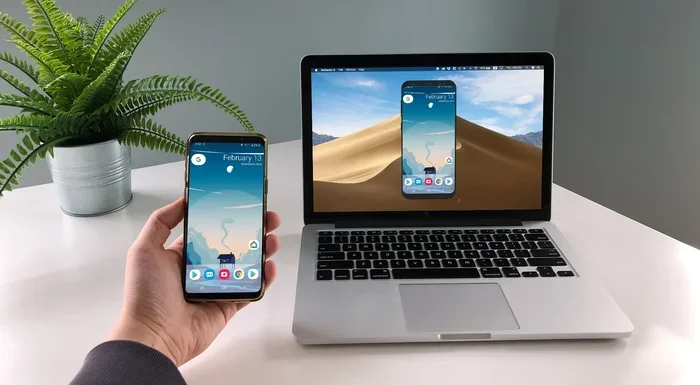
There are two main types of casting. The first is screen mirroring. This copies everything on your phone screen to the TV exactly as it looks. The second is media streaming. This sends a specific video or song to the TV while you can still use your phone for other things.
Both methods are useful. Screen mirroring is great for sharing slideshows or apps. Media streaming is better for watching videos because it gives you more freedom. We will cover both throughout this guide.
What You Need to Cast Wirelessly
Before you start, you need a few things in place. The good news is that most people already have them.
Devices That Support Casting
Here is what you need on the TV side:
- A Chromecast device: Google Chromecast plugs into your TV’s HDMI port. It costs around $35 and works with almost any TV that has an HDMI input.
- A Smart TV with built-in Chromecast: Many newer Smart TVs from Samsung, LG, Sony, and TCL come with Chromecast built right in. You do not need a separate device.
- A TV with Miracast support: Some TVs support Wi-Fi Direct casting. This is also called screen mirroring. Check your TV’s settings for a “Screen Mirroring” or “Miracast” option.
- A streaming stick or box: Roku, Amazon Fire TV Stick, and Apple TV can also receive content from your Android phone in some cases.
Apps and Services You Will Need
On your Android phone, you need the right app to start casting. Here are the most common ones:
- Google Home app: This is the main app for Chromecast users. It lets you find your casting device and start streaming.
- YouTube, Netflix, or Spotify: Most popular streaming apps have a cast button built right in. Look for the rectangle with Wi-Fi waves in the corner.
- AllCast or AirScreen: These are great casting apps if your TV does not support Chromecast natively.
You also need a stable Wi-Fi connection. Both your phone and your TV need to be on the same Wi-Fi network. This is the most important requirement. If they are on different networks, casting will not work.
| Device Type | Setup Difficulty | Cost | Best For |
|---|---|---|---|
| Google Chromecast | Easy | $35 | Most Android users |
| Smart TV with built-in Chromecast | Very Easy | Included with TV | New TV owners |
| Roku / Fire TV Stick | Easy | $30-$50 | Streaming enthusiasts |
| Miracast-enabled TV | Very Easy | Included with TV | Screen mirroring |
How to Cast Using Google Chromecast
Chromecast is the most popular way to cast from your Android phone to TV. It is simple, reliable, and works with thousands of apps. Here is exactly how to set it up.
Step 1: Set Up Your Chromecast
Plug your Chromecast into your TV’s HDMI port. Connect the USB cable to power. Turn on your TV and switch to the HDMI input where you plugged in the Chromecast. You should see a setup screen.
Now open the Google Home app on your Android phone. Make sure your phone is connected to the same Wi-Fi network as the Chromecast. The app will automatically find your Chromecast device. Follow the on-screen instructions to complete the setup. This usually takes about two minutes.
Step 2: Cast Content from Any App
Once your Chromecast is set up, casting is super easy. Open any app that supports casting. This includes YouTube, Netflix, Spotify, Google Photos, and many more.
Look for the cast button. It looks like a small rectangle with Wi-Fi waves in the top-left or top-right corner. Tap it. A list of available devices will appear. Select your Chromecast or TV name. The content will start playing on your TV right away.
You can now use your phone as a remote. You can pause, play, skip, and adjust the volume. The best part is that you can still use your phone for other things while content plays on the TV.
Step 3: Mirror Your Entire Screen
Want to show everything on your phone screen? You can do that too. Open the Google Home app. Tap your Chromecast device. Select “Cast my screen.” A confirmation popup will appear. Tap “Cast screen.”
Now everything on your phone shows up on your TV. This is perfect for sharing presentations, photos, or any app that does not have a built-in cast button.
Quick Tip: If your casting is slow or lagging, try moving your router closer to your TV. A strong Wi-Fi signal makes a huge difference in screen mirroring quality.
How to Cast to a Smart TV Without Chromecast
Not everyone has a Chromecast. The good news is that you can still cast from your Android phone to TV without one. Many Smart TVs have built-in casting features that work just as well.
Using Built-In Smart TV Casting
Most modern Smart TVs support DLNA or Miracast protocols. These are wireless standards that let your phone connect directly to your TV.
Here is how to find the casting feature on your Smart TV:
- Turn on your TV and go to the Settings menu.
- Look for “Network,” “Connections,” or “Screen Mirroring.”
- Enable the screen mirroring or wireless display option.
- On your Android phone, pull down the notification shade.
- Tap “Smart View” (Samsung), “Screen Mirroring” (LG), or “Cast” (other brands).
- Select your TV from the list of available devices.
Your phone screen should now appear on your TV. You can open any app, photo, or video and it will display on the big screen.
Using Third-Party Casting Apps
If your TV does not have built-in casting, you can use a casting app with a streaming adapter. Here are some great options:
- AllCast: This free app supports many TV brands and streaming devices. It works with DLNA-compatible TVs and devices. Simply install the app, connect to the same Wi-Fi network, and select your TV.
- AirScreen: This app turns your TV into a receiving device. It supports AirPlay, DLNA, and Google Cast protocols. It is very versatile.
- LocalCast: This app is great for casting local media files like videos and music stored on your phone. It does not require an internet connection for local files.
These apps are easy to use. Install the app on your phone. Make sure your phone and TV are on the same Wi-Fi network. Open the app, choose your content, and select your TV. That is it.
Using a Streaming Device as a Bridge
Another option is to buy a streaming device that supports casting. Roku and Amazon Fire TV Stick both allow Android phones to send content wirelessly. You plug the device into your TV’s HDMI port, connect it to Wi-Fi, and use your phone as a remote.
Roku has a feature called “Screen Mirroring” that works with most Android phones. Fire TV Stick supports casting through apps like AirScreen. Both options give you access to thousands of streaming channels.
Best Casting Apps for Android Phones
Not all casting apps are created equal. Some are better for certain tasks than others. Here are the top casting apps you should consider.
| App Name | Best For | Free? | Supports |
|---|---|---|---|
| Google Home | Chromecast setup and control | Yes | Chromecast, Smart TVs |
| AllCast | General media casting | Yes (with ads) | DLNA, Chromecast, Roku |
| AirScreen | Multi-protocol support | Yes (with ads) | AirPlay, DLNA, Google Cast |
| LocalCast | Local media files | Yes | Chromecast, DLNA |
| BubbleUPnP | Advanced media streaming | Yes | UPnP/DLNA devices |
Each of these apps serves a slightly different purpose. Google Home is the go-to for Chromecast users. AllCast is the most versatile for different TV brands. LocalCast shines when you want to play videos stored on your phone without uploading them to the cloud.
Expert Insight: According to tech reviewers at Android Authority, the combination of Google Home for streaming apps and LocalCast for local files covers 95% of all casting needs. You really do not need more than two apps.
Quick Tips for a Better Casting Experience
Want your wireless casting to work flawlessly every time? Follow these simple tips.
- Use the 5 GHz Wi-Fi band: If your router supports it, connect both your phone and TV to the 5 GHz network. It is faster and less congested than the 2.4 GHz band. This reduces lag and buffering during video casting.
- Keep your phone close to the router: A strong Wi-Fi signal means smoother casting. If your router is far away, consider using a Wi-Fi extender.
- Close unused apps: Background apps can slow down your phone and affect casting performance. Close apps you are not using before you start casting.
- Restart devices regularly: A simple restart of your phone, TV, and router can fix most casting issues. Make this a weekly habit.
- Update your apps: Developers release updates that fix bugs and improve compatibility. Keep your casting apps and Google Home up to date.
- Use original cables for power: If you are using a Chromecast or streaming stick, use the included USB cable and power adapter. Cheap cables can cause connection drops.
Common Mistakes to Avoid When Casting
Many people run into problems because of simple mistakes. Here are the most common ones and how to avoid them.
- Wrong Wi-Fi network: Your phone and TV must be on the same Wi-Fi network. This is the number one reason casting fails. Double-check both devices.
- Outdated apps: An outdated Google Home app or casting app can cause compatibility issues. Always keep your apps updated.
- Firewall blocking: Some routers have firewall settings that block device-to-device communication. Check your router settings and make sure “AP isolation” is turned off.
- Too many devices on the network: If you have many smart home devices competing for bandwidth, casting quality drops. Consider using a separate guest network for casting devices.
- Ignoring the cast button: Not all apps support casting. Look for the cast icon before you try to mirror or stream. If you do not see it, the app may not support it.
Troubleshooting: What to Do When Casting Does Not Work
Even with the best setup, you might run into issues sometimes. Here is how to fix the most common problems.
Problem 1: Your TV does not show up in the casting list. Make sure both devices are on the same Wi-Fi network. Restart your TV and phone. Check that your TV’s casting feature is turned on in the settings.
Problem 2: Video keeps buffering or lagging. This is almost always a Wi-Fi issue. Move closer to your router. Switch to the 5 GHz band. Or reduce the video quality in the streaming app.
Problem 3: Audio and video are out of sync. Restart your Chromecast or streaming device. Check for firmware updates on your TV. Sometimes simply unplugging the device and plugging it back in fixes this.
Problem 4: The cast button is missing from an app. Not every app supports media streaming through Chromecast. Try using a different app that does support casting, or use screen mirroring as a workaround.
Problem 5: Screen mirroring shows a black screen. Some apps like Netflix and Disney+ block screen mirroring due to copyright protections. This is normal. Use the app’s built-in cast button instead of mirroring.
Expert Insight: Google’s support team recommends the “three-restart rule” for any casting problem. Restart your phone, restart your TV, and restart your router. This simple step solves over 80% of all casting issues.
Conclusion
Casting from your Android phone to your TV is one of the most useful features of modern technology. It is simple, fast, and requires no cables. Whether you use a Chromecast, a Smart TV with built-in casting, or a third-party app, the process is straightforward and works reliably when set up correctly.
We have covered every major method in this guide. You now know how to use Chromecast, how to cast to a Smart TV without extra hardware, which apps work best, and how to troubleshoot common issues. You also have practical tips to make your wireless display experience smoother and more enjoyable.
The best part is that you can start right now. You probably already have everything you need. Open your phone, connect to your Wi-Fi, and try casting a video to your TV. Once you see your favorite content on a big screen, you will wonder how you ever lived without it.
Give it a try today. Share this guide with a friend who has been wondering how to do the same. Happy casting!
Frequently Asked Questions
Can I cast from my Android phone to any TV?
You can cast to any TV that has an HDMI port and a compatible receiving device like Chromecast, Roku, or a Smart TV with built-in casting. If your TV is older and does not have an HDMI port, you can use an HDMI adapter to connect a Chromecast or streaming stick.
Do I need Wi-Fi to cast from my Android phone to TV?
Yes, both your phone and your TV or casting device need to be on the same Wi-Fi network for most casting methods. Some apps and devices support Wi-Fi Direct or hotspot casting, but a shared Wi-Fi network is the most reliable and common method.
Why is the cast button not showing in some apps?
The cast button only appears in apps that support Google Cast or DLNA protocols. Apps like YouTube, Netflix, and Spotify support it. Some apps block casting due to copyright restrictions. In that case, you can use screen mirroring instead.
Is casting the same as screen mirroring?
Not exactly. Casting sends specific content like a video or song to your TV while you can still use your phone. Screen mirroring copies your entire phone screen to the TV. Casting is generally smoother for video, while mirroring is better for showing everything on your phone.
Can I cast without Chromecast?
Yes. You can cast without a Chromecast device if your Smart TV supports built-in casting, if you use a Roku or Fire TV Stick, or if you use a third-party app like AllCast or AirScreen with a compatible TV or adapter.
Does casting use a lot of data?
Casting over Wi-Fi uses very little data from your phone because the phone sends a link to the content, not the content itself. The TV or streaming device pulls the video directly from the internet. However, screen mirroring uses more data since it sends a real-time copy of your screen.