Does Jbl Pair With Iphone The Complete Connection Guide
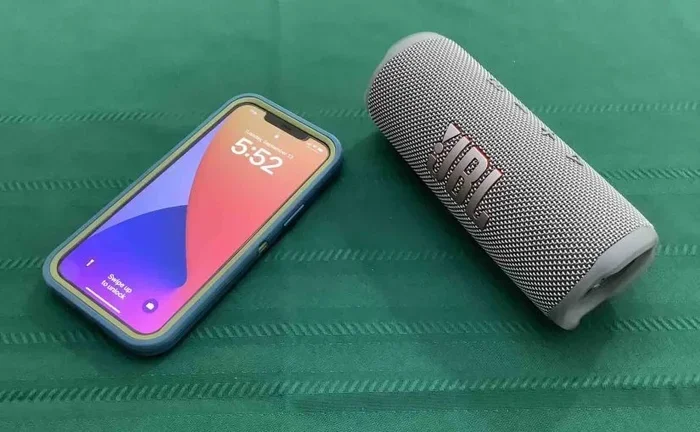
Yes, JBL speakers pair seamlessly with iPhones using Bluetooth or AirPlay. This guide covers every JBL model, step-by-step pairing instructions, and expert troubleshooting tips. Whether you own a JBL Flip, Charge, or Xtreme, you will learn how to connect your JBL speaker to your iPhone in minutes. Get ready to enjoy wireless audio without any hassle.
So you just got a JBL speaker and want to connect it to your iPhone. Maybe you are at the beach, or you are hosting a backyard party. The last thing you want is to fumble with cables or confusing setup steps. The good news is that does JBL pair with iPhone is one of the easiest tech questions to answer. Yes, it does. And in this guide, we will show you exactly how.
JBL has been making wireless speakers for years. Their products work beautifully with iOS devices like the iPhone. Whether you own a compact JBL Flip or a powerful JBL Xtreme, the connection process is straightforward. This guide covers everything you need to know. We will walk you through pairing, troubleshooting, and pro tips that most people never hear about.
By the end of this article, you will feel confident connecting your JBL to your iPhone every single time. No more guessing. No more frustration. Just great wireless audio wherever you go. Let us dive in.
Key Takeaways
- Universal Compatibility: Every modern JBL speaker pairs with iPhone through Bluetooth, making JBL and iPhone connection simple and reliable.
- Multiple Connection Methods: You can use Bluetooth pairing or AirPlay depending on your JBL model and iPhone version.
- Advanced Features Available: Features like JBL PartyBoost, Connect+, and the JBL Portable app enhance your iPhone wireless speaker experience.
- Troubleshooting Is Easy: Most connection problems have simple fixes like resetting Bluetooth or updating firmware.
- Multi-Speaker Setup: You can link multiple JBL speakers to one iPhone for room-filling sound.
- Battery and Range Matter: Keeping your JBL charged and within Bluetooth range ensures a stable iPhone audio streaming experience.
📑 Table of Contents
- Understanding JBL and iPhone Compatibility
- Step-by-Step Guide to Pairing JBL with iPhone
- Using AirPlay with JBL Speakers
- Troubleshooting Common Connection Issues
- Advanced Features and Multi-Speaker Setup
- Tips for the Best JBL iPhone Experience
- Comparing Bluetooth vs. AirPlay for JBL and iPhone
- Conclusion
Understanding JBL and iPhone Compatibility
Before you press any buttons, it helps to understand why JBL and iPhone work so well together. Both companies support Bluetooth technology, which is the foundation of wireless audio. Apple has also built AirPlay into iPhones, and many JBL speakers support it too. This means you have options beyond basic Bluetooth pairing.
Here is the simple truth. JBL speakers and iPhones were designed to work together. Apple made Bluetooth a core feature of iOS. JBL made sure every speaker uses the same standard. The result is a smooth, plug-and-play experience for most users.
What Makes JBL and iPhone Compatible
The compatibility comes down to a few key technologies. Bluetooth 4.0 and above is the most common connection type. All modern JBL speakers use Bluetooth 4.0 or newer. All iPhones from the iPhone 5 onward support Bluetooth. This means the vast majority of JBL and iPhone combinations will work perfectly.
Another factor is the JBL app ecosystem. JBL offers free apps like JBL Portable and JBL Connect. These apps let you control your speaker from your iPhone. They also help with firmware updates and multi-speaker setups. If you want the best experience, downloading the JBL app is a smart first step.
Supported JBL Speaker Models
Most JBL speakers connect to iPhone without any issues. Here are the popular models that work great:
- JBL Flip series (Flip 1 through Flip 6) – Compact and portable
- JBL Charge series (Charge 1 through Charge 5) – Great battery life
- JBL Xtreme series (Xtreme, Xtreme 2, Xtreme 3) – Loud and powerful
- JBL Boombox series – Maximum sound output
- JBL Clip series (Clip 3, Clip 4) – Tiny and clip-on design
- JBL Pulse series – Features light shows
Every single one of these models pairs with iPhone using the same basic Bluetooth process. Newer models also add AirPlay support. So no matter which JBL you own, your iPhone connection will work.
Step-by-Step Guide to Pairing JBL with iPhone
Now let us get into the actual steps. Pairing your JBL with your iPhone takes less than one minute. Follow these instructions carefully and you will be listening to music in no time.
Turning on Your JBL Speaker
First, make sure your JBL speaker is powered on. Most JBL models have a power button on the top or side. Press and hold it until you hear a voice prompt or see a light flash. The light will usually flash blue. This tells you the speaker is ready to pair.
If your JBL has been used recently, it may already be in pairing mode. Some models stay in pairing mode for a few minutes after turning on. If you are not sure, just turn the speaker off and back on again. This always resets the speaker into pairing mode.
Connecting via Bluetooth
Now it is time to connect from your iPhone. Follow these simple steps:
- Unlock your iPhone and open the Settings app.
- Tap on Bluetooth. Make sure the toggle is turned on.
- Wait a few seconds. Your iPhone will scan for nearby devices.
- Look for your JBL speaker name in the list. It might say something like “JBL Flip 5” or “JBL Charge 4.”
- Tap on the JBL speaker name.
- Wait for the connection to complete. You will hear a sound from the JBL, and the status on your iPhone will say “Connected.”
That is it. Your JBL speaker is now connected to your iPhone. Open any music app like Spotify, Apple Music, or YouTube and start playing. The sound will come through your JBL speaker immediately.
Quick Tips for First-Time Pairing
- Keep your iPhone within 3 feet of the JBL during the first connection.
- Make sure no other devices are trying to connect to the JBL at the same time.
- Turn off Bluetooth on other nearby devices to avoid confusion.
- If the JBL does not appear, try turning Bluetooth off and on again on your iPhone.
Using AirPlay with JBL Speakers
AirPlay is Apple’s wireless streaming technology. It works differently from Bluetooth and offers some nice advantages. Not all JBL speakers support AirPlay, but many newer models do. If your JBL supports AirPlay, you have another great way to stream audio from your iPhone.
Setting Up AirPlay for Wireless Streaming
To use AirPlay, both your iPhone and JBL speaker need to be on the same Wi-Fi network. Here is how to set it up:
- Connect your iPhone and JBL speaker to the same Wi-Fi network.
- Open the Control Center by swiping down from the top right of your screen.
- Tap the AirPlay icon (it looks like a triangle with circles above it).
- Select your JBL speaker from the list of available devices.
- Start playing music. It will stream wirelessly through AirPlay.
AirPlay gives you a few benefits over Bluetooth. The audio range is much longer because it uses Wi-Fi. The sound quality can be better too. You can also use AirPlay to stream audio to multiple speakers at once. This is great for filling a large room with music.
Benefits of AirPlay over Bluetooth
- Longer range: AirPlay works across your entire home if Wi-Fi reaches there.
- Better audio quality: AirPlay streams at higher bitrates than Bluetooth.
- Multi-room support: You can send audio to multiple JBL speakers in different rooms.
- No pairing needed each time: Once set up, AirPlay connects automatically.
Keep in mind that AirPlay requires a Wi-Fi connection. If you are outdoors without Wi-Fi, Bluetooth is your best bet. For most people, having both options available is ideal.
Troubleshooting Common Connection Issues
Even though JBL and iPhone work well together, sometimes things go wrong. Maybe the speaker will not show up on your iPhone. Maybe the audio keeps cutting out. Do not worry. Most problems have simple solutions.
JBL Won’t Show Up on iPhone
This is the most common issue people face. If your JBL speaker does not appear in the Bluetooth list on your iPhone, try these steps:
- Make sure the JBL is in pairing mode. Look for a flashing blue light.
- Turn Bluetooth off and back on from your iPhone Settings.
- Restart your iPhone. This clears any temporary Bluetooth glitches.
- Check if the JBL is connected to another device. Some JBL models remember the last connected device and auto-connect to it.
- Move closer to the JBL speaker. Distance can affect Bluetooth discovery.
If none of these work, try resetting the JBL speaker. Most JBL models have a reset button or a specific button combination. Check your speaker’s manual for the exact steps. After resetting, the JBL should show up on your iPhone right away.
Audio Keeps Cutting Out
If your wireless audio keeps dropping, the issue is usually range or interference. Here is what to do:
- Move closer to the JBL speaker. Bluetooth range is typically about 30 feet.
- Remove physical obstacles between your iPhone and JBL. Walls and large objects block the signal.
- Turn off other Bluetooth devices nearby. Too many devices can cause interference.
- Make sure your iPhone and JBL have the latest firmware updates.
- Restart both devices. This clears any temporary software glitches.
Sometimes the issue is with the music app itself. Try closing the app and reopening it. If that does not work, try disconnecting and reconnecting the JBL from your iPhone Bluetooth settings. This forces a fresh connection and often fixes the problem.
JBL Connected but No Sound
If your iPhone shows the JBL as connected but you hear nothing, check a few things. First, make sure the volume is turned up on both the iPhone and the JBL speaker. Second, check that the correct audio output is selected. On iPhone, open Control Center and make sure the JBL is selected as the output device. Third, try pausing and resuming playback. Sometimes the audio just needs a small nudge to start flowing.
Advanced Features and Multi-Speaker Setup
Once you have your JBL connected to your iPhone, you can explore some amazing advanced features. JBL has built tools that make the experience even better. These features turn a single speaker into a full audio system.
JBL PartyBoost and Connect+
JBL PartyBoost is a feature available on newer JBL speakers. It lets you connect multiple JBL speakers together wirelessly. You can pair two or more JBLs to play the same music at the same time. This is perfect for parties or large gatherings.
JBL Connect+ is an older version of this feature. It works on JBL speakers released before PartyBoost came along. Both systems let you link speakers from your iPhone. Just open the JBL app, select your speakers, and start the multi-speaker setup. The process is simple and fun.
Here is how to use PartyBoost with your iPhone:
- Make sure all JBL speakers are turned on and connected to your iPhone via Bluetooth.
- Open the JBL Portable app on your iPhone.
- Tap on the PartyBoost icon.
- Select the speakers you want to link together.
- Start playing music. All linked speakers will play in sync.
This is one of the coolest things about JBL and iPhone compatibility. You can turn a small balcony into a concert venue with just a few speakers and your phone.
Controlling JBL from Your iPhone
The JBL Portable app gives you full control over your speaker. You can adjust EQ settings, check battery level, and update firmware. The app also lets you manage multi-speaker setups easily. It is available for free on the App Store.
Some JBL models also support Siri integration. You can use voice commands to play music, adjust volume, or answer calls through your JBL speaker. Just activate Siri on your iPhone and give your command. The audio routes through the JBL automatically.
Tips for the Best JBL iPhone Experience
You have your JBL connected to your iPhone. Now let us make sure everything runs smoothly. These practical tips will help you get the most out of your wireless speaker and iPhone combo.
Maximizing Battery Life
JBL battery life varies by model. The JBL Flip lasts about 12 hours. The JBL Charge can go up to 20 hours. The JBL Xtreme offers around 15 hours. To get the most out of your battery, keep these tips in mind:
- Turn off the speaker when you are not using it.
- Lower the volume when full power is not needed.
- Keep the JBL charged between uses. Do not let the battery drain completely.
- Use the JBL app to check battery level before heading out.
When the JBL battery is low, it can affect the Bluetooth connection. The speaker may disconnect or the audio quality may drop. Keeping it charged ensures a stable and strong iPhone wireless speaker experience.
Keeping Your Connection Stable
A stable connection makes all the difference. Here are simple habits that help:
- Keep your iPhone and JBL within 30 feet of each other.
- Avoid placing the JBL near microwaves, baby monitors, or other wireless devices.
- Update your iPhone to the latest iOS version regularly.
- Update your JBL speaker firmware using the JBL app.
- Forget old Bluetooth connections on your iPhone that you no longer use.
These small habits add up. They keep your wireless audio flowing without interruptions. A stable connection also means better battery life on both devices.
Cleaning and Caring for Your JBL Speaker
JBL speakers are built tough. Many models are water-resistant or waterproof. But regular care goes a long way. Wipe down your speaker after use, especially if it has been in the sand, saltwater, or sweat. Keep the charging port clean. A clean speaker performs better and lasts longer.
Good care also means better sound quality over time. Dirt and grime can block speaker grilles and affect audio performance. A little maintenance goes a long way toward keeping your JBL iPhone pairing sounding great.
Comparing Bluetooth vs. AirPlay for JBL and iPhone
You now know that you can connect your JBL to your iPhone using Bluetooth or AirPlay. But which one should you use? Here is a quick comparison to help you decide.
| Feature | Bluetooth | AirPlay |
|---|---|---|
| Connection Type | Wireless (point-to-point) | Wi-Fi based (network) |
| Range | Up to 30 feet | Full Wi-Fi range |
| Audio Quality | Good | Better (higher bitrate) |
| Setup | Very simple | Requires same Wi-Fi network |
| Works Outdoors | Yes | No (needs Wi-Fi) |
| Multi-Speaker | Limited | Yes (full multi-room) |
| Battery Usage | Low | Moderate |
For most everyday uses, Bluetooth is the way to go. It is fast, simple, and works everywhere. AirPlay shines when you are at home and want higher quality audio or multi-room streaming. Use both depending on your situation and you will get the best of both worlds.
Conclusion
The answer to does JBL pair with iPhone is a clear and confident yes. From the moment you turn on your JBL speaker to the moment you hear your favorite song filling the room, the connection is seamless. JBL and iPhone were made to work together, and that is exactly what you get.
We have covered the full journey in this guide. You learned about compatibility across JBL models. You got a step-by-step pairing walkthrough. You explored AirPlay and its benefits. You discovered how to troubleshoot common issues. You even picked up advanced tips for multi-speaker setups and battery care.
The beauty of this setup is its simplicity. You do not need to be tech-savvy to connect a JBL to your iPhone. A few taps in your Settings app, and you are ready to go. Whether you are at home, at the beach, or on a road trip, your JBL speaker and iPhone will deliver great wireless audio every time.
Now it is your turn. Grab your JBL, grab your iPhone, and try the steps in this guide. You will be amazed at how easy it is. Once you experience the quality of JBL Bluetooth audio on your iPhone, you will never want to go back to wired connections. Enjoy the music and happy listening.
Frequently Asked Questions
Can I connect multiple JBL speakers to one iPhone?
Yes, you can connect multiple JBL speakers to one iPhone using JBL PartyBoost or Connect+. Download the JBL Portable app on your iPhone, pair each speaker, and link them together. This lets you play the same music across multiple speakers for a bigger sound experience.
Why is my JBL not showing up on my iPhone Bluetooth list?
This usually happens when the JBL is not in pairing mode or when Bluetooth is turned off on your iPhone. Make sure the JBL is flashing blue, which means it is ready to pair. Also try turning Bluetooth off and on again, or restart your iPhone to refresh the connection.
Does JBL work with iPhone 15 and newer models?
Yes, JBL speakers work perfectly with iPhone 15 and all newer iPhone models. These phones support Bluetooth 5.0 or higher, which ensures a strong and stable connection with all modern JBL speakers.
Can I use AirPlay with all JBL speakers?
No, not all JBL speakers support AirPlay. AirPlay is available on newer JBL models, especially those released in recent years. Check your specific JBL model’s specifications or look for the AirPlay icon in your iPhone Control Center to confirm compatibility.
How far can my iPhone be from the JBL speaker while connected?
Bluetooth has a typical range of about 30 feet in open space. Walls and obstacles can reduce this distance. AirPlay, which uses Wi-Fi, has a much longer range and can work across your entire home as long as both devices are on the same network.
Do I need the JBL app to pair my speaker with iPhone?
No, you do not need the JBL app for basic Bluetooth pairing. The connection happens through your iPhone Settings. However, the JBL app is helpful for firmware updates, EQ adjustments, multi-speaker setups, and checking battery levels.