How to Change Font on iPhone A Complete Guide for Beginners
Changing the font on your iPhone is easier than you think. This complete guide walks you through every method, from built-in settings to third-party apps. You will learn how to adjust font size, enable bold and italic text, and even install custom fonts for a personalized look.
Have you ever looked at your iPhone screen and thought the font just does not feel right? Maybe it is too small, too plain, or simply boring. You are not alone. Thousands of people search for ways to change font iPhone every single day. The good news is that Apple gives you more options than most people realize.
Whether you want bigger text for easier reading, bold fonts for emphasis, or completely custom typefaces, this guide has you covered. We will walk through every method step by step. No tech skills are needed. Just follow along and your iPhone will look brand new in minutes.
In this article, we cover everything from basic font size adjustments to advanced custom font installations. You will also discover accessibility features that make your device more comfortable to use. Let us dive in and explore how simple it really is to change font iPhone settings and make your device truly yours.
Key Takeaways
- Easy Built-In Options: You can change font size and bold text directly in iPhone Settings without downloading anything.
- Third-Party Apps Add Variety: Apps like Fonteer and AnyFont let you install custom typefaces on your device.
- Accessibility Features Help Everyone: Dynamic Type and larger accessibility fonts make reading comfortable for all users.
- Bold and Italic Are Simple Toggles: A few taps in the Display settings give your text a new look instantly.
- No Jailbreak Needed: All the methods described here work on standard, unmodified iPhones running iOS 15 or later.
- Quick Tips Save Time: Use the text size slider and preview screen to see changes before applying them.
📑 Table of Contents
Why You Might Want to Change Font on iPhone
Your iPhone comes with a default font called San Francisco. It is clean, modern, and designed to look great on small screens. But not everyone loves it. Some people find it too thin. Others want a bolder or more decorative look. There are many valid reasons to tweak your iPhone font settings.
Better Readability
If your eyes strain after reading messages or browsing the web, a larger or bolder font can help. Many users adjust their font size iPhone settings simply to reduce eye fatigue. This is especially common among older adults or anyone who spends long hours on their phone.
Personal Style
Your phone is an extension of your personality. Changing the text style iPhone lets you express yourself. A heavier font might feel more professional. A rounded font might feel friendlier. Small changes like these can make your device feel more personal and enjoyable to use every day.
Accessibility Needs
Apple built powerful accessibility tools into iOS. People with visual impairments can greatly benefit from adjusting their iPhone typography. Features like Bold Text, Larger Text, and Dynamic Type ensure that everyone can use their device comfortably.
How to Change Font Size on iPhone
Adjusting font size is the most common reason people search for change font iPhone methods. Apple makes this process simple and straightforward. You do not need any extra apps or technical knowledge.
Method 1: Using Display and Brightness Settings
This is the quickest way to make your text bigger or smaller. Here is exactly what to do:
- Open the Settings app on your iPhone.
- Tap Display and Brightness.
- Tap Text Size.
- Drag the slider left to make text smaller or right to make it larger.
- Tap Done to save your choice.
You will see a live preview of your text as you move the slider. This makes it easy to pick the perfect size. The change applies instantly across most apps on your device.
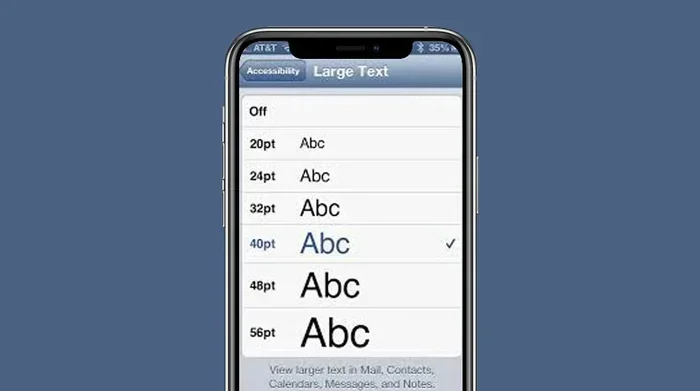
Method 2: Using Accessibility Settings for Even Larger Text
Did you know you can go even bigger than the standard slider? Apple offers an accessibility option for extra-large text. Here is how:
- Go to Settings and tap Accessibility.
- Tap Display and Text Size.
- Toggle on Larger Text.
- Drag the slider to your preferred size.
This method can make text significantly bigger than the standard setting. It is a lifesaver for anyone who struggles with small print. Many users combine this with the bold text iPhone option for maximum readability.
Quick Tip: Use the Preview Screen
Whenever you adjust text size, Apple shows a preview at the top of the screen. Take a moment to read the sample text before confirming. This small habit helps you choose the right size the first time. It saves you from having to go back and adjust again.
How to Change Font Style on iPhone
Beyond size, you can also change how your font looks. iOS offers built-in options for bold and italic text. These simple tweaks can dramatically change the appearance of your iPhone display settings.
Enable Bold Text
Bold text makes every letter thicker and easier to read. It is one of the most popular adjustments people make when they want to change font iPhone appearance. Here is the process:
- Open Settings and go to Display and Brightness.
- Tap Text Style.
- Toggle on Bold.
- A prompt will appear asking you to restart your iPhone. Tap Continue.
After your phone restarts, the bold effect applies everywhere. Menus, messages, emails, and web pages all display in the heavier weight. It is a simple change that makes a big difference.
Use Italic Text
Italic text slants your letters to the right. It works well for emphasis or stylistic purposes. To enable italics:
- Go to Settings, then Accessibility.
- Tap Display and Text Size.
- Toggle on Bold Text and Italic Style.
- Restart your device to apply the changes.
Italic text pairs nicely with bold for a polished look. Some users prefer it for reading long articles or documents. It adds a touch of elegance to your iPhone typography without requiring any extra downloads.
Combine Bold and Larger Text
For the best readability experience, try combining bold text with a larger font size. This combination works wonders for people who read a lot on their phone. You can adjust both settings independently and find the perfect balance. Many users report that this simple pairing reduces eye strain significantly.
Custom Fonts and Third-Party Apps
Apple does not let you swap out the system font directly. The default San Francisco font stays in place. However, you can still add custom fonts using clever workarounds. Third-party apps make this process surprisingly easy.
Using Font Apps to Install Custom Typefaces
Several apps on the App Store allow you to download and install custom fonts. Popular options include Fonteer, AnyFont, and iFont. These apps give you access to hundreds of custom fonts iPhone styles that go far beyond what Apple offers natively.
Here is a general process for installing a custom font:
- Download a font app from the App Store.
- Browse and select a font you like.
- Tap Download or Install Profile.
- Go to Settings, then General, then VPN and Device Management.
- Tap the downloaded profile and trust it.
- The new font will appear in supported apps.
Keep in mind that custom fonts do not work system-wide. They appear in specific apps like Pages, Keynote, and some third-party messaging apps. The system font itself stays the same. But for personalizing documents and creative projects, these apps are incredibly useful.
Top Font Apps Worth Trying
- Fonteer: Offers a large library of free and premium fonts. Easy to install and use.
- AnyFont: Supports TTF and OTF font files. Works well with custom downloads.
- iFont: Lets you browse fonts online and install them directly to your device.
Common Mistakes When Installing Custom Fonts
Many people run into issues when installing custom fonts iPhone. Here are the most common mistakes to avoid:
- Forgetting to trust the profile in Settings. Always check VPN and Device Management after downloading.
- Downloading fonts from untrusted sources. Stick to well-known apps and official websites.
- Expecting system-wide font changes. Custom fonts only work in supported apps, not everywhere.
- Ignoring iOS updates. New iOS versions sometimes change how fonts are managed.
Accessibility Font Options on iPhone
Apple takes accessibility seriously. The company includes several features designed to make your device easier to use. These options are perfect for anyone who wants to change font iPhone settings for comfort and clarity.
Dynamic Type
Dynamic Type is one of the most powerful features on iOS. It lets apps adjust their text size automatically based on your preferences. When you change your text size in Settings, supported apps respond instantly. This creates a consistent reading experience across your entire device.
To get the most out of Dynamic Type:
- Go to Settings, then Accessibility, then Display and Text Size.
- Toggle on Larger Accessibility Sizes.
- Adjust the slider to your preferred maximum size.
- Open apps like Messages, Mail, and Safari to see Dynamic Type in action.
Many popular apps support Dynamic Type, including Instagram, Twitter, and Reddit. This means your font preferences carry across the apps you use most. It is a seamless experience that makes your iPhone text appearance feel cohesive and personalized.
Bold Text and High Contrast
In addition to font size, you can enable Bold Text and Increase Contrast. These settings work together to make your screen easier to read. Bold Text thickens every letter, while Increase Contrast darkens text and reduces transparency. Together, they create a dramatically clearer reading experience.
Voice Control and Spoken Content
For users who prefer listening over reading, Apple offers Spoken Content. This feature reads text aloud on your screen. It works with any app and pairs beautifully with your customized font size iPhone settings. It is an excellent option for people with visual impairments or anyone who prefers audio over text.
Tips for Choosing the Best Font for Your iPhone
With so many options available, choosing the right iPhone font style can feel overwhelming. Here are some practical tips to help you decide.
Consider Your Daily Usage
Think about what you do most on your phone. If you read a lot, prioritize larger and bolder fonts. If you send lots of messages, a clean and readable style works best. If you use your phone for creative work, custom fonts might be more appealing. Your usage habits should guide your choices.
Test Before You Commit
Always use the preview screens in Settings before finalizing your changes. Apple shows you exactly how your text will look. Take advantage of this feature. It saves time and prevents regret. A quick preview can confirm whether a font size or style truly works for you.
Balance Style and Function
It is tempting to pick the most decorative font available. But remember that readability matters most. A beautiful font that is hard to read defeats the purpose. Aim for a balance between style and function. Clean, well-designed fonts usually win in the long run.
Keep iOS Updated
Apple regularly improves its font rendering and accessibility features. Keeping your device updated ensures you always have the best options available. New iOS versions sometimes introduce additional font controls and better support for custom typeface iPhone configurations.
Common Problems and How to Fix Them
Sometimes things do not go as planned when you try to change font iPhone settings. Here are the most common issues and their solutions.
Text Size Slider Not Working
If the slider does not seem to change anything, try restarting your iPhone first. A simple reboot often fixes display glitches. If the problem persists, check that you are editing the right setting under Display and Brightness or Accessibility.
Bold Text Not Applying
Bold text requires a device restart to take effect. Make sure you tap Continue when prompted after enabling it. If bold still does not appear, toggle the setting off and back on, then restart again.
Custom Fonts Not Showing Up
If a downloaded font does not appear in apps, go back to Settings and check that the profile is trusted. You may also need to reopen the app after installation. Some apps simply do not support custom fonts, so check the app’s documentation for compatibility.
Final Thoughts
Changing the font on your iPhone is a simple yet powerful way to personalize your device. Whether you adjust the size, enable bold text, or install custom typefaces, the options are plentiful and easy to use. Apple has made changing font iPhone accessible to everyone, from tech beginners to advanced users.
Start with the built-in settings and explore from there. Try larger text for better readability. Experiment with bold and italic for a fresh look. If you want more variety, explore the many font apps available on the App Store. Each step brings you closer to a device that truly feels like yours.
Remember, small changes make a big difference. Your iPhone font settings are just a few taps away. Take a few minutes today to explore the options. You might be surprised at how much better your phone feels with the right font choices. Enjoy the process and make your iPhone truly yours.
Frequently Asked Questions
Can I change the system font on iPhone without jailbreaking?
Apple does not allow changing the system font directly without jailbreaking. However, you can adjust font size, enable bold text, use italic style, and install custom fonts in supported apps through third-party tools. These methods work on standard, unmodified iPhones.
Which apps support custom fonts on iPhone?
Apps like Pages, Keynote, Microsoft Word, and Canva support custom fonts installed through apps like Fonteer or AnyFont. Social media apps like Instagram and some messaging apps also support custom fonts in certain features. Always check the app’s settings for font options.
Does changing font size affect battery life?
No, changing font size has no noticeable impact on battery life. The display renders text the same way regardless of size. Your battery usage remains essentially the same whether you use small or large fonts on your device.
Can I revert font changes if I do not like them?
Absolutely. You can undo any font changes by going back to Settings and adjusting the sliders or toggles back to their original positions. For bold text, simply toggle it off and restart your iPhone. The process is fully reversible at any time.
Are there any free font apps for iPhone?
Yes, several free font apps are available on the App Store. Fonteer and iFont both offer free font collections. AnyFont also has a free version with basic functionality. You can explore these options without spending any money.
Do custom fonts work in all apps on iPhone?
No, custom fonts only work in apps that support them. System apps like Messages and Mail use the default San Francisco font. Creative and productivity apps like Pages and Canva typically support custom fonts. Always check individual app compatibility before installing.
=== CONCLUSION ===
Learning how to change font iPhone settings opens up a world of personalization. You now know how to adjust text size, enable bold and italic styles, explore custom fonts, and use accessibility features for a better reading experience. Each method is simple and takes just a few minutes. Start with the built-in options and gradually explore more advanced techniques. Your iPhone should feel comfortable and uniquely yours. Apply what you have learned today and enjoy a better-looking, more readable device every single day.