Can I Connect My Phone To A Projector Via Usb Easily
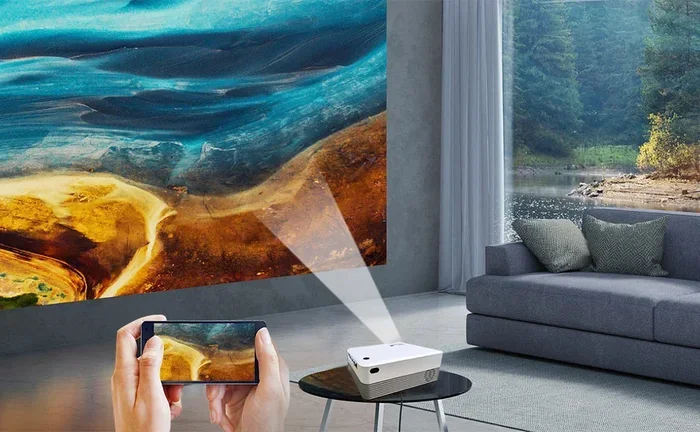
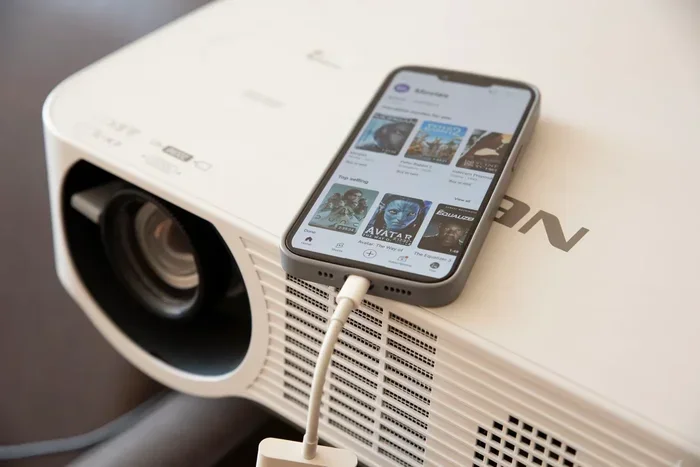
Yes, you can connect your phone to a projector via USB in most cases, and it is simpler than you think. This guide walks you through every method, cable type, and troubleshooting step you need. Whether you use an Android or iPhone, connecting your phone to a projector via USB opens up big-screen viewing for movies, presentations, and family nights.
Have you ever wanted to show your phone screen on a big projector but did not know where to start? The good news is that connecting your phone to a projector via USB is something many people can do at home. You do not need expensive equipment or a computer science degree. A simple cable and a few minutes of your time is often all it takes.
Whether you are planning a movie night with the family, giving a work presentation, or just want to share photos on a larger screen, knowing how to make this connection is incredibly useful. In this guide, we cover everything you need to know. From the right cables to common problems and fixes, you will find clear answers here.
Many people assume they need a special projector or a complicated setup. That is not always true. Most modern projectors come with USB ports, and most modern phones support some form of USB output. The key is knowing which cable and adapter work for your specific devices. Let us walk through it all together.
Key Takeaways
- USB connection is possible: Most modern phones and projectors support USB-based screen mirroring or media playback.
- Cable type matters: USB-C, Micro-USB, and Lightning cables each require specific adapters for projector compatibility.
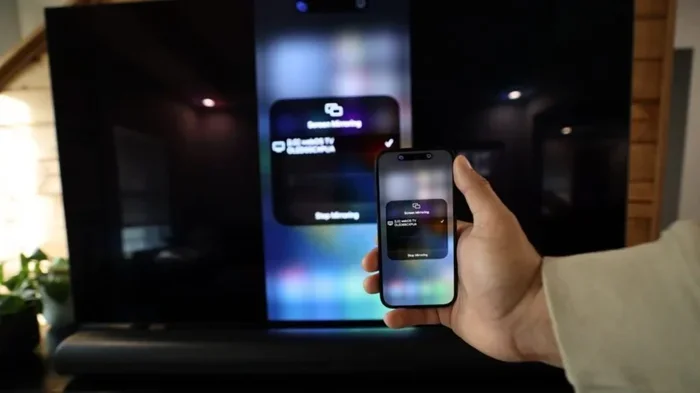
- Wireless alternatives exist: If USB does not work, Wi-Fi Direct, Miracast, and HDMI adapters offer reliable backup options.
- Troubleshooting is straightforward: Most connection issues stem from cable quality, projector settings, or phone compatibility.
- Right projector makes a difference: Choosing a projector with USB input and screen mirroring support saves time and frustration.
- Family entertainment boost: Setting up a projector for movie nights is one of those helpful gadgets for moms that transforms any room into a home theater.
📑 Table of Contents
- Understanding USB Connections Between Phones and Projectors
- What You Need to Connect Your Phone to a Projector via USB
- Step-by-Step Guide to Connecting Your Phone to a Projector via USB
- Comparison: USB vs Other Connection Methods
- Common Problems When Connecting via USB and How to Fix Them
- Best Projectors for USB Phone Connection
- Expert Tips for a Better USB Projection Experience
- Quick Tips Summary
- Common Mistakes to Avoid
- Conclusion
Understanding USB Connections Between Phones and Projectors
Before you grab a cable, it helps to understand what is actually happening when you connect your phone to a projector via USB. The USB connection can serve two main purposes. First, it can charge your phone while it sends a signal. Second, it can transmit video and audio directly to the projector.
Not all USB connections work the same way. Some projectors only support USB for media files like videos and photos stored on a flash drive. Others can accept a direct phone connection for screen mirroring. This distinction is important because it affects which cable and method you should use.
How USB Video Output Works
When your phone sends video through a USB cable, it uses something called MHL or SlimPort technology. These standards let your phone push a video signal through the USB port to an external display. The projector then receives that signal and shows your phone screen on the big surface.
Here is what you need to know about how this works:
- MHL (Mobile High-Definition Link): This standard works with many Android phones. It sends both video and audio through a single USB cable.
- SlimPort: Similar to MHL but uses a different connector. It is less common but still found on some devices.
- USB-C DisplayPort Alt Mode: Newer Android phones use this. It lets you connect directly to a projector with a USB-C to HDMI or USB-C to DisplayPort cable.
iPhones work differently. Apple uses its own proprietary connector for video output. You will typically need a Lightning to HDMI adapter or a USB-C to HDMI adapter for newer iPhones. The phone projector connection process is slightly different for each brand, which is why knowing your phone model matters.
When USB Only Works for File Playback
Some projectors only read USB storage devices. This means you can plug in a USB flash drive with movies or photos, but you cannot mirror your phone screen directly. If your projector only supports this type of USB input, you have a couple of workarounds.
One option is to move your files to a USB flash drive and plug that into the projector. Another option is to use a USB adapter that converts your phone connection to HDMI. This is often the better choice if you want live screen mirroring. Many people also find that gadgets that simplify life like portable projectors make this whole process much easier for everyday use.
What You Need to Connect Your Phone to a Projector via USB
Getting started is easier than you might think. You need a few basic items, and the total cost can be quite low. Let us break down exactly what you need for a successful phone to projector USB connection.
Step 1: Check Your Phone’s USB Port
First, identify what type of USB port your phone has. Most Android phones made after 2018 use USB-C. Older Android models may use Micro-USB. iPhones from iPhone 5 to iPhone 14 use Lightning, and iPhone 15 and newer use USB-C.
Knowing your port type is the single most important step. Without this information, you cannot buy the right cable or adapter. Check your phone’s manual or look up your model online if you are unsure.
Step 2: Check Your Projector’s USB Port
Next, look at the back or side of your projector. Does it have a USB-A port, a USB-C port, or both? Some projectors only have USB ports for firmware updates or media playback, not for screen mirroring.
If your projector has a standard USB-A port, you will likely need an adapter on the phone side. If it has a USB-C port, your chances of a direct connection are much better. Always check the projector manual for details about what USB connections support.
Step 3: Get the Right Cable or Adapter
Here is where things can get a little tricky. The cable you need depends on both your phone and your projector. Here are the most common setups:
- USB-C phone to USB-C projector: Use a USB-C cable directly. This is the simplest setup and works for many modern devices.
- USB-C phone to USB-A projector: Use a USB-C to USB-A adapter or cable. This is very common and affordable.
- Micro-USB phone to projector: Use a Micro-USB to HDMI adapter if the projector has HDMI. Or use a Micro-USB cable if the projector supports it.
- Lightning iPhone to projector: Use a Lightning to HDMI adapter or a USB-C to HDMI cable with the appropriate adapter.
Buying a high-quality cable makes a big difference. Cheap cables sometimes fail to transmit video or audio properly. Look for cables that are certified and from reputable brands. A reliable USB cable for screen mirroring is worth the extra few dollars.
Step-by-Step Guide to Connecting Your Phone to a Projector via USB
Now that you have your cables and adapters ready, let us walk through the actual connection process. This guide covers the most common setup for an Android phone and a projector with USB input.
Step 1: Power Off Both Devices
Start by turning off both your phone and the projector. This is not always required, but it helps prevent any electrical issues and ensures a clean connection when you power them back on.
Step 2: Connect the Cable
Plug one end of your USB cable into your phone. Plug the other end into the projector’s USB port. If you are using an adapter, connect the adapter to your phone first, then connect the cable to the adapter and the projector.
Step 3: Power On the Projector
Turn on the projector and select the correct input source. Most projectors have a “Source” or “Input” button on the remote or control panel. Select USB or the port number where you plugged in the cable.
Step 4: Power On Your Phone
Turn on your phone. You may see a notification asking if you want to allow USB debugging or file transfer. Select the option that allows screen sharing or media output. On some phones, you need to go into Settings and enable “USB debugging” or “Screen mirroring” manually.
Step 5: Adjust Display Settings
Once connected, your phone screen should appear on the projector. If the image looks cut off or blurry, go to your phone’s display settings and adjust the resolution or screen orientation. Most projectors work best with a 16:9 aspect ratio, which matches most phone screens.
That is it. You are now projecting your phone screen. It really can be that simple once you have the right cable and a compatible setup.
Comparison: USB vs Other Connection Methods
USB is not the only way to connect your phone to a projector. Let us compare USB with the most popular alternatives so you can decide what works best for your situation.
| Feature | USB Connection | HDMI Adapter | Wireless (Wi-Fi/Bluetooth) |
|---|---|---|---|
| Setup Difficulty | Easy | Easy | Moderate |
| Cable Required | Yes | Yes | No |
| Video Quality | Good to Excellent | Excellent | Good |
| Latency | Low | Very Low | Moderate to High |
| Compatibility | Most modern devices | Wide | Depends on protocol |
| Cost | Low to Medium | Medium | Low (if built-in) |
| Best For | Simple setups, file playback | High-quality presentations | Casual viewing, streaming |
Each method has its strengths. USB is great for straightforward connections and works well for playing media files directly. HDMI adapters tend to offer the best video quality and lowest latency, making them ideal for presentations. Wireless methods are convenient but can suffer from lag or connection drops. For most people, connecting your phone to a projector via USB strikes the right balance between simplicity and performance.
Common Problems When Connecting via USB and How to Fix Them
Even with the right setup, things can go wrong. Here are the most common issues people face and how to solve them quickly.
No Signal on the Projector
If the projector shows no signal, first check that the cable is firmly plugged in on both ends. Try a different USB port on the projector if available. Also, make sure your phone is not in power-saving mode, as this can block video output. Restarting both devices often fixes this issue right away.
Video Plays but No Audio
This is a common issue with USB connections. Check your phone’s audio settings and make sure the output is set to USB or the external display. Some projectors have separate volume controls for different input sources. Also, try lowering your phone’s volume and using the projector’s volume instead.
Screen Looks Cut Off or Stretched
If the image does not fit the screen properly, go to your phone’s display settings. Look for screen resolution and aspect ratio options. Setting your phone to 16:9 usually fixes this problem. You can also try rotating your phone to landscape mode if the image is sideways.
Connection Keeps Dropping
A loose or damaged cable is the most common cause of intermittent connections. Try a different USB cable. Also, avoid using extension cords or USB hubs, as these can weaken the signal. If you are using an adapter, make sure it is compatible with both your phone and projector models.
Quick Tip: Keep a spare USB cable in your bag or desk drawer. You never know when you will need it for a spontaneous presentation or movie night.
Best Projectors for USB Phone Connection
Not all projectors handle USB phone connections equally. If you are shopping for a new projector, here are some features to look for that make the process smooth and reliable.
Look for USB-C Input
Projectors with USB-C input are the easiest to connect to modern phones. They support direct video output and often charge your phone at the same time. Many portable projectors on the market today come with USB-C ports built in.
Check for Screen Mirroring Support
Some projectors advertise screen mirroring support through USB. This means they can display your phone screen in real time, not just play files from a USB drive. Always check the product description or manual for this feature before buying.
Consider a Portable Projector
Portable projectors are a fantastic option for people who want flexibility. They are lightweight, battery-powered, and often come with multiple connection options including USB and Wi-Fi. Setting up a portable projector for a backyard movie night or a work meeting on the go is incredibly convenient. For families looking for easy entertainment solutions, these are among the gadgets to make moms life easier that deliver big value.
Brightness and Resolution Matter
For the best viewing experience, look for a projector with at least 1080p resolution and 1000+ lumens of brightness. These specs ensure a clear, vibrant image whether you are in a dark room or a brightly lit space. USB connection quality also tends to be better on higher-end models.
Expert Tips for a Better USB Projection Experience
Once you have your phone connected to a projector via USB, a few simple tips can elevate your experience significantly.
- Use a high-speed USB cable: USB 3.0 cables transfer data faster and provide more stable video output than older USB 2.0 cables.
- Keep your phone cool: Extended screen mirroring can cause your phone to heat up. Remove thick cases and avoid charging while projecting if your phone gets warm.
- Close unnecessary apps: Running too many apps in the background can slow down the projection. Close anything you do not need for a smoother experience.
- Update your phone software: Software updates often include fixes for display connectivity issues. Keeping your phone updated can prevent many common problems.
- Use a projector screen or white wall: A dedicated screen or a clean white wall gives you much better image quality than projecting onto a textured surface.
Expert Insight: If you frequently use your phone with a projector, consider investing in a dedicated adapter. Generic adapters sometimes cause compatibility issues. Brand-specific adapters from companies like Belkin, Amazon Basics, or your phone manufacturer tend to offer the most reliable performance for USB phone to projector setups.
Quick Tips Summary
- Always check your phone and projector ports before buying a cable.
- USB-C to USB-C is the simplest connection for modern devices.
- Keep spare cables and adapters on hand for emergencies.
- Restart both devices if the connection fails.
- Adjust your phone’s display settings for the best image fit.
- Use high-quality, certified cables for reliable performance.
- For iPhones, a Lightning to HDMI adapter is usually the best USB path.
Common Mistakes to Avoid
- Assuming all USB ports are the same: A USB port on a projector might only support file reading, not screen mirroring. Always check the projector specifications.
- Using cheap, uncertified cables: These often fail to transmit video properly and can even damage your devices.
- Ignoring adapter compatibility: Not all adapters work with all phone and projector combinations. Double-check before purchasing.
- Forgetting to enable USB debugging: On Android phones, you may need to enable developer options and USB debugging for screen mirroring to work.
- Overlooking firmware updates: Both your phone and projector may need firmware updates for optimal USB compatibility.
Avoiding these mistakes saves time and frustration. A little preparation goes a long way when setting up your phone projector USB connection.
Conclusion
Connecting your phone to a projector via USB is a practical, affordable, and surprisingly simple process. Whether you want to share a presentation at work, watch a movie with the family, or display photos on a big screen, the right USB setup makes it all possible. You now know what cables and adapters you need, how to troubleshoot common issues, and which projectors work best for this purpose.
The key takeaway is that preparation is everything. Know your phone’s port type, check your projector’s USB capabilities, and get the right cable before you start. With the right setup, your phone and projector work together seamlessly. It is one of those small tech skills that makes a big difference in everyday life.
So go ahead, plug in your cable, and enjoy your content on the big screen. Once you try it, you will wonder how you ever managed without it.
Frequently Asked Questions
Can I connect any phone to any projector using USB?
Not all combinations work directly. Your phone needs to support USB video output, and your projector needs to accept a video signal through its USB port. Check both devices’ specifications to confirm compatibility. Using the right adapter can bridge most gaps between different devices.
Do I need a special cable to connect my phone to a projector via USB?
In most cases, yes. The cable you need depends on your phone’s port type. USB-C phones need a USB-C cable, while iPhones need a Lightning to HDMI adapter. Always check both your phone and projector manual for the recommended cable type.
Why is there no sound when I connect my phone to a projector via USB?
This usually happens because the audio output is not set correctly. Go to your phone’s sound settings and look for an option to route audio through USB or external display. Also check the projector’s volume and input settings to make sure audio is enabled for the USB source.
Can I charge my phone while projecting via USB?
Yes, in many cases you can charge your phone while it is connected to a projector. However, some projectors may not provide enough power through their USB port to charge while projecting. If your phone battery drains quickly, try using a separate charger or a powered USB hub.
Is USB or wireless better for connecting a phone to a projector?
USB connections tend to be more stable and have lower latency than wireless options. They are ideal for presentations and gaming where timing matters. Wireless connections offer more convenience and freedom of movement but may experience lag or interference depending on your Wi-Fi signal strength.
What is the difference between USB file playback and USB screen mirroring on a projector?
USB file playback means the projector reads media files from a USB drive and plays them. USB screen mirroring means your phone’s live screen is displayed on the projector in real time. Screen mirroring requires both devices to support video output over USB, while file playback only requires the projector to read USB storage.