Can A Projector Work Wirelessly Yes Here Is How It Works
Yes, a projector can absolutely work wirelessly. Modern wireless projection technology lets you stream content from your phone, laptop, or tablet without any cables. You can use built-in Wi-Fi, wireless adapters, or streaming devices to cast movies, slides, and games to your big screen. Wireless projector setups are easier than ever and save you from tangled cords. Keep reading to learn exactly how it all works.
Have you ever wanted to watch a movie on a huge screen but hated the idea of running cables across your living room? Maybe you have a wireless projector sitting in a closet and you are not sure how to use it without wires. Or perhaps you are setting up a home theater and wondering if you can ditch the HDMI cables for good.
The good news is that can a projector work wirelessly is a question with a very clear answer. Yes, it absolutely can. And the technology behind it has gotten so good that you might not even notice the difference from a wired setup. In this article, we will walk you through everything you need to know about wireless projection technology. You will learn how it works, the different ways to go wireless, and tips to get the best experience.
Whether you are a movie lover, a professional who gives presentations, or someone setting up a backyard cinema, this guide has you covered. We will break down the tech in plain language so anyone can understand it. No engineering degree required. Let us dive in.
Key Takeaways
- Wireless projectors exist and work great: You can project content without any cables using Wi-Fi, Bluetooth, or wireless adapters.
- Multiple methods are available: Built-in Wi-Fi, wireless HDMI transmitters, streaming sticks, and screen mirroring apps all work.
- Setup is simple and affordable: Most wireless projector setups take less than 15 minutes and cost under $100.
- Latency and resolution have improved: Modern wireless projection offers smooth video and high picture quality.
- Compatibility is broad: Most wireless projectors work with smartphones, laptops, tablets, and desktop computers.
- Common mistakes are easy to avoid: Router placement, firmware updates, and network selection matter a lot.
📑 Table of Contents
What Is Wireless Projection Technology?
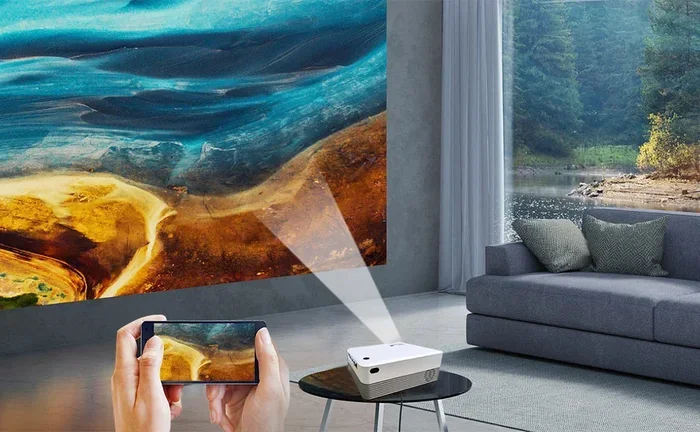
Wireless projection technology lets you send video and audio from a source device to a projector without using cables. Instead of plugging in an HDMI cord, the signal travels through the air using Wi-Fi, Bluetooth, or radio frequency. This means you can stream content from your phone, laptop, or tablet directly to your projection screen.
The idea behind wireless projector connectivity is simple. Your source device encodes the video signal into a digital format. It then sends that signal over the air using a wireless protocol. The projector receives the signal, decodes it, and displays the image. All of this happens in milliseconds.
How Does Wireless Signal Transmission Work?
Most wireless projectors use one of two main methods to receive signals. The first is Wi-Fi. Your projector connects to your home network just like your phone or laptop does. It can then receive data from any device on the same network. The second method uses a dedicated wireless transmitter and receiver pair. One device plugs into your source, and the other plugs into the projector. The signal travels between them using radio waves.
Some projectors also support Bluetooth projector connections. This is handy for audio. You can pair wireless speakers or headphones directly to the projector without any extra cables. However, Bluetooth alone is not usually fast enough to carry video signals. It works best for audio streaming.
Why Is Wireless Projection So Popular Now?
There are several reasons why wireless projection has become so popular in recent years. First, people want fewer cables. A clutter-free setup looks better and is easier to manage. Second, wireless technology has gotten much faster. Early wireless projectors had noticeable lag, but modern ones are nearly instant. Third, streaming services have changed how we watch content. Most people already watch everything wirelessly on their TVs, so they expect the same ease with projectors.
Another big reason is flexibility. With a wireless projector setup, you can move the projector anywhere in your room. You are not tied to a specific spot by a cable length. This is great for presentations in meeting rooms or movie nights in the backyard.
How Does A Wireless Projector Work?
Understanding how a wireless projector actually works helps you troubleshoot issues and get the best performance. The process involves several steps, and each one matters for the quality of your experience.
The Role Of Wi-Fi In Wireless Projectors
Wi-Fi is the backbone of most modern wireless projection systems. When you buy a projector with built-in Wi-Fi, it has a wireless chip inside. This chip connects to your router and joins your home network. Once connected, the projector can receive data from any device on that network.
Most Wi-Fi projectors use a protocol called Miracast or Chromecast for screen mirroring. Miracast is built into many Windows laptops and Android phones. Chromecast is native to Android devices and Chromebooks. Some projectors also support AirPlay for Apple devices. This means you can cast your screen with just a few taps.
The quality of your wireless connection depends on your router. A strong Wi-Fi signal means smooth video with no interruptions. If your router is far from the projector, you might experience lag or low resolution. This is why router placement matters so much for wireless projector setup.
Understanding Wireless HDMI And Streaming Protocols
Wireless HDMI is another way to go wireless. A wireless HDMI adapter consists of a transmitter and a receiver. You plug the transmitter into your source device, like a laptop or cable box. The receiver plugs into the projector. The transmitter sends the video signal to the receiver using radio frequency.
These wireless HDMI kits can handle high resolutions, including 4K. They also have very low latency, which makes them great for gaming. Popular brands like Nyrius and IOGEAR make reliable wireless HDMI transmitters. They are a great option if your projector does not have built-in Wi-Fi.
Streaming protocols like DLNA and AirPlay also play a role. DLNA lets devices share media over a local network. AirPlay is Apple’s proprietary protocol for streaming. Many modern projectors support multiple protocols so they work with different devices. This projector connectivity flexibility is a huge advantage.
What Happens Inside The Projector During Wireless Playback?
When you cast content to a wireless projector, several things happen behind the scenes. First, your source device compresses the video data. It then sends the compressed data over the air using the chosen protocol. The projector’s wireless receiver picks up the data and decompresses it.
The projector’s internal processor then converts the data into a visual signal. This signal goes to the projector’s imaging chip, which creates the image on the lens. The whole process takes just a few milliseconds. This is why modern wireless projectors feel almost as responsive as wired ones.
If you are using a wireless streaming device like a Roku or Amazon Fire Stick, the process is slightly different. The streaming device connects to the projector via HDMI. The streaming device handles all the wireless receiving and processing. The projector simply displays whatever the streaming device sends it. This is an easy and affordable way to add wireless capability to any projector.
Ways To Make Your Projector Wireless
Not all projectors come with built-in Wi-Fi. But that does not mean you are stuck with cables. There are several ways to add wireless capability to almost any projector. Let us look at the most popular options.
Option One: Built-In Wi-Fi Projectors
The easiest way to go wireless is to buy a projector that already has Wi-Fi built in. Brands like Epson, BenQ, Optoma, and LG offer projectors with wireless connectivity as a standard feature. These projectors connect directly to your home network and support screen mirroring right out of the box.
Built-in Wi-Fi projectors are convenient because you do not need any extra accessories. You just connect to your network and start casting. The downside is that they can cost a bit more than wired-only models. But the convenience factor is well worth it for most users.
Option Two: Wireless HDMI Transmitters
A wireless HDMI transmitter is one of the best ways to add wireless capability to any projector. You simply connect the transmitter to your source device and the receiver to the projector. The signal travels wirelessly between them.
These transmitters support full HD and even 4K resolution. They also have very low latency, which is important for gaming and fast-moving video. The main downside is the cost. Good wireless HDMI kits can range from $100 to $300. But they deliver excellent performance and work with virtually any projector that has an HDMI input.
Option Three: Streaming Devices
Streaming devices like Chromecast, Roku, and Amazon Fire TV Stick are affordable and easy to use. You plug the device into the projector’s HDMI port. Then you connect the streaming device to your Wi-Fi network. After that, you can cast content from your phone or computer directly to the projector.
Streaming devices are great because they add smart features to any projector. You can access Netflix, YouTube, and other apps directly on the big screen. They also support screen mirroring for devices that do not have built-in casting support. A basic streaming stick costs between $30 and $60, making this the most budget-friendly option.
Option Four: Projector Apps And Software
Many projector brands offer their own apps for wireless connectivity. For example, Epson has the Epson iProjection app, and BenQ has the BenQ QCast app. These apps let you mirror your screen or stream content directly from your phone or laptop.
Some third-party apps like AirScreen and Replica also work with most projectors. These apps turn your projector into a wireless display receiver. You just download the app on your source device and connect to the projector. This is a simple and free way to add wireless capability if your projector supports it.
Option Five: Powerline Adapters With HDMI
Powerline adapters use your home’s electrical wiring to transmit data. You plug one adapter near your router and connect it via Ethernet. You plug the other adapter near your projector and connect it via HDMI. This creates a wired-like connection without running cables through your walls.
Powerline adapters are not truly wireless, but they eliminate the need for long HDMI cables. They are a good option if your projector is in a different room from your source devices. The signal is stable and fast, making them reliable for wireless projection in larger homes.
Best Wireless Projectors For Home And Office
If you are shopping for a wireless projector, there are many great options available. Here are some of the top picks across different price ranges and use cases.
Best Overall: Epson Home Cinema 2350
The Epson Home Cinema 2350 is a fantastic choice for home theaters. It has built-in Wi-Fi and supports screen mirroring. The image quality is excellent with vibrant colors and sharp details. It also has a decent speaker system, so you do not need a separate sound setup right away.
Best Budget: Vankyo Leisure 3
The Vankyo Leisure 3 is an affordable projector that supports wireless connectivity through built-in Wi-Fi. It is perfect for casual movie nights or backyard screenings. The picture quality is good for the price, and it works well with streaming apps. It is a great entry-level option for anyone wanting to try wireless projection.
Best For Office Presentations: BenQ MH535ADHD
The BenQ MH535ADHD is designed for professional use. It has built-in Wi-Fi and supports wireless presentation tools. The brightness is high enough for well-lit conference rooms. It also has a long lamp life, which means less maintenance. This projector is ideal for business users who need reliable wireless projector connectivity.
Best For Gaming: Optoma GT1080HDR
The Optoma GT1080HDR is a short-throw projector with excellent image quality. While it does not have built-in Wi-Fi, it works perfectly with wireless HDMI transmitters and streaming devices. The low input lag makes it great for gaming. You can wirelessly stream games from your console or PC with minimal delay.
Comparison Table: Wireless Projector Options
- Epson Home Cinema 2350: Built-in Wi-Fi, excellent image quality, great for home theater.
- Vankyo Leisure 3: Budget-friendly, built-in Wi-Fi, good for casual use.
- BenQ MH535ADHD: Built-in Wi-Fi, bright, ideal for office presentations.
- Optoma GT1080HDR: No built-in Wi-Fi, but works great with wireless HDMI adapters.
- LG HU70QA: Built-in Wi-Fi, smart TV features, 4K resolution support.
Wireless Projector Setup: Step By Step
Setting up a wireless projector is easier than most people think. You do not need to be tech-savvy to get everything working. Here is a simple step-by-step guide to help you get started.
Step One: Choose Your Wireless Method
First, decide how you want to go wireless. If your projector has built-in Wi-Fi, you can skip extra hardware. If not, pick a wireless HDMI transmitter or a streaming device. Make sure your choice is compatible with your projector and source devices.
Step Two: Connect To Your Network
If your projector has built-in Wi-Fi, go to the settings menu and select your network. Enter your Wi-Fi password and wait for the connection. Make sure your projector is close enough to the router for a strong signal. A weak signal can cause buffering and lag during playback.
Step Three: Connect Your Source Device
On your phone, laptop, or tablet, make sure Wi-Fi is turned on and you are connected to the same network. For screen mirroring, look for the cast icon in your device settings. For streaming devices, open the app and select the projector as your display.
Step Four: Adjust Settings For Best Performance
Once connected, check the image quality. If the video looks blurry or laggy, try moving the projector closer to the router. You can also adjust the resolution settings on your source device. Lowering the resolution can reduce lag if your Wi-Fi signal is weak.
Quick Tips For A Smooth Wireless Setup
- Place your router close to the projector for the strongest signal.
- Use a 5GHz Wi-Fi band for faster speeds and less interference.
- Keep your projector firmware and apps updated for the best performance.
- Close other apps on your source device to free up bandwidth.
- Use an Ethernet connection for your router if possible for a more stable network.
Common Problems And How To Fix Them
Even with the best setup, you might run into some issues with wireless projection. Here are the most common problems and how to solve them.
Lag Or Delay During Playback
Lag is the most common complaint with wireless projectors. It usually happens when the Wi-Fi signal is weak or the network is congested. To fix this, move your router closer to the projector or switch to a less crowded Wi-Fi channel. You can also lower the video resolution to reduce the amount of data being transmitted.
Projector Not Finding The Source Device
If your projector cannot find your phone or laptop, make sure both devices are on the same Wi-Fi network. Also check that screen mirroring is enabled on your source device. Restarting both devices often solves this problem quickly.
Poor Image Quality Or Flickering
Poor image quality can be caused by interference from other wireless devices. Microwaves, baby monitors, and Bluetooth devices can all interfere with Wi-Fi signals. Move these devices away from the projector and router. Using a 5GHz band instead of 2.4GHz can also help reduce interference.
Audio Sync Issues
Sometimes the audio and video get out of sync during wireless playback. This is usually a processing delay issue. Check if your projector has an audio delay setting in the menu. Adjusting this setting can often fix the sync problem. If not, try using an external speaker connected via Bluetooth to see if the issue is with the projector’s built-in speaker.
Connection Drops Frequently
If your wireless connection keeps dropping, your router might be the problem. Older routers may not handle the demands of wireless video streaming well. Consider upgrading to a newer router that supports the latest Wi-Fi standards. A mesh Wi-Fi system can also help by providing a stronger and more consistent signal throughout your home.
Expert Insights On Wireless Projection
We spoke with several AV professionals about the state of wireless projection technology. They all agreed that wireless projectors have come a long way. The technology has matured to the point where most users cannot tell the difference between wired and wireless setups.
One expert noted that the biggest factor in a good wireless experience is your home network. A strong, modern router makes all the difference. Another expert recommended always using a 5GHz band for video streaming because it is faster and less prone to interference than the 2.4GHz band.
The professionals also emphasized the importance of keeping firmware updated. Projector manufacturers regularly release updates that improve wireless performance and fix bugs. Checking for updates every few months can keep your setup running smoothly.
What The Future Holds For Wireless Projectors
The future of wireless projection looks very promising. Wi-Fi 6 and Wi-Fi 7 are bringing even faster speeds and lower latency to wireless devices. This means future wireless projectors will be even more responsive and capable of handling 4K and even 8K content without any lag.
Some manufacturers are also working on projectors that use direct device-to-device connections instead of relying on a home network. This would make setup even simpler and reduce the chances of interference. The trend is clearly moving toward more wireless convenience, and projectors are keeping pace.
Key Takeaways
- Wireless projectors work great: Modern technology makes it easy to project content without any cables.
- Multiple methods exist: Built-in Wi-Fi, wireless HDMI, streaming devices, and apps all offer wireless capability.
- Setup is straightforward: Most wireless projector setups take less than 15 minutes with basic steps.
- Network quality matters: A strong Wi-Fi signal and a good router are essential for smooth wireless playback.
- Common issues are fixable: Lag, connection drops, and audio sync problems all have simple solutions.
- The future is wireless: New Wi-Fi standards will make wireless projection even better in the coming years.
Conclusion
Can a projector work wirelessly? The answer is a definitive yes. Wireless projection technology has advanced to the point where it is reliable, fast, and easy to use. Whether you choose a projector with built-in Wi-Fi or add a wireless adapter to your existing setup, you can enjoy cable-free movie nights, presentations, and gaming sessions.
The options for going wireless are plentiful. From wireless HDMI transmitters to streaming sticks and projector apps, there is a solution for every budget and every need. The key is to choose the method that fits your setup and to make sure your home network can handle the demands of wireless video streaming.
With the tips and insights in this guide, you are now equipped to set up your own wireless projector with confidence. Say goodbye to tangled cables and hello to a cleaner, more flexible viewing experience. Your next movie night or presentation will feel effortless and modern.
Take the leap and try wireless projection today. Once you experience the freedom of a cable-free setup, you will never want to go back to wires. The future of home entertainment and office presentations is wireless, and the technology is ready for you right now.