Can I Change Laptop Ram Myself Everything Explained
Yes, you can change laptop RAM yourself in most cases. This guide walks you through everything from checking compatibility to installing new memory modules. You will save money and gain confidence with our simple, clear instructions.
Can I change laptop RAM myself? The short answer is yes. Most laptops let you upgrade the memory without calling a technician. You just need the right parts, a few basic tools, and a little patience. In this guide, we will walk you through every single step. You will learn how to check compatibility, open your laptop safely, install new memory, and confirm everything works. Whether you are a complete beginner or someone who has never touched the inside of a computer, this guide is for you.
Upgrading your laptop RAM is one of the easiest and most affordable ways to breathe new life into an aging machine. Instead of buying a whole new laptop, you can add memory for under fifty dollars in many cases. The process usually takes less than thirty minutes. But it does require care and attention to detail. One wrong move could damage your laptop or void the warranty. That is why we have created this comprehensive guide. We want you to feel confident and prepared before you start. Let us dive in and explore everything you need to know about changing your laptop RAM yourself.
Key Takeaways
- Most laptops allow RAM upgrades: Many laptops have accessible RAM slots that you can open and change without professional help.
- Check compatibility first: Not all RAM works with every laptop. You need the right type, speed, and capacity for your model.
- Basic tools are all you need: A small screwdriver and an anti-static wrist strap are usually enough to get the job done.
- Follow each step carefully: Rushing or skipping steps can damage your laptop or void the warranty.
- Test after installation: Always verify your new RAM is recognized by the system before closing everything back up.
- Common mistakes are easy to avoid: Simple errors like mixing RAM types or skipping the discharge step can cause problems.
- Upgrading RAM boosts performance: More memory means smoother multitasking, faster apps, and better overall laptop speed.
📑 Table of Contents
- Why You Might Want to Upgrade Your Laptop RAM
- How to Check If Your Laptop RAM Is Upgradable
- Tools and Preparation You Need
- Step-by-Step Guide to Changing Laptop RAM
- Common Mistakes to Avoid When Upgrading RAM
- How to Know If Your RAM Upgrade Worked
- How Much Does It Cost to Upgrade Laptop RAM Yourself?
- When You Should NOT Change Laptop RAM Yourself
- Expert Tips for a Perfect RAM Installation
- Frequently Asked Questions
- Conclusion
Why You Might Want to Upgrade Your Laptop RAM
Before you pick up a screwdriver, it helps to understand why upgrading RAM matters. Random Access Memory is the short-term memory your laptop uses to handle tasks. When you open multiple browser tabs, run photo editing software, or play games, your RAM gets used up. If your RAM is full, your laptop slows down. It starts using your hard drive as temporary memory, which is much slower.
Here are some common signs that you need more RAM:
- Your laptop runs slowly when you have many apps open. Switching between programs takes forever.
- Your browser tabs keep crashing. Chrome or Firefox tabs freeze or close unexpectedly.
- Video calls lag or freeze. Zoom or Microsoft Teams struggles to keep up.
- Games take a long time to load. Or they stutter and drop frames during gameplay.
- Your system uses 90 percent or more RAM at idle. Check this in Task Manager on Windows or Activity Monitor on Mac.
Adding RAM can fix all of these problems. It gives your laptop the breathing room it needs to handle demanding tasks smoothly. Many users report a noticeable speed improvement right after upgrading. This is especially true if your laptop originally came with 4GB or 8GB of memory. Doubling that to 16GB can make a huge difference in everyday use.
Who Benefits Most from a RAM Upgrade?
Not everyone needs more RAM. But certain users see the biggest improvements. Students who run research browsers with many tabs will love the extra memory. Content creators who edit photos or videos in software like Photoshop or Premiere Pro will see faster rendering times. Remote workers who juggle video calls, spreadsheets, and multiple apps at once will experience fewer slowdowns. Even casual gamers can enjoy smoother performance with upgraded memory.
On the other hand, if you only use your laptop for basic tasks like browsing the web and writing documents, 8GB of RAM is usually enough. You may not need an upgrade at all. Assess your usage honestly before spending money. Use your system specifications to check your current RAM. On Windows, open Task Manager and go to the Performance tab. On Mac, click the Apple menu and choose About This Mac.
How to Check If Your Laptop RAM Is Upgradable
This is the most important step before you buy anything. Not all laptops let you upgrade the RAM. Some modern ultrabooks have memory soldered directly to the motherboard. That means you cannot remove or add RAM sticks. Before you do anything else, you need to confirm your laptop supports RAM upgrades.
Check Your Laptop Model Specifications
Find your laptop model number first. It is usually printed on a sticker on the bottom of the laptop. You can also find it in your system settings. Once you have the model number, search online for the specifications. Look for terms like max RAM supported and number of RAM slots. Most laptop manufacturers list this information on their support websites.
For example, a Dell Inspiron 15 might support up to 32GB of RAM across two slots. An Apple MacBook Air from 2020 might have soldered RAM with no upgrade options. Always double-check before purchasing any memory modules.
Use Free Online Tools to Check Compatibility
Several websites can help you determine what RAM works with your laptop. Crucial.com has a free scanner tool. You download their application, and it analyzes your system. It then recommends compatible RAM upgrades for your specific model. Kingston.com offers a similar tool. Both are reliable and easy to use.
These tools check your laptop memory compatibility automatically. They tell you the exact DDR type your laptop needs. Is it DDR3, DDR4, or the newer DDR5? They also tell you the maximum memory capacity your laptop can handle. This saves you from buying the wrong part. Always use these tools before making a purchase.
Understanding SO-DIMM Memory Modules
Laptops use a special type of RAM called SO-DIMM. This stands for Small Outline Dual In-Line Memory Module. It is much smaller than the RAM sticks used in desktop computers. You cannot swap a desktop RAM stick into a laptop. They are physically different. Always make sure you are buying SO-DIMM modules for your laptop upgrade.
There are also different generations of SO-DIMM. DDR3 SO-DIMMs have one notch in the gold contacts. DDR4 SO-DIMMs have a different notch placement. DDR5 is the newest standard. The notch prevents you from inserting the wrong type by accident. But it is still important to confirm which type your laptop requires.
Tools and Preparation You Need
Getting the right tools ready before you start makes the process much smoother. You do not need expensive equipment. Just a few basic items that you probably already have at home.
Essential Tools for the Job
- A small Phillips-head screwdriver. Most laptops use tiny screws. A precision screwdriver set works best.
- An anti-static wrist strap. This protects your laptop from static electricity damage. You can buy one for just a few dollars.
- A clean, flat workspace. Use a large table or desk with good lighting. Avoid carpeted surfaces.
- A soft cloth or mat. Place your laptop on a soft surface to prevent scratches.
- Your new RAM modules. Make sure they match your laptop specifications exactly.
- A small container or magnetic tray. Use this to keep track of tiny screws.
Prepare Your Laptop Before Opening It
Proper preparation prevents damage. Start by shutting down your laptop completely. Do not just put it to sleep. Turn it off fully. Then unplug the power adapter. If your laptop has a removable battery, take it out. This reduces the risk of electrical damage while you work inside.
Next, discharge any static electricity from your body. Touch a metal object like a doorknob or the metal part of your laptop casing. This grounds you and prevents static discharge from damaging sensitive components. Some experts recommend working on a hard floor rather than a carpeted room. Static can build up easily and harm your memory modules.
Find Your Laptop Service Manual
Most laptop manufacturers publish free service manuals online. Search for your model number followed by “service manual” or “disassembly guide.” These documents show you exactly where the RAM slots are located. They also explain which screws to remove and how to open the case safely. Following the official manual is the best way to avoid mistakes.
Some laptops have dedicated RAM access panels on the bottom. These make the process even easier because you do not need to remove the entire bottom case. Check your service manual to see if your model has one. If it does, you are in luck. The upgrade will be quick and simple.
Step-by-Step Guide to Changing Laptop RAM
Now comes the hands-on part. Follow these steps carefully and you will have your new RAM installed in no time. Take your time and do not rush. Patience is your best friend during this process.
Step One: Open the Laptop Case
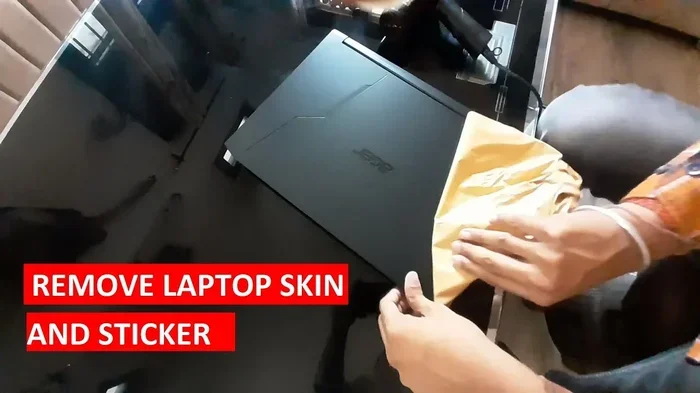
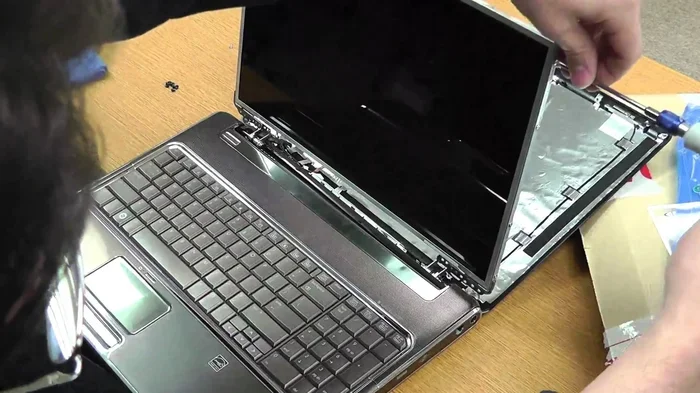
Place your laptop face down on a soft cloth. Locate the screws on the bottom panel. Use your small screwdriver to remove them. Keep all screws in your magnetic tray. Different laptops have different screw sizes. Some screws may be longer than others. Note where each screw came from if you can. This makes reassembly easier.
Once all screws are removed, gently lift off the bottom panel. Some panels have clips that hold them in place. Use your fingers or a plastic spudger to release the clips. Never use metal tools to pry open the case. Metal tools can scratch or short-circuit components.
Step Two: Locate the RAM Slots
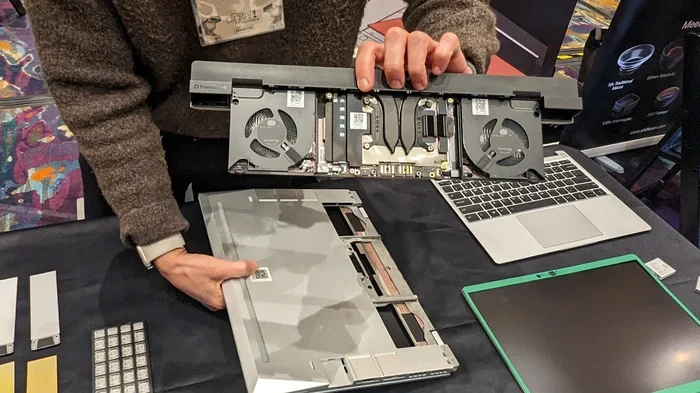
With the case open, look for the RAM slots. They are long, thin slots with metal clips on each end. The existing SO-DIMM memory modules will be seated in these slots. They are held in place by the metal clips on both sides.
If your laptop has a dedicated RAM access panel on the bottom, you may have found it already. In that case, you can skip removing the entire bottom panel. Just remove the smaller screws around the RAM panel and carefully lift it off.
Step Three: Remove the Old RAM Modules
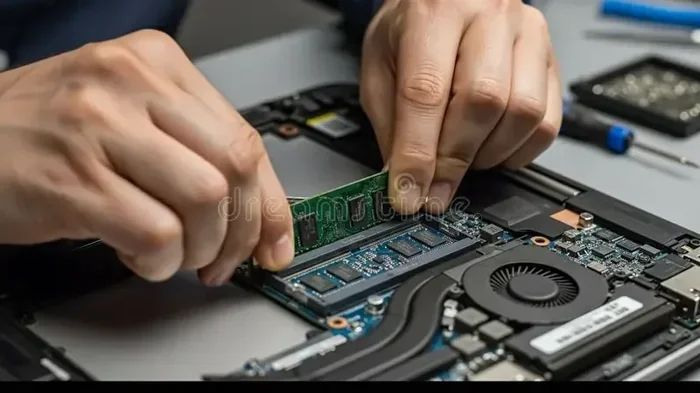
To remove the old RAM, gently push the metal clips outward. They will release the module at an angle. The RAM stick will pop up slightly. Carefully pull it straight out of the slot. Do not force it. If it does not come out easily, check that the clips are fully released.
Place the old RAM module in an anti-static bag or wrap it in anti-static material. You can keep it as a backup or recycle it properly. Do not just throw it in the trash. Electronic waste should be disposed of responsibly.
Step Four: Install the New RAM Modules
Take your new DDR4 SO-DIMM or whatever type your laptop requires. Hold the module by the edges. Never touch the gold contacts on the bottom. These are delicate and oils from your fingers can cause connection problems.
Align the notch on the RAM module with the ridge inside the slot. This ensures proper orientation. Insert the module at a 30 to 45 degree angle. Push it firmly but gently into the slot. The metal clips on both sides should snap inward automatically. You will hear a click when the module is fully seated.
Repeat this process if you are installing a second module. Make sure both sticks are firmly locked into place. Give each one a gentle tug to confirm they are secure. They should not wiggle or come loose.
Step Five: Close Everything Back Up
Once both modules are installed, reattach the bottom panel. Align it carefully and press down gently. Replace all the screws. Do not overtighten them. Snug is good. Stripping a screw is bad.
If you removed the battery, reconnect it now. Plug in your power adapter. Then press the power button to turn on your laptop. Listen for any unusual sounds. Watch for any error messages on the screen.
Step Six: Verify the New RAM Is Recognized
This is the most exciting part. After your laptop boots up, check if the new memory is detected. On Windows, open Task Manager and go to the Performance tab. Click on Memory. It should show the total amount of RAM you now have. If you added 8GB to your existing 8GB, you should see 16GB total.
On Mac, click the Apple menu and choose About This Mac. The memory section will display the total RAM installed. If the new RAM is not showing up, do not panic. Try reseating the modules. Turn off the laptop, open the case, remove the RAM, and reinsert it firmly. Often this fixes the issue.
Common Mistakes to Avoid When Upgrading RAM
Even with the best guide, mistakes can happen. Here are the most common errors people make when upgrading their laptop RAM. Avoid these and you will have a smooth experience.
Mixing Different RAM Types
Never mix DDR3 and DDR4 RAM in the same laptop. They have different voltages and physical designs. The notch placement is different. Forcing the wrong type into a slot can damage the motherboard. Always use the same RAM type in all slots. If your laptop has two slots, install matching pairs for the best performance.
Skipping the Anti-Static Precautions
Static electricity is invisible but powerful. A single shock can fry sensitive electronics without you even noticing. Always wear an anti-static wrist strap. Touch a grounded metal object before handling any components. Work on a non-carpeted surface. These simple precautions protect your investment.
Forcing the RAM Module Into the Slot
RAM modules should slide in smoothly with firm pressure. If you have to force it, something is wrong. Check the alignment. Check the orientation. The notch must match the ridge. Forcing a misaligned module can bend the pins and permanently damage the stick and the slot.
Forgetting to Check Maximum Capacity
Every laptop has a maximum RAM capacity. Installing more RAM than your laptop supports will not work. The system simply will not recognize the extra memory. Always verify the maximum supported capacity before buying new modules. This information is in your laptop specifications or service manual.
Not Testing Before Full Reassembly
A common mistake is closing everything up before confirming the new RAM works. Always boot up and check the system with the case open. If there is a problem, it is much easier to fix when the case is still open. If you close everything and the RAM is not working, you will have to open it all up again.
Voiding Your Warranty
Some laptop manufacturers void the warranty if you open the case. Check your warranty terms before you start. If your laptop is still under warranty, consider having the RAM upgrade done by an authorized service center. It may cost a little more, but it protects your coverage.
How to Know If Your RAM Upgrade Worked
After installing your new RAM, you want to confirm everything is working properly. The first sign is the total memory shown in your system settings. If the number matches what you expected, you are on the right track.
Next, run a memory stress test. Windows has a built-in tool called Windows Memory Diagnostic. Search for it in the Start menu. It will test your RAM for errors. You can also use free third-party tools like MemTest86. These tests verify that your new modules are functioning correctly and are stable.
Finally, use your laptop normally for a few days. Open your usual apps. Run your typical tasks. Do you notice smoother performance? Do browser tabs stay open without crashing? These are strong signs that your laptop RAM upgrade was successful. If you experience any issues, revisit the troubleshooting steps above.
How Much Does It Cost to Upgrade Laptop RAM Yourself?
One of the biggest advantages of doing this yourself is the cost savings. Professional repair shops often charge between fifty and one hundred dollars just for the labor. The RAM itself costs between twenty and eighty dollars depending on the type and capacity. So by doing it yourself, you save real money.
A single 8GB DDR4 SO-DIMM typically costs around thirty to forty dollars. A 16GB module runs about fifty to seventy dollars. If your laptop has two slots and you want to fill both, double those prices. Even with two new modules, you are still spending far less than a new laptop or a repair shop bill.
Shop around on sites like Amazon, Newegg, and Crucial.com. Prices vary. Look for trusted brands like Kingston, Corsair, Crucial, and Samsung. These manufacturers offer reliable laptop memory with good warranties. A lifetime warranty on RAM is not uncommon from quality brands.
When You Should NOT Change Laptop RAM Yourself
While upgrading RAM is straightforward for most people, there are situations where you should seek professional help. If your laptop is still under warranty, opening the case may void coverage. Contact the manufacturer or an authorized service center instead.
If you feel uncomfortable working inside electronics, that is completely okay. There is no shame in paying a professional. Laptop repair shops can handle the upgrade quickly and safely. Also, if your laptop has soldered RAM, there is nothing you can do anyway. In that case, a professional would confirm that for you.
Finally, if you have a very thin or fragile ultrabook, the disassembly process can be tricky. These laptops often have many small screws and fragile connectors. If you are not confident, a professional can avoid accidental damage. Know your limits and act accordingly.
Expert Tips for a Perfect RAM Installation
Experienced users share a few tips that make the process even easier. First, always ground yourself before touching any internal components. Second, take photos before you disassemble. This helps you remember where each screw and cable goes. Third, work in a well-lit area with no distractions. Fourth, keep your phone nearby to reference the service manual. Fifth, be gentle with every component. Laptop internals are delicate.
Another expert tip is to install the new RAM in the correct slot. Some laptops perform best when you install memory in specific slots. Check your laptop manual for the recommended slot configuration. For dual-channel memory, you often need to install matching sticks in slots 2 and 4 rather than slots 1 and 2. Getting this right can improve memory bandwidth and overall performance.
Frequently Asked Questions
Can I change laptop RAM myself without any technical experience?
Absolutely. Changing laptop RAM is one of the simplest upgrades you can do. It requires no technical background. As long as you follow each step carefully and use the right tools, anyone can do it. Start by watching a few video tutorials for your specific laptop model. This builds confidence before you begin.
Will upgrading my laptop RAM void the warranty?
This depends on your manufacturer and warranty terms. Some brands consider user-installed RAM as user modification. Others do not mind at all. Check your warranty documentation or contact customer support. If your laptop is still under warranty, proceed with caution. You can also have the upgrade done by an authorized service center to keep your warranty intact.
How do I know which type of RAM my laptop needs?
Use the Crucial or Kingston memory scanner tools. They automatically detect your laptop specifications. You can also check your laptop manual or the manufacturer’s website. Look for the DDR type, speed, and maximum capacity. Always match these specifications exactly when buying new modules.
Can I mix different brands of RAM in my laptop?
Yes, you can mix brands in most cases. However, using matching pairs from the same brand and model is always better. Matching RAM ensures compatibility and optimal performance. If you mix different speeds, both modules will run at the slower speed. If you mix different capacities, the system will still work but may not use dual-channel mode effectively.
How long does it take to change laptop RAM yourself?
For most laptops, the entire process takes 15 to 30 minutes. Laptops with easy access panels take even less time. Laptops that require removing the entire bottom case may take a bit longer. Once you have done it once, the second time will be even faster.
What happens if I install the wrong RAM in my laptop?
The laptop may not boot at all. Or it may show less memory than expected. In some cases, the system will run but with instability issues like crashes or freezes. Always verify compatibility before purchasing. Using the manufacturer’s specifications or a memory scanner tool prevents this problem entirely.
Conclusion
Can I change laptop RAM myself? The answer is a clear yes. You have the power to upgrade your laptop memory without spending money on professional services. With the right tools, compatible RAM, and a little patience, you can complete this upgrade in under half an hour. The process builds your confidence and saves you real money.
Remember to check your laptop specifications first. Confirm your model supports RAM upgrades. Use online tools to find the right memory. Follow each step in our guide carefully. Avoid the common mistakes we highlighted. And always test your new RAM before closing everything back up.
Upgrading your laptop RAM is one of the best investments you can make. It costs little, takes little time, and delivers noticeable performance improvements. Your laptop will run faster, handle more tasks, and feel like new again. So go ahead, gather your tools, and give it a try. You might be surprised at how easy and rewarding it is to upgrade your laptop RAM yourself.