Create Desktop Shortcut Word Excel for Quick Access
Creating a desktop shortcut for Word and Excel is a simple trick that saves you time every single day. You’ll learn how to create desktop shortcut Word Excel quickly using built-in Windows methods, right-click tricks, and even PowerShell. This guide covers everything from basic shortcuts to advanced tips so you can launch your favorite Office apps instantly.
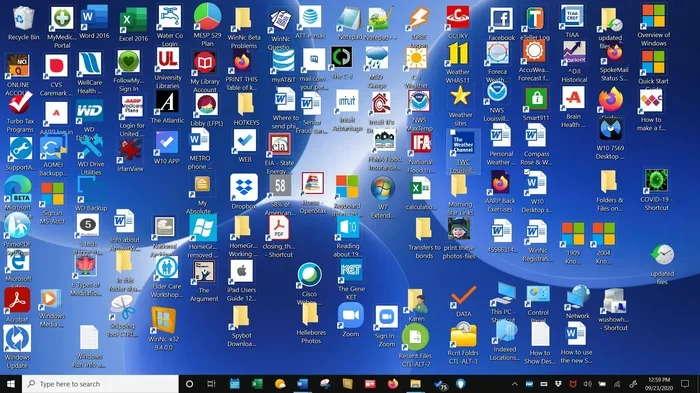
Do you open Word or Excel ten times a day? Every time you click the Start menu, search, and wait for the app to load, you lose a few seconds. Those seconds add up fast. That is why creating a desktop shortcut Word Excel is such a simple game changer. A desktop shortcut puts your most used Office apps right where you can see them. One click and you are working. No hunting, no waiting.
In this guide, you will learn every reliable way to create a desktop shortcut for Microsoft Word and Excel. We will cover easy methods for beginners and powerful tricks for power users. You will also see how to fix broken shortcuts, assign keyboard shortcuts, and keep your desktop organized. Whether you use Windows 10 or Windows 11, the steps are almost the same.
By the end of this article, you will never waste time looking for Word or Excel again. You will have quick access right on your Windows desktop. Let us dive in and make your workflow smoother.
Key Takeaways
- Fast Access: A desktop shortcut lets you open Word and Excel in one click, no searching needed.
- Multiple Methods: You can use the Start menu, right-click, Send To, or PowerShell to create shortcuts.
- Customize Icons: Change the shortcut icon to make your desktop look clean and personalized.
- Keyboard Shortcuts: Assign a custom keyboard shortcut for even faster launch.
- Troubleshooting: Learn how to fix broken shortcuts and avoid common mistakes.
- Productivity Boost: Quick access to Office apps saves minutes every day, adding up to hours over time.
📑 Table of Contents
Why Creating a Desktop Shortcut for Word and Excel Matters
A desktop shortcut is more than just a pretty icon. It is a direct line to your favorite tools. When you work with documents every day, speed matters. Think about how often you need to write a report, open a spreadsheet, or edit a file. Each time you search for the app, you break your focus.
The Daily Productivity Boost
Studies show that it takes an average of 23 minutes to regain focus after an interruption. Searching for apps in the Start menu is a tiny interruption, but it happens all day long. A Word shortcut or Excel shortcut on the desktop removes that friction. You click, and you work. Over a week, those saved seconds turn into real productivity gains.
Also, a desktop shortcut gives you visual cues. You can see the Word icon and the Excel icon sitting together. That mental shortcut tells your brain exactly where to go. It reduces decision fatigue and keeps you in the zone.
When You Need Instant Access
There are moments when you need to open an app right now. Maybe a deadline is approaching, or a colleague is waiting for a file. In those situations, you do not want to dig through folders. A desktop shortcut gives you instant access. It is like having a direct dial button for your Office apps.
Even if you pin Word and Excel to the taskbar, a desktop shortcut offers something extra. You can place it anywhere on your screen. You can group it with other shortcuts. You can even move it to a secondary monitor. That flexibility makes your workspace truly yours.
How to Create Desktop Shortcut Word Excel Using the Start Menu
The Start menu is the easiest place to find your Office apps. Windows stores shortcuts for Word and Excel there by default. You can pull those shortcuts directly to your desktop in just a few seconds. This method works perfectly for both Word and Excel.
The Right-Click Method
Here is the simplest way to create a desktop shortcut. First, click the Start button. Type “Word” in the search box. Right-click on Microsoft Word from the results. Move your cursor to “More” and then click “Open file location.” A folder will open showing the actual shortcut. Right-click that shortcut and choose “Send to” and then “Desktop (create shortcut).” Done. You now have a desktop shortcut for Word.
Repeat the same steps for Excel. Type “Excel” in the Start menu, right-click, open file location, send to desktop. This create shortcut method is foolproof and works on every version of Windows.
The Drag-and-Drop Trick
Another easy approach is the drag-and-drop trick. Open the Start menu. Find Word or Excel. Click and hold the app icon. Drag it directly to your desktop. Release the mouse button, and a shortcut will appear. This method is fast and visual. It is perfect for people who like to see things happen right in front of them.
One tip: if you have a touchscreen laptop, you can press and hold the icon, then drag it to the desktop. The same result happens. Create desktop shortcut Word Excel has never been easier.
Using the Send To Feature for Quick Shortcuts
The “Send to” feature is a hidden gem in Windows. It lets you quickly copy a shortcut to any location, including your desktop. This method is great when you want to create a desktop shortcut without navigating through folders.
Step-by-Step for Windows 10 and 11
Open File Explorer. In the address bar, type the following path and press Enter:
C:\ProgramData\Microsoft\Windows\Start Menu\Programs
You will see a list of all your Start menu shortcuts. Find the Word or Excel shortcut. Right-click it and choose “Send to” then “Desktop (create shortcut).” The shortcut will appear on your desktop instantly.
This method is especially useful when you want to create multiple shortcuts at once. You can select Word, Excel, PowerPoint, and Outlook all in the same folder and send them all to the desktop in one go. It saves time and keeps your quick access tools organized.
Creating Shortcuts for Multiple Office Apps
Once you know the Start Menu\Programs path, you can create shortcuts for any Office app. Outlook, OneNote, Access, Publisher — they are all there. You can batch your create shortcut tasks and build a productive desktop in minutes.
After you create the shortcuts, you can right-click each one and choose “Rename.” Give them clear names like “Word – Quick” or “Excel – Budget.” This small step makes your desktop feel professional and easy to navigate.
Advanced Method: PowerShell and Command Prompt
For users who love automation, PowerShell and Command Prompt offer powerful ways to create desktop shortcut Word Excel in bulk. These methods are perfect if you set up a new computer often or manage multiple user profiles.
When You Need a Batch of Shortcuts
PowerShell can create shortcuts with a single command. Open PowerShell as Administrator. Type the following command to create a Word shortcut on the desktop:
$WshShell = New-Object -ComObject WScript.Shell
$Shortcut = $WshShell.CreateShortcut("C:\Users\YourName\Desktop\Word.lnk")
$Shortcut.TargetPath = "C:\Program Files\Microsoft Office\root\Office16\WINWORD.EXE"
$Shortcut.Save()
Replace “YourName” with your actual Windows username. You can do the same for Excel by changing the target path to the Excel executable. This method is fast and repeatable. You can save these commands in a script and run them whenever you need.
Customizing Shortcut Properties
PowerShell also lets you set custom icons and keyboard shortcuts. You can add a line like $Shortcut.IconLocation = "C:\Path\To\Icon.ico" to change the icon. You can also set a keyboard shortcut with $Shortcut.Hotkey = "Ctrl+Alt+W" for Word. This level of customization makes your desktop shortcut truly personal.
Command Prompt can do similar things using the mklink command, though it creates a symbolic link rather than a traditional shortcut. For most users, PowerShell is the easier and more flexible option.
Common Mistakes, Pro Tips, and Key Takeaways
Common Mistakes to Avoid
Even simple tasks can go wrong if you skip a step. Here are the most common mistakes people make when creating shortcuts:
- Moving the original file: A shortcut points to a specific file location. If you move Word or Excel to a different folder, the shortcut breaks. Always keep your Office apps in their default installation folder.
- Ignoring the target path: When you create a shortcut manually, double-check the target path. A wrong path means the shortcut will not open anything.
- Creating too many shortcuts: A cluttered desktop slows you down. Only create shortcuts for the apps you use daily. Keep the rest in the Start menu or taskbar.
- Forgetting to update shortcuts after Office updates: Major Office updates can change the file location. If a shortcut stops working, check the target path and update it.
Expert Insights and Pro Tips
Organize your desktop with folders. Create a folder called “Office Shortcuts” and place your Word and Excel shortcuts inside it. This keeps your desktop clean while still giving you quick access. You can even put a folder shortcut on the desktop and keep the rest of your icons hidden.
Use keyboard shortcuts for instant launch. Right-click any desktop shortcut, go to Properties, and click in the “Shortcut key” field. Press a combination like Ctrl+Alt+W for Word. Now you can open Word without even touching the mouse. This trick works for any desktop shortcut you create.
Pin to taskbar for even faster access. After you create a desktop shortcut, you can right-click it and choose “Pin to taskbar.” This gives you both a desktop icon and a taskbar button. You get the best of both worlds.
Change the icon to match your style. Right-click the shortcut, choose Properties, click Change Icon, and pick a new image. You can use a custom custom icon that matches your desktop theme. This small touch makes your workspace feel more polished.
Key Takeaways
- Multiple methods exist: Start menu, Send To, drag-and-drop, and PowerShell all work.
- Keep paths correct: A broken shortcut is useless. Always verify the target path.
- Customize for speed: Keyboard shortcuts and custom icons boost your efficiency.
- Stay organized: Use folders to keep your desktop clean and functional.
- Taskbar pinning adds flexibility: You can have your shortcut on the desktop and the taskbar at the same time.
Conclusion
Creating a desktop shortcut Word Excel is one of the smallest changes you can make to your workflow, yet it delivers the biggest impact. You save time, reduce frustration, and keep your focus on the work that matters. Whether you use the Start menu method, the Send To feature, or PowerShell, the result is the same: instant quick access to your favorite Office apps.
Now that you know all the methods, pick the one that fits your style. Try the right-click method if you are a beginner. Try PowerShell if you love automation. No matter which path you choose, you will wonder how you ever worked without a desktop shortcut on your Windows desktop.
Start today. Create your shortcuts, set your keyboard shortcuts, and enjoy the speed. Your future self will thank you every time you open Word or Excel with a single click. Create desktop shortcut Word Excel now and feel the difference immediately.
Frequently Asked Questions
Can I create a desktop shortcut for Word and Excel on Windows 11?
Yes, absolutely. The steps are identical to Windows 10. You can use the Start menu right-click method, the Send To feature, or drag-and-drop. Windows 11 keeps all the same shortcut creation options.
What if my desktop shortcut for Word opens the wrong file?
This usually means the shortcut target path is incorrect. Right-click the shortcut, choose Properties, and check the Target field. Make sure it points to WINWORD.EXE or EXCEL.EXE in the correct Office installation folder.
Can I assign a keyboard shortcut to my desktop shortcut?
Yes. Right-click the shortcut, select Properties, click in the Shortcut key field, and press a key combination like Ctrl+Alt+W. Windows will assign that shortcut to launch the app instantly.
Is it safe to use PowerShell to create shortcuts?
Yes, it is completely safe. PowerShell is a built-in Windows tool. The commands we shared only create shortcut files and do not modify any system settings. Just make sure you run PowerShell with standard user permissions, not necessarily as Administrator.
How do I fix a broken desktop shortcut after an Office update?
Office updates sometimes change the installation path. Right-click the broken shortcut, go to Properties, and update the Target path to the new location of WINWORD.EXE or EXCEL.EXE. You can find the new path by searching for the app in the Start menu and opening its file location.
Can I create a desktop shortcut for a specific Word document, not just the app?
Yes. Right-click your desktop, choose New > Shortcut. Browse to the specific Word document file (.docx) and select it. This shortcut will open that exact document directly in Word whenever you click it.