Can I Connect My Phone To A Bluetooth Speaker Easily
Yes, you can connect your phone to a Bluetooth speaker in just a few simple steps. This guide walks you through the entire process, from pairing your devices to troubleshooting common connection problems. Whether you own a portable Bluetooth speaker or a high-end wireless model, you will find everything you need right here.
Key Takeaways
- Bluetooth pairing is simple: Most phones and speakers connect within seconds using basic settings.
- Check compatibility first: Make sure both your phone and speaker support Bluetooth technology.
- Range matters: Keep your devices within 30 feet for a stable connection.
- Troubleshooting is easy: Restarting devices and updating software fixes most connection issues.
- Audio quality varies: Your Bluetooth version and speaker quality affect sound performance.
- Multiple devices work: You can connect phones, tablets, and laptops to the same speaker.
- Pro tips help: Small adjustments like resetting Bluetooth settings can improve your experience.
📑 Table of Contents
- Can I Connect My Phone To A Bluetooth Speaker Easily?
- What Is Bluetooth and How Does It Work?
- How to Connect Your Phone to a Bluetooth Speaker
- Common Problems and How to Fix Them
- Tips to Get the Best Sound Quality
- Can You Connect Multiple Devices to One Speaker?
- Bluetooth Speaker Buying Guide: What to Look For
- Expert Tips for a Better Bluetooth Experience
- Key Takeaways
- Conclusion
Can I Connect My Phone To A Bluetooth Speaker Easily?
The short answer is yes. Connecting your phone to a Bluetooth speaker is one of the easiest things you can do today. Almost every modern smartphone and speaker supports Bluetooth technology. You do not need any cables, adapters, or technical skills. In just a few taps, you can start streaming your favorite music wirelessly.
Whether you are at home, at a party, or enjoying the outdoors, a wireless speaker makes everything better. The process works the same way whether you use an iPhone or an Android phone. Once you learn the basics, you will never go back to wired connections. This guide covers everything from pairing to advanced tips.
Let us walk through each step so you can start enjoying your music without any hassle.
What Is Bluetooth and How Does It Work?
Bluetooth is a wireless technology that lets devices talk to each other over short distances. It uses radio waves instead of cables to send data. When you pair two Bluetooth devices, they create a small private network between them.
How Bluetooth Pairing Works
When you turn on Bluetooth on your phone, it starts searching for nearby devices. Your speaker also broadcasts its name during this process. Once you select the speaker from the list, the two devices exchange a pairing code. After that, they remember each other and connect automatically in the future.
The latest Bluetooth versions offer faster connections and better range. Bluetooth 5.0 and newer versions can reach up to 80 feet in open spaces. Older versions work fine too, but the range is shorter. Most phones made after 2016 support Bluetooth 4.0 or higher.
Why Bluetooth Is Great for Wireless Audio
Bluetooth has changed the way we listen to music. You no longer need to stay near your phone to hear your songs. You can move around the room while your speaker plays audio. This freedom is why millions of people use Bluetooth speakers every day.
- No cables needed: You eliminate tangled wires completely.
- Portable and lightweight: Most Bluetooth speakers fit in your bag easily.
- Quick setup: Pairing usually takes less than 30 seconds.
- Wide compatibility: Works with phones, tablets, laptops, and even smart TVs.
- Hands-free calling: Many speakers let you take calls without touching your phone.
How to Connect Your Phone to a Bluetooth Speaker
Now let us get into the actual steps. The process is almost identical on both iPhone and Android devices. Follow these simple instructions and you will be listening in no time.
Step 1: Turn On Bluetooth on Your Phone
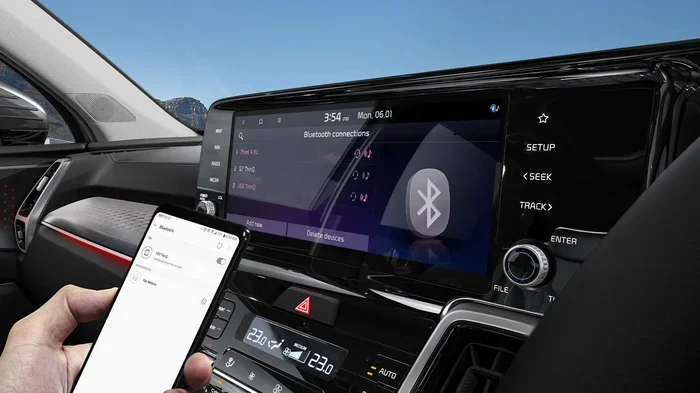
First, open your phone settings. Look for the Bluetooth option and tap it. On most phones, you can also swipe down from the top of your screen to find the quick settings panel. Tap the Bluetooth icon to turn it on. You should see a spinning icon that shows your phone is searching.
Make sure your Bluetooth is set to visible or discoverable mode. Some phones hide themselves from other devices by default. You want your phone to show up on the speaker’s screen during pairing.
Step 2: Put Your Speaker in Pairing Mode
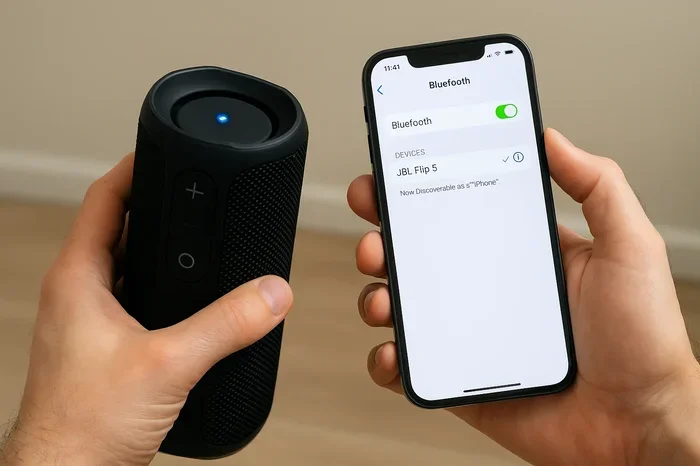
Next, turn on your Bluetooth speaker. Most speakers have a dedicated pairing button. Press and hold it until you see a flashing light or hear a voice prompt. The flashing light usually means the speaker is ready to connect.
If you are not sure how to do this, check your speaker manual. Every brand has a slightly different method. Popular brands like JBL, Bose, and Sony all use similar pairing lights, but the color or pattern may differ.
Step 3: Find Your Speaker on Your Phone
Go back to your phone and look at the list of available devices. Your speaker name should appear on that list. Tap on it to start the connection process. You may see a pairing request pop-up on both devices.
Accept the request on both your phone and speaker. Within a few seconds, the connection should be complete. You will hear a confirmation sound from the speaker, and the Bluetooth icon on your phone will change to show a connected status.
Step 4: Start Playing Music
Once connected, open any music app on your phone. Play a song and the sound should come through your speaker. You can adjust the volume from your phone or directly from the speaker. Both methods work perfectly fine.
If the sound does not come through immediately, do not worry. This happens sometimes. Move to the next section for quick fixes.
Common Problems and How to Fix Them
Even though Bluetooth is simple, you might run into issues sometimes. Do not panic. Most problems have easy solutions. Here are the most common ones and how to fix them.
Speaker Not Showing Up on Your Phone
This is the most common issue people face. If your speaker does not appear in the list, try these steps. First, make sure your speaker is in pairing mode. The flashing light should be visible. If it is not, turn the speaker off and on again.
Next, toggle Bluetooth off and on from your phone settings. Sometimes a simple refresh fixes the problem. You can also restart your phone entirely. This clears any temporary glitches that might block the connection.
Connection Keeps Dropping
An unstable connection can be frustrating. The most common cause is distance. Bluetooth works best within 30 feet. Walls, furniture, and other electronics can weaken the signal. Try moving closer to your speaker and see if the connection improves.
Another cause is interference from other wireless devices. Wi-Fi routers, microwaves, and even USB 3.0 ports can disrupt Bluetooth signals. Move away from these devices and check if your connection stabilizes.
Audio Quality Is Poor
If your music sounds scratchy or weak, check a few things. First, make sure your speaker volume is turned up. Some speakers have separate volume controls for the speaker and the connected device. Also, check that nothing is blocking the speaker grille.
Older Bluetooth versions may compress audio more than newer ones. If your phone supports Bluetooth 5.0, you will get better sound quality automatically. Consider upgrading your speaker if it only supports older Bluetooth versions.
Tips to Get the Best Sound Quality
You paid good money for your Bluetooth speaker. You deserve the best sound from it. Here are some easy tips to improve your listening experience.
Keep Your Devices Close
Distance affects both connection stability and audio quality. Place your phone within a few feet of your speaker for the best results. If you are hosting a gathering, keep your phone on a table near the speaker rather than across the room.
Update Your Software
Both your phone and speaker benefit from regular software updates. Manufacturers often release updates that improve Bluetooth performance and audio quality. Check for updates in your phone settings and your speaker app regularly.
Use a High-Quality Audio Source
The quality of your music files matters. Streaming services like Spotify and Apple Music offer high-quality audio. If you listen to low-bitrate files, even the best speaker will sound flat. Choose higher quality settings in your music app for noticeably better sound.
Place Your Speaker Wisely
Where you put your speaker affects the sound a lot. Place it on a flat surface away from walls. Corners and closed spaces can make the bass muddy. For the best results, position your speaker in the open where sound can travel freely.
Explore Your Speaker App
Many Bluetooth speakers come with companion apps. These apps let you adjust EQ settings, update firmware, and even connect multiple speakers. Download the app for your speaker brand and explore the features. You might discover settings you never knew existed.
Can You Connect Multiple Devices to One Speaker?
Yes, you can connect more than one device to a Bluetooth speaker. Most modern speakers support multi-device pairing. This means you can switch between your phone, tablet, and laptop without disconnecting and reconnecting each time.
The process varies by speaker brand. Some speakers let you pair two phones at the same time. Others allow you to switch between devices with a simple button press. Check your speaker manual for specific instructions on multi-device pairing.
This feature is especially useful during parties or family gatherings. Everyone can take turns playing their favorite songs without any hassle. It makes sharing music a breeze.
How to Switch Between Connected Devices
Switching devices is usually straightforward. Pause the music on your current device. Then play music on the new device you want to use. The speaker should automatically detect the new audio source and switch to it. Some speakers require you to press the Bluetooth button to manually switch.
If the speaker does not switch automatically, disconnect the old device from the speaker first. Then pair the new device following the standard steps. This manual method works every time.
Bluetooth Speaker Buying Guide: What to Look For
If you are shopping for a new Bluetooth speaker, there are a few things to keep in mind. Not all speakers are created equal. Here is what you should consider before making a purchase.
Bluetooth Version
Always check the Bluetooth version of the speaker. Bluetooth 5.0 offers the best range and audio quality. It uses less battery power too. If you can, choose a speaker with Bluetooth 5.0 or higher for the best experience.
Battery Life
Battery life varies a lot between speakers. Some small speakers last only 4 hours. Larger portable models can go for 20 hours or more. Think about how you plan to use the speaker. If you take it on hikes or beach trips, battery life becomes very important.
Water Resistance
If you plan to use your speaker outdoors or near water, look for an IP rating. IPX7 means the speaker can survive short dips in water. IPX4 handles splashes and sweat. Choose a rating that matches your lifestyle.
Sound Quality and Size
Bigger speakers generally produce richer sound with deeper bass. But compact speakers have improved a lot in recent years. Read reviews and listen to samples before you buy. Brands like JBL, Ultimate Ears, and Bose offer excellent options across different price ranges.
Extra Features
Some speakers come with extras that add value. Built-in microphones for calls, voice assistant support, and the ability to pair multiple speakers together are all great features. Think about what matters most to you and choose accordingly.
Before you buy, you might also want to check out some helpful gadgets that make life easier for tech users. This curated list of helpful tech gadgets includes some great options that complement a Bluetooth setup perfectly.
Expert Tips for a Better Bluetooth Experience
Here are some pro tips that experienced users swear by. These small habits make a big difference in your daily Bluetooth use.
Reset Your Bluetooth When Things Go Wrong
If nothing else works, reset your Bluetooth settings. On iPhone, go to Settings, then General, then Reset, and choose Reset Network Settings. On Android, go to Settings, System, and tap Reset Wi-Fi, Mobile, and Bluetooth. This clears all saved connections and gives you a fresh start.
Turn Off Other Bluetooth Devices
If you have many Bluetooth devices nearby, they can interfere with each other. Turn off Bluetooth on devices you are not actively using. This reduces congestion and helps your phone and speaker maintain a strong, stable connection.
Keep Your Speaker Charged
A low battery can cause connection drops and poor audio quality. Always keep your speaker charged, especially before you plan to use it. Most speakers show battery level on their LED lights or through the companion app.
Use the Right Audio Profile
Bluetooth supports different audio profiles. The most common one for music is A2DP (Advanced Audio Distribution Profile). Make sure your phone and speaker both support this profile for the best music streaming experience. Most modern devices do, so this is rarely an issue.
Key Takeaways
- Connecting is easy: Turn on Bluetooth on both devices, pair them, and start listening.
- Keep devices close: Stay within 30 feet for the best connection and sound quality.
- Update software: Regular updates fix bugs and improve Bluetooth performance.
- Multi-device pairing: Many speakers let you connect and switch between several devices.
- Troubleshoot smart: Restarting devices and resetting Bluetooth settings solve most issues.
- Invest wisely: Choose speakers with Bluetooth 5.0, good battery life, and the right water resistance for your needs.
- Small habits matter: Keep your speaker charged and minimize Bluetooth interference for the best experience.
Conclusion
So, can I connect my phone to a Bluetooth speaker easily? Absolutely yes. The entire process takes less than a minute once you know the steps. From turning on Bluetooth to selecting your speaker, everything is designed to be simple and user-friendly.
Bluetooth technology has made wireless audio accessible to everyone. You do not need to be a tech expert to enjoy it. Whether you are listening to music, watching videos, or taking calls, a Bluetooth speaker adds so much convenience to your daily routine.
Remember the tips in this guide. Keep your devices updated, stay within range, and place your speaker wisely for the best sound. If you ever run into trouble, the troubleshooting steps above will help you get back on track quickly.
Now that you know how easy it is, go ahead and connect your phone to your Bluetooth speaker. Enjoy the freedom of wireless audio and make every moment more enjoyable.
Frequently Asked Questions
Can I Connect My Phone To A Bluetooth Speaker Without Any Extra Apps?
Yes, you can. Both iPhone and Android phones have built-in Bluetooth settings that work with any compatible speaker. You do not need to download any additional apps to pair the devices. The standard Bluetooth pairing process works right from your phone settings.
How Far Can My Phone Be From a Bluetooth Speaker?
Most Bluetooth speakers work within a 30-foot range in open spaces. Walls and obstacles can reduce this distance significantly. Bluetooth 5.0 offers a longer range of up to 80 feet in ideal conditions. For the best experience, keep your phone close to your speaker.
Why Does My Bluetooth Speaker Keep Disconnecting From My Phone?
Disconnections usually happen due to distance, interference, or low battery. Move closer to your speaker and away from other wireless devices. Also make sure both your phone and speaker have enough charge. Restarting both devices often resolves temporary connection issues.
Can I Connect My Phone To A Bluetooth Speaker And Still Use It for Calls?
Yes, you can. Most Bluetooth speakers have built-in microphones that support hands-free calling. When you receive a call, the audio will automatically switch to your speaker. You can speak and hear the caller through the speaker without touching your phone.
Is It Safe to Leave Bluetooth Turned On All the Time?
Leaving Bluetooth on uses a small amount of battery, but modern phones handle this well. The security risk is minimal if you only pair with trusted devices. However, turning off Bluetooth when you are not using it can save battery and add an extra layer of security.
Can I Connect Multiple Speakers to My Phone at the Same Time?
Some speakers support stereo pairing, which lets you connect two speakers for richer sound. Not all speakers offer this feature, so check your model before trying. You can also connect to different speakers one at a time, but not simultaneously unless the speaker supports multi-speaker mode.