Can I Connect My Iphone To My Onn Projector Wirelessly
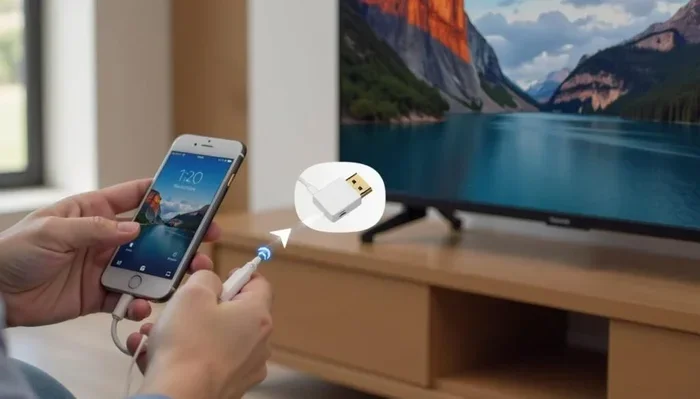
Yes, you can connect your iPhone to an Onn projector wirelessly using AirPlay, a wireless display adapter, or Wi-Fi-enabled streaming methods. This guide walks you through every step, from setup to troubleshooting, so you can cast your iPhone screen to your Onn projector without cables. Whether you want to watch movies, share photos, or present slides, wireless iPhone projection is easier than you think.
Have you ever wanted to watch your favorite show from your iPhone on a big screen? Maybe you are planning a movie night with friends or want to share vacation photos on a larger display. An Onn projector makes all of this possible, and the best part is that you do not always need a bunch of cables to get it done.
Connecting your iPhone to Onn projector wirelessly is simpler than most people think. Whether you are tech-savvy or barely know how to change your Wi-Fi password, this guide will walk you through every method, tip, and trick you need. Wireless screen mirroring has come a long way, and modern projectors make it incredibly easy to cast your iPhone screen to a bigger display.
In this article, we will cover everything you need to know. From the different connection methods to troubleshooting common problems, you will find practical advice that actually works. Let us dive in and get your iPhone connected to your Onn projector without any fuss.
Key Takeaways
- AirPlay is the easiest wireless method if your Onn projector supports it or you use an Apple TV or AirPlay adapter.
- A wireless display adapter like Roku or Chromecast can bridge the gap between your iPhone and a non-smart Onn projector.
- Wi-Fi connectivity is essential for smooth wireless projection — both devices should be on the same network.
- Common issues like lag or black screens are usually fixable with simple steps like restarting devices or updating firmware.
- Wired HDMI connections still offer the most stable option if wireless proves unreliable.
- Screen mirroring lets you share anything from your iPhone, including apps, games, photos, and presentations.
📑 Table of Contents
- Can You Connect an iPhone to an Onn Projector Wirelessly?
- Understanding Your Onn Projector’s Capabilities
- How to Connect Your iPhone to an Onn Projector Wirelessly
- Troubleshooting Common Wireless Connection Issues
- Tips for the Best Wireless Projection Experience
- Wireless vs. Wired: Which Is Better for iPhone Projection?
- Frequently Asked Questions About Connecting iPhone to Onn Projector
- Conclusion
Can You Connect an iPhone to an Onn Projector Wirelessly?
The short answer is yes. You can connect your iPhone to Onn projector wirelessly, but the method you use depends on your specific projector model and its features. Some Onn projectors come with built-in smart capabilities, while others are more basic and need a little help from an adapter or streaming device.
Wireless projection has become the go-to method for most people because it eliminates cable clutter and lets you move around freely. You can project from your couch, your bed, or even across the room. The key is understanding which wireless method works best for your setup.
Here are the main ways to connect your iPhone wirelessly:
- AirPlay — Apple’s native wireless streaming protocol.
- Wireless display adapters — Devices like Roku, Chromecast, or Fire Stick.
- Built-in Wi-Fi apps — Some smart projectors have apps that allow direct streaming.
- Bluetooth connection — Limited to audio in most cases but useful in some setups.
Each method has its own strengths. Let us explore them in detail so you can pick the best one for your situation.
Understanding Your Onn Projector’s Capabilities
Before you start connecting anything, it helps to know what your Onn projector can actually do. Onn is a budget-friendly brand owned by Walmart, and they offer several projector models at different price points. Some are smart projectors with built-in apps, while others are basic projectors that need external devices.
Smart Onn Projectors vs. Basic Onn Projectors
Smart Onn projectors usually come with built-in Wi-Fi and support for streaming apps like Netflix, YouTube, and Hulu. These models often support AirPlay or screen mirroring directly, which makes connecting your iPhone much easier. You do not need any extra hardware.
Checking Your Projector Model
To find out what your projector supports, check the manual or look up the model number online. Most Onn projectors list their connectivity options on the back or bottom of the unit. Look for labels like “Wi-Fi,” “Bluetooth,” “AirPlay,” or “Screen Mirroring.” If you see any of these, you are in luck.
Here is a quick checklist to help you figure out your projector type:
- Does your projector have a built-in operating system?
- Can you download apps directly on the projector?
- Does it mention “smart” or “Android” in the product name?
- Is there an HDMI port available?
- Does it support Wi-Fi or Bluetooth?
Answering these questions will tell you exactly which wireless method to use for your Onn projector wireless setup.
How to Connect Your iPhone to an Onn Projector Wirelessly
Now for the fun part. Let us walk through the actual steps for each wireless connection method. I will keep it simple and straightforward so you can get started right away.
Method 1: Using AirPlay (Best for Smart Projectors)
If your Onn projector supports AirPlay, this is by far the easiest method. AirPlay is Apple’s built-in wireless streaming technology, and it works seamlessly with iPhones. Here is how to do it:
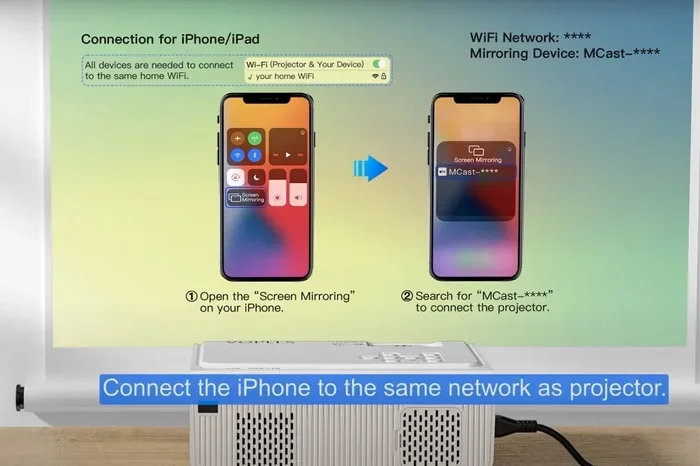
- Connect both devices to the same Wi-Fi network. This is the most important step. Your iPhone and projector must be on the same network.
- Turn on your Onn projector and make sure it is connected to Wi-Fi.
- Open Control Center on your iPhone. Swipe down from the top-right corner of your screen (or up from the bottom on older models).
- Tap the Screen Mirroring icon. It looks like two overlapping rectangles.
- Select your Onn projector from the list of available devices.
- Wait for the connection to establish. Your iPhone screen should now appear on the projector.
That is it! You are now mirroring your iPhone wirelessly to the projector. You can open any app, play any video, or show any photo, and it will appear on the big screen.
Method 2: Using a Wireless Display Adapter
If your Onn projector does not support AirPlay natively, you can use a wireless display adapter. These small devices plug into the HDMI port on your projector and create a wireless bridge between your iPhone and the screen. Popular options include Roku Streaming Stick, Amazon Fire TV Stick, and Google Chromecast.
Here is how this works:
- Plug the adapter into your projector’s HDMI port.
- Connect the adapter to your Wi-Fi network. Follow the on-screen instructions using the adapter’s remote or app.
- On your iPhone, use AirPlay or the adapter’s app to cast your screen.
- Adjust the projector’s input to the correct HDMI channel.
Wireless screen casting with an adapter works well for most users. The picture quality is usually excellent, and the setup takes less than five minutes. These adapters also let you access streaming apps directly on the projector, which is a nice bonus.
Method 3: Using a Streaming App Directly
Some Onn projectors come with built-in apps that allow you to stream content directly without mirroring your entire screen. This method is great if you only want to watch specific content rather than display everything on your iPhone.
To use this method:
- Open the projector’s built-in app store.
- Download apps like Netflix, YouTube, or Disney+.
- Log in with your account.
- Browse and play content directly on the projector.
This method does not technically connect your iPhone to the projector, but it achieves the same result — you get to enjoy your favorite content on a big screen without cables. It is also worth noting that you can use your iPhone as a remote control for many projector apps through their companion applications.
Troubleshooting Common Wireless Connection Issues
Even with the simplest setup, things can sometimes go wrong. Wireless projection is generally reliable, but every now and then you might run into hiccups. Here are the most common issues and how to fix them.
iPhone Not Finding the Projector
If your iPhone does not detect the Onn projector in the AirPlay menu, try these steps:
- Check that both devices are on the same Wi-Fi network. This is the number one cause of connection failures.
- Restart both devices. A simple reboot often fixes temporary glitches.
- Turn Wi-Fi off and back on on your iPhone.
- Make sure AirPlay is enabled in your iPhone settings under “Screen Mirroring.”
- Update your projector’s firmware if a software update is available.
Lag or Delay During Screen Mirroring
Wireless screen mirroring lag can be frustrating, especially when watching videos or playing games. Here is what to do:
- Move closer to your Wi-Fi router. Distance weakens the signal.
- Reduce the number of devices connected to your network.
- Lower the projection resolution if your projector settings allow it.
- Close background apps on your iPhone to free up processing power.
- Use a 5GHz Wi-Fi band if your router supports it — it is faster and less congested.
Audio Not Syncing with Video
Sometimes the audio and video get out of sync during wireless projection. This usually happens when the network is slow or overloaded. Try switching to a less crowded Wi-Fi channel or using a wired connection for audio if the issue persists.
Black Screen or No Signal
A black screen usually means the projector is not receiving a signal. Check your HDMI connections if using a wired method, or ensure the wireless adapter is properly connected. Restarting both devices almost always resolves this issue.
Tips for the Best Wireless Projection Experience
Want to get the most out of your iPhone to Onn projector wireless setup? Here are some practical tips that make a real difference.
Optimize Your Wi-Fi Network
A strong, stable Wi-Fi connection is the foundation of good wireless projection. Place your router close to the projector and iPhone if possible. If your projector is in a different room, consider using a Wi-Fi extender to boost the signal.
Use a Dedicated Streaming Device
For the smoothest experience, consider using a dedicated streaming device like a Roku or Fire Stick plugged into your projector. This takes the load off your iPhone and gives you access to a wider range of apps and content.
Adjust Projector Settings
Most Onn projectors let you adjust brightness, contrast, and resolution. For wireless projection, a slightly lower resolution can reduce lag and improve performance. Experiment with the settings until you find the sweet spot between quality and smoothness.
Keep Your iPhone Charged
Screen mirroring uses battery power quickly because your iPhone is constantly transmitting video data. Plug your iPhone into a charger or power bank before starting a long movie or presentation session.
Use the Right Apps
Not all apps work equally well with wireless projection. Streaming apps like Netflix and YouTube tend to work great because they use optimized protocols for screen casting. Some apps, especially those with DRM protection, may block screen mirroring or show a black screen. This is a copyright protection feature, not a bug.
Wireless vs. Wired: Which Is Better for iPhone Projection?
Both wireless and wired connections have their pros and cons. Let us compare them so you can decide which is right for you.
| Feature | Wireless | Wired (HDMI) |
|---|---|---|
| Ease of Setup | Very easy, no cables needed | Requires HDMI cable and adapter |
| Mobility | High — you can move freely | Low — limited by cable length |
| Picture Quality | Good, slight compression possible | Excellent, no compression |
| Reliability | Depends on Wi-Fi strength | Very stable and consistent |
| Latency | Slight delay possible | Near-zero delay |
| Cost | May need a wireless adapter | HDMI cable is inexpensive |
| Best For | Casual viewing, presentations | Gaming, high-quality video |
For most casual users, wireless projection is the way to go. It is convenient, cable-free, and works great for movies, photos, and presentations. If you are a gamer or need perfect audio-video sync, a wired HDMI connection might be the better choice.
Some users prefer a hybrid approach — using wireless for everyday viewing and wired for situations that demand the highest quality. This gives you the best of both worlds.
If you are looking for more ways to enhance your home entertainment setup, check out our guide on 10 Gadgets To Make Moms Life Easier for some great ideas on tech tools that simplify everyday life.
Frequently Asked Questions About Connecting iPhone to Onn Projector
Can I connect my iPhone to any Onn projector wirelessly?
Most Onn projectors can connect wirelessly, but the method depends on the model. Smart Onn projectors with built-in Wi-Fi support AirPlay directly. Basic models may need a wireless adapter or streaming stick to enable wireless connection. Check your projector’s specifications to confirm its capabilities.
Do I need Wi-Fi to connect my iPhone to an Onn projector wirelessly?
Yes, Wi-Fi is essential for most wireless connection methods. Both your iPhone and projector need to be on the same Wi-Fi network for AirPlay or screen mirroring to work. Some wireless adapters also require a Wi-Fi connection to function properly.
Why is my iPhone screen mirroring to the Onn projector lagging?
Lag during screen mirroring is usually caused by a weak or congested Wi-Fi signal. Try moving closer to your router, reducing the number of connected devices, or switching to a 5GHz network. Lowering the projection resolution can also help improve performance.
Can I use AirPlay with an Onn projector that does not support it natively?
Yes, you can by using a wireless display adapter like Roku, Chromecast, or Fire TV Stick. These devices plug into your projector’s HDMI port and add AirPlay support. They are affordable and easy to set up, making them a great solution for non-smart projectors.
Is wireless projection safe for my iPhone battery?
Screen mirroring drains battery faster because your iPhone is constantly encoding and transmitting video data. It is a good idea to keep your iPhone plugged in during extended projection sessions. Using a power bank also works well for portable setups.
Can I project Netflix from my iPhone to an Onn projector wirelessly?
Yes, in most cases. You can use AirPlay to mirror your iPhone screen while streaming Netflix. However, some apps use DRM protection that may block screen mirroring or result in a black screen. Using a smart projector with the Netflix app installed directly avoids this issue entirely.
Conclusion
Connecting your iPhone to your Onn projector wirelessly is a straightforward process that opens up a world of entertainment possibilities. Whether you use AirPlay, a wireless display adapter, or a built-in smart projector app, the steps are simple and the results are impressive. You can watch movies, share photos, play games, and give presentations — all from the comfort of your couch.
The key to a great experience is a strong Wi-Fi connection, the right method for your projector model, and a little patience when troubleshooting. Wireless iPhone projection has become incredibly reliable, and with the tips in this guide, you will be up and running in no time.
Start by checking what your Onn projector supports, pick the method that fits your setup, and enjoy your content on the big screen. Once you go wireless, you will never want to deal with cables again. Happy projecting!