Can I Connect My Ion Speaker To My Tv Without Any Issues
Can I Connect My Ion Speaker To My Tv without any hassle? Absolutely! This guide walks you through Bluetooth, aux, and optical methods to get rich, clear sound from your TV. You’ll learn simple steps, troubleshooting tips, and how to avoid common mistakes. No technical expertise is required—just a few minutes and the right cable or pairing process. Upgrade your TV audio now and enjoy movies, shows, and music like never before.
So, you just got an Ion speaker and want to pair it with your TV. Maybe your TV’s built-in speakers sound flat, or you want a cinematic experience without spending a fortune on a soundbar. Connecting an external speaker is a quick fix that transforms your living room. In this article, I’ll walk you through every possible way to link your Ion speaker to your television. You’ll learn about Bluetooth, auxiliary cables, and optical connections. I’ll also share troubleshooting tips if something doesn’t work right away. By the end, you’ll have crystal-clear audio and a setup that feels like a home theater.
Just like the best gadgets for busy families, a good speaker makes life simpler. You don’t need to be a tech wizard to get great sound. The process is straightforward once you know which method fits your TV and speaker. This guide covers everything from wireless streaming to wired audio input. I’ll break down each option so you can choose the best one for your space.
Key Takeaways
- Multiple connection options: You can use Bluetooth, an aux cable, or an optical cable to link your Ion speaker to your TV.
- Bluetooth is the easiest: Most modern Ion speakers support wireless pairing, making setup quick and cable-free.
- Wired options deliver stable audio: Aux and optical connections avoid interference and are ideal for home theater setups.
- Troubleshooting is simple: Common issues like no sound or audio delay have quick fixes you can do yourself.
- Placement matters: Positioning your speaker correctly improves sound quality and prevents distortion.
- Check compatibility first: Ensure your TV has the right output ports before buying any cables.
📑 Table of Contents
Why Connect an Ion Speaker to Your TV?
Your TV’s internal speakers are often small and tinny. They struggle to produce deep bass or clear dialogue. An Ion speaker fills the room with rich, balanced sound. You’ll hear every whisper in a thriller and every boom in an action scene. TV audio improves dramatically with even a basic external speaker.
A Bluetooth speaker also frees you from cable clutter. You can place the speaker anywhere in the room. This flexibility is perfect for wireless streaming music during parties or movie nights. If you want a surround sound feel, you can even connect multiple Ion speakers. The result is a home theater experience that rivals expensive sound systems.
The Problem with TV Speakers
Most TVs come with tiny built-in speakers. They compress audio and lose detail. Dialogue can sound muffled, and explosions lack punch. If you watch a lot of TV, poor audio can ruin the experience. An external speaker solves this instantly.
Benefits of an External Speaker
- Better dialogue clarity: Voices sound crisp and easy to understand.
- Deeper bass: Action scenes and music gain impact.
- Adjustable volume: You control the sound level independently from the TV.
- Portability: Move the speaker to the kitchen or bedroom.
- Cost savings: A speaker costs less than a full soundbar setup.
Methods to Connect Your Ion Speaker to a TV
There are three main ways to connect an Ion speaker to a TV. Each method works well depending on your TV’s ports and your speaker’s features. Below, I’ll explain each option so you can pick the right one.
Bluetooth Connection
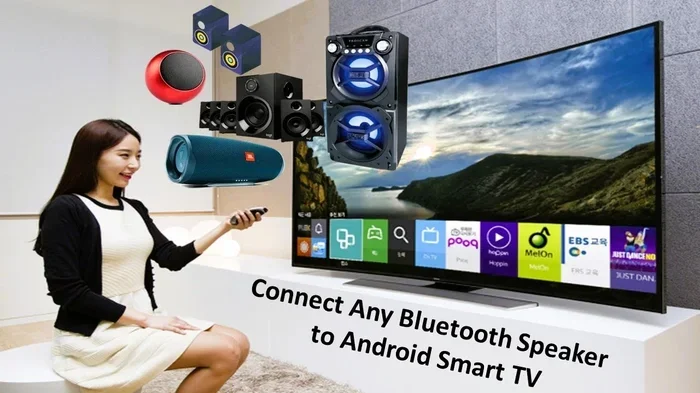
Bluetooth is the simplest wireless connection method. Most Ion speakers made in the last few years support Bluetooth. You just put the speaker in pairing mode and search for it from your TV. This method works great for audio setup without any cables. It’s perfect if your TV is a smart TV with built-in Bluetooth.
Using an Aux Cable
An aux cable uses a standard 3.5mm jack. You plug one end into your TV’s audio output and the other into your Ion speaker’s aux input. This wired connection is reliable and avoids any lag. It works with almost all TVs and speakers. If your TV lacks Bluetooth, an aux cable is your best bet.
Optical Cable and HDMI ARC
An optical cable sends digital audio through a TOSLINK port. Many TVs have this port, and it delivers high-quality sound. HDMI ARC is another option if your TV and speaker both support it. HDMI ARC lets you control the speaker volume with your TV remote. These methods are ideal for a serious audio input setup.
| Method | Pros | Cons | Best For |
|---|---|---|---|
| Bluetooth | Wireless, easy setup, no cables | Slight audio delay possible, range limited | Quick, cable-free listening |
| Aux Cable | Stable, no lag, works on older TVs | Cable runs across the room | Reliable wired audio |
| Optical / HDMI ARC | High-quality digital sound, volume control | Needs specific ports on TV and speaker | Home theater quality |
Step-by-Step Guide to Each Connection Type
Now let’s get into the details. I’ll show you exactly how to set up each method. Follow these steps and you’ll have sound in minutes.
Pairing via Bluetooth
- Turn on your Ion speaker and put it in pairing mode. Usually, you hold the Bluetooth button until a light flashes.
- On your TV, go to Settings and find the Bluetooth or Sound menu.
- Select “Pair a new device” or “Search for devices.”
- Choose your Ion speaker from the list.
- Once paired, select the speaker as your TV audio output.
That’s it! Your speaker pairing is complete. Test it by playing a video. If you hear sound, you’re good to go.
Plugging in an Aux Cable
- Find the 3.5mm audio output on your TV. It’s often labeled “Audio Out” or “Headphone Jack.”
- Connect one end of the aux cable to the TV.
- Plug the other end into your Ion speaker’s aux input.
- Set the TV volume to about 70% and use the speaker’s knob for final volume control.
This aux cable method gives you a direct, lag-free connection. It’s perfect for sound quality that never drops.
Setting Up Optical Audio
- Locate the optical output on your TV (a small square port with a red or black cover).
- Connect an optical cable from the TV to your Ion speaker’s optical input.
- Go to your TV’s sound settings and select “Optical” or “Digital Audio Out.”
- Your speaker should now receive digital audio.
Optical connections offer excellent audio output quality. They’re immune to electromagnetic interference, so the sound stays clean.
Troubleshooting Common Connection Issues
Sometimes things don’t work perfectly the first time. Don’t worry—most issues have simple solutions. Here are the common problems and how to fix them.
Speaker Not Showing Up in Bluetooth
If your TV can’t find the Ion speaker, try these steps. First, make sure the speaker is in pairing mode. The light should flash rapidly. Next, check if the speaker is already connected to another device. Turn off Bluetooth on phones or tablets nearby. Finally, restart both the TV and the speaker. This often resets the Bluetooth connectivity and allows a fresh search.
Audio Delay or Lag
A slight delay can be annoying, especially when watching videos. Bluetooth connections sometimes introduce a small lag. If you notice this, try moving the speaker closer to the TV. You can also check if your TV has a “Bluetooth audio sync” setting. For a zero-lag experience, use an aux cable or optical connection instead of Bluetooth.
Low Volume or Distorted Sound
If the sound is too quiet or crackly, check a few things. Ensure the cable is fully inserted. A loose aux connection often causes distortion. Also, verify that the TV’s audio output isn’t set to a very low level. Some TVs have a “volume offset” setting you can adjust. If the speaker still sounds bad, try a different cable. A faulty cable can ruin sound quality instantly.
Quick Tips for a Smooth Setup
- Always update your TV’s firmware before pairing. New updates often fix Bluetooth bugs.
- Keep the speaker within 10 feet of the TV for the best wireless signal.
- Use the speaker’s volume knob, not the TV remote, for fine-tuning.
- If you use an aux cable, a right-angle adapter can reduce cable strain.
Tips for the Best Audio Experience
Once your ion speaker is connected, a few small tweaks can make a big difference. You don’t need expensive gear—just smart placement and settings.
Speaker Placement
Place the speaker at ear level when you’re seated. Don’t tuck it behind furniture or in a corner. A free-standing position lets the sound spread evenly. If you want surround sound, try putting the speaker slightly to the side of the TV. This creates a wider audio field.
Controlling Volume
One of the best perks of a wired connection is volume control. With an aux or optical cable, you can use the speaker’s knob. With Bluetooth, you can often adjust volume from the TV remote. If your TV has HDMI ARC, the speaker volume syncs automatically. This makes speaker volume control effortless during movie nights.
Using a Universal Remote
If you want to control everything from one remote, look into a universal remote. Many universal remotes can learn the speaker’s volume commands. This way, you don’t need to juggle multiple remotes. It’s a small smart home gadget that adds convenience.
If you’re looking for more ways to simplify your tech life, check out these 10 gadgets that make moms’ lives easier. They include handy tools that streamline your daily routine.
Common Mistakes to Avoid
Even with a simple setup, people make a few common errors. Avoiding them saves time and frustration.
Forgetting to Pair the Speaker
It sounds obvious, but many people plug in a cable and expect sound without setting the speaker as the audio output. Always go to your TV’s sound settings and select the Ion speaker. This step is crucial for both Bluetooth and wired connections.
Using the Wrong Cable
Not all cables are the same. A standard aux cable works for analog audio. But if your TV only has an optical output, you need a TOSLINK cable. Using the wrong cable results in no sound. Double-check your TV’s ports before buying anything.
Ignoring Firmware Updates
Speaker manufacturers release updates that improve Bluetooth connectivity and fix bugs. Check the Ion app or the speaker’s manual for update instructions. A quick update can solve connection problems you didn’t know existed.
Overlooking TV Audio Settings
Some TVs have multiple audio output options. You might have accidentally set the output to “TV Speakers” instead of “External Speaker.” Always verify that the TV is sending audio to the correct destination. This simple check fixes 90% of no-sound issues.
Expert Insights on Ion Speaker and TV Compatibility
Audio engineers often recommend matching the speaker’s input to the TV’s output. If your TV has a 3.5mm jack, use an aux cable. If it has optical, go digital. This ensures the best possible audio input without unnecessary conversion. Can I Connect My Ion Speaker To My Tv with perfect sound? Yes, by choosing the right cable and keeping firmware updated.
Another expert tip is to avoid running audio cables near power cords. Electromagnetic interference can cause humming or buzzing. Keep them separated by at least a few inches. If you must run them together, use shielded cables. This small habit preserves sound quality over the long run.
Finally, don’t underestimate the power of a clean connection. Dust in the aux port or optical socket can weaken the signal. A quick blow or a cotton swab can restore full contact. These tiny details make a huge difference in TV connection reliability.
If you’re still stuck, you might enjoy reading about smart home gadgets that reduce tech headaches. They can complement your speaker setup and make your entertainment area smarter.
Connecting your Ion speaker to your TV is one of the easiest upgrades you can make. It costs little, takes minutes, and delivers a dramatic improvement. Whether you choose Bluetooth, aux, or optical, the process is straightforward. You now have the knowledge to set it up yourself and fix any hiccups along the way. Enjoy your favorite shows and music with rich, full sound that fills the room.
Frequently Asked Questions
Can I Connect My Ion Speaker To My Tv Using Bluetooth?
Yes, most Ion speakers support Bluetooth. Simply put the speaker in pairing mode and select it from your TV’s Bluetooth settings. This wireless method works well as long as both devices are within range.
What Cable Do I Need If My TV Doesn’t Have Bluetooth?
You can use a 3.5mm aux cable or an optical cable. An aux cable connects to the TV’s headphone or audio-out jack. An optical cable uses the TOSLINK port for digital audio. Both are affordable and easy to find.
Why Is There No Sound After Connecting the Speaker?
Check that the TV’s audio output is set to the external speaker. Also, ensure the cable is fully inserted and the speaker is powered on. If using Bluetooth, confirm the speaker is paired and selected as the audio device.
Can I Control the Speaker Volume with My TV Remote?
With an aux or optical connection, the speaker volume is usually controlled by the speaker itself. If your TV and speaker support HDMI ARC, you can adjust the volume with the TV remote. Bluetooth volume control depends on the TV model.
Is There an Audio Delay When Using Bluetooth?
A slight delay is possible with Bluetooth connections. This is normal and rarely noticeable for music. For video, you can reduce lag by moving the speaker closer to the TV or using a wired connection instead.
How Do I Keep My Ion Speaker Connected Stably?
Keep the speaker within 10 feet of the TV for Bluetooth. Avoid placing it near microwaves or other wireless devices that cause interference. For a rock-solid connection, use an aux or optical cable.