Can I Connect Iphone To Tv Via Hdmi With This Simple Guide
Can I Connect Iphone To Tv Via Hdmi? Yes, you absolutely can! This guide covers every method from wired adapters to wireless streaming. You will learn about Lightning to HDMI cables, AirPlay, troubleshooting tips, and the best equipment for your setup. Whether you want to watch movies, share photos, or game on a bigger screen, we have simple solutions for you. Read on and get connected in minutes.
Have you ever wanted to watch your favorite iPhone videos on a bigger screen? Maybe you are planning a movie night or sharing photos with family. The good news is that connecting your iPhone to your TV via HDMI is easier than you think. Whether you are a tech beginner or a seasoned user, this guide will walk you through every step. You will learn about cables, adapters, and even wireless options that make the process simple.
Many people ask, “Can I Connect Iphone To Tv Via Hdmi?” The answer is a clear yes. You just need the right tools and a little patience. In this article, we will cover everything from wired connections to wireless streaming. We will also share quick tips to avoid common mistakes. Whether you are looking for helpful gadgets for moms or just want a better viewing experience, this guide has you covered. By the end, you will feel confident setting up your own iPhone-to-TV connection at home.
Before we dive in, let us talk about why this matters. Streaming content on a small phone screen can strain your eyes. A larger TV display makes everything more enjoyable. Plus, sharing moments on a big screen brings people together. Whether it is a family video, a presentation, or a gaming session, your iPhone can do so much more when connected to your TV. Let us explore how to make it happen.
Key Takeaways
- Wired HDMI Connection: A Lightning to HDMI adapter lets you connect your iPhone to TV directly with no lag or delay.
- Wireless Options Exist: AirPlay and wireless HDMI adapters offer cable-free streaming from your iPhone to your TV.
- MFi Certification Matters: Always choose an MFi certified adapter to ensure compatibility and avoid connection problems.
- Troubleshooting Is Simple: Most connection issues can be fixed with a cable reset, software update, or port check.
- Multiple Devices Work: This guide covers iPhones, iPads, and even older models with the right adapter.
📑 Table of Contents
- Why You Would Want to Connect Your iPhone to Your TV
- What You Need to Connect iPhone to TV via HDMI
- Step-by-Step: How to Connect iPhone to TV with HDMI
- Wireless Alternatives to HDMI Connection
- Common Problems and How to Fix Them
- Tips for the Best Viewing Experience
- Wired vs Wireless: Which Connection Method Is Right for You
- Conclusion
Why You Would Want to Connect Your iPhone to Your TV
Connecting your iPhone to your TV opens up a world of possibilities. It is not just about watching movies. There are many practical and fun reasons to make this connection. Let us look at some of the top benefits.
Watch Movies and Shows on a Bigger Screen
Your iPhone screen is small compared to a TV. When you stream Netflix, Disney Plus, or YouTube on your phone, the experience feels limited. By using a lightning to HDMI cable, you can project everything on your TV. The colors pop, the details sharpen, and the sound fills the room. Movie nights become so much better when everyone can see clearly.
Share Photos and Videos with Family
Got a recent vacation full of amazing photos? Want to show birthday videos to grandparents? Connecting your iPhone to TV makes sharing effortless. You can use the Photos app to display your entire gallery on the big screen. Your family will love seeing moments come to life in high definition. It is a simple way to bring people closer together.
Use Your TV as a Second Display
Some people use their TV as a monitor for their iPhone. This works great for presentations, recipes in the kitchen, or even gaming. If you play mobile games, showing them on a TV adds a whole new level of fun. You can also use it to follow along with workout videos more comfortably. The video output options from your iPhone are surprisingly versatile.
Presentations and Work Use
If you use your iPhone for work, connecting to a TV can be very helpful. You can display slides, documents, or notes during meetings. Many professionals prefer using their phone as a portable presentation tool. The digital AV adapter makes this possible without any extra software. It is a clean, reliable setup for professionals on the go.
What You Need to Connect iPhone to TV via HDMI
Before you start, you need the right equipment. The good news is that you do not need much. Here is a simple breakdown of what you will need for a wired HDMI connection.
Lightning to HDMI Adapter
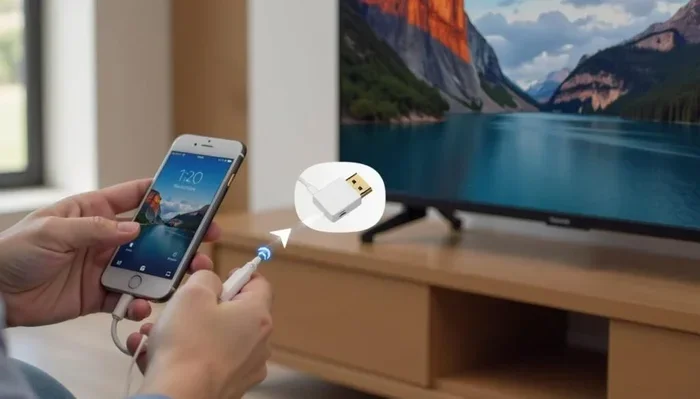
The most important piece of equipment is a Lightning to HDMI adapter. This small device plugs into your iPhone’s charging port and provides an HDMI output. You then connect a standard HDMI cable from the adapter to your TV. Make sure to choose an MFi certified adapter. MFi stands for Made for iPhone, and it guarantees compatibility. Cheap, uncertified adapters often cause connection issues or display problems.
High Speed HDMI Cable
You also need a good quality HDMI cable. Not all cables are the same. For the best HD video output, look for a high speed HDMI cable that supports 1080p or even 4K resolution. A shorter cable usually gives a stronger signal. If your TV is far from where you sit, consider getting a longer cable. Most people find that a 6-foot cable works perfectly for home setups.
Check Your TV HDMI Ports
Your TV needs an available HDMI port. Most modern TVs have at least three ports on the back or side. If all ports are taken, you may need an HDMI switch. This small device lets you connect multiple devices to one TV port. Check your TV manual if you are unsure which port to use. Typically, HDMI port 1 is the default input for most televisions.
Optional: Wireless HDMI Kit
If you prefer not to deal with cables, a wireless HDMI kit is a great alternative. These kits include a transmitter and receiver. The transmitter connects to your iPhone, and the receiver plugs into your TV. They send the signal through the air, eliminating the need for long cables. This is perfect for people who want a clean, cable-free setup in their living room. Wireless options also make it easy to move around without being tethered to your TV.
Step-by-Step: How to Connect iPhone to TV with HDMI
Now that you have your equipment, let us walk through the setup process. This wired method works for most iPhone models, including the iPhone 15, iPhone 14, iPhone 13, and older versions. Follow these steps carefully for the best results.
Step 1: Gather Your Equipment
Lay out everything you need before starting. You will need your iPhone, a Lightning to HDMI adapter, an HDMI cable, and your TV. Having everything ready saves time and prevents frustration. If you are using a wireless kit, you will need the transmitter and receiver instead of cables. Keeping your workspace organized makes the whole process smoother.
Step 2: Plug the Adapter into Your iPhone
Take your Lightning to HDMI adapter and connect it firmly to your iPhone’s charging port. Make sure it clicks into place. For iPhone 15 and newer models that use USB-C, you will need a USB-C to HDMI adapter instead. The connection should feel snug and secure. A loose adapter is one of the most common reasons for a failed connection.
Step 3: Connect the HDMI Cable
Plug one end of your HDMI cable into the adapter. Then plug the other end into an available HDMI port on your TV. Make sure both connections are tight. A loose cable is one of the most common reasons for no signal or a flickering display. If you hear a click, the connection is secure.
Step 4: Switch Your TV Input
Use your TV remote to change the input source. Look for the HDMI port you plugged the cable into. It might say HDMI 1, HDMI 2, or HDMI 3. Press the input or source button on your remote until you see your iPhone screen on the TV. If you do not see anything yet, do not worry. We will troubleshoot that below.
Step 5: Adjust Display Settings
Once you see your iPhone screen on the TV, you can adjust the display settings. Go to Settings on your iPhone and look for Display and Brightness. Some adapters allow you to mirror your screen or extend it. Mirroring shows the exact same content on both screens. Extending lets you use the TV as a separate display. Choose the option that works best for your situation.
Wireless Alternatives to HDMI Connection
Not everyone wants to deal with cables. Fortunately, there are excellent wireless options for connecting your iPhone to your TV. These methods use your home Wi-Fi network to stream content without any wires.
Using AirPlay for Wireless Streaming
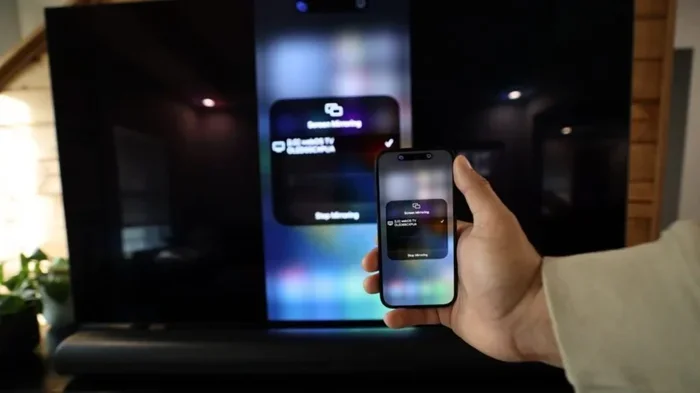
AirPlay is Apple’s built-in wireless streaming feature. It works with Apple TV and many smart TVs that support AirPlay. To use AirPlay, make sure your iPhone and TV are on the same Wi-Fi network. Open the Control Center on your iPhone and tap the Screen Mirroring button. Select your TV from the list. Your iPhone screen will appear on the TV instantly.
AirPlay is great for casual use. You can stream videos, show photos, or display apps on your TV. The quality is usually very good, especially with a strong Wi-Fi connection. One downside is that there can be slight delays compared to a wired connection. For gaming or fast-moving video, a wired HDMI connection is better. But for everyday sharing and relaxing, AirPlay works wonderfully.
Wireless HDMI Transmitters
If your TV does not support AirPlay, a wireless HDMI transmitter is a solid backup. These devices create a direct wireless link between your phone and TV. You do not need a smart TV or Apple TV for this method. Simply plug the transmitter into your iPhone to TV cable setup and the receiver into your TV. The signal travels wirelessly up to 30 feet. This gives you the freedom of wireless streaming without sacrificing video quality.
Some popular wireless HDMI brands include Nyrius, IOGEAR, and WirelessHD. These kits usually cost between 50 and 150 dollars. They are a worthwhile investment if you want a clean setup without cables running across your room. They also work well for renters who cannot install permanent cable runs.
Using Third-Party Streaming Apps
Many streaming apps like Netflix, Hulu, and YouTube have built-in casting features. You can use these apps to send content directly from your iPhone to your TV. Look for the cast icon, which looks like a small rectangle with Wi-Fi waves, within the app. Tap it and select your TV. This method works well for streaming services but does not mirror your entire screen. It is best for watching individual shows and videos rather than displaying everything on your phone.
Common Problems and How to Fix Them
Even with the right equipment, you might run into issues. Do not worry. Most problems are easy to fix. Here are the most common issues people face when setting up their iPhone display on TV and how to solve them.
No Signal on TV Screen
If your TV shows no signal, start by checking your cable connections. Unplug the HDMI cable from both ends and plug them back in firmly. Make sure the adapter is securely connected to your iPhone. Try a different HDMI port on your TV. Sometimes the port you selected is not working properly. If none of this works, test your cable with another device to rule out a faulty cable. A bad cable is more common than you might think.
Black Screen or Flickering Display
A black screen or flickering usually means your cable or adapter is not fully seated. Push the connections in firmly. Also, check if your HDMI cable types match your needs. An older standard HDMI cable may not support the resolution your iPhone outputs. Replace it with a high speed HDMI cable for the best results. Restarting both your iPhone and TV can also help reset the connection and clear up display issues.
Audio Not Working
Sometimes the video shows up fine but there is no sound. This usually happens when the TV audio output is set incorrectly. Go to your TV settings and make sure the HDMI audio output is enabled. On your iPhone, check that the volume is not muted. You can also go to Settings and then Sounds and Haptics to adjust your audio settings. If you are using a wireless connection, check that your Wi-Fi signal is strong enough for audio streaming. A weak signal can cause audio dropouts.
Adapter Not Recognized by iPhone
If your iPhone does not recognize the adapter, it might not be MFi certified. Non-certified adapters often fail to work with newer iPhone models. Try removing and reinserting the adapter. Restart your iPhone and try again. If the problem persists, the adapter may be defective. Contact the manufacturer for a replacement or buy a new MFi certified adapter. Always purchase from reputable sellers to avoid counterfeit products.
Screen Mirroring Lag or Delay
Wireless connections sometimes have a slight delay. This is normal with AirPlay and wireless HDMI. If the lag is severe, try moving closer to your Wi-Fi router. A strong Wi-Fi signal reduces delay significantly. For the smoothest experience, use a wired HDMI connection. It provides instant, lag-free streaming every time. This is especially important for gaming or watching fast-action sports where timing matters.
Tips for the Best Viewing Experience
Once your connection is set up, a few small tips can make a big difference. Here are some expert recommendations for getting the most out of your iPhone to TV cable setup.
Keep Your iPhone Charged
Streaming video from your iPhone to your TV uses battery power quickly. The phone is processing and outputting video at the same time. Keep your iPhone plugged into a charger during long viewing sessions. A cable connection that also charges your phone is ideal. Many Lightning to HDMI adapters support pass-through charging, so you can plug in a USB cable at the same time. This keeps your phone powered and your screen alive for hours.
Use a Stable Surface
Place your iPhone on a stable stand or holder while streaming. This prevents the screen from rotating or the device from falling. A phone mount or stand keeps everything steady and hands-free. You can find affordable stands online or at electronics stores. A stable setup also helps with airflow, keeping your phone from overheating during long streaming sessions.
Optimize Your Wi-Fi for Wireless Streaming
If you use AirPlay or wireless HDMI, your Wi-Fi speed matters. Use a 5 GHz network for the fastest streaming speeds. 5 GHz networks are less crowded and offer better performance than 2.4 GHz networks. Close other apps on your iPhone to free up bandwidth. This ensures smooth, buffer-free streaming from your iPhone to your TV. If possible, position your router close to your TV for the strongest signal.
Check Your TV Resolution Settings
Go to your TV settings and make sure it is set to display the highest resolution possible. Most modern TVs support 1080p or 4K. Your adapter and cable should support the same resolution. Matching these settings gives you the sharpest, clearest picture on your TV screen. You can usually find resolution settings under Display or Picture mode in your TV menu.
Explore More Helpful Gadgets
Sometimes a few extra accessories make the setup much easier. Cable organizers keep your wires tidy and prevent tripping hazards. A compact HDMI switch lets you connect multiple devices without unplugging cables. If you want to explore more gadgets that simplify your tech setup, check out 10 gadgets to make moms life easier for inspiration. These tools can help you create a more organized and enjoyable entertainment space at home for the whole family.
Wired vs Wireless: Which Connection Method Is Right for You
Choosing between a wired and wireless connection depends on your needs. Both methods have advantages and disadvantages. Here is a quick comparison to help you decide.
| Feature | Wired HDMI | Wireless (AirPlay) |
|---|---|---|
| Video Quality | Best (no compression) | Good (minor compression) |
| Latency | None | Slight delay |
| Setup Difficulty | Easy | Very Easy |
| Cable Required | Yes | No |
| Best For | Gaming, presentations | Casual streaming, photos |
| Cost | 15 to 40 dollars | Free (if you have Apple TV) |
For most people, a wired HDMI connection offers the best reliability and quality. It is perfect for gaming, presentations, and watching high-definition content. Wireless options are ideal for casual use and situations where you do not want cables everywhere. Many households benefit from having both options available. You can use wired for movie nights and wireless for everyday sharing. The choice depends on your lifestyle and what you plan to do most often.
Now that you know all the methods, let us address some frequently asked questions. These answers will help you troubleshoot and get the most out of your setup.
Conclusion
Can I Connect Iphone To Tv Via Hdmi? Absolutely yes. You now have all the information you need to set up a reliable connection. Whether you choose a wired Lightning to HDMI adapter or a wireless AirPlay setup, the process is straightforward and affordable. A wired connection gives you the best quality and zero lag, while wireless options offer convenience and flexibility.
Remember to always use MFi certified adapters and high quality HDMI cables. These small investments save you from frustration and compatibility issues. If you run into problems, the troubleshooting tips in this guide should help you resolve them quickly. Most connection issues are simple fixes that take just a few minutes.
Connecting your iPhone to your TV transforms how you enjoy content. You can watch movies, share photos, play games, and present work on a bigger, better screen. It is one of those simple upgrades that makes a huge difference in your daily life. Try it today and enjoy your favorite content the way it was meant to be seen.
For more helpful tech tips and gadget recommendations, explore our collection of articles designed to make your digital life easier. You might also enjoy reading about gadgets that make life easier for moms which includes useful accessories for every household setup.
Frequently Asked Questions
Do I Need a Special Adapter for iPhone 15?
Yes, iPhone 15 and newer models use USB-C instead of Lightning. You will need a USB-C to HDMI adapter rather than a Lightning to HDMI adapter. Make sure the adapter is MFi certified for the best performance. These adapters are widely available online and at electronics stores for around 15 to 30 dollars.
Can I Connect My iPhone to Any TV with HDMI?
Most modern TVs with HDMI ports will work with your iPhone. You need a Lightning to HDMI or USB-C to HDMI adapter depending on your iPhone model. Older TVs without HDMI ports will not work with this method. However, you can use an HDMI to VGA or HDMI to AV converter for older TVs, though the quality will be lower.
Does Connecting iPhone to TV Drain the Battery Faster?
Yes, streaming video from your iPhone to your TV uses more battery than normal use. The iPhone is processing and outputting video simultaneously. To prevent battery drain, keep your iPhone plugged into a charger while streaming. Many HDMI adapters support pass-through charging, so you can charge your phone while it is connected to your TV.
Can I Use AirPlay Instead of an HDMI Cable?
Yes, AirPlay is a great wireless alternative to HDMI cables. You need an Apple TV or a smart TV that supports AirPlay. Both your iPhone and TV must be on the same Wi-Fi network. AirPlay works well for streaming videos and sharing photos, but a wired HDMI connection provides better quality and zero lag for fast-moving content like sports or action movies.
Why Is My iPhone Screen Not Showing on the TV?
This is usually caused by a loose cable connection or an incorrect TV input setting. Check that all cables are firmly plugged in. Make sure you have selected the correct HDMI input on your TV. Restart both your iPhone and TV to reset the connection. If the problem continues, your adapter may not be MFi certified or may be defective. Try a different adapter or cable to isolate the issue.
Can I Connect Multiple iPhones to One TV?
Yes, you can connect multiple iPhones to the same TV. You simply need a separate adapter and HDMI cable for each iPhone. If you use AirPlay, multiple devices can connect to the same TV wirelessly. You can switch between devices by selecting them from the Screen Mirroring menu on each iPhone. This is great for families who want to share content easily without swapping cables.